
1. Introduction
This manual provides detailed instructions for the installation and operation of your FebSmart FS-FW400 PCIE Firewire 400 1394A Expansion Card. This card allows you to add Firewire 1394A ports to your desktop PC, enabling connectivity with various Firewire-compatible devices such as industrial cameras, HDD storage enclosures, sound cards, and DV camcorders.
2. Package Contents
Please verify that all items are present in your package:
- FebSmart FS-FW400 PCIE Firewire 400 1394A Expansion Card (with full-height bracket pre-installed)
- Low-profile bracket
- 6Pin-4Pin 1394A Firewire Cable

An annotated diagram highlighting the key components of the FS-FW400 card, including the 6-pin and 4-pin Firewire ports, Texas Instruments TSB43AB23 chip, ASMedia AS1083 chip, PCIe X1 interface, SATA power connector, both full-height and low-profile brackets, and the included 6Pin-4Pin 1394A Firewire Cable.
3. Features
- Adds 3x 6-Pin and 1x 4-Pin Firewire 1394A ports to desktop PCs.
- Supports a maximum data transfer speed of 400Mbps per port.
- Utilizes Texas Instruments TI TSB43AB23 1394A Firewire host controller and ASMedia AS1083 PCIE bridge controller.
- Compatible with AMD, ARM, Mac, and Intel hardware platforms.
- Fully compliant with IEEE 1394-1995, 1394A-2000, and OHCI (Open Host Controller Interface) 1.1 standards.
- Supports serial bus data transfer rates of 100Mbps, 200Mbps, and 400Mbps.
- Supports connection of up to 63 Firewire 1394A devices.
- PCI Express 1.1 standard, providing 2.5Gbps total bandwidth.
- PCIE X1 interface, compatible with PCIE X1, X2, X4, X8, X16 slots.
- Includes both full-height and low-profile brackets for standard and slim PCs.

This image illustrates the different Firewire 1394A port types (6-pin and 4-pin) and their corresponding maximum data transfer rates of 100Mbps, 200Mbps, and 400Mbps.

Details on the core chipsets used: Texas Instruments TSB43AB23 IEEE Firewire 400 1394A Host Controller and ASMedia AS1083 PCIE Bridge Controller, ensuring compatibility with Intel, AMD, ARM, and Mac platforms.
4. System Requirements
4.1 Operating Systems
- Windows 11, 10, 8.x, 7, Vista, XP, 2003, 2000, 98 (32/64-bit)
- Windows Server 2003, 2003R2, 2008, 2008R2, 2012, 2012R2, 2016, 2019, 2022
- Mac OS X 8.6 and later versions
- Linux kernels 2.4+
4.2 Hardware Requirements
- One available PCIE X1, X2, X4, X8, or X16 slot on the motherboard. (Note: Does not work on PCI slots.)
- For heavy sound cards or devices requiring additional power, a 12V SATA power supply from the PSU may be required.

A graphic indicating compatibility with various operating systems, including Windows, Mac OS X, and Linux.

This image demonstrates that the PCIe X1 interface card is compatible with PCIe X1, X2, X4, X8, and X16 slots. It also shows the full-height bracket for standard PCs and the low-profile bracket for slim PCs.
5. Installation Guide
Follow these steps to install the FebSmart FS-FW400 expansion card into your desktop PC:
- Power Off and Disconnect: Completely power off your computer and disconnect the power cable and all other peripherals.
- Open PC Case: Remove the side panel of your computer case to access the motherboard.
- Locate PCIe Slot: Identify an available PCIE X1, X2, X4, X8, or X16 slot on your motherboard. Remove the corresponding metal bracket cover from the back of the PC case.
- Install Low-Profile Bracket (if needed): If you have a slim PC, you will need to replace the pre-installed full-height bracket with the included low-profile bracket. Unscrew the two small screws holding the full-height bracket to the card, remove it, and attach the low-profile bracket using the same screws.
- Insert Expansion Card: Carefully align the gold contacts of the Firewire card with the chosen PCIe slot. Press down firmly and evenly until the card is securely seated in the slot.
- Secure the Card: Secure the card to the PC case using the screw from the removed metal bracket cover.
- Connect SATA Power (Optional): If you are connecting high-power Firewire devices (e.g., some sound cards), connect a SATA power cable from your power supply unit (PSU) to the 12V SATA power connector on the Firewire card.
- Close PC Case: Reattach the side panel of your computer case.
- Reconnect and Power On: Reconnect all power cables and peripherals, then power on your computer.
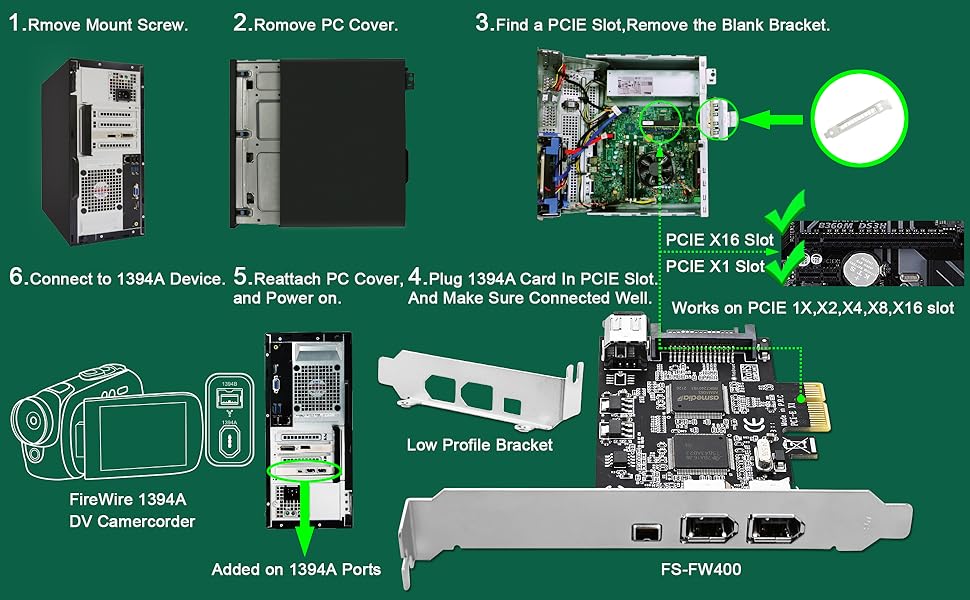
A visual guide detailing the installation process: removing the mount screw, opening the PC cover, locating a PCIe slot, installing the card, reattaching the cover, and connecting a 1394A device.
6. Operation
Once the FebSmart FS-FW400 card is installed, your operating system should automatically detect and install the necessary drivers. The card is designed for plug-and-play functionality on supported Windows, Mac OS, and Linux systems.
6.1 Connecting Firewire Devices
Connect your Firewire 1394A devices (e.g., DV camcorders, audio interfaces, external hard drives) to the appropriate 6-pin or 4-pin ports on the expansion card using a compatible Firewire cable. The card supports up to 63 devices, sharing a total bandwidth of 400Mbps.

Visual examples of devices that can be connected to the Firewire 1394A expansion card, such as DV camcorders, sound cards, HDD enclosures, and industrial cameras.
7. Troubleshooting
- Card Not Detected: Ensure the card is fully seated in the PCIe slot. Verify that the PCIe slot is functional by testing with another known working card if possible.
- Device Not Recognized: While the card is plug-and-play, some Firewire devices (especially older ones like DV camcorders) may require specific drivers or software from their manufacturer. Install any necessary device-specific software.
- Performance Issues: Remember that all 4 Firewire 1394A ports share a total bandwidth of 400Mbps. If multiple high-bandwidth devices are connected, performance may be affected.
- No Power to Device: If your Firewire device requires bus power and is not receiving it, ensure the optional SATA power connector on the Firewire card is connected to your PSU.
8. Specifications
| Feature | Detail |
|---|---|
| Brand | FebSmart |
| Model Number | FS-FW400 |
| Hardware Interface | IEEE 1394 (FireWire), PCI Express X1 |
| Ports | 3x 6-Pin 1394A, 1x 4-Pin 1394A |
| Max Data Speed | 400Mbps (shared across all ports) |
| Chipset | Texas Instruments TSB43AB23, ASMedia AS1083 |
| PCIe Standard | PCI Express 1.1 (2.5Gbps bandwidth) |
| Operating System Support | Windows, Mac OS, Linux |
| Dimensions (LxWxH) | 4.72 x 3.46 x 0.71 inches (120 x 88 x 18 mm) |
| Item Weight | 3.84 ounces (0.11 Kilograms) |

Technical drawing showing the physical dimensions of the Firewire expansion card and the included low-profile bracket in millimeters and inches.
9. Warranty and Support
FebSmart products are designed for reliability and performance. For warranty information or technical support, please refer to the official FebSmart website or contact their customer service directly. Keep your purchase receipt for warranty claims.


