
Introduction
Thank you for purchasing the AKIYO O7 5G WiFi Native 1080P Projector. This manual provides essential information for setting up, operating, maintaining, and troubleshooting your projector. Please read it thoroughly before use to ensure optimal performance and longevity of your device.

Image: Front view of the AKIYO O7 Projector, showcasing its compact design and lens.
Setup
1. Unboxing and Package Contents
Carefully remove all components from the packaging. Ensure all items are present:
- AKIYO O7 Projector
- HDMI Cable
- Remote Control (batteries not included)
- Power Adapter
- User Manual
- Tripod
2. Projector Placement
Position the projector on a stable, flat surface or mount it using the M4 screw holes. The optimal projection distance is between 1.5 to 2.8 meters for a screen size of 50 to 100 inches. The projector supports screen sizes from 40 to 300 inches with a projection distance of 1.2 to 7.5 meters.

Image: Illustration of recommended projection distances and corresponding screen sizes (50", 100", 300").
3. Tripod Installation
The included ABS+ metal tripod can be attached to the bottom of the projector. It features a 360° swivel head, allowing for flexible adjustment of the projection angle and direction.

Image: The AKIYO O7 Projector shown mounted on its adjustable tripod.
4. Power Connection
Connect the power adapter to the projector's power input port and then plug it into a power outlet. The projector requires a continuous power source to operate.
Operating Instructions
1. Power On/Off
Press the power button on the projector or the remote control to turn the device on or off.
2. Focus and Keystone Correction
- Focus: Rotate the focus ring near the lens until the projected image is clear.
- Keystone Correction: Use the ±20° keystone correction feature to adjust the image shape if it appears trapezoidal. This allows you to correct the image without moving the projector.
3. Connectivity Options
The AKIYO O7 projector offers multiple connection methods:
- 5G WiFi: Supports 5G Hz WiFi for fast wireless screen mirroring from smartphones and other devices.
- Bluetooth 5.2: Connects to external Bluetooth speakers or headphones for enhanced audio. Note: The projector's Bluetooth function does not support direct connection to smartphones or computers.
- HDMI: For connecting devices such as TV Sticks, Google Chromecast, PS4/PS5, Xbox, and computers.
- USB: For connecting U disks (USB2.0, up to 64GB, supports NTFS and FAT32 formats) and iOS devices via official USB cable.
- AV: For connecting speakers or headphones.

Image: Visual representation of 5G WiFi and Bluetooth 5.2 connections for the projector.
4. Screen Mirroring
- iOS WiFi Connection: Ensure both the projector and your iOS device are connected to the same WiFi network.
- iOS Data Connection: Connect your iOS device directly to the projector using an official USB cable. Select 'Trust this device' when prompted. If no prompt appears, restart your phone or reset trusted device settings.
- Android Wireless Connection: Your Android phone does not need to be connected to WiFi, but you must enable WiFi settings on the phone.
5. Using with Streaming Devices
Due to HDCP copyright restrictions, direct playback of copyrighted content from apps like Netflix, Amazon Prime Video, Hulu, and Disney+ via screen mirroring from mobile devices is not supported. To watch content from these platforms, connect an external streaming device such as a Fire TV Stick, Google Chromecast, or a laptop via HDMI.
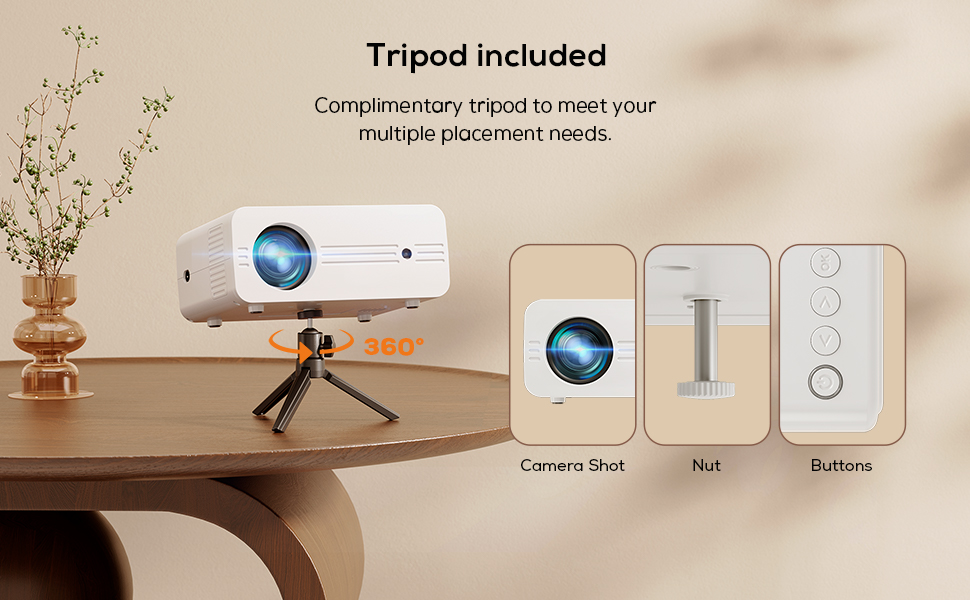
Image: The projector shown with a TV Stick, illustrating its use for accessing various streaming platforms.
6. Projection Modes
The AKIYO O7 supports multiple projection modes:
- Front Projection
- Rear Projection
- Ceiling Projection
These modes can be selected from the projector's settings menu to adapt to your installation environment.

Image: Visual guide to the various projection modes supported by the AKIYO O7 Projector.
7. Audio Settings
The projector features built-in dual 5W stereo speakers with an SRS sound system. For external audio, connect Bluetooth speakers/headphones or use the AV port.
Important Note: The projector does not support Dolby Audio. If you encounter no sound when playing videos, navigate to your source device's audio settings (e.g., Settings > Display & Sound > Audio > Dolby Digital Output) and turn off Dolby Digital+. Some AC3/DTS encoded files may also not be playable due to copyright issues.
Maintenance
1. Cleaning
Regularly clean the projector lens with a soft, lint-free cloth. Use compressed air to gently remove dust from ventilation openings. Do not use liquid cleaners directly on the lens or housing.
2. Storage
When not in use, store the projector in a cool, dry place away from direct sunlight and extreme temperatures. Use the original packaging or a protective case to prevent dust accumulation and damage.
Troubleshooting
- Q: How to watch Netflix, Prime Video, Disney+, etc.?
A: Due to copyright agreements, these platforms may not support direct playback from mobile phones via screen mirroring. Connect a Fire TV Stick, Google Chromecast, or a laptop via HDMI to play videos from these services. - Q: Why can't my phone project via Bluetooth connection?
A: The projector's Bluetooth function is designed to connect to Bluetooth audio devices (speakers, headphones) only, not to mobile phones or computers for screen mirroring. - Q: Why is screen mirroring not working on my Android phone?
A: Ensure your phone has screen mirroring capabilities. Some Android phones may have privacy protection settings that prevent screen mirroring. Check your phone's settings or try restarting the device. - Q: Why is there no sound when playing videos?
A: The projector does not support Dolby Audio. If your source content uses Dolby Audio, turn it off in the source device's audio settings. Additionally, some AC3/DTS encoded files may not be playable due to copyright issues. - Q: Does the projector need to be connected to a power source at all times?
A: Yes, the AKIYO O7 Projector does not have an internal battery and must always be connected to a power source to function. - Q: Why is my USB stick not recognized?
A: The projector supports USB2.0 flash drives up to 64GB. Ensure your USB flash drive is formatted to either "NTFS" or "FAT32" file systems. The "exFAT" format is not supported.
Specifications

Image: Visual comparison highlighting the 26000 Lumens brightness and Native 1080P resolution of the AKIYO O7.
| Feature | Specification |
|---|---|
| Brand | AKIYO |
| Model Number | O7 |
| Native Resolution | 1920 x 1080 (Native 1080P) |
| Supported Resolution | 4K |
| Brightness | 26000 Lumens |
| Contrast Ratio | 12000:1 |
| Connectivity Technology | HDMI, USB, Wi-Fi (5G Hz), Bluetooth (5.2) |
| Display Technology | LCD |
| Projection Screen Size | 40-300 inches |
| Projection Distance | 1.2-7.5 meters (Optimal: 1.5-2.8m for 50-100") |
| Keystone Correction | ±20° |
| Zoom Function | 75% |
| Built-in Speakers | Dual 5W Stereo Speakers with SRS Sound System |
| Item Weight | 3.81 pounds |
| Product Dimensions | 7.48 x 6.02 x 3.39 inches |
| Color | White |
Warranty and Support
AKIYO is committed to providing excellent customer service and product support.
- Quick Reply: Customer inquiries are typically responded to within 24 hours.
- Returns: Enjoy a 30-day return policy for any reason.
- Warranty: The product includes a 3-year warranty for returns and exchanges.
- Technical Support: Lifetime technical and customer support is available.
For technical assistance or warranty claims, please refer to the contact information provided on your product packaging or the official AKIYO website.

Image: Overview of AKIYO's customer service commitments, including response times and warranty periods.


