
1. Introduction
This manual provides comprehensive instructions for the TECH PAD P62 Feature Phone. Designed for durability and essential communication, the P62 features a 2.8-inch display, triple flashlight, and 3D speaker. Please read this manual carefully before using your device to ensure proper operation and maintenance.
2. Package Contents
Verify that all items are present in the product packaging:
- TECH PAD P62 Feature Phone
- Power Adapter
- USB Cable
- Earphones
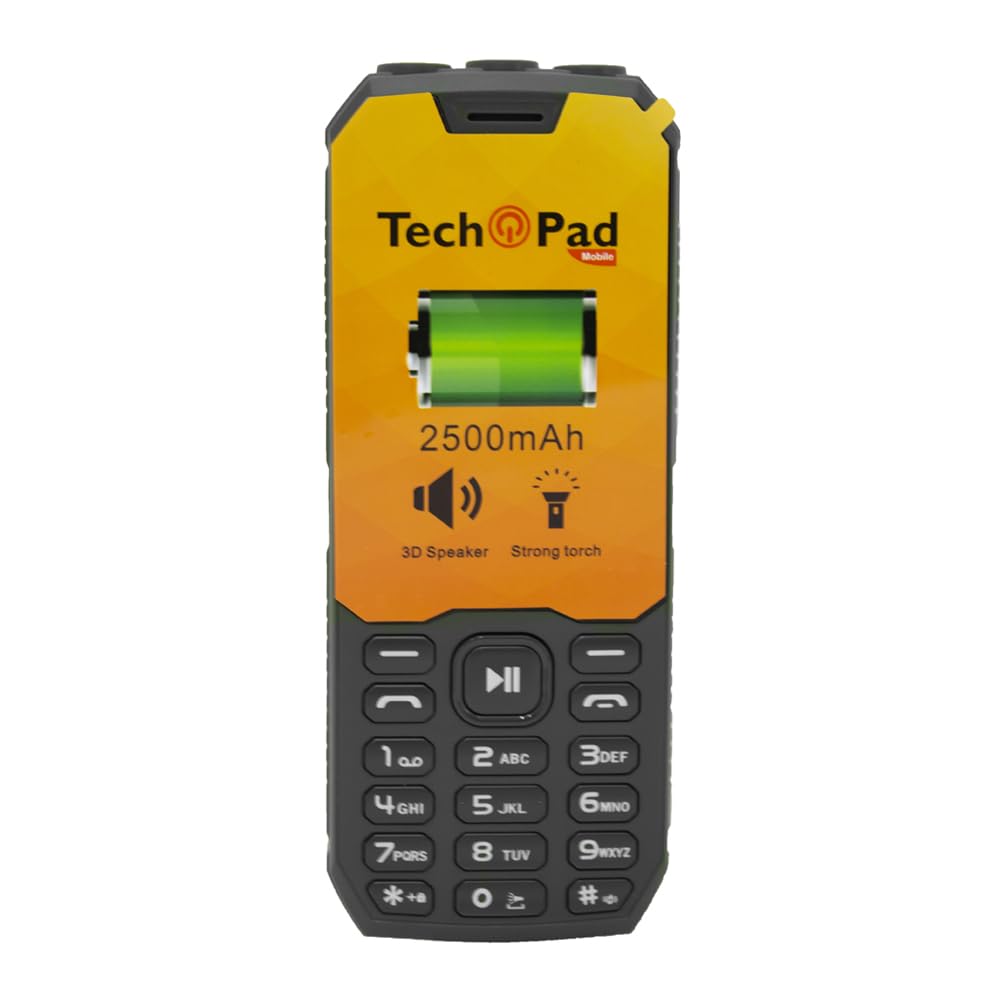
Image 1: TECH PAD P62 Feature Phone and its packaging, showing the phone's front with a battery indicator and icons, and the box with the model number P62.
3. Setup
3.1. Battery Installation
- Remove the back cover of the phone by gently prying it open from the designated notch.
- Align the battery contacts with the terminals inside the battery compartment.
- Insert the battery firmly into place.
- Replace the back cover, ensuring it clicks securely.
3.2. SIM Card Installation
The P62 supports Dual SIM functionality.
- With the back cover and battery removed, locate the SIM card slots.
- Insert your SIM card(s) into the designated slot(s) with the gold contacts facing down and the cut corner aligned as indicated.
- Ensure the SIM card(s) are securely seated.
3.3. Memory Card Installation (Optional)
The phone supports external memory cards up to 16GB.
- Locate the memory card slot, usually adjacent to the SIM card slots.
- Insert the microSD card with the gold contacts facing down until it clicks into place.

Image 2: Rear view of the TECH PAD P62 Feature Phone, showing the speaker grille, headphone jack, and the textured back cover with the "Tech Pad" logo. This area typically houses the battery and SIM/memory card slots.
4. Basic Operation
4.1. Power On/Off
- To Power On: Press and hold the Power/End Call button until the screen lights up.
- To Power Off: Press and hold the Power/End Call button until the power-off options appear, then select "Power Off".
4.2. Making and Receiving Calls
- To Make a Call: Enter the phone number using the keypad and press the Call button (green receiver icon).
- To Receive a Call: Press the Call button (green receiver icon) when the phone rings.
- To End a Call: Press the Power/End Call button (red receiver icon).
4.3. Sending and Receiving Messages
- Navigate to the "Messages" menu from the main screen.
- Select "New Message" to compose an SMS.
- Enter the recipient's number and your message.
- Press "Send" to transmit the message.
4.4. Using the Triple Flashlight
The P62 is equipped with a triple flashlight feature.
- Access the flashlight function through the phone's menu or a dedicated shortcut key, if available.
- Follow on-screen prompts to turn the flashlight on or off.
4.5. Using the 3D Speaker
The integrated 3D speaker enhances audio output for calls and media.
- Adjust volume using the dedicated volume keys on the side of the phone or through the settings menu.
- Ensure the speaker is not obstructed for optimal sound quality.
5. Specifications
| Feature | Detail |
|---|---|
| Brand | TECH PAD |
| Model Name | Feature Phone P62 TechPad |
| Part Number | Feature Phone P62 |
| Display Size | 2.8 Inches |
| Display Type | LCD |
| RAM Memory | 32 MB |
| Flash Memory | 32 MB (expandable up to 16 GB) |
| Operating System | KaiOS |
| Special Features | Integrated Flashlight (Triple), 3D Speaker |
| SIM Technology | Dual SIM |
| Cellular Technology | 3G |
| Battery Rating | 320 Milliamp Hours |
| Product Dimensions | 2 x 6 x 11 cm; 500 g |
6. Maintenance
- Cleaning: Use a soft, dry cloth to clean the phone's exterior. Avoid liquid cleaners or abrasive materials.
- Battery Care: To prolong battery life, avoid extreme temperatures. Do not leave the phone charging for extended periods after it is fully charged.
- Storage: Store the phone in a cool, dry place when not in use for extended periods.
7. Troubleshooting
| Problem | Possible Solution |
|---|---|
| Phone does not power on | Ensure the battery is correctly installed and charged. Connect the charger and try again. |
| No network signal | Check if the SIM card is properly inserted. Move to an area with better network coverage. |
| Cannot make or receive calls | Verify network signal. Check if call barring is enabled. Ensure sufficient balance if using a prepaid SIM. |
| Sound issues (speaker/earpiece) | Adjust volume settings. Ensure speaker/earpiece is not obstructed. Restart the phone. |
8. Safety Information
- Do not expose the phone to extreme temperatures, direct sunlight, or moisture.
- Use only original or certified compatible accessories (charger, battery).
- Avoid dropping or subjecting the phone to severe impacts.
- Do not attempt to disassemble or repair the phone yourself. Refer to qualified service personnel.
- Keep the phone away from medical devices, as it may interfere with their operation.
9. Warranty and Support
For warranty information and technical support, please refer to the documentation provided with your purchase or visit the official TECH PAD website. Keep your proof of purchase for warranty claims.
Online Support: Visit the TECH PAD Store on Amazon
