
1. Introduction
This user manual provides comprehensive instructions for the installation, operation, and maintenance of the Turing TP-MFD8M28 Smart 8MP IR Dome IP Camera. This advanced surveillance camera features 8MP resolution, a 2.8mm lens, and integrates with Turing SMART Series NVR, Bridge, and Cloud for advanced AI capabilities including Face, Human, and Vehicle detection. Designed for both indoor and outdoor use, it boasts IP67 weather resistance and IK10 vandal resistance, ensuring reliable performance in various environments.
2. Product Overview
The Turing TP-MFD8M28 is a high-performance dome IP camera engineered for superior surveillance. Its robust design and intelligent features make it suitable for a wide range of security applications.
2.1 Key Features
- Face/Human/Vehicle AI: Advanced detection capabilities when integrated with Turing SMART Series NVR, Bridge, and Cloud.
- High Resolution: Max. 8MP (3840x2160) at 20fps resolution for clear imaging.
- TwilightVision: Ensures optimal image clarity even in low-light conditions.
- Durable Design: IP67 rated for weather resistance and IK10 rated for vandal resistance.
- Power over Ethernet (PoE): Simplifies installation by providing power and data over a single cable.
- Wide Dynamic Range (WDR): 120 dB WDR for balanced images in challenging lighting.
- Onboard Storage: Supports up to 256GB microSD card (not included) for local recording.
2.2 Camera Components
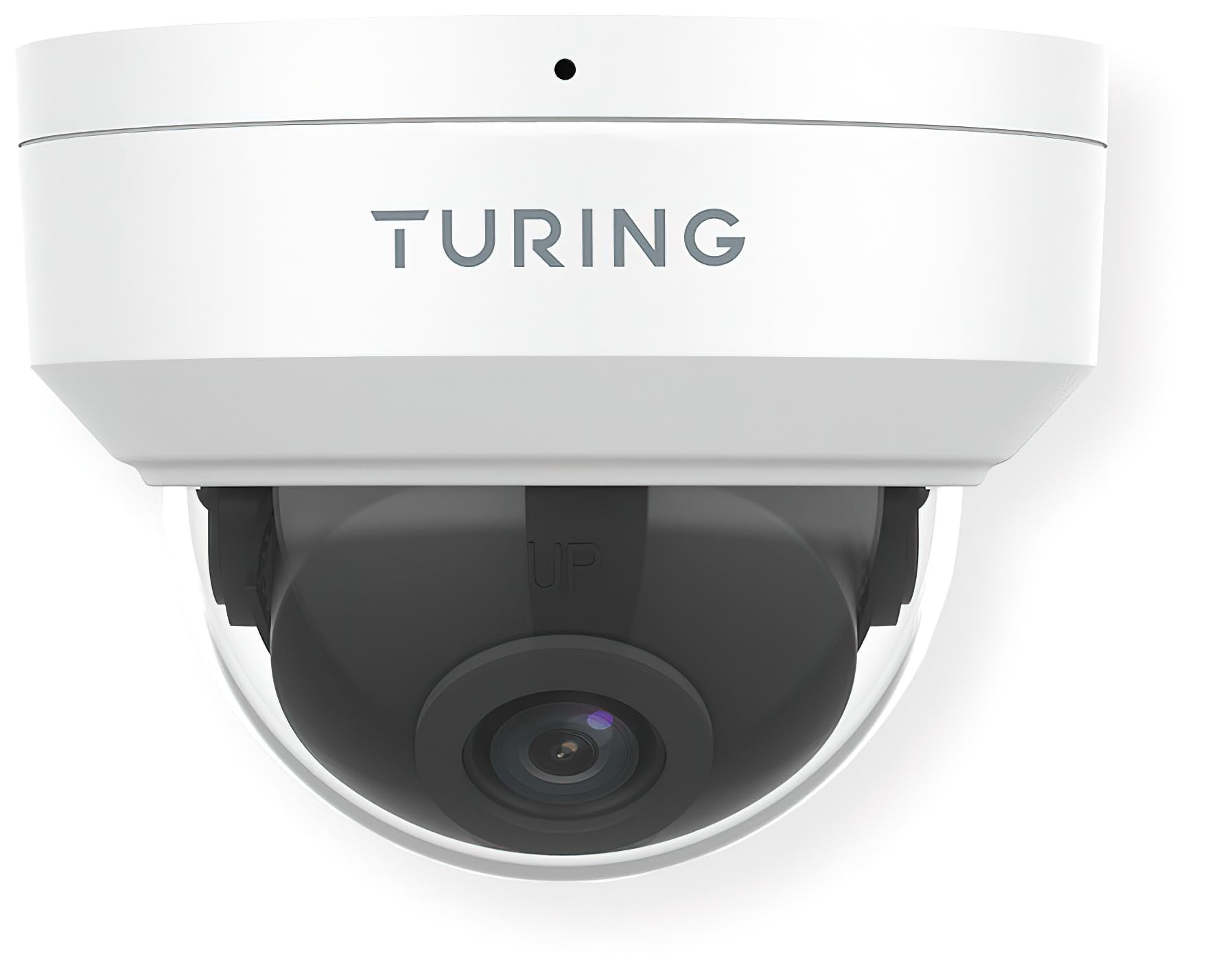
Figure 1: Front view of the Turing TP-MFD8M28 Smart 8MP IR Dome IP Camera. The image displays the white dome camera with the Turing logo on the top housing and the dark lens assembly visible through the clear dome cover. A small black dot, likely an indicator light or microphone, is visible at the top center.
The camera consists of a main housing, a clear dome cover, and an internal camera module with the lens. The housing is designed for secure mounting, and the dome protects the sensitive camera components while allowing for a wide field of view.
3. Setup and Installation
Proper installation is crucial for optimal performance and longevity of your camera.
3.1 Package Contents
- Turing TP-MFD8M28 IP Camera
- Mounting Screws and Wall Plugs
- Waterproof Connector (for Ethernet cable)
- Quick Start Guide
3.2 Mounting Instructions
- Choose Location: Select a suitable indoor or outdoor location, ensuring a clear field of view and access to network cabling. Consider the camera's 2.8mm fixed lens angle of view (H: 112.4°, V: 60.1°, D: 146.1°).
- Prepare Surface: Mark drilling points using the provided mounting template (if applicable). Drill holes for the wall plugs.
- Secure Base: Attach the camera's mounting base securely to the surface using the provided screws.
- Connect Cables: Connect the Ethernet cable to the camera's PoE port. Use the waterproof connector for outdoor installations to protect the connection.
- Adjust Angle: Once mounted, adjust the camera's lens angle to cover the desired surveillance area.
- Secure Dome: Reattach the clear dome cover, ensuring it is properly sealed.
3.3 Network Connection
The TP-MFD8M28 supports Power over Ethernet (PoE). Connect the camera to a PoE-enabled switch or NVR using a standard Ethernet cable. The camera will power on automatically. For initial setup and configuration, refer to the Turing Vision software or your NVR's user manual.
4. Operating the Camera
The camera's primary functions are managed through the Turing Vision software or a compatible Turing SMART Series NVR/Bridge.
4.1 Live View and Recording
- Access the live feed through the Turing Vision application or connected NVR.
- Configure recording schedules (continuous, motion-triggered, event-based) via the software interface.
- Playback recorded footage from the NVR or the camera's microSD card (if installed).
4.2 AI Features (with Turing SMART Series NVR/Bridge)
- Face Recognition: Set up and manage known faces for alerts or access control.
- People Detection: Receive alerts when human figures are detected in specified zones.
- Vehicle Detection: Get notifications for vehicle presence or movement.
- Configure detection zones and sensitivity settings within the Turing Vision software.
4.3 Advanced Settings
- Image Settings: Adjust brightness, contrast, saturation, and WDR settings.
- Network Settings: Configure IP address, port forwarding, and other network parameters.
- Firmware Updates: Regularly check for and apply firmware updates to ensure optimal performance and security.
5. Maintenance
Regular maintenance helps ensure the longevity and optimal performance of your camera.
- Lens Cleaning: Gently wipe the clear dome and lens with a soft, lint-free cloth. For stubborn dirt, use a mild lens cleaning solution. Avoid abrasive materials.
- Housing Inspection: Periodically check the camera housing for any signs of damage, cracks, or loose components.
- Cable Connections: Ensure all cable connections are secure and free from corrosion, especially for outdoor installations.
- Software Updates: Keep the camera's firmware and associated Turing Vision software updated to the latest versions.
6. Troubleshooting
If you encounter issues with your camera, refer to the following common problems and solutions.
| Problem | Possible Cause | Solution |
|---|---|---|
| No Power/Camera Offline | No PoE power; faulty Ethernet cable; network issue. | Check PoE switch/NVR status. Verify Ethernet cable connection. Ensure network is operational. |
| No Image/Video Feed | Network connectivity issue; incorrect IP settings; camera malfunction. | Verify network connection. Check camera's IP address. Restart camera/NVR. |
| Poor Image Quality | Dirty lens/dome; low light conditions; incorrect image settings. | Clean lens/dome. Ensure sufficient lighting or check TwilightVision settings. Adjust image parameters (WDR, brightness). |
| AI Features Not Working | Not connected to Turing SMART Series NVR/Bridge; incorrect AI settings; outdated firmware. | Confirm connection to compatible Turing hardware. Review AI detection zone and sensitivity settings. Update firmware. |
If the problem persists after attempting these solutions, please contact Turing technical support.
7. Specifications
Detailed technical specifications for the Turing TP-MFD8M28 Smart 8MP IR Dome IP Camera.
| Model | TP-MFD8M28 |
| Sensor | 1/2.7-in 8MP 16:9 Progressive Scan CMOS |
| Lens | 2.8mm fixed lens |
| Angle of View | H: 112.4 degrees; V: 60.1 degrees; D: 146.1 degrees |
| Max. Resolution | 8MP (3840x2160) at 20fps |
| Minimum Illumination | Color: 0.0025 Lux (F1.6, AGC on); 0 Lux with IR on |
| Video Encoding | Ultra 265, H.265, H.264, MJPEG |
| Digital Processing | 120 dB WDR; 2D/3D DNR; Defog |
| AI Features | Face Recognition, People and Car Detection (with SMART series NVR/Bridge) |
| Ingress Protection | IP67 (Dust and Water Resistant) |
| Vandal Resistance | IK10 |
| Power | DC 12V, PoE (IEEE 802.3af); up to 6.0W |
| Surge Protection | 4KV |
| Onboard Storage | microSD (up to 256 GB, not included) |
| Smart IR Range | Up to 30m (98.43 feet) |
| Dimensions (Diameter x H) | 4.3 x 3.2 inches |
| Weight | 0.93 pounds (14.9 ounces) |
| Connectivity Protocol | Ethernet |
| Mounting Type | Ceiling Mount |
| Indoor/Outdoor Usage | Outdoor, Indoor |
8. Warranty and Support
Turing products are designed for reliability and performance.
8.1 Warranty Information
This product comes with a standard manufacturer's warranty. Please refer to the warranty card included in your product packaging or visit the official Turing website for detailed warranty terms and conditions. Keep your proof of purchase for warranty claims.
8.2 Technical Support
For technical assistance, troubleshooting, or any product-related inquiries, please contact Turing technical support.
- Online Support: Visit the official Turing website for FAQs, knowledge base articles, and support resources.
- Contact Information: Refer to the contact section on the Turing website for phone numbers or email addresses for direct support.
When contacting support, please have your product model number (TP-MFD8M28) and serial number ready.


