
1. Introduction
This manual provides detailed instructions for the installation, operation, and maintenance of your PWAY 4K@60Hz 1x4 HDMI Splitter Extender. This device is designed to distribute a single HDMI source signal to up to four remote displays over Cat5e/6/7 cables, supporting resolutions up to 4K@60Hz. It also includes features such as IR control and Power over Cable (POC) for enhanced convenience and functionality.
2. Product Features
- 60m Extender: This device can split one HDMI signal into multiple HDMI signals and transmit audio and video signals to up to four monitors up to 60 meters (196 feet) away using Cat5e/6/7 cables.
- IR Control: With the IR control function, you can control the signal source output from the receiver (RX) end. This allows for remote control of devices such as adjusting volume or changing channels.
- POC Function: Power over Cable (POC) allows a single power supply connected to the Transmitter unit to power the entire system, including all Receiver units, simplifying installation and enhancing safety by reducing the number of power adapters needed.
- HDMI Loop Out: The Transmitter unit includes an HDMI loop out port, allowing a local display to be connected directly to the source.
- EDID Management: Features an EDID copy function to ensure compatibility between the source and display devices.
- Supports 4K@60Hz YUV 4:4:4 resolution for high-quality video transmission.

Image: PWAY 4K@60Hz 1x4 HDMI Splitter Extender highlighting its main features.

Image: The PWAY HDMI Splitter Extender in use, showing IR control and HDMI loop out capabilities.
3. Package Contents
Please check the package contents upon receipt to ensure all items are present:
- 1x PWAY HDMI Splitter Extender Transmitter (PW-HT247P4IR)
- 4x PWAY HDMI Extender Receivers
- 1x Power Adapter (DC 12V)
- 1x IR TX Cable
- 4x IR RX Cables
- 1x User Manual
- 1x Warranty Card

Image: All components included in the PWAY HDMI Splitter Extender package.
4. Product Overview
4.1 Transmitter Unit (TX)
- DC 12V: Power input port.
- HD OUT: HDMI Loop Out port for local display.
- HD IN: HDMI input port for source device.
- UTP (x4): RJ45 output ports for connecting to Receiver units via Cat5e/6/7 cables.
- IR OUT: Port for connecting the IR TX cable to control the source device.
- EDID: Switch for EDID management.
- ON/OFF: Power switch.
- PWR LED: Power indicator.
- STA LED: Status indicator.
4.2 Receiver Unit (RX)
- UTP: RJ45 input port for connecting to the Transmitter unit via Cat5e/6/7 cable.
- IR IN: Port for connecting the IR RX cable to receive IR signals from the remote control.
- HD OUT: HDMI output port for connecting to a display device.
- PWR LED: Power indicator.
- STA LED: Status indicator.

Image: Front and rear panel views of the Transmitter and Receiver units, showing all ports and indicators.
5. Setup Instructions
Follow these steps to set up your PWAY HDMI Splitter Extender:
- Power Off Devices: Ensure all HDMI source devices, display devices, and the PWAY extender units are powered off before making any connections.
- Connect HDMI Source: Connect your HDMI source device (e.g., PC, Blu-ray player, game console) to the HD IN port of the Transmitter unit using a high-quality HDMI cable.
- Connect Local Display (Optional): If you wish to have a local display, connect it to the HD OUT (Loop Out) port of the Transmitter unit using an HDMI cable.
- Connect Receivers: Connect each Receiver unit to one of the UTP output ports on the Transmitter unit using Cat5e/6/7 Ethernet cables. Ensure the cables are properly terminated and meet the required length specifications (up to 60m).
- Connect Remote Displays: Connect each remote display (e.g., TV, monitor, projector) to the HD OUT port of its respective Receiver unit using a high-quality HDMI cable.
- Connect IR Cables:
- Connect the IR TX cable to the IR OUT port on the Transmitter unit and position the IR emitter near the IR receiver window of your HDMI source device.
- Connect each IR RX cable to the IR IN port on each Receiver unit and position the IR receiver eye in a location where it can receive signals from your remote control.
- Power On: Connect the provided 12V DC power adapter to the DC 12V port on the Transmitter unit. The PWR LED on both Transmitter and Receiver units should illuminate, indicating power.
- Power On Devices: Power on all connected display devices and the HDMI source device.
- Verify Connection: Check that video and audio are displayed correctly on all connected screens.
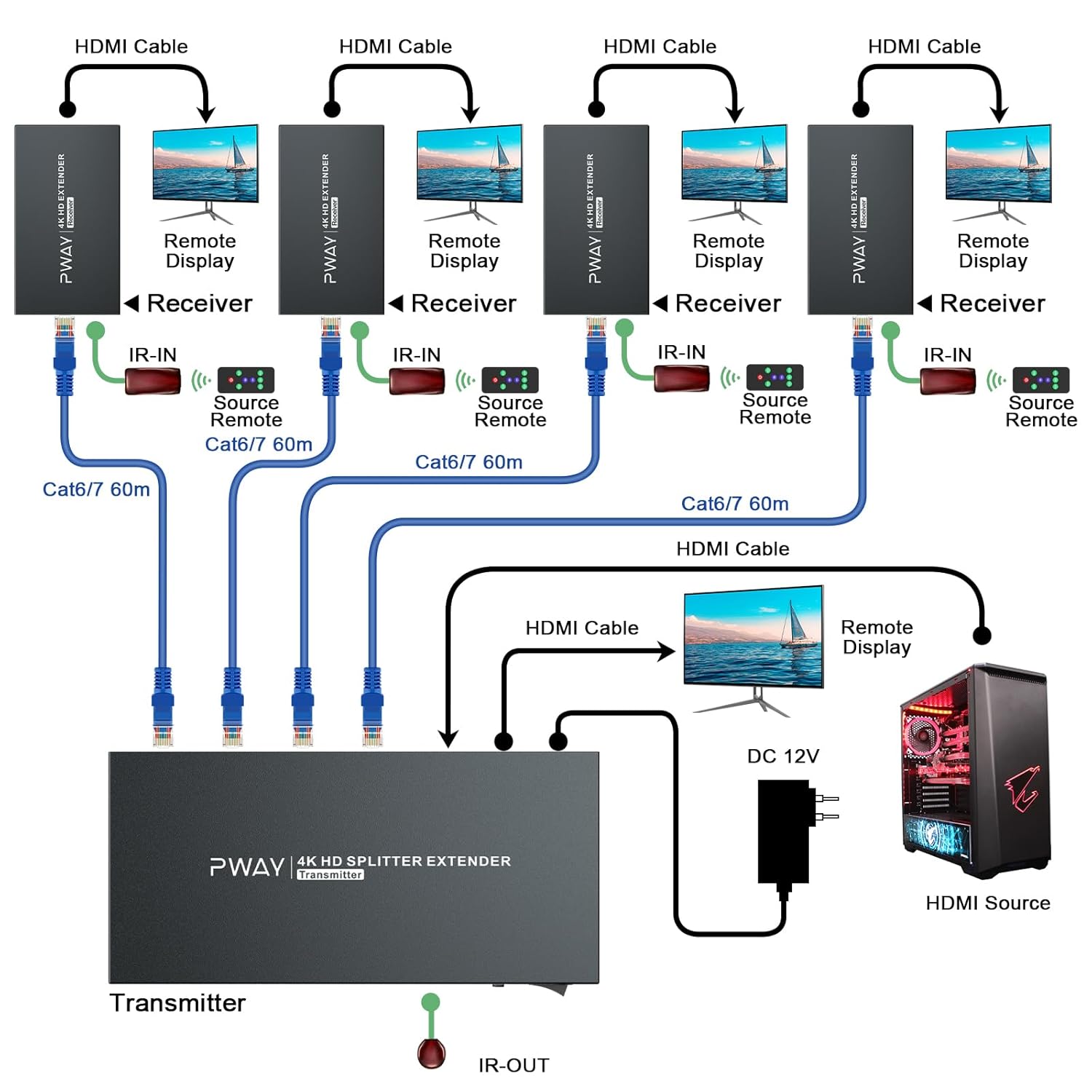
Image: Detailed connection diagram illustrating how to set up the PWAY HDMI Splitter Extender system.

Image: An example setup of the PWAY 4-Port HDMI Extender Splitter connecting multiple displays.
6. Operating Instructions
6.1 Basic Operation
Once all connections are made and devices are powered on, the HDMI signal from your source will be automatically distributed to all connected displays. The STA (Status) LED on both Transmitter and Receiver units should be solid, indicating an active HDMI connection.
6.2 IR Control
To control your HDMI source device from a remote display location, point your source device's remote control at the IR RX eye connected to the Receiver unit. The signal will be transmitted back to the Transmitter unit and then emitted by the IR TX cable to control your source device.

Image: Illustration of the IR control function, showing how a remote control signal is relayed.
6.3 EDID Management
The EDID switch on the Transmitter unit allows for managing Extended Display Identification Data. This function helps ensure compatibility between the HDMI source and the connected displays by copying the EDID information from a connected display. Refer to the specific EDID settings in the product's full technical documentation if you encounter display compatibility issues.

Image: Close-up view of the EDID switch on the Transmitter unit.
7. Maintenance
- Keep the device in a cool, dry, and well-ventilated area.
- Avoid exposing the device to direct sunlight, high temperatures, or humidity.
- Do not disassemble the device. Unauthorized repairs will void the warranty.
- Clean the device with a soft, dry cloth. Do not use liquid or aerosol cleaners.
- Ensure all cables are securely connected to prevent signal loss or intermittent issues.

Image: The PWAY HDMI Extender Splitter is designed for stable 24/7 operation, suitable for applications like security monitoring.
8. Troubleshooting
- No Picture/Signal:
- Check all HDMI and Cat5e/6/7 cable connections. Ensure they are secure.
- Verify that the power adapter is correctly connected to the Transmitter unit and that the PWR LED is on.
- Ensure all source and display devices are powered on and set to the correct input.
- Try a different HDMI cable or Cat5e/6/7 cable.
- Adjust the EDID switch on the Transmitter unit if applicable.
- Test the HDMI source and display directly without the extender to confirm they are working.
- Intermittent Signal/Flickering:
- Ensure Cat5e/6/7 cables are of good quality and within the recommended length (up to 60m).
- Check for any sources of electromagnetic interference (EMI) near the cables.
- Verify that the resolution and refresh rate of the source are supported by all displays and the extender.
- IR Control Not Working:
- Ensure the IR TX emitter is directly aligned with the IR receiver window of the source device.
- Ensure the IR RX eye is positioned to receive signals from your remote control.
- Check that the IR cables are securely connected to the correct ports.
9. Specifications
| Brand | PWAY |
| Manufacturer | PWAY Technology |
| Product Model Number | CZ-PW-HT247P4-IR-EU / PW-HT246P4IR |
| Connector Type | HDMI |
| Connector Gender | Female to Female |
| Max Resolution | 4K@60Hz |
| Transmission Distance | Up to 60 meters (196 feet) over Cat5e/6/7 |
| Features | IR Control, POC (Power over Cable), HDMI Loop Out, EDID Management |
| Power Supply | DC 12V (included) |
| Package Dimensions | 25.5 x 20.1 x 9.5 cm |
| Item Weight | 1.1 kg |
| Batteries Required | No |

Image: Demonstrating the supported 4K@60Hz YUV 4:4:4 video quality.
10. Warranty and Support
PWAY products are designed for reliability and performance. This product comes with a standard manufacturer's warranty. Please refer to the included Warranty Card for specific terms and conditions regarding warranty coverage and duration.
For technical support, troubleshooting assistance, or warranty claims, please contact PWAY customer service through the contact information provided on the warranty card or the official PWAY website. Please have your product model number and purchase details ready when contacting support.