This manual provides detailed instructions for the KZZI K75 PRO RGB 75% Wireless Gasket Mechanical Keyboard. It covers product features, setup, operation, maintenance, troubleshooting, and technical specifications to ensure optimal use and longevity of your device.
What's in the Box
Upon unboxing, please verify that all the following items are included:
K75 Gasket Keyboard
2-in-1 USB Cable (1.8m)
Dust Cover
2-in-1 Keycap & Switch Puller
4 Replacement Switches
Image: All items included in the KZZI K75 Pro keyboard package, including the keyboard, USB cable, dust cover, keycap/switch puller, and replacement switches.
Product Overview
Gasket Mount Structure
The K75 PRO features a gasket mount structure with a 1.2mm slotted PCB with Flex cuts and four high-quality sound-absorbing layers. This design creates a cushion between the plate and the base, providing a consistent, softer, and more comfortable typing feel with pleasing acoustic feedback.
Image: Exploded view illustrating the gasket mount structure with multiple sound-dampening layers for enhanced typing feel and acoustics.
Custom Hot-Swappable Switches
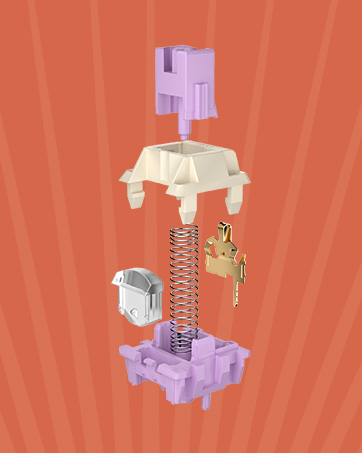
The keyboard is equipped with pre-lubed Eternity Tactile Switches, featuring south-facing transparent light diffusers. These switches offer a clear keystroke feeling, a clean typing sound, and brighter RGB backlight effects. The hot-swappable PCB is compatible with both 3-pin and 5-pin switches, allowing for easy customization.
Image: Detailed view of the custom POM switches, highlighting their design for comfortable typing and high-fidelity sound.
Video: A comparison of the typing sounds between Eternity Tactile Switches and Moment Linear Switches on the KZZI K75 Pro keyboard.Image: The hot-swappable PCB of the KZZI K75 Pro, demonstrating compatibility with 3-pin and 5-pin switches for easy customization.
LED Power Display and Battery
The K75 PRO features an always-visible battery level indicator and a built-in 3750mAh battery. With backlighting off, the battery can last up to 200 hours. A full charge takes approximately 6-7 hours.
Image: Close-up of the KZZI K75 Pro's integrated LED power display, showing the current battery percentage.
82-Key ANSI Layout
This compact TKL mechanical keyboard features a 75% layout with 82 keys, saving desk space while maintaining typing comfort. The double-shot PBT keycaps contribute to durability and a retro aesthetic.
Image: The KZZI K75 Pro keyboard in its 75% layout, showcasing the key arrangement and overall design.Image: Diagram illustrating the physical dimensions of the KZZI K75 Pro keyboard.
Extra Hub Ports
The keyboard includes one USB port and two Type-C ports, providing convenient connectivity for various peripherals such as a mouse or USB flash drive. Note that the first Type-C port on the left is exclusively for wired mode and charging.
Image: Detail of the integrated USB and Type-C hub ports on the KZZI K75 Pro, showing connectivity options.
Setup
Connectivity Modes
The KZZI K75 PRO supports triple-mode connectivity: USB Type-C wired, 2.4GHz wireless, and Bluetooth 5.0. You can easily switch between these modes using the sensitive knob on the keyboard.
Image: The 3-mode toggle switch on the KZZI K75 Pro, allowing selection between wired, 2.4GHz, and Bluetooth connections.
Video: Demonstrates the wired, 2.4GHz wireless, and Bluetooth connectivity options of the KZZI K75 Pro keyboard, including pairing instructions and device switching.
Wired Mode (USB-C)
Connect the provided USB-C cable to the keyboard's dedicated wired port (the leftmost Type-C port).
Connect the other end of the cable to your computer's USB port.
Ensure the mode switch on the keyboard is set to the wired position.
2.4GHz Wireless Mode
Locate the 2.4GHz USB receiver (dongle) in the keyboard's storage slot.
Plug the USB receiver into an available USB port on your computer.
Set the mode switch on the keyboard to the 2.4GHz position. The keyboard should automatically connect.
Bluetooth 5.0 Mode
Set the mode switch on the keyboard to the Bluetooth position.
On your device (computer, tablet, smartphone), enable Bluetooth and search for available devices.
Select "KZZI K75 Pro" or a similar name from the list to pair.
The keyboard can store up to three Bluetooth connections. Switch between them by pressing Fn + Q, Fn + W, or Fn + E.
To reset Bluetooth connections, press and hold Fn + Q + W + E for approximately 5 seconds.
Operating Instructions
Knob Functionality
The multi-function knob allows for quick adjustments. Typically, rotating the knob controls volume, and pressing it mutes/unmutes audio. Specific functions may be customized via software.
RGB Backlight Customization
The keyboard features customizable RGB backlighting. Various lighting effects, brightness levels, and animation speeds can be adjusted directly on the keyboard using key combinations or through the dedicated software.
Programmable Software Support
The KZZI K75 PRO is supported by programmable software, allowing users to:
Customize keyboard shortcuts.
Create and assign macros.
Personalize RGB backlight effects and colors.
Update firmware.
Refer to the KZZI official website for software download and detailed instructions.
Image: Screenshot of the KZZI K75 Pro's software interface, showing options for key remapping, macro creation, and RGB lighting customization.
Video: An overview of the KZZI K75 Pro RGB Gasket Mounted Mechanical Keyboard, showcasing its features and design.
Maintenance
Cleaning
Keycaps: Use the provided keycap puller to remove keycaps. Clean them with a mild soap solution and a soft cloth, then rinse and dry thoroughly before reattaching.
Keyboard Body: Wipe the keyboard surface with a soft, damp cloth. Avoid excessive moisture.
Between Keys: Use compressed air to remove dust and debris from between the keys.
Switch Replacement
Utilize the included 2-in-1 keycap & switch puller to carefully remove and replace switches. Ensure the new switch pins are aligned correctly before pressing it into the PCB to avoid damage.
Troubleshooting
Keyboard not responding: Ensure the keyboard is charged and the correct connectivity mode (wired, 2.4GHz, or Bluetooth) is selected. For wireless modes, check battery level.
Bluetooth pairing issues: Try resetting the Bluetooth connections by holding Fn + Q + W + E for 5 seconds. Ensure your device's Bluetooth is enabled and discoverable.
2.4GHz connection issues: Ensure the USB receiver is securely plugged in and the keyboard is in 2.4GHz mode. Try plugging the receiver into a different USB port.
Keys not working: If individual keys are not working, try replacing the switch using the provided spare switches and switch puller.
Backlight not working: Check software settings for backlight control. Ensure the keyboard is not in a low-power state.
Specifications
Model Number
K75 Pro
Product Dimensions
13.22 x 6.12 x 1.63 inches (335.8mm x 155.5mm x 41.4mm)
Item Weight
3.07 pounds
Connectivity Technology
BT 5.0, 2.4GHz Wireless, USB-C Wired
Keyboard Description
Mechanical
Compatible Devices
Gaming Console, PC, Mac, iOS, Android
Special Features
82 Keys Layout, RGB Backlit, Gasket Mount, Hot-Swappable, Rechargeable, LED Power Display, Extra Hub Ports
Battery
1 Lithium Polymer battery (3750mAh), included
Keyboard Backlighting
RGB
Image: Detailed view of the KZZI K75 Pro keyboard, highlighting keycap and switch features.
Warranty and Support
For warranty information, technical support, or service inquiries, please contact KZZI customer support through their official website or the retailer where the product was purchased. Keep your proof of purchase for warranty claims.
Ask about setup, troubleshooting, compatibility, parts, safety, or missing instructions. Manuals+ will review the question and use this page’s manual context to help answer it.