
ID-COOLING FROSTFLOW X 240
ID-COOLING FROSTFLOW X 240 CPU Water Cooler User Manual
Model: FROSTFLOW X 240 | Brand: ID-COOLING
1. Introduction and Overview
The ID-COOLING FROSTFLOW X 240 is an all-in-one (AIO) liquid CPU cooler designed to provide efficient heat dissipation for your processor. Featuring a 240mm radiator and two 120mm PWM fans, it ensures optimal cooling performance while maintaining a sleek aesthetic with its classic white LED lighting on the pump. This manual provides detailed instructions for installation, operation, maintenance, and troubleshooting to ensure the best performance and longevity of your cooler.
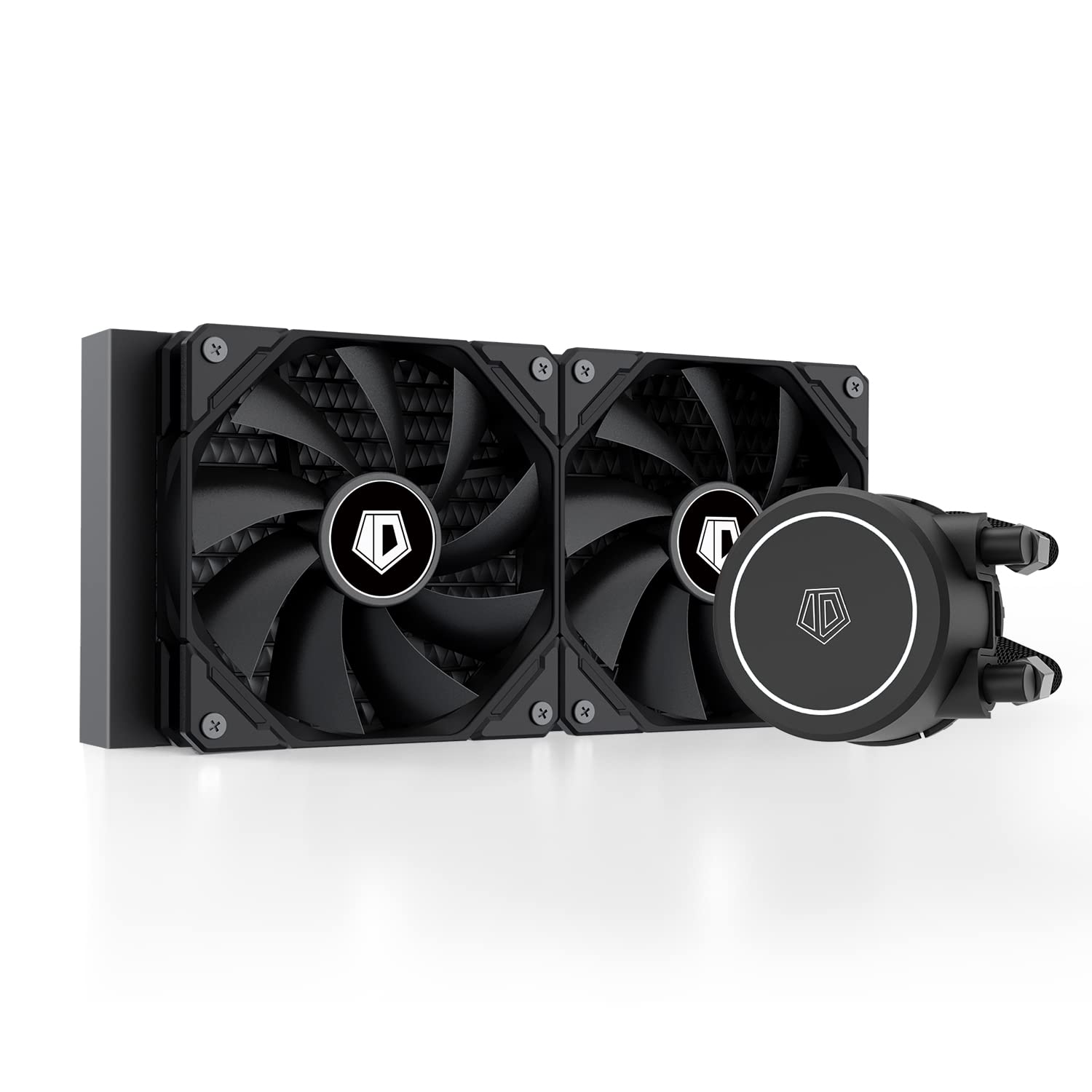
Figure 1: The ID-COOLING FROSTFLOW X 240 CPU Water Cooler, showcasing its radiator, fans, and pump unit.
Video 1: An official overview of the Frostflow X 240, highlighting its design and features.
2. Product Features
- Better Heat Dissipation: Equipped with a 240mm radiator and two 120mm PWM fans, ensuring excellent heat transfer from the CPU.
- White LED Lighting: Classic white LED lighting on the pump to complement your PC build's aesthetic.
- PWM Fans: The 120mm PWM fans deliver improved airflow for extreme CPU cooling performance, adjusting speed based on temperature.
- Wide Compatibility: Compatible with multiple sockets including Intel LGA1700/1200/1151/1150/1155/1156 and AMD AM5/AM4.

Figure 2: Close-up of the pump head featuring its integrated white LED lighting.

Figure 3: Diagram illustrating the efficient heat dissipation process within the 240mm radiator.
3. Package Contents
Verify that all components are present in the package before beginning installation:
- 240mm Radiator
- 2x 120mm Cooling Fans
- CPU Water Block/Pump Unit
- Mounting Hardware for Intel (LGA1700/1200/115X)
- Mounting Hardware for AMD (AM5/AM4)
- Thermal Paste
- User Manual (this document)

Figure 4: All components included in the FROSTFLOW X 240 package.
4. Setup and Installation
Proper installation is crucial for optimal performance. Please follow the steps carefully. Refer to Video 2 for a visual guide.
Video 2: Detailed installation guide for ID-COOLING AIO Coolers, applicable to the FROSTFLOW X 240.
4.1. Pre-Installation Steps
- Ensure your motherboard is removed from the PC case for easier access.
- Clean the CPU surface thoroughly with isopropyl alcohol to remove any old thermal paste or residue.
4.2. Intel Socket Installation (LGA1700/1200/115X)
- Install the included Intel backplate onto the rear of the motherboard, aligning the holes with the CPU socket.
- Secure the Intel backplate using the provided Intel standoffs. For LGA1700, use the specific LGA1700 socket columns. For LGA1200/115X, use the LGA1200/115X socket columns. Tighten the thumbscrews until secure.
- Apply a pea-sized amount of the included thermal paste to the center of your CPU's integrated heat spreader (IHS).
- Install the Intel bracket onto the pump head. Ensure it clicks securely into place.
- Remove the protective sticker from the pump head's copper base.
- Carefully place the pump head onto the CPU, aligning the mounting holes with the standoffs. Secure it by tightening the screws in a diagonal pattern until snug.

Figure 5: Intel mounting hardware components, including backplate, standoffs, and brackets.
4.3. AMD Socket Installation (AM5/AM4)
- Remove the plastic retention clips from the motherboard, but keep the stock AMD backplate.
- Install the AMD standoffs onto the stock backplate's mounting holes.
- Apply a pea-sized amount of the included thermal paste to the center of your CPU's integrated heat spreader (IHS).
- Install the AMD bracket onto the pump head. Ensure it clicks securely into place.
- Remove the protective sticker from the pump head's copper base.
- Carefully place the pump head onto the CPU, aligning the mounting holes with the standoffs. Secure it by tightening the screws in a diagonal pattern until snug.
4.4. Radiator and Fan Installation
- Mount the two 120mm PWM fans to the radiator using the provided fan screws. Ensure the fan airflow direction is as desired (typically intake or exhaust depending on case mounting).
- Install the radiator assembly into your PC case. Common mounting locations include the top or front of the case. Secure it with the appropriate screws.
- Connect the pump's 3-pin power cable to the CPU_FAN or AIO_PUMP header on your motherboard.
- Connect the 4-pin PWM fan cables to the CPU_FAN or SYS_FAN headers on your motherboard. If using a fan splitter (not included), connect both fans to the splitter and then to a single motherboard header.
- Ensure all cables are neatly routed and secured to prevent interference with other components or airflow.

Figure 6: The 240mm radiator with its two 120mm PWM fans installed.

Figure 7: The FROSTFLOW X 240 cooler fully installed within a PC case, showing the pump and radiator placement.
5. Operating Instructions
Once installed, the FROSTFLOW X 240 operates automatically. The PWM fans adjust their speed based on CPU temperature, ensuring efficient cooling when needed and quiet operation during lighter loads.
- Initial Boot: Upon first power-on, the pump and fans will start. It is normal to hear some gurgling sounds initially as air bubbles are purged from the loop. This should subside within a few minutes of operation.
- Temperature Monitoring: Use motherboard monitoring software (e.g., ASUS AI Suite, MSI Dragon Center, Gigabyte SIV) to monitor CPU temperatures and fan/pump speeds. Ensure temperatures remain within safe operating limits, especially under load.
- LED Control: The white LED on the pump head is static and does not require software control.

Figure 8: The pump head illuminated with its white LED, installed on the CPU.
6. Maintenance
Regular maintenance helps ensure the longevity and performance of your AIO cooler.
- Dust Cleaning: Periodically (every 3-6 months, or more often in dusty environments) use compressed air to clean dust from the radiator fins and fan blades. Ensure fans are not spinning during cleaning to prevent damage.
- Check Tubing: Visually inspect the tubing for any kinks, tears, or signs of leakage. While AIOs are sealed, regular checks are good practice.
- Thermal Paste: Re-applying thermal paste is generally not required unless the cooler is removed from the CPU. If re-installation occurs, clean off old paste and apply new paste.
7. Troubleshooting
If you encounter issues with your FROSTFLOW X 240, refer to the common problems and solutions below:
| Problem | Possible Cause | Solution |
|---|---|---|
| High CPU Temperatures | Improper thermal paste application, loose pump mounting, insufficient airflow, pump failure. | Re-apply thermal paste, re-seat pump, check fan orientation/speed, ensure pump is powered. |
| Fans Not Spinning / Noisy Fans | Incorrect fan connection, dust buildup, fan failure. | Check fan headers, clean fans, replace faulty fan. |
| Pump LED Not Lighting Up | Power cable not connected, faulty LED. | Ensure pump power cable is securely connected to motherboard header. |
| Gurgling Noise Persists | Air trapped in the loop. | Gently tilt the PC case in different directions to help dislodge air bubbles. Ensure radiator is mounted higher than the pump. |
8. Specifications
| Feature | Detail |
|---|---|
| Product Dimensions | 4.72 x 0.98 x 4.72 inches; 4.06 Pounds |
| Radiator Dimensions | 276 x 120 x 27mm |
| Fan Size | 120mm (x2) |
| Fan Speed | 500-1800 RPM (PWM) |
| Noise Level | 30 dB (Max) |
| Cooling Method | Water |
| Compatible Devices | Desktop CPUs |
| CPU Socket Compatibility | Intel LGA1700/1200/115X, AMD AM5/AM4 |
| Power Connector Type | 2-Pin (Pump), 4-Pin PWM (Fans) |
| Voltage | 12 Volts |
| Wattage | 4.8 watts |
9. Warranty and Support
ID-COOLING products are manufactured to high quality standards. For warranty information, technical support, or service inquiries, please refer to the warranty card included in your product packaging or visit the official ID-COOLING website. Keep your proof of purchase for warranty claims.
For further assistance, you may contact ID-COOLING customer support directly through their official channels.
Related documentsFROSTFLOW X 240


Ask a question about this manual
Ask about setup, troubleshooting, compatibility, parts, safety, or missing instructions. Manuals+ will review the question and use this page’s manual context to help answer it.