
JLab WEBHBGWRK2GPH20
JLab Go Work Gen 2 Wireless Headsets User Manual
Model: WEBHBGWRK2GPH20
Brand: JLab
Introduction
The JLab Go Work Gen 2 Wireless Headset is engineered for the modern professional, providing exceptional audio clarity for calls and music, extended battery life, and flexible connectivity. Whether you're working from home, in the office, or on the go, this headset ensures a reliable and comfortable experience.
This manual provides detailed instructions on setting up, operating, maintaining, and troubleshooting your JLab Go Work Gen 2 Headset to ensure optimal performance.
What's in the Box
- Go Work Gen 2 Headset
- USB-C Dongle
- Type-C Cable for Charging or Wired Use
- User Manual

Image: All components included with the JLab Go Work Gen 2 Headset.
Setup
1. Charging the Headset
Before first use, fully charge your JLab Go Work Gen 2 Headset. Connect the included Type-C cable to the headset's charging port and the other end to a USB power source. A full charge takes approximately 2 hours and provides over 55 hours of playtime.
2. Power On/Off
To power on the headset, press and hold the power button until the indicator light illuminates. To power off, press and hold the power button again until the light turns off.
3. Initial Connection
The JLab Go Work Gen 2 offers multiple connection methods:
- USB-C Dongle: For the most stable connection, especially on Windows devices, plug the included USB-C dongle into your computer's USB-C port. The headset will automatically pair with the dongle.
- Bluetooth: To connect via Bluetooth, ensure the headset is in pairing mode (refer to Operating Instructions for details). Then, select "JLab Go Work Gen 2" from your device's Bluetooth settings.
- Wired: Connect the headset directly to your device using the included Type-C cable for wired audio and microphone functionality.
Operating Instructions
Controls
The headset features multi-functional buttons for easy control:
- Volume Control: Use the dedicated volume buttons to adjust audio levels.
- Play/Pause: Press the multi-function button to play or pause audio.
- Answer/Reject Calls: Press the multi-function button to answer or end a call. Hold to reject a call.
- Track Control: Use specific buttons (refer to headset diagram) to skip tracks forward or backward.
- Mute: Quickly toggle the mute function via the controls on the headset. A red LED at the end of the boom mic easily indicates whether mute is on.
- EQ Settings: Switch between two EQ settings: Work mode (optimized for voice clarity) or Music mode (enhanced for audio playback).
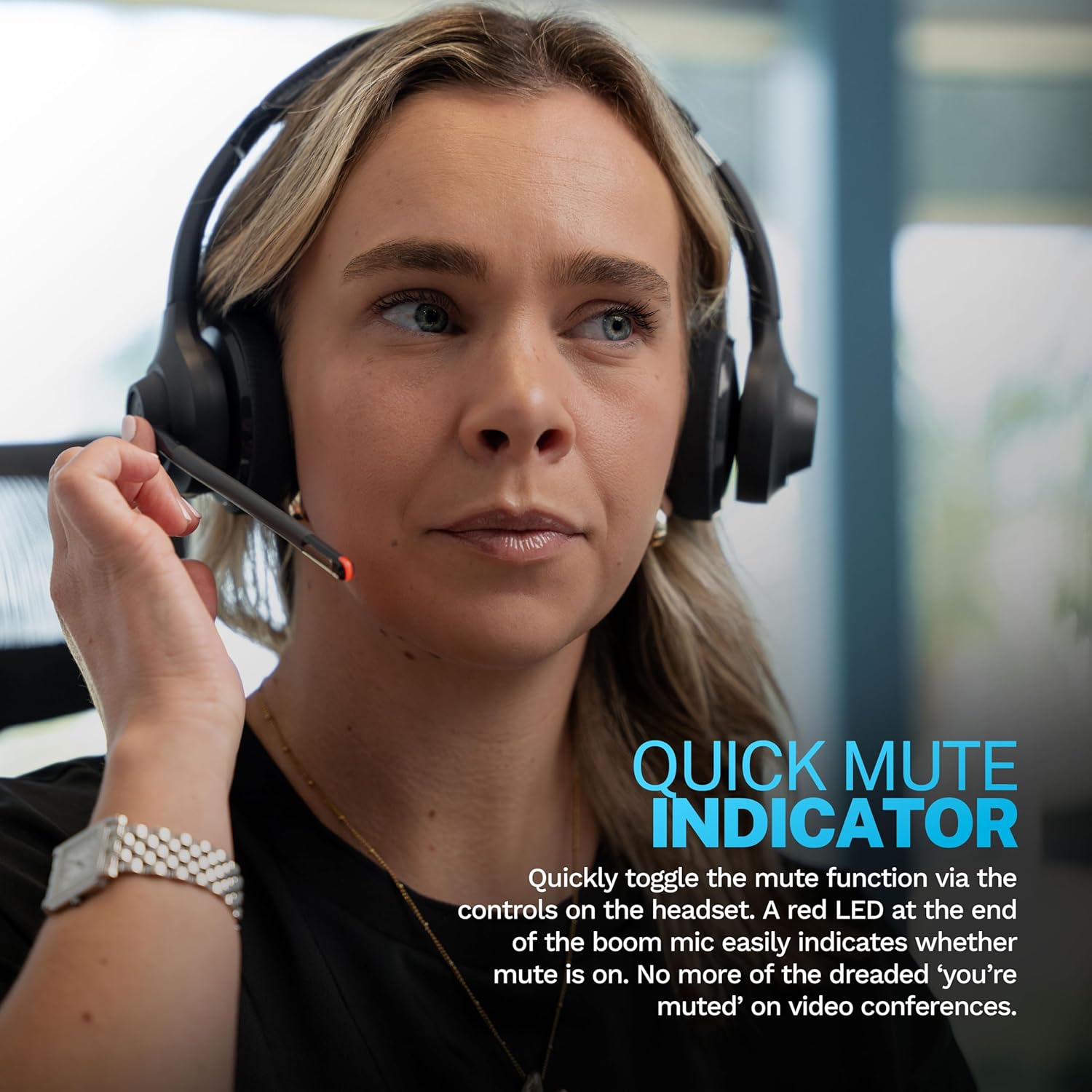
Image: The quick mute indicator on the boom microphone.
Microphone Usage
The boom microphone can be rotated up for listening only, or rotated down to take a call or participate in a video conference. Ensure the microphone is positioned close to your mouth for optimal voice pickup.
Clear Calls with C3 Calling
The JLab Go Work Gen 2 Headset features C3 Calling technology, utilizing dual microphones. One microphone captures your voice, while the other actively eliminates environmental sounds around you. This ensures your voice remains crystal clear during calls, regardless of your surroundings.

Image: Demonstrating clear call quality with the headset's microphone.
All-Week Playtime & Comfort
Enjoy a full work week of productivity with over 55 hours of playtime on a single charge. The headset is designed for all-day comfort, featuring Cloud Foam earcups that provide a soft and secure fit, reducing fatigue during extended use.

Image: The headset's comfortable design for extended use.
Connectivity Options
USB-C Dongle (Recommended for PC)
For optimal performance and stability, especially on Windows devices, the dedicated USB-C dongle is the primary connection method. This trusted wireless connection delivers superior reliability and seamless compatibility with popular collaboration software like Zoom, Teams, and Google Meet.
Image: Connecting the USB-C dongle for a stable wireless connection.
Bluetooth Multipoint
When a dongle connection is not available, the Go Work Gen 2 supports Bluetooth 5.0 connectivity with a range of 30+ feet. With Bluetooth Multipoint technology, you can connect to any two devices simultaneously (e.g., a laptop and a mobile phone). This allows for seamless transitions between devices without needing to adjust settings.

Image: Wireless Dongle vs. Bluetooth Connection diagram, illustrating optimal connectivity scenarios.
Wired Connection
For wired use, simply connect the headset to your device using the provided Type-C cable. This allows for direct audio and microphone functionality without relying on wireless connections.
Maintenance
To ensure the longevity and optimal performance of your JLab Go Work Gen 2 Headset, follow these maintenance guidelines:
- Cleaning: Gently wipe the earcups and headband with a soft, dry cloth. For stubborn dirt, a slightly damp cloth can be used, but ensure no moisture enters the speaker grilles or charging port.
- Storage: Store the headset in a cool, dry place away from direct sunlight and extreme temperatures.
- Avoid Liquids: Do not expose the headset to water or other liquids.
- Handle with Care: Avoid dropping the headset or subjecting it to strong impacts.
Troubleshooting
If you encounter issues with your JLab Go Work Gen 2 Headset, try the following troubleshooting steps:
- No Power: Ensure the headset is fully charged. Connect it to a power source using the Type-C cable.
- No Audio/Microphone:
- Check if the headset is properly connected via Bluetooth, USB-C dongle, or wired.
- Ensure the volume is turned up on both the headset and your connected device.
- Verify that the microphone is not muted (check the red LED indicator on the boom mic).
- For PC users, ensure the JLab Go Work Gen 2 is selected as the default audio input/output device in your system settings.
- Connectivity Issues (Bluetooth):
- Move the headset closer to your device.
- Disconnect and re-pair the headset with your device.
- If using Windows with multiple Bluetooth devices, consider using the USB-C dongle for a more reliable connection.
- Mute Button Malfunction: If the mute button becomes unresponsive, try powering the headset off and then on again.
For further assistance, please refer to the JLab support website or contact customer service.
Specifications
| Feature | Specification |
|---|---|
| Model Name | Go Work Gen 2 |
| Connectivity Technology | Wireless, Bluetooth, RF |
| Wireless Communication Technology | Bluetooth 5.0 |
| Battery Life | 55 Hours |
| Charging Time | 2 Hours |
| Frequency Range | 20-20,000 Hz |
| Item Weight | 9.6 ounces (0.6 Pounds) |
| Control Type | Volume Control, Multi-functional Buttons |
| Ear Placement | On Ear |
| Noise Control | Sound Isolation (C3 Calling) |
| UPC | 810119070500 |
Warranty & Support
Your JLab Go Work Gen 2 Headset comes with a JLab Two Year Warranty, covering defects in materials and workmanship under normal use. For detailed warranty information, product registration, and customer support, please visit the official JLab website.
You can also visit the JLab Store on Amazon for additional product information and resources.
Related documentsWEBHBGWRK2GPH20


Ask a question about this manual
Ask about setup, troubleshooting, compatibility, parts, safety, or missing instructions. Manuals+ will review the question and use this page’s manual context to help answer it.