
XOSS XOSS G Gen2 with cover
XOSS G Gen2 GPS Bike Computer User Manual
Model: XOSS G Gen2 with cover
Brand: XOSS
Introduction
The XOSS G Gen2 GPS Bike Computer is a wireless, Bluetooth-enabled cycling computer designed to provide comprehensive real-time data for your rides. Featuring a 2.2-inch LCD screen, IPX7 waterproofing, and a long-lasting rechargeable battery, it offers reliable performance for various cycling conditions. This manual provides detailed instructions for setting up, operating, and maintaining your device.

Image: The XOSS G Gen2 GPS Bike Computer shown alongside its black protective cover.
What's Included
Please verify that all components are present in the package:
- 1 x XOSS G Gen2 Main Unit
- 1 x Black Protective Cover
- 1 x Yardstick Holder (Mount)
- 1 x Protective Rubber Pad for Mount
- 2 x Rubber Rings for Mount Installation
- 1 x USB-C Charging Cable
- 1 x User Manual (this document)

Image: A visual representation of all items included in the XOSS G Gen2 package.
Key Features
Rich Screen Data Display
The G2 cycling computer offers up to 11 data display options, with 5 data fields visible on a single screen. This allows for comprehensive real-time monitoring of key cycling metrics.

Image: The 2.2-inch LCD screen of the XOSS G Gen2 showing various cycling data fields.

Image: The XOSS G Gen2 mounted on a bike, showcasing its rich data display during a ride.
Extended Battery Life
Equipped with a 500mAh rechargeable lithium battery, the device provides up to 28 hours of continuous use, reducing the need for frequent charging. Actual battery life may vary based on usage conditions.

Image: Cyclists enjoying a long ride, highlighting the 28-hour battery life of the XOSS G Gen2.
USB-C Interface
The device features a modern USB-C interface for convenient and efficient charging. Ensure the charging port cover is fully closed in wet conditions to maintain waterproofing.
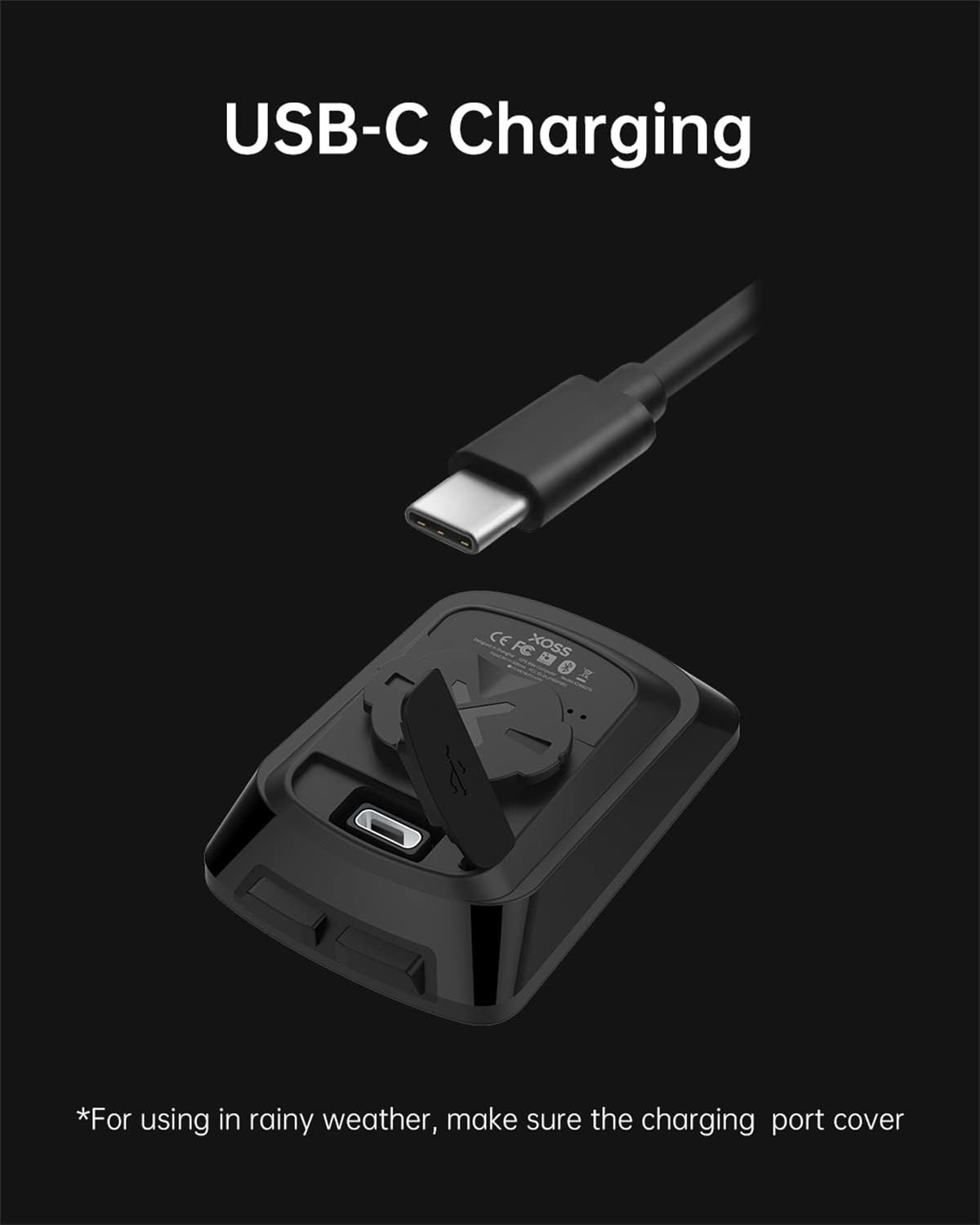
Image: The USB-C charging port of the XOSS G Gen2, ready for connection.
Accurate GPS Positioning
The XOSS G2 supports GPS, Beidou, and QZSS positioning systems, offering faster and more accurate location fixes compared to previous models. This ensures precise speed and odometer readings without requiring additional sensors.

Image: Satellites in orbit, symbolizing the advanced GPS positioning of the device.
STRAVA Synchronization
After acquiring a GPS signal, the G2 automatically records your ride data. You can connect the device to the XOSS app to upload your ride data and seamlessly synchronize it with Strava for analysis and sharing.

Image: The XOSS G Gen2 and a smartphone showing the XOSS app, demonstrating data synchronization.
IPX7 Waterproof Rating
The XOSS G Gen2 is rated IPX7 waterproof, ensuring its functionality even in rainy conditions. Always ensure the USB-C port cover is securely closed when riding in wet weather and dry the computer thoroughly after use.

Image: The XOSS G Gen2 covered in water droplets, showcasing its IPX7 waterproof design.
Automatic Backlight
The 2.2-inch LCD screen features an automatic backlight, enhancing readability in various lighting conditions, including low light or night riding.

Image: The XOSS G Gen2 displaying its automatic backlight feature during a night ride.
Official Product Video
Video: An official product video demonstrating the key features and usage of the XOSS G Gen2 GPS Bike Computer.
Setup Guide
Initial Charging
- Locate the USB-C charging port on the back of the XOSS G Gen2 unit.
- Connect the provided USB-C cable to the device and a compatible USB power source (e.g., computer USB port, wall adapter).
- Allow the device to charge fully before first use. The battery indicator on the screen will show charging status.
Mounting the Device
- Place the protective rubber pad on your bicycle's handlebar or stem where you intend to mount the computer.
- Position the yardstick holder (mount) on top of the rubber pad.
- Secure the mount firmly using the two provided rubber rings, wrapping them around the handlebar/stem and the mount's hooks.
- Align the XOSS G Gen2 unit with the mount's slot and twist it clockwise until it clicks securely into place.
- For added protection, place the black protective cover over the XOSS G Gen2 unit before mounting.
Operating Instructions
Power On/Off
- To power on: Press and hold the right button (power icon) for a few seconds until the screen illuminates.
- To power off: Press and hold the right button (power icon) for a few seconds until the screen turns off.
GPS Signal Acquisition
- Upon powering on, the device will automatically search for a GPS signal.
- Ensure you are in an open outdoor area for optimal signal reception.
- The GPS icon on the screen will indicate signal strength. Once a stable signal is acquired, the device is ready to record.
Controlling Recording
- To start recording: Press the left button (play/pause icon).
- To pause recording: Press the left button (play/pause icon) during a ride.
- To resume recording: Press the left button (play/pause icon) again.
- To save the ride: Press and hold the left button (play/pause icon) for a few seconds.
Screen Display and Customization
- The device displays up to 5 data fields per screen.
- To cycle through different data pages: Briefly press the middle button (refresh icon).
- To customize data fields: Connect the device to the XOSS app on your smartphone. The app allows you to select from up to 11 data options and arrange them on different screens.
Connecting to XOSS App
- Download the official XOSS app from your smartphone's app store (available on iOS and Android).
- Enable Bluetooth on your smartphone.
- Open the XOSS app and follow the on-screen instructions to pair your XOSS G Gen2 device.
- Once connected, you can view ride history, customize settings, and synchronize data with platforms like Strava.
Maintenance
Charging
- Charge the device regularly, especially before long rides, to ensure sufficient battery life.
- Use the provided USB-C cable for charging.
- Avoid using damaged cables or chargers.
Cleaning and Storage
- Wipe the device with a soft, damp cloth to remove dirt and debris. Do not use harsh chemicals or abrasive cleaners.
- Ensure the USB-C port cover is securely closed when cleaning or when the device is exposed to water.
- Store the device in a cool, dry place away from direct sunlight and extreme temperatures.
Waterproofing Care
- While the device is IPX7 waterproof, it is crucial to ensure the USB-C charging port cover is fully sealed before exposing it to water.
- After riding in rain or wet conditions, dry the computer thoroughly before opening the charging port or storing it.
- Do not submerge the device in water for extended periods.
Troubleshooting
Device Not Powering On
- Ensure the device is fully charged. Connect it to a power source and allow it to charge for at least 30 minutes.
- Try pressing and holding the power button for a longer duration (5-10 seconds).
Poor GPS Signal
- Move to an open area away from tall buildings, dense trees, or strong electromagnetic interference.
- Ensure the device has a clear view of the sky.
- Allow more time for the device to acquire a signal, especially if it's the first time using it in a new location.
Cannot Connect to XOSS App
- Ensure Bluetooth is enabled on your smartphone.
- Make sure the XOSS G Gen2 is powered on and within close proximity to your phone.
- Restart both the bike computer and your smartphone.
- Check if the XOSS app is updated to the latest version.
- If previously paired, try unpairing and re-pairing the device in your phone's Bluetooth settings and the XOSS app.
Inaccurate Data Readings
- Ensure a strong GPS signal is maintained throughout your ride.
- Verify that the device is securely mounted and not shifting during your ride.
- For speed and distance, ensure GPS is active. The device does not require external sensors for these metrics.
Specifications
| Brand | XOSS |
|---|---|
| Model Name | XOSS G Gen2 with cover |
| Color | Black |
| Product Dimensions | 2.8"L x 1.89"W x 0.75"H |
| Item Weight | 42 Grams |
| Screen Size | 2.2 Inches |
| Display Type | LCD |
| Battery Life | 28 Hours |
| Connectivity Technology | Bluetooth |
| International Protection Rating | IPX7 |
| Mounting Type | Handlebar Mount |
| Human Interface Input | Buttons |
| Material | Plastic |
Warranty and Support
Warranty Information
The XOSS G Gen2 GPS Bike Computer comes with a one-year warranty from the date of purchase. This warranty covers manufacturing defects and malfunctions under normal use. It does not cover damage caused by misuse, accidents, unauthorized modifications, or improper maintenance.
Please retain your proof of purchase for warranty claims.
Customer Support
For technical support, warranty claims, or any questions regarding your XOSS G Gen2, please refer to the XOSS official website or contact their customer service directly. You can also find additional resources and FAQs within the XOSS mobile application.
Visit the XOSS Store on Amazon for more product information and support.
Related documentsXOSS G Gen2 with cover


Ask a question about this manual
Ask about setup, troubleshooting, compatibility, parts, safety, or missing instructions. Manuals+ will review the question and use this page’s manual context to help answer it.