
1. Introduction
Welcome to the Blackview Tab 16 user manual. This guide provides essential information for setting up, operating, maintaining, and troubleshooting your new Blackview Tab 16 Android tablet. Please read this manual carefully to ensure optimal performance and longevity of your device.

Image: The Blackview Tab 16 tablet, showcasing its sleek design.
2. What's in the Box
Verify that all items are present in your Blackview Tab 16 package:
- Blackview Tab 16 Tablet (x1)
- User Manual (x1)
- Power Adapter (x1)
- USB Cable (x1)
- Stylus (x1)
- TPU Protective Case (x1)
3. Product Overview
3.1 Physical Design
The Blackview Tab 16 features a slim and lightweight design, making it highly portable for daily use.

Image: The Blackview Tab 16, demonstrating its ultra-thin 7.95mm profile and light 533g weight.
3.2 Display
Experience immersive visuals on the 11-inch 2K Full View IPS display, offering vibrant colors and wide viewing angles.

Image: Visual representation of the 11-inch 2K Full View display, emphasizing its large screen for an enhanced viewing experience.
3.3 Audio
The tablet is equipped with Quad-box Smart-K stereo speakers, providing rich and clear audio for all your multimedia needs.

Image: The Blackview Tab 16 showcasing its Quad-box Smart-K speakers, designed for an immersive audio experience.
3.4 Performance
Powered by an Octa-core Unisoc T616 processor, the Tab 16 ensures smooth operation and efficient multitasking.

Image: A visual representation of the Unisoc T616 Octa-core processor, highlighting its speed and efficiency.
3.5 Camera
Capture moments with the 13MP AI rear camera and 8MP AI front camera. The integrated Google Smart Lens offers advanced scanning, detection, and translation features.

Image: The Blackview Tab 16's camera system, featuring a 13MP AI camera and Google Smart Lens capabilities.
3.6 Battery
The 7680mAh battery provides extended usage, supported by 18W fast charging for quick power-ups.

Image: Illustration of the Blackview Tab 16's 7680mAh battery and 18W fast charging capability.
4. Setup
4.1 Charging the Device
Before first use, fully charge your Blackview Tab 16 using the provided power adapter and USB cable. Connect the USB cable to the tablet's Type-C port and the adapter to a power outlet. The charging indicator will show the charging status.
4.2 Powering On/Off
- To Power On: Press and hold the Power button until the Blackview logo appears on the screen.
- To Power Off: Press and hold the Power button until a menu appears. Select "Power off" and confirm.
- To Restart: Press and hold the Power button until a menu appears. Select "Restart" and confirm.
4.3 Initial Setup
Upon first power-on, follow the on-screen instructions to configure your tablet:
- Select your preferred language.
- Connect to a Wi-Fi network.
- Sign in with your Google account or create a new one.
- Set up screen lock (PIN, pattern, password, or facial recognition).
- Review and accept terms and conditions.
4.4 SIM and SD Card Installation
The Blackview Tab 16 supports Dual SIM and an SD card for expanded storage up to 1TB.
- Locate the SIM/SD card tray on the side of the tablet.
- Use the provided SIM ejector tool to open the tray.
- Carefully place your Nano-SIM cards and/or microSD card into the designated slots. Ensure correct orientation.
- Gently push the tray back into the tablet until it clicks into place.
5. Operating Instructions
5.1 Basic Navigation
The Blackview Tab 16 uses a touchscreen interface. Common gestures include:
- Tap: Select an item or open an app.
- Swipe: Scroll through pages or content.
- Pinch: Zoom in or out on images and web pages.
- Long Press: Access contextual menus or move icons.
5.2 Connectivity
- Wi-Fi: Go to Settings > Network & internet > Wi-Fi to connect to available networks.
- Mobile Data (4G/LTE): Ensure your SIM card is installed and mobile data is enabled in Settings > Network & internet > Mobile network.
- Bluetooth: Pair with Bluetooth devices (headphones, speakers) via Settings > Connected devices > Bluetooth.
5.3 Camera Usage
Open the Camera app to take photos or record videos. Utilize the Google Smart Lens feature for advanced functions:
- Scan: Digitize documents or QR codes.
- Detect: Identify objects, plants, or animals.
- Translate: Translate text in real-time.
5.4 Multimedia and Entertainment
Enjoy movies, music, and games on your Tab 16. The 11-inch 2K display and Quad-box speakers provide an engaging experience. The tablet supports Widevine L1 for high-definition streaming.
5.5 Productivity
The Blackview Tab 16 is suitable for office work and online learning. It supports external accessories like keyboards and mice for a PC-like experience.
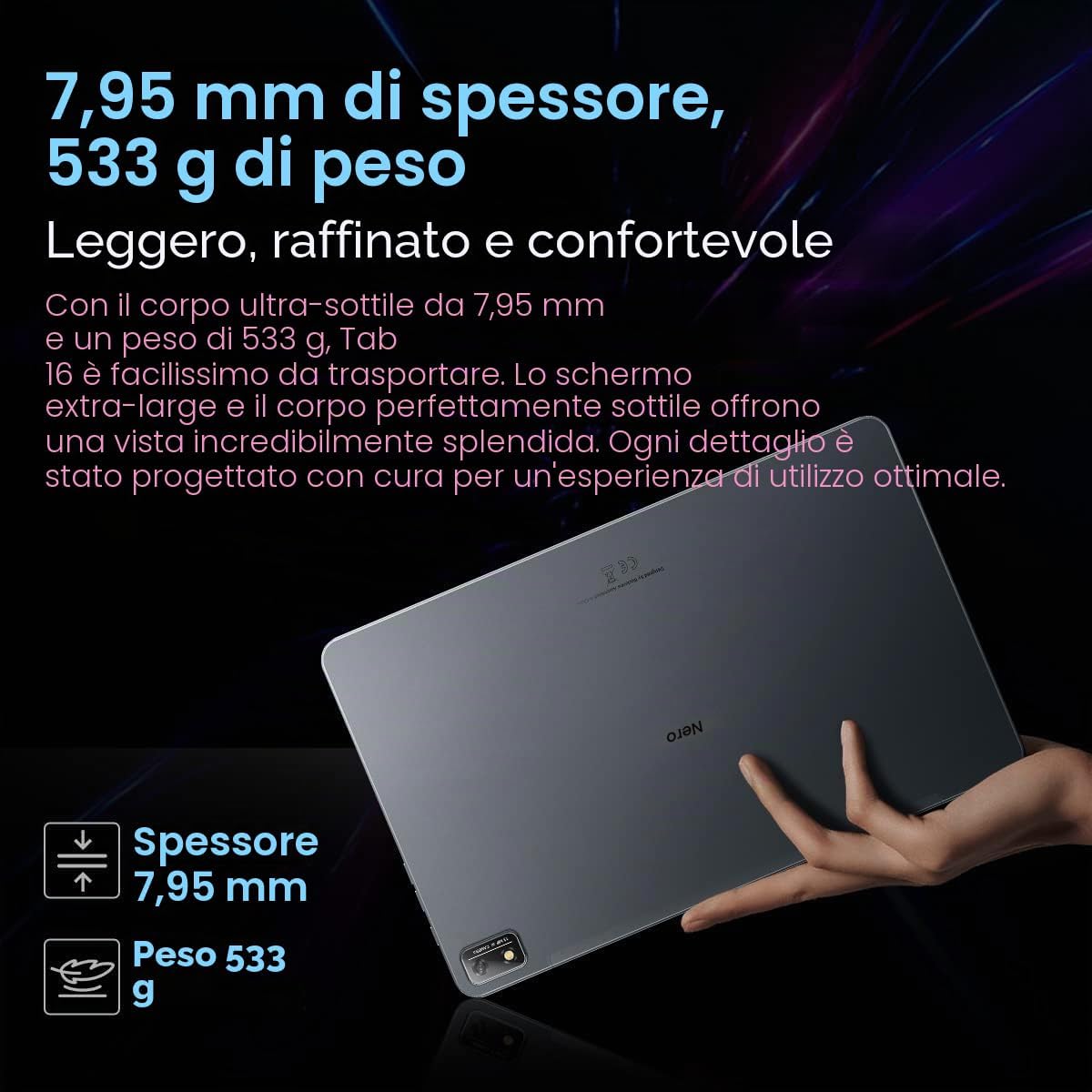
Image: The Blackview Tab 16 paired with a keyboard and mouse, demonstrating its capability for a PC-like productivity experience.
5.6 Reading Modes
To reduce eye strain, the Tab 16 offers three eye protection modes, including a TÜV Rheinland Low Blue Light certified mode and a Dark Mode with 3 levels of darkness. Access these settings in the display options.
6. Maintenance
6.1 Cleaning the Device
Use a soft, lint-free cloth to clean the screen and body of the tablet. Avoid using harsh chemicals or abrasive materials that could damage the surface.
6.2 Battery Care
To prolong battery life:
- Avoid extreme temperatures.
- Do not let the battery drain completely regularly.
- Use the original charger and cable.
6.3 Software Updates
Regularly check for system updates to ensure your tablet has the latest features and security patches. Go to Settings > System > System update.
6.4 Storage Management
Manage your 256GB internal storage and any installed microSD card by regularly deleting unnecessary files and uninstalling unused applications. Go to Settings > Storage.
7. Troubleshooting
If you encounter issues with your Blackview Tab 16, refer to the following common solutions:
| Problem | Possible Solution |
|---|---|
| Device does not power on | Ensure the battery is charged. Press and hold the Power button for at least 10-15 seconds. |
| Tablet not charging | Check the charging cable and adapter for damage. Try a different power outlet. Ensure the charging port is clean. |
| Wi-Fi connection issues | Restart the tablet and your Wi-Fi router. Forget the network and reconnect. Ensure you are within range. |
| Apps crashing or freezing | Close and reopen the app. Clear the app's cache (Settings > Apps > [App Name] > Storage & cache). Restart the tablet. |
| Slow performance | Close background apps. Clear cache. Free up storage space. Restart the tablet. |
If problems persist, consider performing a factory reset (Settings > System > Reset options > Erase all data), but back up your data first as this will delete all personal information.
8. Specifications
Key technical specifications for the Blackview Tab 16:
- Model Name: Tab 16
- Operating System: Android 12
- Processor: Unisoc T616 Octa-core (2 GHz)
- RAM: 8 GB
- Internal Storage: 256 GB
- Expandable Storage: microSD up to 1 TB
- Display: 11-inch IPS 2K (2000 x 1200), 60 Hz, 16:10 aspect ratio
- Rear Camera: 13 MP
- Front Camera: 8 MP
- Battery: 7680 mAh (26 hours average duration)
- Charging: 18W Fast Charging
- Connectivity: Wi-Fi, Bluetooth, 4G/LTE (Dual SIM), GPS
- Ports: USB Type-C
- Dimensions: 26L x 16.5W x 0.8H cm
- Weight: 533 g
- Special Features: Google Smart Lens, Widevine L1 1080P Support, 3 Reading Modes
9. Warranty and Support
Your Blackview Tab 16 is covered by a manufacturer's warranty. Please refer to the warranty card included in your package for specific terms and conditions. For technical support or service inquiries, please visit the official Blackview website or contact their customer service department. Keep your purchase receipt as proof of purchase for warranty claims.
For more information, you can visit the Blackview Store on Amazon.


