
1. Introduction
The Inseego MiFi M2000 is a portable 5G and 4G LTE hotspot designed to provide high-speed internet connectivity on the go. Featuring Wi-Fi 6 technology, it allows you to connect up to 30 Wi-Fi enabled devices simultaneously. Its robust 5050mAh battery ensures all-day operation and can also function as a power bank for other mobile devices. This manual will guide you through the setup, operation, maintenance, and troubleshooting of your MiFi M2000 to ensure optimal performance.
2. Package Contents
Please check the package for the following items:
- Inseego MiFi M2000 Device
- Rechargeable Battery (5050mAh)
- USB Type-C Cable
- AC Power Adapter
- SIM Ejector Tool (may vary by region)
- Quick Start Guide
3. Device Overview
Familiarize yourself with the key components of your Inseego MiFi M2000.

Figure 3.1: Front view of the Inseego MiFi M2000, showing the touchscreen display with network status, Wi-Fi status, and menu options.

Figure 3.2: Side view of the Inseego MiFi M2000, highlighting the USB Type-C port for charging and tethering.
Key Components:
- Touchscreen Display: Provides information on network status, battery level, Wi-Fi name (SSID), password, and allows access to device settings.
- Power Button: Used to turn the device on/off and wake/sleep the screen.
- USB Type-C Port: For charging the device, connecting to a computer for USB tethering, or using the device as a power bank.
- SIM Card Slot: Located under the battery cover, for inserting your Nano-SIM card.
4. Setup
4.1. SIM Card Installation
- Ensure the MiFi M2000 is powered off.
- Remove the back cover of the device.
- Locate the SIM card slot.
- Insert a Nano-SIM card into the slot with the gold contacts facing down and the notched corner aligned correctly. Push gently until it clicks into place.
- Replace the back cover.
4.2. Battery Installation
- With the back cover removed, align the battery contacts with the terminals inside the battery compartment.
- Gently press the battery into place.
- Replace the back cover securely.
4.3. Initial Power On
- Press and hold the Power button for a few seconds until the Inseego logo appears on the screen.
- The device will boot up and attempt to connect to the cellular network. This may take a few moments.
- Once connected, the screen will display network status, Wi-Fi name (SSID), and password.
5. Operating the Device
5.1. Connecting Devices via Wi-Fi
- Ensure your MiFi M2000 is powered on and connected to the cellular network.
- On your Wi-Fi enabled device (laptop, tablet, smartphone), open the Wi-Fi settings.
- Look for the Wi-Fi network name (SSID) displayed on your MiFi M2000's screen. It typically starts with "Inseego" or similar.
- Select the network and enter the Wi-Fi password (also displayed on the MiFi screen) when prompted.
- Your device should now be connected to the internet.
5.2. Connecting Devices via USB Tethering
You can connect a single device, such as a laptop, directly to the MiFi M2000 using the USB Type-C cable for a secure, wired internet connection.
- Connect one end of the USB Type-C cable to the MiFi M2000's USB port and the other end to your computer.
- On the MiFi M2000's screen, you may be prompted to select the USB mode. Choose "USB Tethering" or "Internet Sharing."
- Your computer should automatically detect the new network connection.
5.3. Charging the Device
To charge your MiFi M2000:
- Connect the USB Type-C cable to the MiFi M2000's USB port.
- Connect the other end of the USB cable to the provided AC power adapter.
- Plug the AC power adapter into a wall outlet.
- The battery icon on the MiFi screen will indicate charging status.
5.4. Using as a Power Bank
The MiFi M2000's large battery can be used to charge other devices.
- Connect your mobile device (phone, tablet) to the MiFi M2000's USB Type-C port using an appropriate charging cable.
- The MiFi M2000 will begin charging the connected device.
5.5. Managing Settings
You can manage various settings directly from the MiFi M2000's touchscreen display or by accessing the web administration interface from a connected device. The web interface typically offers more advanced options.
- Touchscreen: Tap the screen to navigate through menus for basic settings like Wi-Fi name, password, and data usage.
- Web Admin Interface: Connect a device to the MiFi's Wi-Fi network. Open a web browser and enter the IP address (usually
192.168.1.1or192.168.0.1, check your device screen or documentation) to access the administration portal. You will need the admin password, which is often found on the device itself or in the quick start guide.
6. Maintenance
6.1. Software Updates
Periodically check for and install software updates to ensure your device has the latest features, security patches, and performance improvements. Updates can usually be initiated through the device's touchscreen menu or the web administration interface.
6.2. Cleaning
To clean your MiFi M2000:
- Power off the device and disconnect all cables.
- Use a soft, dry, lint-free cloth to wipe the exterior.
- For the touchscreen, use a screen-cleaning solution specifically designed for electronics, applied to the cloth, not directly to the screen.
- Avoid using harsh chemicals, abrasive cleaners, or getting moisture into any openings.
6.3. Battery Care
To prolong the life of your battery:
- Avoid exposing the device to extreme temperatures.
- Do not fully discharge the battery regularly. Charge it before it drops too low.
- If storing the device for an extended period, charge the battery to about 50% and store it in a cool, dry place.
7. Troubleshooting
If you encounter issues with your MiFi M2000, try the following troubleshooting steps:
7.1. No Internet Connection
- Check Signal Strength: Ensure the device is in an area with good cellular coverage. The signal indicator on the screen should show bars.
- Verify SIM Card: Ensure the SIM card is correctly inserted and active with a data plan.
- Restart Device: Power off the MiFi M2000, wait a few seconds, then power it back on.
- Check Data Plan: Confirm your data plan is active and has available data.
7.2. Slow Speeds
- Signal Strength: Move to an area with better signal.
- Connected Devices: Reduce the number of devices connected to the hotspot.
- Network Congestion: Performance can be affected by network congestion in your area.
- Interference: Keep the MiFi away from other electronic devices that might cause interference.
7.3. Battery Not Charging / Device Not Powering On
- Check Cable and Adapter: Ensure the USB Type-C cable and AC adapter are securely connected and functioning correctly. Try a different cable or adapter if available.
- Battery Level: If the battery is completely drained, it may take a few minutes of charging before the device responds.
- Reinsert Battery: Power off the device, remove and reinsert the battery, then try powering on again.
8. Specifications
Below are the technical specifications for the Inseego MiFi M2000:
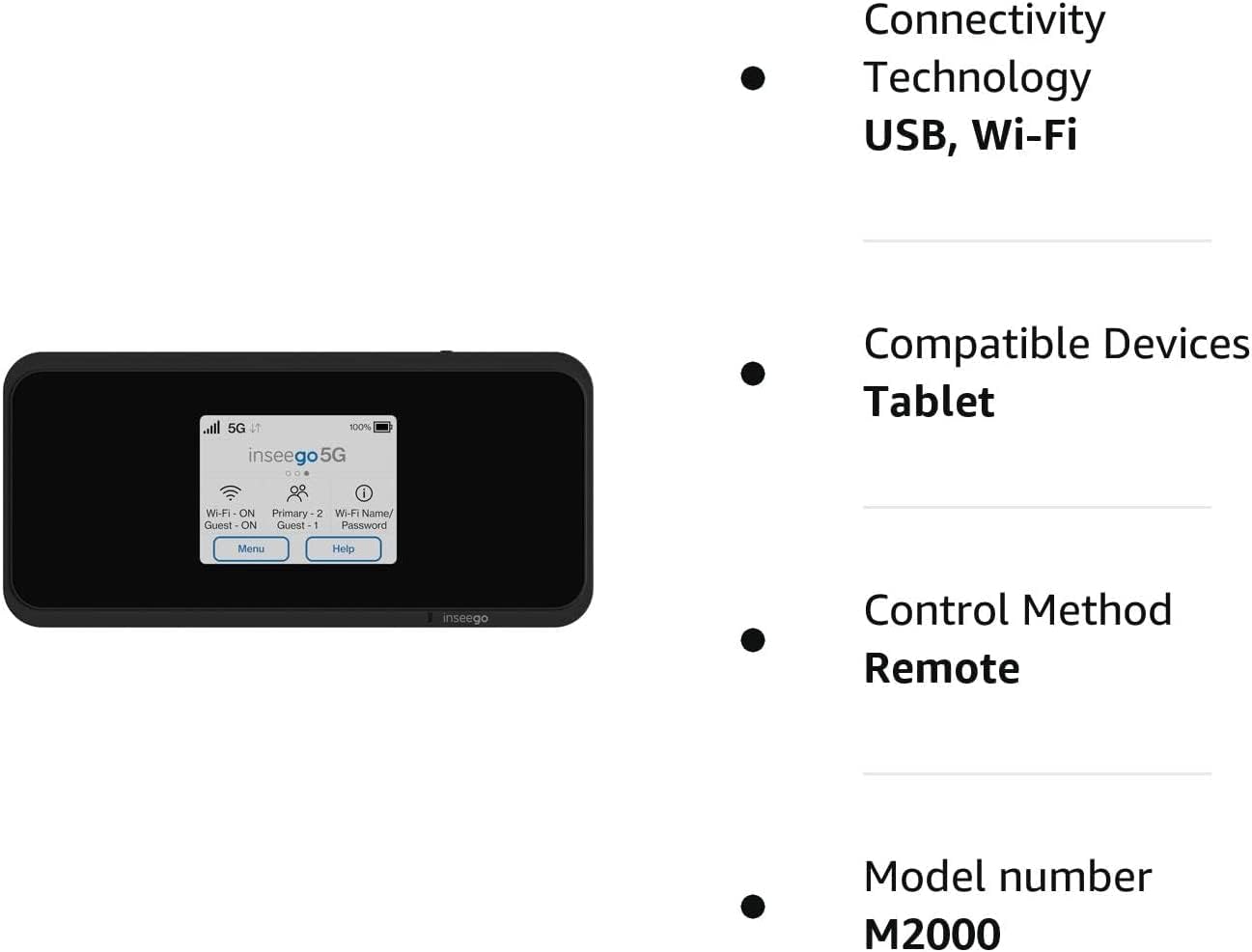
Figure 8.1: Visual representation of key features and specifications for the Inseego MiFi M2000.
| Feature | Specification |
|---|---|
| Model Number | M2000 |
| Brand | Inseego |
| Connectivity Technology | USB, Wi-Fi |
| Wireless Communication Standard | 802.11ax (Wi-Fi 6) |
| Frequency Band Class | Dual-Band (2.4 GHz) |
| Security Protocol | WPA3 |
| Data Transfer Rate | 1 Gigabits Per Second |
| Maximum Upstream Data Transfer Rate | 500 Megabits Per Second |
| Number of Ports | 1 (USB Type-C) |
| Number of Antennas | 2 |
| Battery Capacity | 5050mAh (All Day Battery Life) |
| Compatible Devices | Tablet, up to 30 Wi-Fi enabled devices |
| Control Method | Touch |
| Color | Black |
| Operating System | [Proprietary OS] |
| Voltage | 5 Volts (DC) |
| LAN Port Bandwidth | 1000 Mbps |
9. Safety Information
Please read and follow these safety guidelines to prevent damage to your device or injury to yourself:
- Do not expose the device to extreme temperatures, direct sunlight, or high humidity.
- Avoid dropping, puncturing, or disassembling the device.
- Use only approved chargers and accessories.
- Keep the device away from water or other liquids.
- Do not operate the device in areas where electronic devices are restricted.
- Dispose of batteries and the device according to local regulations.
10. Warranty and Support
For warranty information, technical support, or service inquiries, please refer to the warranty card included with your product or visit the official Inseego website. Keep your proof of purchase for warranty claims.


