
Introduction
This manual provides instructions for the proper setup, operation, and maintenance of your PIVOT A22A Atlas Tablet Case. This case is specifically designed to provide robust protection and enhanced functionality for the iPad (10th generation).
Setup Instructions
1. Installing Your iPad into the Case
- Ensure your iPad (10th generation) is clean and free of debris.
- Carefully align the iPad with the case, ensuring all ports and buttons match the case cutouts.
- Gently press the iPad into the case until it is securely seated. Verify that all edges are fully enclosed by the case's protective frame.
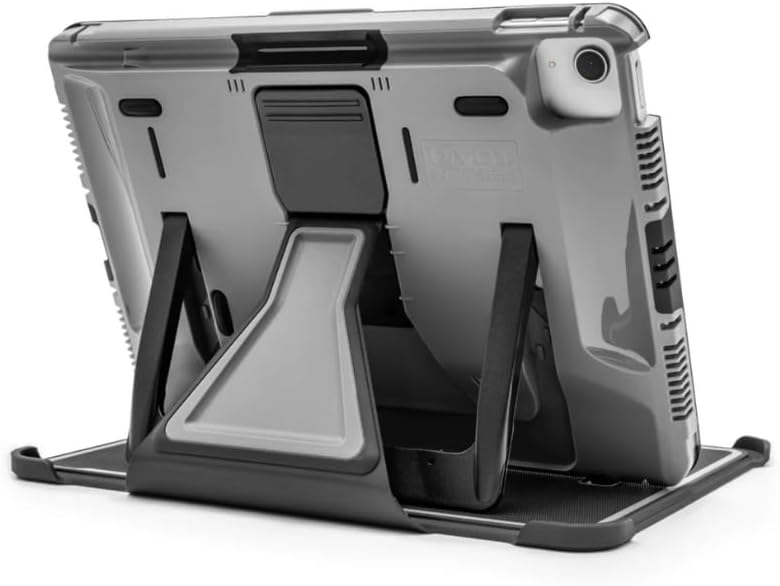
Image: Rear view of the PIVOT A22A Atlas Tablet Case with an iPad inserted, demonstrating the integrated kickstand in an open position.
2. Attaching the Folio Cover
- Align the folio cover with the designated attachment points on the side of the case.
- Securely snap or slide the folio cover into place. Ensure it is firmly attached to provide screen protection.

Image: The PIVOT A22A Atlas Tablet Case with its folio cover attached, shown with the kickstand extended for viewing.
3. Using the Integrated Kickstand
- Locate the kickstand on the back of the case.
- Gently pull the kickstand outwards until it locks into your desired viewing angle. The kickstand offers 120-degrees of adjustability for both landscape and portrait orientations.
- To retract, press the release mechanism (if present) or gently push the kickstand back into its flush position until it clicks.

Image: A diagram illustrating the PIVOT A22A Atlas Tablet Case with its kickstand, detailing its dimensions and 120-degree adjustment capability.
4. Connecting to a PIVOT Mount
The PIVOT A22A case features a standardized mounting channel for secure attachment to PIVOT mounting solutions (sold separately). This includes PanaVise mounts and Supergrip Suction Cups.
- Ensure your PIVOT mount is securely installed according to its own instructions.
- Align the PIVOT case's mounting plate with the mount's connection point.
- Slide the case onto the mount until it locks securely in place. Verify the connection is firm before use.

Image: An iPad secured within a PIVOT case, mounted within an aircraft cockpit, demonstrating its intended use in aviation environments.
Operating Instructions
1. Adjusting Viewing Angles
The integrated kickstand allows for multiple viewing angles. Extend the kickstand and adjust its position to achieve the desired landscape or portrait orientation. The 120-degree adjustability provides flexibility for various tasks.

Image: The PIVOT A22A Atlas Tablet Case holding an iPad, with the folio cover folded to create a stable viewing stand.
2. Utilizing the Folio Cover
The folio cover protects the iPad screen when closed. When open, it can be folded back to serve as an additional stand for various viewing positions, enhancing versatility.
3. Accessing Ports and Buttons
The case is designed with precise cutouts to ensure full access to all iPad ports, buttons, and the camera without needing to remove the device from the case.
4. Accessory Integration
The PIVOT A22A case is compatible with the Apple Magic Keyboard Folio and features a dedicated slot for the 1st generation Apple Pencil. An integrated socket is also provided for an Apple AirTag, allowing for device tracking. Note: All Apple accessories are sold separately.
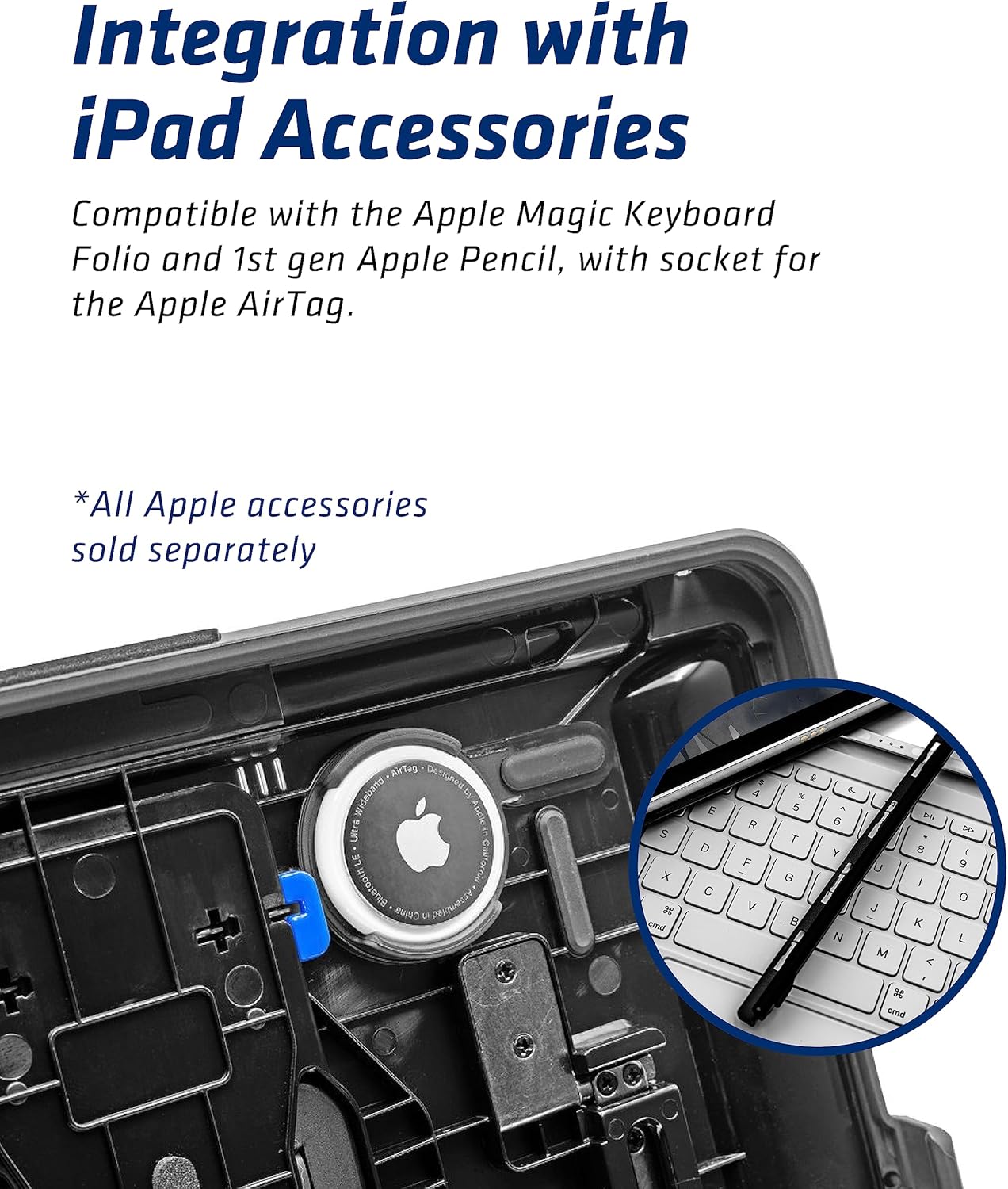
Image: A detailed view of the PIVOT A22A Atlas Tablet Case, highlighting the integrated storage for an Apple Pencil and a socket for an Apple AirTag.
Maintenance
Cleaning the Case
To clean your PIVOT A22A Atlas Tablet Case, use a soft, damp cloth. For stubborn dirt, a mild soap solution can be applied. Avoid harsh chemicals or abrasive materials, as these may damage the polycarbonate and rubber construction.
Inspection for Wear
Periodically inspect the case for any signs of wear or damage, especially around the edges, corners, and the kickstand mechanism. If significant damage is observed, consider replacing the case to ensure continued protection for your iPad.
Troubleshooting
iPad Not Fitting Correctly
Ensure you have the correct model of iPad (10th generation). Verify that no foreign objects are obstructing the case or iPad. Re-align the iPad and apply gentle, even pressure to seat it properly.
Kickstand Stability Issues
Ensure the kickstand is fully extended and locked into position. Check for any obstructions or damage to the kickstand mechanism. The case should be placed on a flat, stable surface for optimal support.
Mounting Connection Problems
If the case does not securely attach to a PIVOT mount, inspect both the case's mounting plate and the mount's connection point for debris or damage. Ensure the locking mechanism on the mount is fully engaged. For suction cup mounts, ensure the surface is clean, smooth, and non-porous.

Image: An underside view of the PIVOT A22A Atlas Tablet Case, illustrating its minimal contact design which aids in heat dissipation and air circulation.
Specifications
| Product Model | PIVOT A22A Atlas Tablet Case |
| Compatible Devices | iPad (10th generation) |
| Material | Polycarbonate, Rubber |
| Product Dimensions | 10.12 x 7.43 x 0.81 inches |
| Item Weight | 1.06 pounds |
| Special Features | Integrated Kickstand, Upgraded Folio Cover, Apple Pencil Holder, AirTag Socket, Minimal Contact Design for Thermal Control, Standardized PIVOT Mounting Channel |
Warranty and Support
For information regarding warranty coverage, technical support, or to purchase replacement parts, please refer to the official PIVOT website or contact PIVOT customer service directly. Keep your proof of purchase for warranty claims.


