
1. Safety Information
Please read these safety instructions carefully before using your Ledwood XTREM140 speaker. Keep this manual for future reference.
- Do not expose the speaker to extreme temperatures, direct sunlight, or open flames.
- Avoid dropping or subjecting the speaker to strong impacts.
- The speaker is IPX5 waterproof, meaning it is protected against low-pressure water jets from any direction. Do not immerse it in water.
- Do not attempt to disassemble, repair, or modify the speaker yourself. Contact qualified service personnel.
- Use only the provided USB-C charging cable or a certified equivalent.
- Keep out of reach of children.
2. Product Overview
Familiarize yourself with the components and controls of your Ledwood XTREM140 speaker.
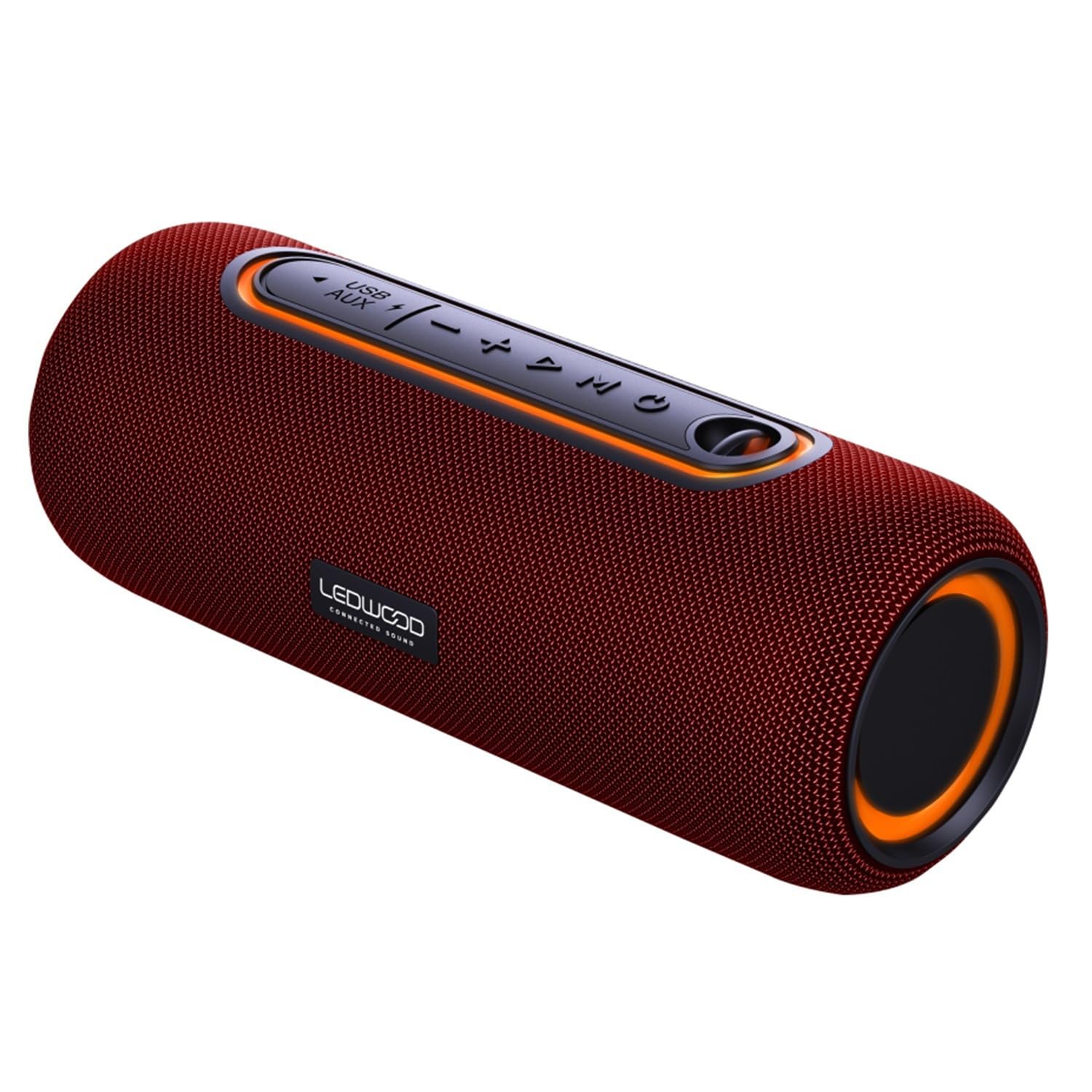
Image 1: Ledwood XTREM140 speaker, angled view showing the control panel and carrying strap.
Control Panel Layout

Image 2: Detailed view of the speaker's control buttons, including power, volume, play/pause, and mode selection.
- Power Button: Press and hold to turn on/off.
- Play/Pause Button: Press to play or pause audio.
- Volume Down / Previous Track: Press to decrease volume. Press and hold to go to the previous track.
- Volume Up / Next Track: Press to increase volume. Press and hold to go to the next track.
- Mode Button (M): Press to switch between Bluetooth, AUX, and USB modes.
- TWS Button: Press to activate True Wireless Stereo pairing.
- USB Port: For USB playback or charging.
- AUX Input: For wired audio connection.
- USB-C Charging Port: For charging the speaker.
3. What's in the Box
Verify that all items are present in the packaging:
- Ledwood XTREM140 Portable Bluetooth Speaker
- USB-C Charging Cable
- 3.5mm AUX Audio Cable
- User Manual (this document)
4. Setup
4.1 Charging the Speaker
- Connect the provided USB-C cable to the speaker's USB-C charging port.
- Connect the other end of the USB-C cable to a USB power adapter (not included) or a computer's USB port.
- The charging indicator light will illuminate. It will turn off or change color once fully charged.
- A full charge takes approximately 3-4 hours and provides up to 6 hours of playback.
4.2 Powering On/Off
- To Power On: Press and hold the Power button for 2-3 seconds. You will hear an audible prompt.
- To Power Off: Press and hold the Power button for 2-3 seconds. You will hear an audible prompt.
4.3 Bluetooth Pairing
- Ensure the speaker is powered on and in Bluetooth mode (indicated by a flashing blue LED). If not, press the 'M' (Mode) button to switch to Bluetooth mode.
- Enable Bluetooth on your smartphone, tablet, or other Bluetooth-enabled device.
- Search for "XTREM140" in your device's Bluetooth list.
- Select "XTREM140" to connect. Once paired, the LED indicator will stop flashing and remain solid blue, and you will hear a confirmation sound.
- The speaker will automatically reconnect to the last paired device when powered on, if the device's Bluetooth is active and within range.
4.4 True Wireless Stereo (TWS) Pairing
TWS allows you to connect two XTREM140 speakers for a stereo sound experience.
- Ensure both XTREM140 speakers are powered on and in Bluetooth mode, but not connected to any device.
- On one of the speakers (this will be the primary speaker), press the 'TWS' button. You will hear a prompt indicating TWS pairing mode.
- The two speakers will automatically search for and connect to each other. Once connected, you will hear a confirmation sound, and the TWS indicator light will be solid on both speakers.
- Now, connect your Bluetooth device to the primary speaker (the one you pressed the TWS button on) as described in section 4.3.
- To disconnect TWS, press the TWS button on either speaker.
4.5 AUX Connection
- Connect one end of the 3.5mm AUX audio cable to the AUX input port on the speaker.
- Connect the other end of the cable to the audio output jack of your device (e.g., MP3 player, computer).
- Press the 'M' (Mode) button on the speaker to switch to AUX mode.
- Audio will now play through the speaker from your connected device.
4.6 USB Playback
- Insert a USB flash drive (formatted to FAT32) containing MP3 audio files into the USB port on the speaker.
- Press the 'M' (Mode) button to switch to USB mode.
- The speaker will automatically begin playing audio files from the USB drive.
5. Operating Instructions
5.1 Basic Playback Controls
- Play/Pause: Press the Play/Pause button.
- Volume Up: Press the Volume Up (+) button.
- Volume Down: Press the Volume Down (-) button.
- Next Track: Press and hold the Volume Up (+) button.
- Previous Track: Press and hold the Volume Down (-) button.
5.2 Voice Assistant
The speaker supports voice assistant functionality when connected via Bluetooth to a compatible smartphone.
- To activate your device's voice assistant (e.g., Siri, Google Assistant), press the Play/Pause button twice quickly.
5.3 Call Handling (via Bluetooth)
When connected to a smartphone via Bluetooth, the speaker can be used for hands-free calls.
- Answer Call: Press the Play/Pause button once.
- End Call: Press the Play/Pause button once during a call.
- Reject Call: Press and hold the Play/Pause button for 2 seconds.
6. Maintenance
6.1 Cleaning
- Wipe the speaker with a soft, damp cloth. Do not use abrasive cleaners or solvents.
- Ensure all ports are dry before charging or connecting cables.
6.2 Storage
- Store the speaker in a cool, dry place away from direct sunlight and extreme temperatures.
- If storing for an extended period, charge the battery every 3-6 months to maintain battery health.
7. Troubleshooting
| Problem | Possible Cause | Solution |
|---|---|---|
| Speaker does not turn on | Low battery | Charge the speaker for at least 30 minutes. |
| Cannot pair via Bluetooth | Speaker not in pairing mode; Device Bluetooth off; Speaker already connected to another device; Device too far. | Ensure speaker is in Bluetooth pairing mode (flashing blue LED). Turn on device Bluetooth. Disconnect from other devices. Move device closer to speaker. |
| No sound | Volume too low; Incorrect mode selected; AUX/USB cable not fully inserted. | Increase speaker and device volume. Press 'M' to select correct mode (Bluetooth, AUX, USB). Ensure cables are securely connected. |
| TWS pairing fails | Speakers already connected to a device; Speakers too far apart. | Ensure both speakers are disconnected from any Bluetooth device before TWS pairing. Place speakers within 5 meters of each other. |
8. Specifications
| Feature | Specification |
|---|---|
| Model Name | XTREM140 |
| Model Number | LD-XT140BT |
| Bluetooth Version | 5.0 |
| Waterproof Rating | IPX5 |
| RMS Power Output | 10W |
| Total Admissible Power | 100W |
| Speaker Drivers | 2 x 3.5 inch (9cm) |
| Frequency Response | 80Hz - 16KHz |
| Battery Capacity | 5V, 2000mAh |
| Playback Time | Up to 6 hours |
| Charging Time | Approx. 3-4 hours |
| Connectivity | Bluetooth, USB, 3.5mm AUX |
| Dimensions (L x W x H) | 24.2cm x 9.2cm x 9.2cm |
| Material | High-quality fabric |
| Special Features | TWS Function, Voice Assistance |
9. Warranty and Support
Ledwood products are designed and manufactured to the highest quality standards. For detailed warranty information and customer support, please refer to the warranty card included with your purchase or visit the official Ledwood website.
If you encounter any issues not covered in this manual, please contact Ledwood customer service for assistance.


