
1. Introduction
This manual provides detailed instructions for the Geeky GK65 65% Hot Swappable Mechanical Gaming Keyboard. It covers setup, operation, maintenance, and troubleshooting to ensure optimal performance and longevity of your device. The GK65 is a compact 68-key keyboard featuring hot-swappable mechanical switches, customizable RGB backlighting, and a durable design for both gaming and typing.
2. Package Contents
Ensure all items are present in the package:
- Geeky GK65 Mechanical Gaming Keyboard
- USB Type-C to Type-A Cable (5FT/1.5M)
- Keycap Puller Tool
- Switch Puller Tool
- User Manual (this document)
3. Product Overview
The Geeky GK65 keyboard is designed for performance and customization. Below are key features and components.

Figure 3.1: The Geeky GK65 65% Mechanical Gaming Keyboard, showcasing its compact layout and RGB backlighting.
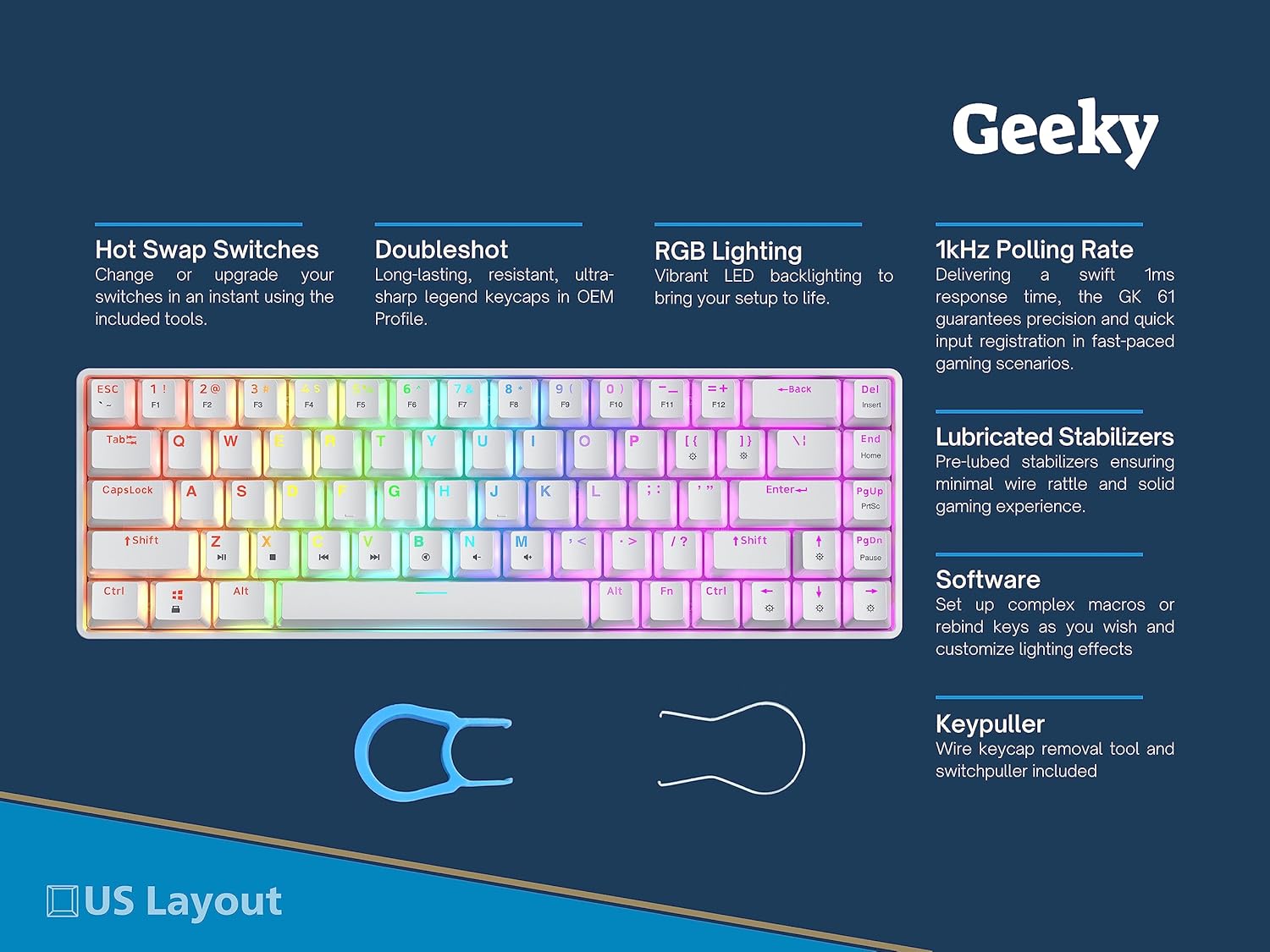
Figure 3.2: Overview of the GK65's main features, including hot-swappable switches, doubleshot keycaps, RGB lighting, and a 1kHz polling rate.

Figure 3.3: Exploded view illustrating the internal structure of the GK65, from keycaps to the base case.
4. Setup Instructions
Follow these steps to set up your Geeky GK65 keyboard:
- Unpack the Keyboard: Carefully remove the keyboard and all accessories from the packaging.
- Connect the USB Cable: Insert the USB Type-C end of the provided cable into the port on the back of the keyboard.
- Connect to Your Device: Plug the USB Type-A end of the cable into an available USB port on your computer (PC or Mac).
- Driver Installation: The keyboard is plug-and-play. Your operating system should automatically detect and install the necessary drivers. No additional software installation is required for basic functionality.
- Software Installation (Optional): For advanced customization, including macros and lighting effects, download the official Geeky software from the manufacturer's website.
5. Operating Instructions
5.1 Basic Functions
The GK65 features a 68-key ANSI US layout. Standard keys function as labeled. For keys with secondary functions, use the Fn key in combination with the desired key.

Figure 5.1: Function key combinations for lighting control and other features.
5.2 RGB Backlighting
The keyboard features a multicolor RGB lighting system with 16.8 million colors. You can customize lighting patterns and effects using the following key combinations or the dedicated software:
- Fn + \|: Switch between various lighting modes.
- Fn + Up Arrow: Increase brightness (10 levels).
- Fn + Down Arrow: Decrease brightness (10 levels).
- Fn + Left Arrow: Decrease lighting speed (10 levels).
- Fn + Right Arrow: Increase lighting speed (10 levels).
- Fn + P: Turn lighting on/off.
5.3 Software Customization
The Geeky software allows for advanced customization:
- Key Rebinding: Remap any key to a different function.
- Macro Creation: Set up complex macros with up to 256 individual actions.
- Lighting Effects: Access twenty sets of mesmerizing backlight patterns and fine-tune color settings.
Refer to the software's built-in help or the manufacturer's website for detailed instructions on using the customization software.
6. Hot-Swappable Mechanical Switches
The GK65 features hot-swappable switch sockets, allowing you to change, lube, or upgrade your mechanical switches without soldering. This supports both 3-pin and 5-pin switches.
6.1 Changing Switches
- Remove Keycap: Use the included keycap puller tool to gently remove the keycap from the switch you wish to replace.
- Remove Switch: Use the included switch puller tool. Align the prongs of the switch puller with the two clips on the top and bottom of the switch. Squeeze the clips and gently pull the switch straight up.
- Insert New Switch: Align the pins of the new switch with the holes on the PCB. Ensure the pins are straight. Gently push the switch down until it clicks into place. Do not force it; bent pins can damage the socket.
- Replace Keycap: Place the keycap back onto the new switch stem.

Figure 6.1: Detail of hot-swappable switches, illustrating the ease of replacement.
6.2 Switch Types
The GK65 is compatible with various mechanical switch types. The choice of switch affects typing feel and sound.

Figure 6.2: Comparison of various GK Series mechanical switch types and their characteristics.
7. Maintenance
Regular maintenance helps preserve the keyboard's performance and appearance.
7.1 Cleaning
- General Cleaning: Use a soft, lint-free cloth to wipe the surface of the keyboard. For stubborn dirt, slightly dampen the cloth with water or a mild cleaning solution.
- Keycap Cleaning: Remove keycaps using the keycap puller. Clean them with warm soapy water, rinse thoroughly, and ensure they are completely dry before reattaching.
- Dust Removal: Use compressed air to blow away dust and debris from between the keycaps and switches.
7.2 Storage
When not in use for extended periods, store the keyboard in a dry, cool place away from direct sunlight and extreme temperatures. Disconnect the USB cable to prevent accidental damage.
8. Troubleshooting
If you encounter issues with your GK65 keyboard, refer to the following common solutions:
| Problem | Possible Cause | Solution |
|---|---|---|
| Keyboard not responding | Loose USB connection, faulty cable, incorrect USB port. | Ensure the USB cable is securely connected to both the keyboard and the computer. Try a different USB port or a different USB-C cable. Restart your computer. |
| RGB lighting not working or flickering | Lighting turned off, software conflict, firmware issue. | Press Fn + P to toggle lighting. Check lighting brightness with Fn + Up/Down Arrow. Ensure the keyboard firmware is up to date via the official software. If flickering persists, try reconnecting the keyboard. |
| Keys not registering or double-typing | Faulty switch, debris under keycap, software issue. | Remove the keycap and switch (refer to Section 6.1). Clean the area and reinsert the switch. If the issue persists, replace the switch with a spare or a new one. Check for software conflicts or rebinds. |
| Software not detecting keyboard | Software not installed correctly, outdated software, driver issue. | Ensure the latest version of the Geeky software is installed. Reinstall the software. Check your operating system's device manager for any driver issues. |
| Keyboard rocking on desk | Uneven rubber feet. | Check the rubber feet on the bottom of the keyboard. If any are missing or uneven, contact support for replacements. |
9. Specifications
- Model: GK65 65% US Layout - Mechanical
- Layout: 68-key, ANSI US
- Connectivity: Wired USB-C
- Switches: Hot-swappable mechanical (compatible with 3-pin and 5-pin switches)
- Keycaps: Doubleshot, OEM Profile
- Backlighting: Full RGB, 16.8 million colors, customizable effects
- Polling Rate: 1000Hz (1ms response time)
- Stabilizers: Pre-lubricated
- Compatibility: Windows 10, Win 8, Win 7, Win Vista, Windows XP, Mac OS (some key remapping may be needed for Mac)
- Dimensions: 12.2 x 4.3 x 1.25 inches (30.99 x 10.92 x 3.18 cm)
- Weight: 1.28 pounds (0.58 kg)
- Material: Acrylonitrile Butadiene Styrene, Plastic
10. Warranty and Support
Geeky products are manufactured to high-quality standards. For warranty information, technical support, or to inquire about replacement parts, please visit the official Geeky website or contact your retailer. Keep your proof of purchase for warranty claims.