1. Introduction
Welcome to the Qubo P210NW Flip Phone user manual. This guide provides detailed instructions on how to set up, operate, and maintain your new mobile phone. The Qubo P210NW is specifically designed for ease of use, featuring large buttons, a clear display, and essential functions for seniors, including an SOS emergency button, speed dial, and high volume.
Please read this manual carefully to ensure proper use and to fully utilize all the features of your device.
2. Package Contents
Upon unpacking your Qubo P210NW Flip Phone, please verify that all the following items are included:
- Qubo P210NW Flip Phone
- Battery
- USB Type-C Charging Cable
- Power Adapter
- User Manual (this document)
- Warranty Card

Image: Contents of the Qubo P210NW Flip Phone package.
3. Phone Overview
The Qubo P210NW features a classic flip design with a clear 2.8-inch internal display and an external indicator for notifications. The large, backlit keypad ensures easy dialing and navigation.
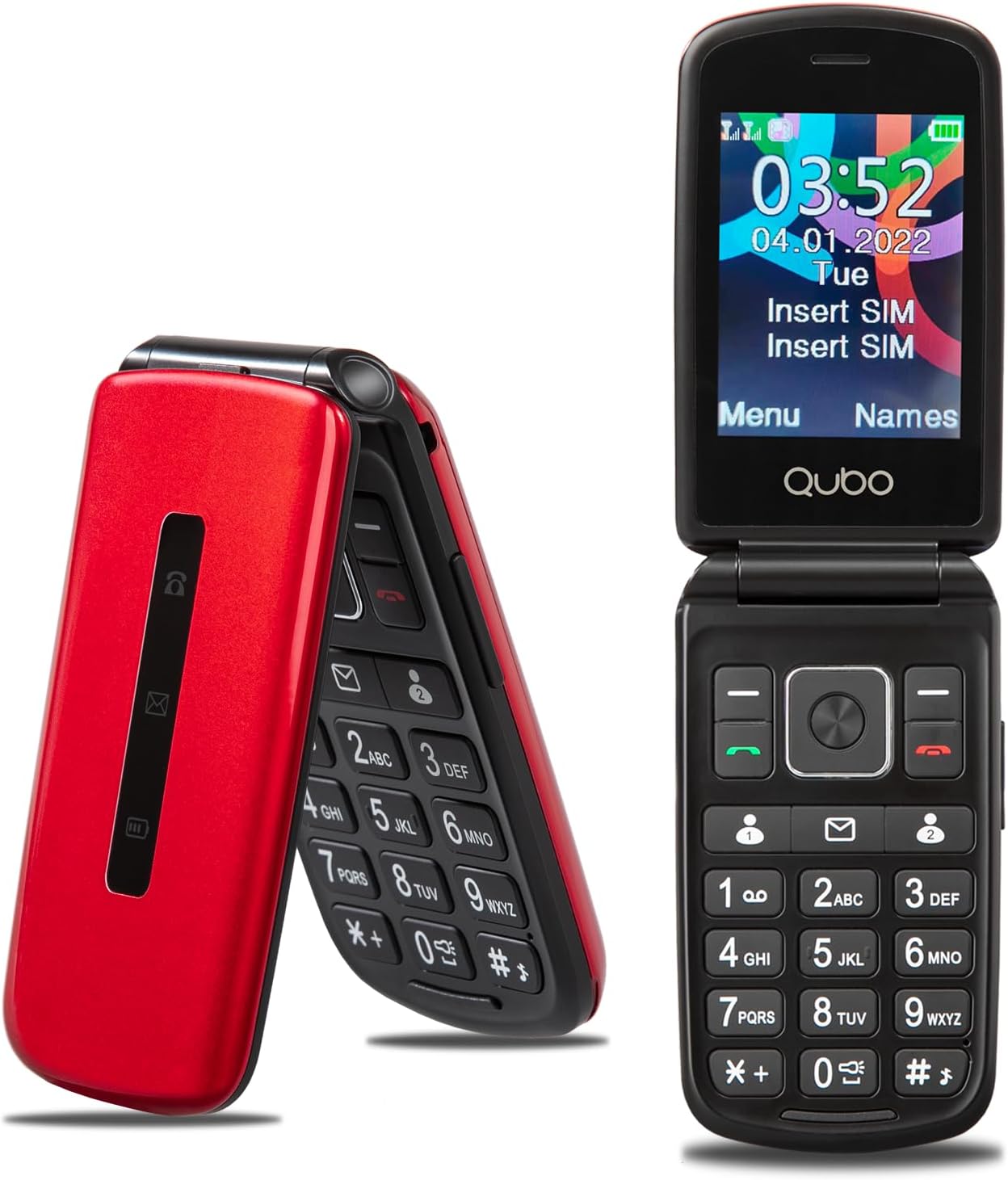
Image: Front view of the Qubo P210NW Flip Phone, both open and closed.

Image: Various angles of the Qubo P210NW Flip Phone, highlighting its design.
Keypad and Buttons
- Large, Backlit Keys: For easy dialing and text input, even in low light.
- Navigation Pad: Central button for menu selection and directional navigation.
- Call/End Buttons: Dedicated buttons for initiating and ending calls.
- SOS Button: Located on the back for emergency calls.
- Side Volume Control: Buttons on the side to adjust call volume.

Image: Detail of the phone's keypad and the SOS emergency button.
4. Setup
4.1 Installing the SIM Card and Battery
- Remove the Back Cover: Gently pry open the back cover of the phone.
- Insert SIM Card(s): The Qubo P210NW supports Dual SIM. Locate the SIM card slots. Insert your 2G GSM SIM card(s) into the designated slots, ensuring the gold contacts face downwards and the cut corner aligns correctly.
- Insert Battery: Place the battery into its compartment, aligning the gold contacts on the battery with the contacts in the phone.
- Replace Back Cover: Carefully snap the back cover into place until it is secure.

Image: The Qubo P210NW battery.
4.2 Charging the Battery
Before first use, fully charge the phone's battery.
- Connect the USB Type-C charging cable to the charging port on the phone.
- Connect the other end of the cable to the power adapter.
- Plug the power adapter into a wall outlet.
- The phone will indicate charging status on its display. Allow the phone to charge until the battery indicator shows full.
4.3 Powering On/Off
- To Power On: Press and hold the End Call/Power button until the screen lights up.
- To Power Off: Press and hold the End Call/Power button until a power-off option appears on the screen, then confirm.
5. Operating Instructions
5.1 Making and Receiving Calls
- Making a Call: Dial the desired phone number using the keypad and press the Call button.
- Answering a Call: When the phone rings, open the flip cover or press the Call button. The flip action can be configured in settings to automatically answer calls.
- Ending a Call: Close the flip cover or press the End Call/Power button.
- Adjusting Call Volume: Use the side volume buttons during a call to increase or decrease the volume.

Image: The flip motion can be used to answer and end calls.
5.2 Messaging
To send and receive text messages (SMS):
- From the main menu, navigate to the 'Messages' application.
- Select 'New Message' to compose a new SMS.
- Enter the recipient's number or select from contacts.
- Type your message using the keypad.
- Press 'Send'.
6. Special Features
6.1 SOS Emergency Function
The SOS button provides quick access to assistance in emergencies. You can program up to 5 emergency contacts.
- Setting Up SOS Contacts: Go to 'Settings' > 'SOS Settings' and add up to 5 emergency contact numbers.
- Using the SOS Function: In an emergency, press and hold the SOS button on the back of the phone for a few seconds. The phone will automatically call the programmed emergency contacts one by one until an answer is received. It will also send an emergency SMS to these contacts.

Image: The SOS button and its use in emergency situations.
6.2 Speed Dial
Assign frequently called numbers to specific keys (2-9) for quick dialing.
- Setting Up Speed Dial: Go to 'Contacts' > 'Options' > 'Speed Dial Settings'. Select a number key (2-9) and assign a contact from your phonebook.
- Using Speed Dial: From the idle screen, press and hold the assigned number key (2-9) to call the corresponding contact.
6.3 FM Radio
Enjoy listening to FM radio stations without needing headphones.
- From the main menu, select 'FM Radio'.
- Use the navigation keys to scan for stations or manually tune to a frequency.
- Adjust the volume using the side volume buttons.

Image: The FM Radio interface on the phone's display.
6.4 Camera and Flashlight
- Camera: The phone includes a basic camera. Access it from the main menu to take photos.
- Flashlight: A dedicated flashlight function is available. Typically, it can be activated by a long press on a specific key (e.g., '0' or a side button, refer to on-screen prompts).
7. Maintenance
- Cleaning: Use a soft, dry cloth to clean the phone's screen and body. Avoid liquid cleaners.
- Battery Care: Do not expose the battery to extreme temperatures. Charge regularly, but avoid overcharging for extended periods.
- Storage: Store the phone in a cool, dry place when not in use for long periods.
- Water Resistance: This phone is not water-resistant. Avoid exposure to liquids.
8. Troubleshooting
| Problem | Possible Cause | Solution |
|---|---|---|
| Phone does not power on | Battery is depleted or not inserted correctly. | Charge the battery. Ensure the battery is correctly inserted. |
| Cannot make/receive calls | No SIM card, SIM card not inserted correctly, or no network signal. | Ensure SIM card is correctly inserted. Check network coverage. Verify SIM card is active. |
| Poor call quality | Weak network signal or interference. | Move to an area with better network reception. |
| SOS function not working | SOS contacts not set up or incorrect numbers. | Verify SOS settings and contact numbers are correctly programmed. |
| Phone not charging | Charging cable or adapter faulty, or port is dirty. | Check cable and adapter. Try a different outlet. Clean the charging port gently. |
9. Specifications
| Brand | Qubo |
| Model | P210NW |
| Product Type | Flip Phone |
| Operating System | KaiOS |
| Display Size | 2.8 inches |
| Resolution | 240 x 320 |
| Cellular Technology | 2G GSM (Europe compatible) |
| SIM Support | Dual SIM |
| RAM | 4 MB |
| Internal Storage | 32 GB (for contacts, messages, etc.) |
| CPU Model | MediaTek Helio |
| Battery Capacity | 1000 mAh |
| Talk Time | Up to 5 hours |
| Standby Time | Up to 7 days |
| Connectivity | USB Type-C |
| Special Features | SOS Button, Speed Dial, FM Radio, Flashlight, Camera |
10. Warranty and Support
Your Qubo P210NW Flip Phone comes with a manufacturer's warranty. Please refer to the included Warranty Card for detailed information regarding warranty terms, conditions, and duration.
For technical support or service inquiries, please contact your retailer or the Qubo customer service as indicated on the warranty card or product packaging. Keep your purchase receipt as proof of purchase for warranty claims.


