
1. Introduction and Overview
The ATOMSTACK AIC1 Air Assist Automatic Control Kit is designed to enhance the performance and convenience of ATOMSTACK frame-shaped laser engraving machines. This kit enables automatic control of the air assist function, turning it on and off as required by different engraving and cutting tasks. This automation helps to improve engraving quality, extend the lifespan of the air assist pump, and streamline the workflow. It is specifically compatible with LightBurn software's M7 mode.
2. Key Features
- Automatic Air Assist Control: Automatically switches air assist on/off based on LightBurn M7 mode settings for optimal cutting and engraving.
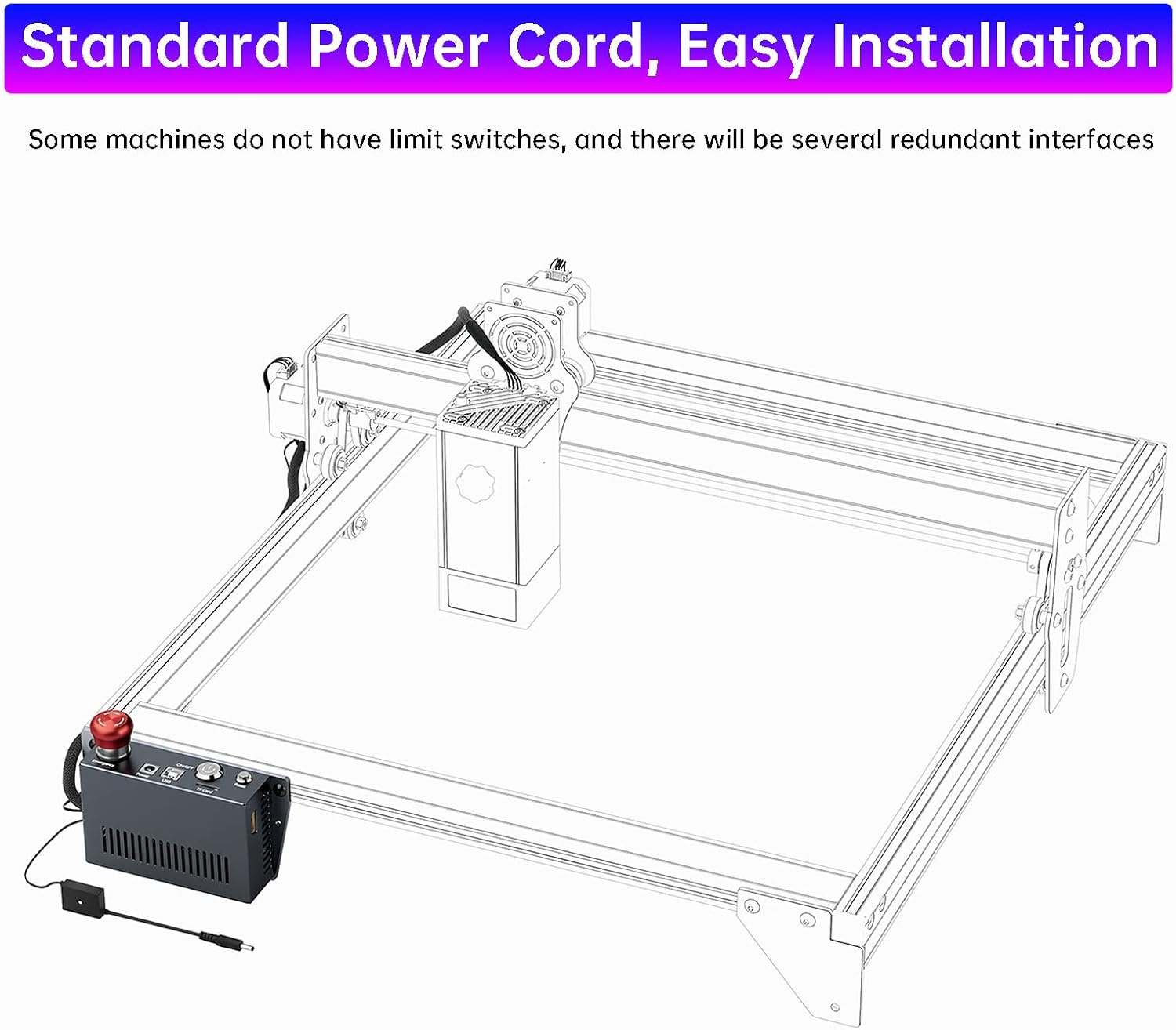
- Easy Installation: Quick installation process, typically within three minutes, by replacing the original power supply line without needing to open the control box.
- Advanced 32-bit Motherboard: Equipped with a high-computing power motherboard for faster instruction processing and improved carving efficiency.
- WiFi and Offline Engraving Support: Features a built-in WiFi module for offline control via the ATOMSTACK mobile app. An optional touchscreen controller can also be purchased for offline engraving with an SD card.
- Safety Protection: Includes an emergency stop button and a reset button for a safer operating experience.
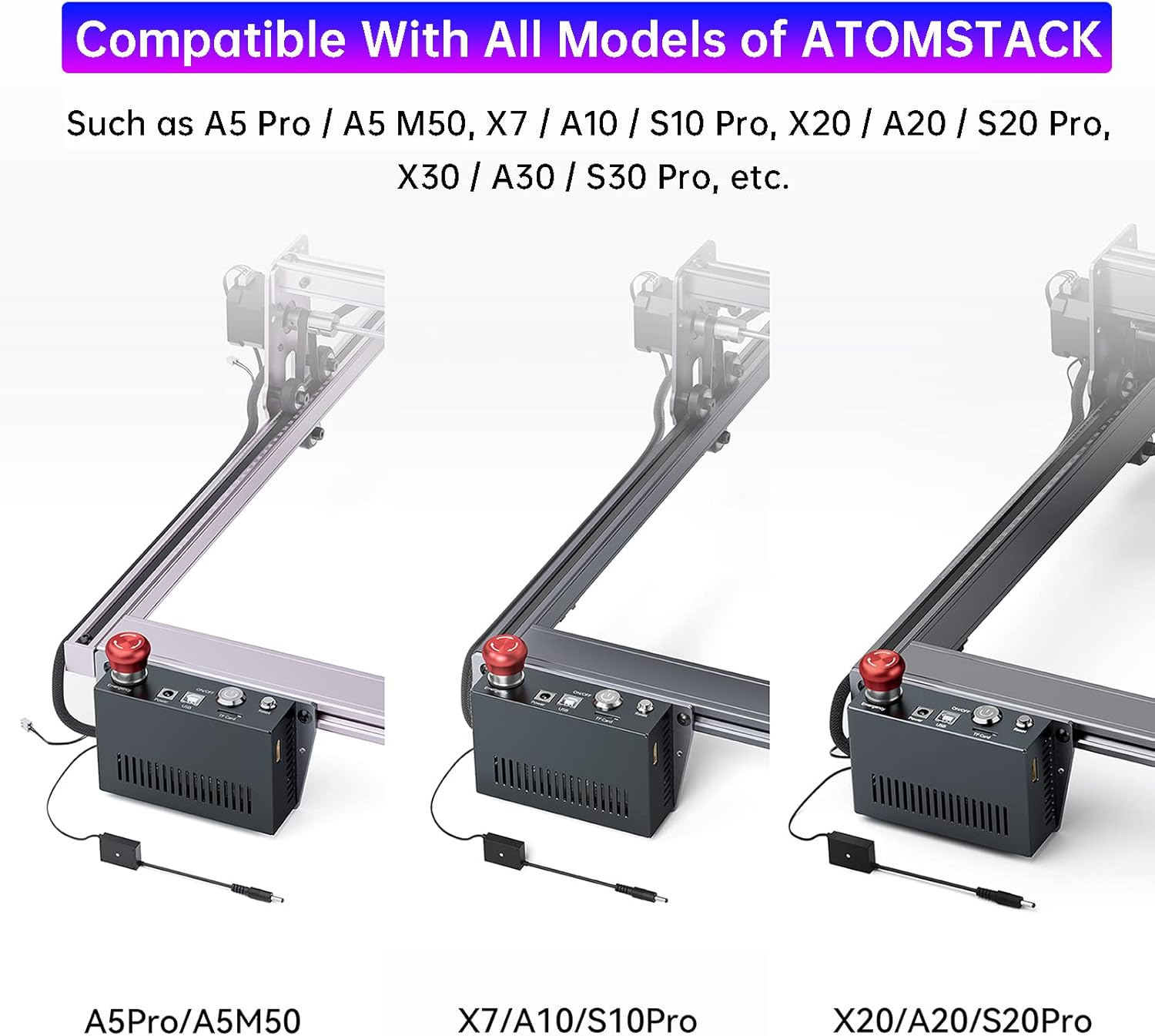
- High Adaptability: Compatible with all ATOMSTACK frame-shaped laser engraving machines. For other brands, verify the original mainboard's frame position.
3. Setup and Installation
Follow these steps to install your ATOMSTACK AIC1 Air Assist Automatic Control Kit:
- Unpack Components: Carefully remove all items from the packaging. Ensure you have the AIC1 control box, connecting cables, and any included tools.
- Mount the Control Box: Attach the AIC1 control box to your laser engraver's frame using the provided screws. This typically involves securing it to the side rail.
- Connect Power: Disconnect the original power supply line from your laser engraver. Connect the AIC1 control box's power input to the engraver's power port, and then connect the engraver's power cable to the AIC1 control box's power output.
- Connect Air Assist: Plug your air assist pump's power cable into the designated port on the AIC1 control box.
- Verify Connections: Double-check all connections to ensure they are secure.

Installation Video Guide
Video: This video demonstrates the installation process of the ATOMSTACK AIC1 Air Assist Automatic Control Kit, showing how to connect it to a laser engraver and air pump. It also illustrates the automatic air assist function during engraving and cutting, and the mobile app control feature.
4. Operating Instructions (LightBurn M7 Mode)
The AIC1 kit integrates with LightBurn software to provide automatic air assist control. Ensure your LightBurn software is configured for M7 mode.
- Enable M7 Mode in LightBurn: In LightBurn's device settings, enable the M7 mode for air assist control. This allows the software to send commands to the AIC1 kit.
- Configure Air Assist in Layers: Within your LightBurn project, for each layer (cut or engrave), you can specify whether air assist should be active. The AIC1 will automatically activate air assist during cutting operations and deactivate it during engraving operations, based on your settings.
- Start Engraving/Cutting: Initiate your project as usual. The AIC1 will manage the air assist automatically, ensuring optimal airflow for different tasks.

Using the automatic air assist results in cleaner cuts and engravings compared to manual control, as demonstrated by the improved edge quality.
5. Offline Engraving and WiFi Control
The AIC1 motherboard includes a WiFi module, enabling convenient offline control of your laser engraver.
- Mobile App Control: Download the ATOMSTACK mobile application. Connect your smartphone to the AIC1's WiFi network. You can then control the machine, upload designs, and initiate engraving tasks directly from your phone without a computer connection.
- Optional Touchscreen Controller: For an alternative offline experience, a touchscreen controller can be purchased separately. This controller connects to the AIC1 and allows for direct operation and engraving from an SD card, providing a PC-free workflow.


6. Safety Features
The AIC1 control kit is equipped with essential safety features:
- Emergency Stop Button: A prominent red button that, when pressed, immediately stops all machine operations and prevents accidental restarts. To resume operation, turn the button in the direction indicated to unlock it.
- Reset Button: Allows for stopping the current operation, closing the control terminal, and restarting the system.
7. Compatibility
The ATOMSTACK AIC1 Air Assist Automatic Control Kit is designed for high compatibility with ATOMSTACK laser engravers.
- ATOMSTACK Models: Fully compatible with all ATOMSTACK frame-shaped laser engraving machines, including models such as A5 Pro, A5 M50, X7, A10, S10 Pro, X20, A20, S20 Pro, X30, A30, S30 Pro, and others.
- Other Brands: If installing on a laser engraver from another brand, please verify that its original mainboard is located on the frame for proper fit and function.
8. Maintenance
To ensure the longevity and optimal performance of your ATOMSTACK AIC1 Air Assist Automatic Control Kit, follow these general maintenance guidelines:
- Keep Connections Secure: Regularly check all cable connections to ensure they are firmly seated and free from damage. Loose connections can lead to intermittent operation or malfunctions.
- Clean the Unit: Periodically wipe down the exterior of the AIC1 control box with a soft, dry cloth to remove dust and debris. Avoid using harsh chemicals or abrasive materials.
- Environmental Conditions: Operate the unit in a clean, dry environment, away from excessive dust, moisture, and extreme temperatures.
9. Troubleshooting
If you encounter issues with your ATOMSTACK AIC1 Air Assist Automatic Control Kit, consider the following troubleshooting steps:
- No Power: Ensure the power cable is correctly connected to the AIC1, the laser engraver, and the power outlet. Check if the power indicator light on the AIC1 is on.
- Air Assist Not Activating: Verify that M7 mode is enabled in your LightBurn software settings. Check the air assist settings for the specific layers in your project. Ensure the air pump is properly connected to the AIC1.
- WiFi Connection Issues: Confirm that the WiFi module is correctly installed (if applicable). Restart the AIC1 and your mobile device. Ensure you are connecting to the correct WiFi network provided by the AIC1.
- Machine Not Responding: Press the Reset button on the AIC1. If the issue persists, press the Emergency Stop button, then unlock it and restart the system.
- Poor Engraving/Cutting Quality: Ensure the air assist is activating correctly for the task. Check the air pump for proper function and sufficient airflow.
If these steps do not resolve the issue, please contact ATOMSTACK customer support for further assistance.
10. Specifications
| Feature | Detail |
|---|---|
| Product Name | ATOMSTACK AIC1 Air Assist Control Kits for Laser Engraver |
| Motherboard | Self-developed 32-bit motherboard |
| Compatible Software | LightBurn (M7 Mode), Atomstack App, Atomstack Studio |
| Compatible Models | All ATOMSTACK frame-shaped laser engraving machines (e.g., A5 Pro, A10 Pro, A20 Pro, S10 Pro, S20 Pro) |
| Main Usage | Automatic ON/OFF air assist, WiFi control via mobiles, Reserved space for touchscreen |
| Product Dimensions | 6.69 x 3.93 x 2.75 inches |
| Item Weight | 1.8 pounds |
| Manufacturer | ATOMSTACK, Co, Ltd,. |
| Date First Available | May 30, 2023 |
11. Warranty Information
ATOMSTACK products are covered by a limited warranty against defects in materials and workmanship. Please refer to the official ATOMSTACK website or your purchase documentation for specific warranty terms and conditions, including duration and coverage details. Keep your proof of purchase for warranty claims.
12. Customer Support
For technical assistance, troubleshooting, or any questions regarding your ATOMSTACK AIC1 Air Assist Automatic Control Kit, please contact ATOMSTACK customer support through their official website or the contact information provided with your product. You may also find helpful resources, FAQs, and community forums on the ATOMSTACK support pages.

