
Introduction
Thank you for choosing the Baseus Car Bluetooth MP3 Player S-06Black. This device is designed to enhance your in-car audio experience by providing Bluetooth connectivity for music streaming and hands-free calling, along with USB charging capabilities. This manual will guide you through the setup, operation, and maintenance of your new device.
Product Overview
The Baseus S-06Black is a versatile car accessory that plugs into your vehicle's cigarette lighter socket. It features a digital display, a multi-function control knob, and dual USB ports for charging.

Image: The Baseus Car Bluetooth MP3 Player S-06Black, showing its compact design, digital display, control knob, and dual USB charging ports.
Setup
- Insert into Car Socket: Plug the Baseus S-06Black into your car's 12V/24V cigarette lighter socket. The device will power on automatically, and the LED display will light up.
- Set FM Frequency: The device will display an FM frequency. Tune your car radio to an empty (static-free) FM frequency. Then, press and hold the multi-function knob on the Baseus device until the frequency display flashes. Rotate the knob to match the device's frequency with your car radio's frequency. Press the knob again to confirm.
- Pair with Bluetooth: On your smartphone, enable Bluetooth and search for available devices. Select 'Baseus S-06Black' (or similar name) from the list to pair. Once connected, a voice prompt will confirm successful pairing.
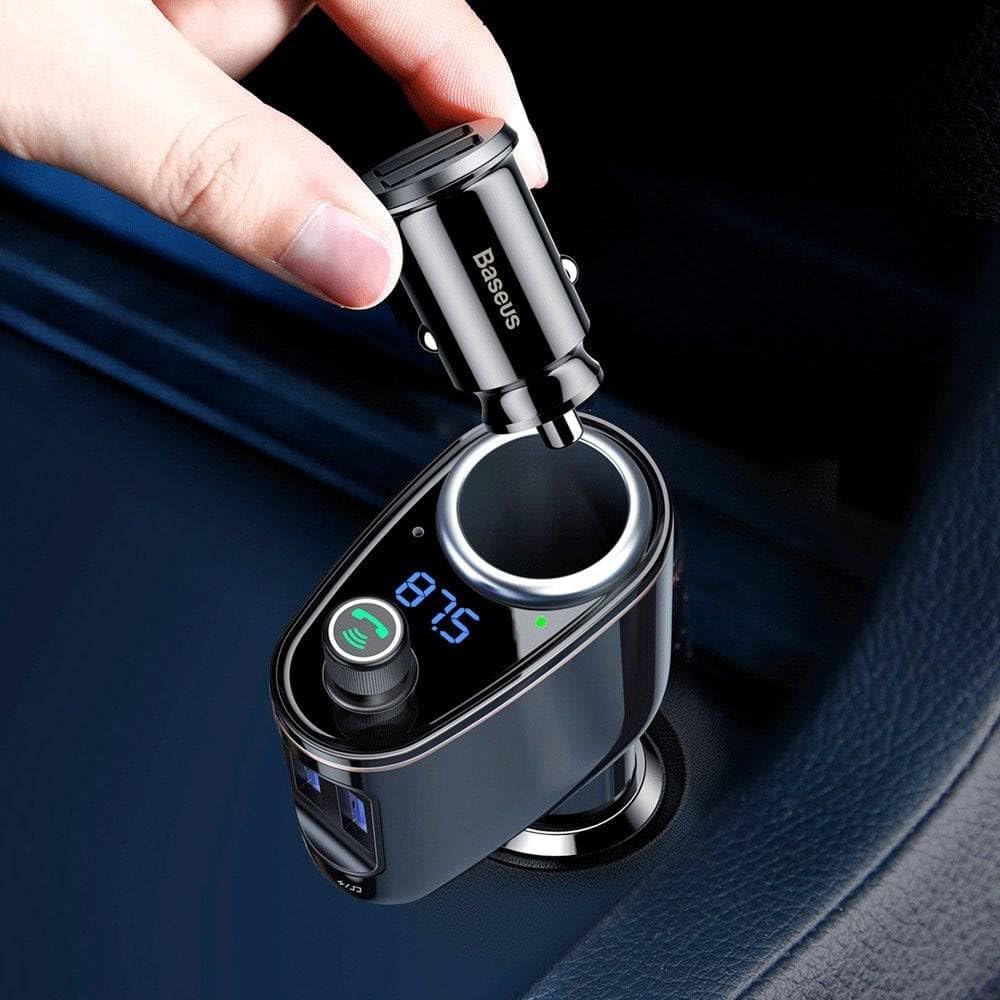
Image: A hand inserting the Baseus car charger into a car's cigarette lighter socket, demonstrating the initial power connection.

Image: A diagram illustrating the connection process: a smartphone connects via Bluetooth to the Baseus player, which then transmits audio via FM to the car's radio system.
Operating Instructions
Music Playback
- Bluetooth Streaming: Once paired, open your music app on your phone. Audio will be transmitted wirelessly to the Baseus device and then to your car's speakers via the selected FM frequency.
- Control Music: Use the multi-function knob to control playback. Press once to play/pause. Rotate left/right to adjust volume. Press and hold to change FM frequency (as in setup).
- USB Playback: Insert a USB flash drive (up to 32GB) containing MP3/WMA/WAV/FLAC files into the designated USB port (usually marked with a music note icon). The device will automatically detect and play music from the drive.

Image: The Baseus player positioned next to a smartphone displaying a music playback interface, indicating active Bluetooth audio streaming.
Hands-Free Calling
- Answer/End Call: When a call comes in, press the multi-function knob once to answer. Press again to end the call.
- Reject Call: Press and hold the multi-function knob to reject an incoming call.
- Redial: Double-press the multi-function knob to redial the last outgoing number.
Charging Devices
The Baseus S-06Black features dual USB ports for charging your mobile devices. Simply connect your device's USB charging cable to one of the ports. The device supports various charging protocols, providing efficient power delivery.

Image: A close-up view of a USB cable securely plugged into one of the Baseus player's charging ports, demonstrating its device charging capability.
Maintenance
- Keep the device dry and clean.
- Avoid exposing the device to extreme temperatures or direct sunlight for prolonged periods.
- Do not attempt to disassemble or repair the device yourself. Contact customer support if issues arise.
- Clean the surface with a soft, dry cloth. Do not use harsh chemicals or abrasive cleaners.
Troubleshooting
| Problem | Possible Solution |
|---|---|
| No power/display off | Ensure the device is fully inserted into the car's cigarette lighter socket. Check the car's fuse for the cigarette lighter. |
| Static or poor audio quality | Find a clearer, unused FM frequency on your car radio and match it on the Baseus device. Ensure your phone's volume is at an appropriate level. |
| Cannot pair via Bluetooth | Ensure Bluetooth is enabled on your phone. Forget the device from your phone's Bluetooth settings and try pairing again. Restart both the phone and the Baseus device. |
| USB charging not working | Check if the USB cable is properly connected. Try a different USB cable or device to rule out cable/device issues. Ensure the car's engine is running or the accessory power is on. |
Specifications
| Feature | Detail |
|---|---|
| Brand | Baseus |
| Model Number | 6932172628222 |
| Connectivity Technology | Bluetooth |
| Wireless Communication Standard | Bluetooth |
| Compatible Devices | Speaker (and other Bluetooth-enabled devices) |
| Special Features | Car Charger (Autolader) |
| Media Type | MP3 |
| Color | Black |
| Power Source | Car cigarette lighter (12V/24V) |
| USB Ports | Dual USB Type A |
Warranty and Support
The manufacturer's warranty for this product is dependent on the specific terms and conditions at the time of purchase. Please refer to your purchase documentation or contact your retailer for detailed warranty information. For technical support or further assistance, please contact Baseus customer service through their official website or the contact information provided with your product packaging.


