
Introduction
This manual provides detailed instructions for the installation, operation, and maintenance of your CPVAN Wireless Video Doorbell Camera with Chime. Please read this manual thoroughly before using the product to ensure proper function and safety. This device is designed to enhance your home security by providing real-time video monitoring, two-way audio communication, and motion detection capabilities.
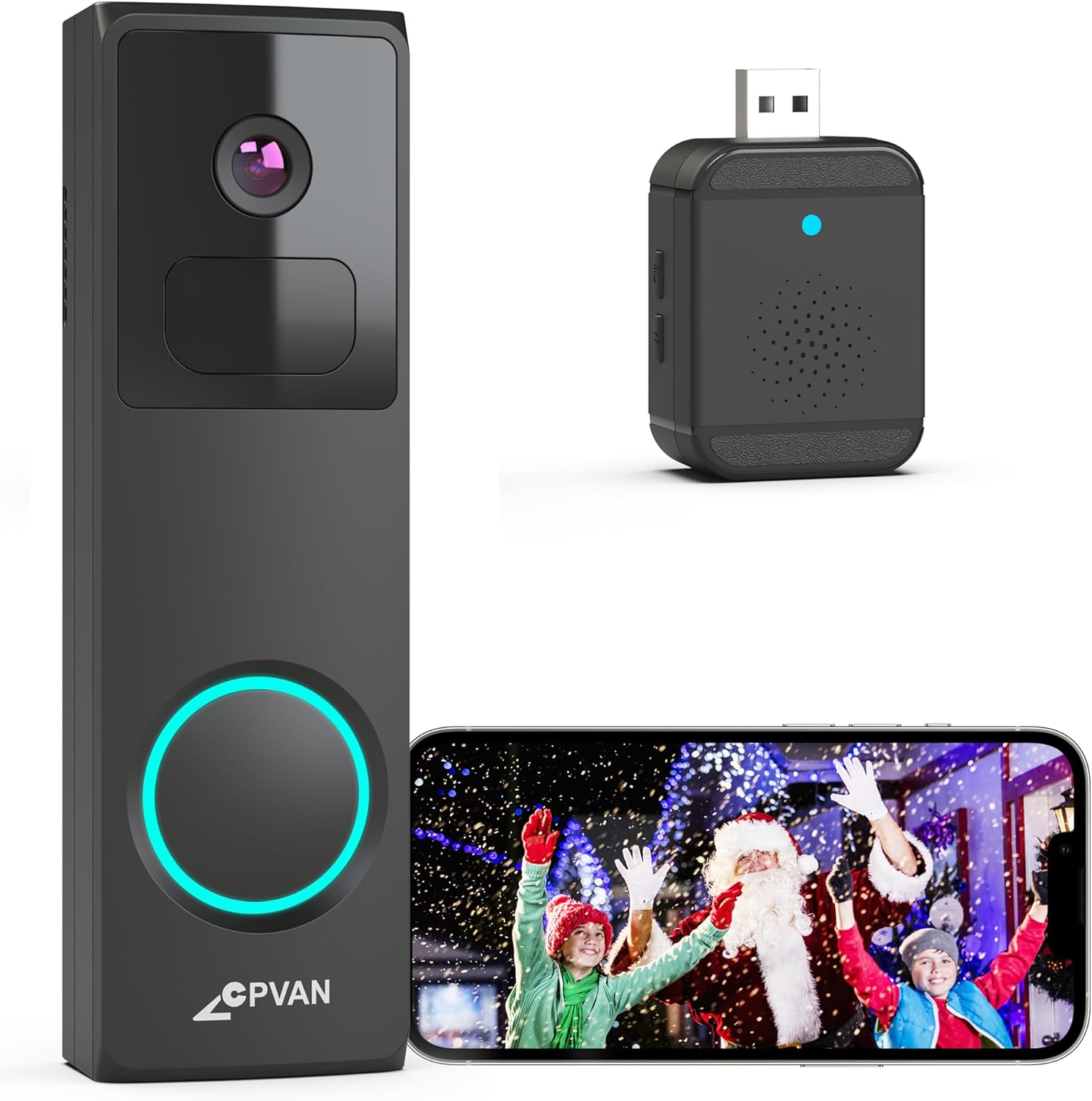
Image: The CPVAN Wireless Video Doorbell Camera, its accompanying wireless chime, and a smartphone displaying the live feed from the doorbell camera.
Package Contents
Verify that all components are present in your package:
- CPVAN Wireless Video Doorbell Camera
- Wireless Chime (USB powered)
- Mounting Bracket(s) (e.g., Plain Mount, Corner Mount, Wedge Mount)
- Mounting Screws and Wall Anchors
- USB Charging Cable
- User Manual (this document)
Setup Instructions
1. Charging the Doorbell Camera
Before initial use, fully charge the doorbell camera using the provided USB cable. Connect the cable to the doorbell's charging port and a standard USB power adapter (not included). The charging indicator light will provide status updates.
2. App Installation and Account Creation
Download the 'Vicohome' app from your smartphone's app store (iOS or Android). Follow the on-screen instructions to create an account and log in.
3. Device Pairing (Doorbell and Chime)
- Pairing the Doorbell: In the Vicohome app, tap the '+' icon to add a new device. Select the doorbell camera and follow the in-app instructions to connect it to your 2.4GHz Wi-Fi network. (Note: 5GHz Wi-Fi networks are not supported).
- Pairing the Chime: Plug the wireless chime into a USB power source. Within the Vicohome app, navigate to the doorbell settings and select the option to pair the chime. Press the pairing button on the chime as instructed by the app. The chime offers 16 selectable ringtones and adjustable volume levels.

Image: The wireless chime plugged into a wall outlet, indicating its readiness for use.
4. Mounting the Doorbell Camera
Choose a suitable location for your doorbell, typically at eye level near your front door. The package includes various mounting brackets (plain, corner, wedge) to accommodate different installation needs. Use the provided screws and wall anchors to securely attach the chosen bracket, then slide the doorbell camera onto the bracket.

Image: Visual representation of the Plain Mount, Corner Mount, and Wedge Mount options for doorbell installation.

Image: A person demonstrating the installation of the doorbell camera onto a wall.
Operating Instructions
1. Live View
Open the Vicohome app to access the live video feed from your doorbell camera at any time. This allows you to monitor your doorstep in real-time.
2. Two-Way Audio
When a visitor presses the doorbell, you will receive a direct video call notification on your smartphone. Answer the call through the Vicohome app to engage in two-way audio communication with the visitor. This feature allows you to speak and listen to individuals at your door from any location.

Image: A smartphone screen showing an incoming video call notification from the doorbell, with options to accept or decline.

Image: A delivery person at a doorstep, with speech bubbles indicating two-way communication via the doorbell camera.
3. Motion Detection and AI Analysis
The doorbell features a built-in PIR motion sensor and AI analysis to detect movement and identify objects such as people, vehicles, and pets. When motion is detected, you will receive instant alerts via the Vicohome app. You can customize motion detection zones within the app to focus on specific areas and reduce false alarms.

Image: The doorbell camera's AI recognition feature identifying and outlining a delivery person, a car, and a dog in its field of view.

Image: An overhead diagram illustrating how different motion detection zones (Zone 1, Zone 2, Zone 3) can be configured around a property.
4. Night Vision
The doorbell camera is equipped with advanced IR night vision, providing clear and detailed images even in low-light conditions. It automatically switches to infrared mode based on ambient lighting changes.
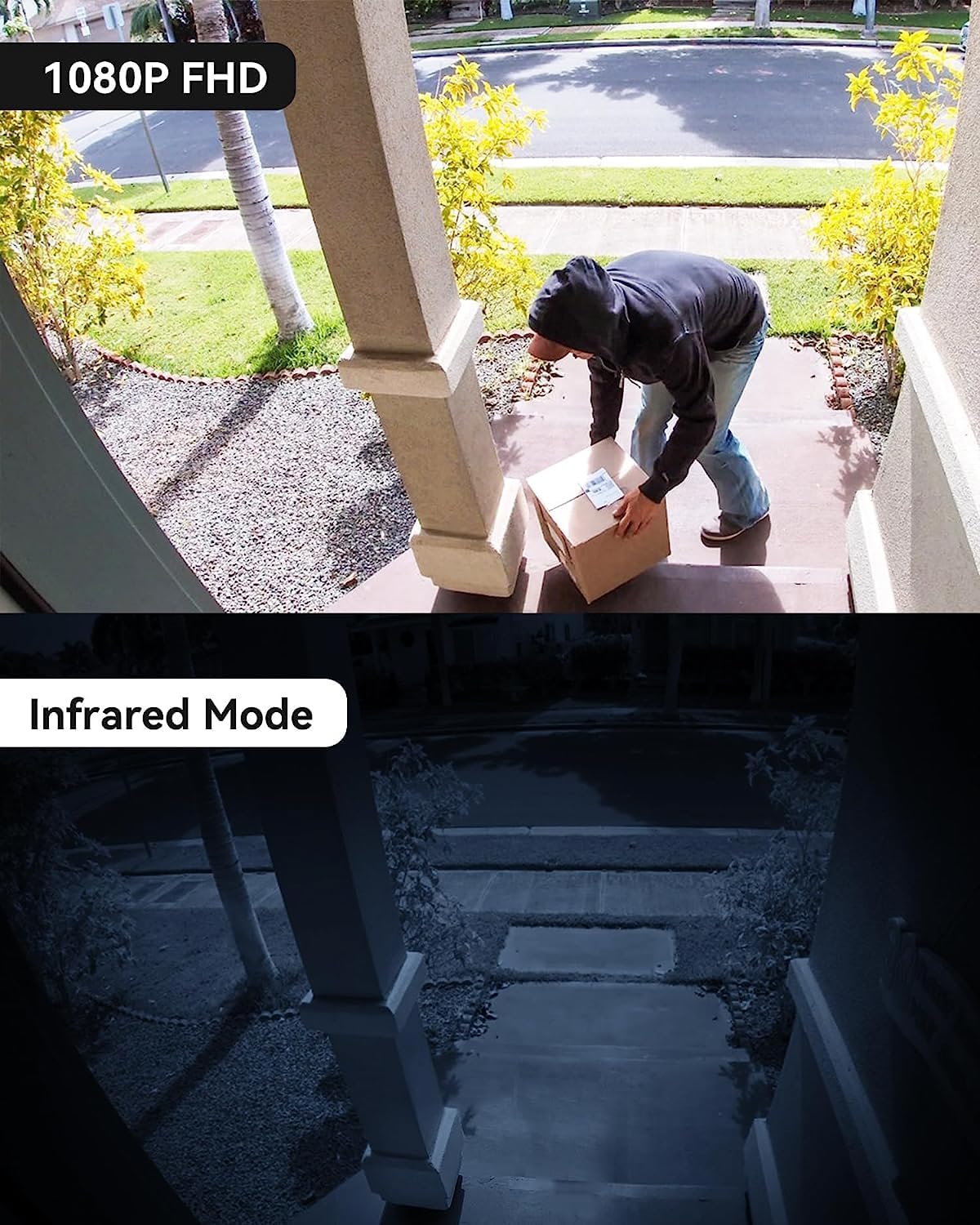
Image: A split image showing the clear 1080P FHD view during the day and the detailed infrared night vision view at night.
5. Video Recording and Storage
Recorded videos can be stored either on a Micro SD card (up to 128GB, not included) inserted into the doorbell or via cloud storage accessible through the Vicohome app. The device offers a 3-day free trial for US-based cloud storage.

Image: A visual representation of the Micro SD card slot on the doorbell and the cloud storage interface on a smartphone, highlighting storage options.
6. Sharing Access
You can share access to your doorbell camera's live feed and recordings with family members through the Vicohome app, allowing multiple users to monitor the property simultaneously.
7. Anti-Theft Feature
The doorbell is designed with an anti-theft mechanism. If an attempt is made to forcibly remove the doorbell from its mount, an alarm will sound, and an alert will be sent to your smartphone.
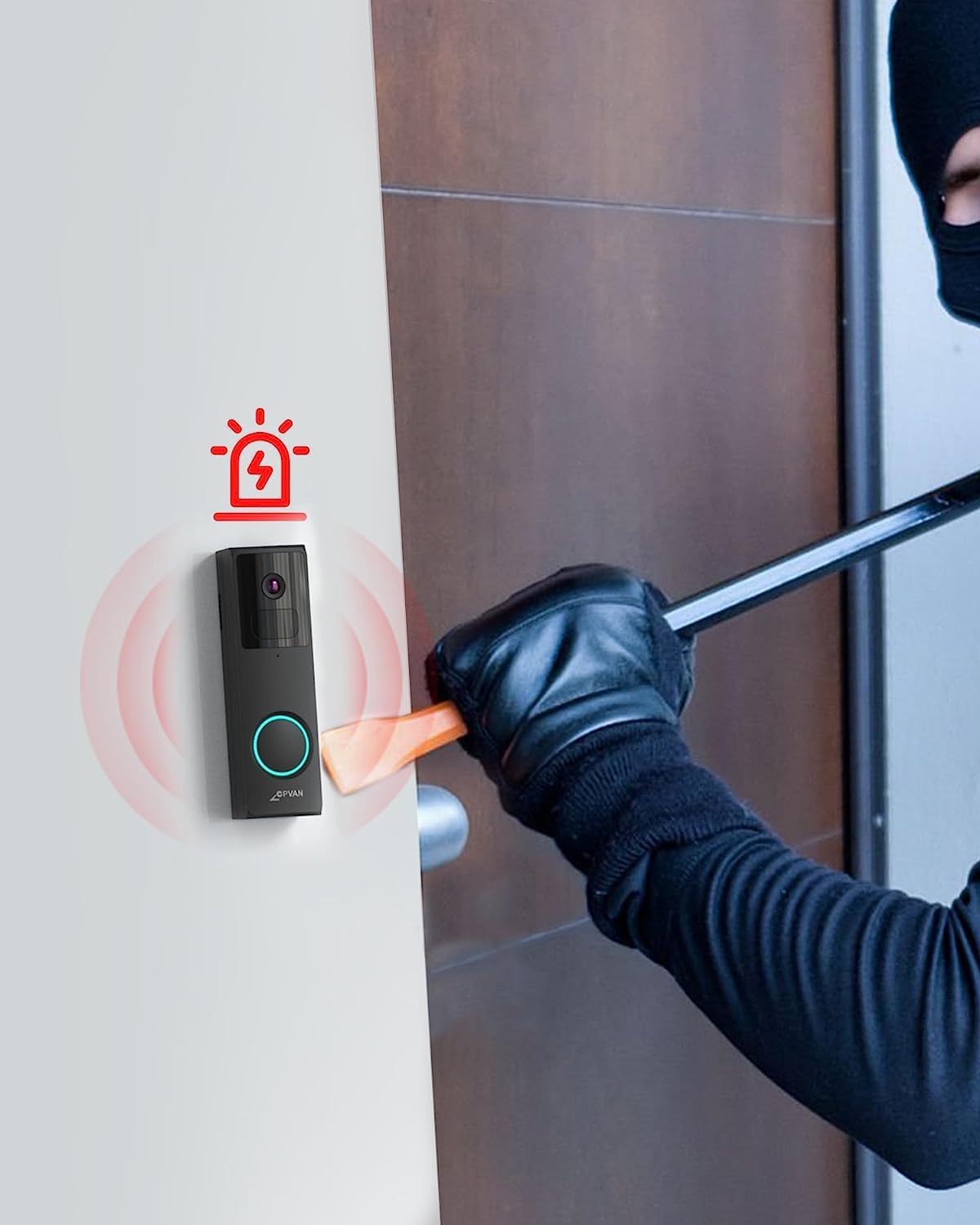
Image: An illustration depicting the doorbell's anti-theft alarm activating as a person attempts to tamper with it.
Maintenance
1. Battery Charging
The doorbell camera is powered by a rechargeable battery. Monitor the battery level through the Vicohome app and recharge it as needed using the provided USB cable. Battery life varies based on usage and motion detection frequency.
2. Cleaning
Periodically clean the camera lens and the doorbell's exterior with a soft, damp cloth to ensure clear video quality and proper sensor function. Avoid using harsh chemicals or abrasive materials.
3. Weather Protection
The CPVAN doorbell is IP65 waterproof, meaning it is protected against dust and low-pressure water jets. While it can withstand various weather conditions, extreme temperatures or prolonged direct exposure to heavy rain or snow may affect performance. Ensure it is securely mounted to prevent water ingress.

Image: The doorbell camera on an exterior wall, with water droplets on its surface, illustrating its IP65 weather resistance.
Troubleshooting
| Problem | Possible Cause | Solution |
|---|---|---|
| Doorbell not connecting to Wi-Fi | Incorrect Wi-Fi password; 5GHz network used; weak signal. | Ensure correct 2.4GHz Wi-Fi password. Move doorbell closer to router. Restart router and doorbell. |
| No motion detection alerts | Motion detection disabled; sensitivity too low; incorrect detection zones. | Check app settings for motion detection. Adjust sensitivity and detection zones. Ensure app notifications are enabled. |
| Poor video quality | Dirty lens; weak Wi-Fi signal; low light conditions. | Clean the camera lens. Improve Wi-Fi signal strength. Ensure night vision is active in low light. |
| Short battery life | Frequent motion detection; high live view usage; cold weather. | Reduce motion detection sensitivity or frequency. Limit live view sessions. Ensure full charge before deployment. |
| Chime not ringing | Chime not paired; not powered; volume too low. | Re-pair the chime with the doorbell via the app. Ensure chime is plugged into a working USB power source. Adjust chime volume. |
Specifications
- Model: B0C6DC2HZ9
- Video Capture Resolution: 1080p, 2K
- Power Source: Battery Powered (1 Lithium Ion battery included)
- Battery Capacity: 6700 milliamp_hours
- Connectivity Technology: Wireless (Wi-Fi)
- Wireless Communication Technology: Wi-Fi (2.4GHz only)
- Compatible Devices: iOS & Android smartphones
- Mounting Type: Wall Mount (Plain, Corner, Wedge options)
- International Protection Rating: IP65 (Waterproof)
- Low Light Technology: Thermal Sensing & Colored (IR Night Vision)
- Alert Type: Motion Only
- Storage: Micro SD Card (up to 128GB, not included), Cloud Storage (3-day free trial)
- Product Dimensions: 5.91 x 3.94 x 1.97 inches
- Item Weight: 12.8 ounces
- UPC: 703145053008
Warranty Information
Specific warranty details for the CPVAN Wireless Video Doorbell Camera are not provided in this manual. Please refer to the product packaging or the official CPVAN website for the most current warranty policy and registration information.
Customer Support
For technical assistance, troubleshooting beyond this manual, or general inquiries, please visit the official CPVAN support website or contact their customer service department. Contact information can typically be found on the product packaging or the brand's official online presence.
CPVAN Official Store: Visit the CPVAN Store on Amazon