
Hoco K16 Black
Hoco Universal Tripod/Selfie Stick with Remote Control
Model: K16 Black | Brand: Hoco
Introduction
Thank you for choosing the Hoco Universal Tripod/Selfie Stick with Remote Control. This versatile device combines the functionality of a stable tripod and an extendable selfie stick, designed to enhance your mobile photography and videography experience. With its integrated remote control and adjustable features, capturing perfect shots and videos is easier than ever.
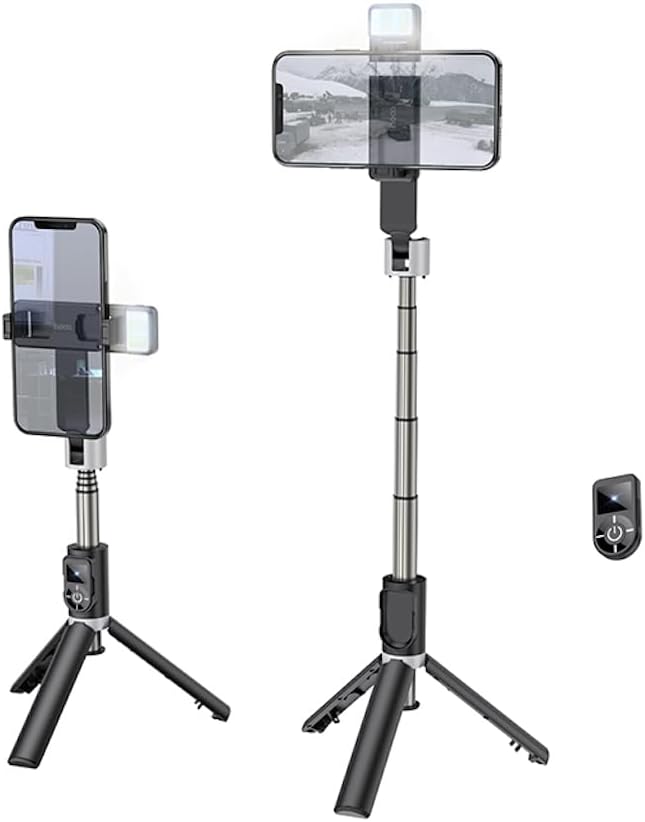
Figure 1: Hoco Universal Tripod/Selfie Stick in various modes with remote.
This image displays the Hoco Universal Tripod/Selfie Stick. On the left, the device is shown in its compact tripod configuration, holding a smartphone. On the right, the device is fully extended as a selfie stick, also holding a smartphone. A small, detachable remote control is visible on the far right. This illustrates the dual functionality of the product.
Package Contents and Components
Please ensure all components are present before use.
- Hoco Universal Tripod/Selfie Stick (Main Unit)
- Detachable Bluetooth Remote Control
- Integrated Fill Light (on phone holder)

Figure 2: Folded device showing control panel and remote slot.
This image provides a close-up view of the Hoco Universal Tripod/Selfie Stick when folded. It highlights the main body, the integrated control panel with power and light buttons, and the slot where the detachable Bluetooth remote control is stored. The phone holder is visible at the top.
Setup Guide
- Unfold the Tripod Legs: Gently pull the three legs at the bottom of the device outwards until they lock into place, forming a stable tripod base.
- Extend the Selfie Stick (Optional): If using as a selfie stick, pull the telescopic rod upwards to extend it to your desired length, up to 66 centimeters.
- Mount Your Smartphone:
- Open the smartphone clamp at the top of the device.
- Carefully insert your smartphone (compatible with devices from 4.7 to 6.5 inches) into the clamp, ensuring it is securely held.
- Adjust the phone holder's angle as needed. It can rotate 360 degrees for optimal positioning.
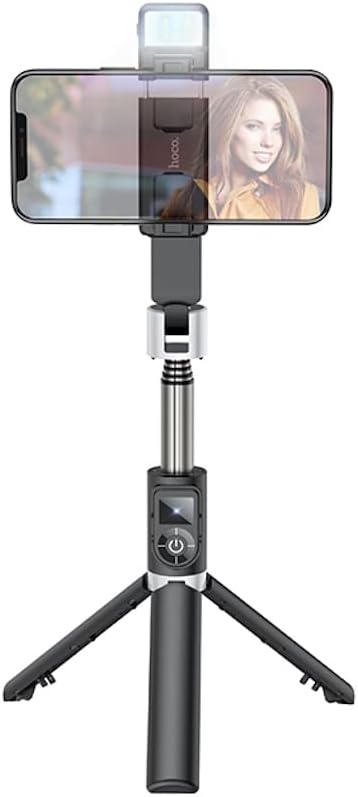
Figure 3: Smartphone mounted on the device in tripod mode.
This image shows a smartphone securely mounted in the adjustable clamp of the Hoco device, which is set up in tripod mode. The integrated fill light is visible above the phone.
- Pair the Bluetooth Remote Control:
- Remove the remote control from its slot on the handle.
- Press and hold the power button on the remote until the indicator light flashes, indicating it's in pairing mode.
- On your smartphone, go to Bluetooth settings and search for available devices.
- Select "Hoco K16" (or similar name) from the list to pair. The indicator light on the remote will stop flashing once successfully paired.
Operating Instructions
Using as a Tripod:
With the legs unfolded, place the tripod on a flat, stable surface. Adjust the telescopic rod and phone holder angle to achieve your desired height and viewing perspective for stable shots or video calls.

Figure 4: Device in tripod mode on a desk.
This image shows the Hoco device functioning as a tripod, placed on a desk alongside a laptop. A smartphone is mounted, demonstrating its use for stable recording or viewing in a stationary setting.
Using as a Selfie Stick:
Fold the tripod legs back into the handle. Extend the telescopic rod to your preferred length. Hold the non-slip handle firmly and use the remote control to capture photos or start/stop video recording.
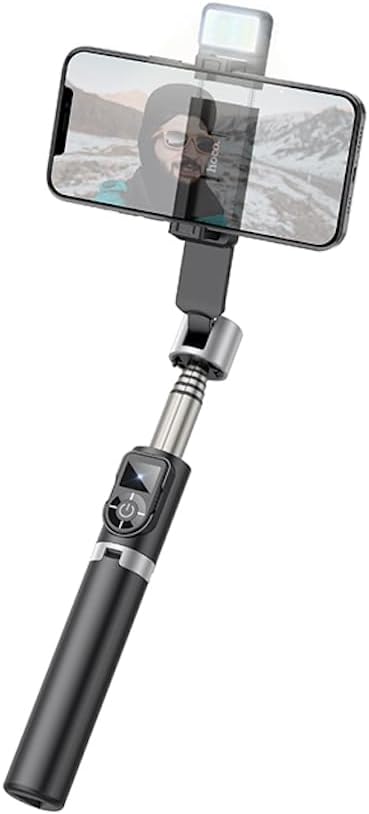
Figure 5: Device extended as a selfie stick.
This image illustrates the Hoco device fully extended, functioning as a selfie stick. A smartphone is mounted at the top, ready for capturing wide-angle selfies or group photos.
Using the Bluetooth Remote Control:
- Ensure the remote is paired with your smartphone (refer to Setup Guide).
- Press the main button on the remote to trigger the camera shutter or start/stop video recording in your phone's camera app.
- The remote has a range of up to 10 meters (33 feet).
- To conserve battery, the remote will automatically enter sleep mode after a period of inactivity. Press any button to wake it up.
Using the Integrated Fill Light:
- Locate the light button on the main unit's control panel (near the handle).
- Press the button once to turn on the fill light.
- Press again to cycle through different brightness levels or light modes (if available).
- Press and hold to turn off the light.
Maintenance and Care
- Cleaning: Wipe the device with a soft, dry cloth. Do not use abrasive cleaners or solvents.
- Storage: Store the device in a cool, dry place away from direct sunlight and extreme temperatures.
- Battery Care (Remote): If the remote control's battery is low, replace it according to the instructions provided with the remote (typically a coin cell battery).
- Avoid Overloading: Do not attempt to mount devices heavier than recommended (smartphones between 4.7 and 6.5 inches).
- Handle with Care: Avoid dropping the device or subjecting it to strong impacts.
Troubleshooting
| Problem | Possible Solution |
|---|---|
| Remote control does not pair. |
|
| Remote control does not trigger the camera. |
|
| Smartphone does not fit in the clamp. |
|
| Fill light is not working. |
|
Specifications
| Brand | Hoco |
| Model Number | K16 Black |
| Color | Black |
| Material | Aluminum |
| Item Weight | 122 Grams |
| Special Features | Portable, Integrated Fill Light |
| Compatible Devices | Smartphones (4.7 to 6.5 inches) |
| Max. Extendable Length | 66 centimeters |
| Bluetooth Remote Range | Up to 10 meters (33 feet) |
Warranty and Support
For warranty information and technical support, please refer to the documentation included with your purchase or visit the official Hoco website. If you encounter any issues not covered in this manual, please contact Hoco customer service for assistance.
Ask a question about this manual
Ask about setup, troubleshooting, compatibility, parts, safety, or missing instructions. Manuals+ will review the question and use this page’s manual context to help answer it.