
1. Introduction
The COMFAST CF-726B is a versatile 2-in-1 USB adapter designed to provide both Bluetooth 4.2 and dual-band Wi-Fi connectivity to your computer. This device allows you to connect to wireless networks at speeds up to 650Mbps and pair with various Bluetooth peripherals, enhancing your system's wireless capabilities.
This manual provides essential information for the proper setup, operation, and maintenance of your CF-726B adapter.
2. Product Features
- 2-in-1 Functionality: Combines Wi-Fi and Bluetooth capabilities in a single USB device.
- Dual Band Wi-Fi: Supports 2.4GHz and 5.8GHz frequencies for flexible network connections.
- High Speed Data Transfer: Achieves Wi-Fi speeds up to 650Mbps.
- Bluetooth 4.2: Enables stable and efficient connection with Bluetooth devices.
- Compact Design: Small form factor for portability and discreet use.
- Wide Compatibility: Supports Windows, macOS, and Linux operating systems.
3. Setup and Installation
Before using your COMFAST CF-726B adapter, driver installation is required. The product is supplied with documentation and an installation CD. It is recommended to use the provided CD for driver installation or download the latest drivers from the official COMFAST website.
3.1 System Requirements
- Operating Systems: Windows 7/8/8.1/10 (32 or 64-bit), MacOS 10.6~10.11, Linux Kernel 2.6.18~3.10.
- Note: The Bluetooth driver is not compatible with Windows XP/Vista.
- Interface: Available USB 2.0 port.
3.2 Driver Installation Steps
- Insert the COMFAST CF-726B adapter into an available USB port on your computer.
- Insert the provided installation CD into your computer's CD/DVD drive.
- Follow the on-screen instructions to install the Wi-Fi and Bluetooth drivers. If an auto-run feature does not start, navigate to the CD drive in 'My Computer' or 'This PC' and run the setup executable (e.g., 'setup.exe' or 'install.exe').
- Alternatively, download the latest drivers from the official COMFAST support website. Ensure you select the correct model (CF-726B) and operating system.
- After installation, restart your computer if prompted.

Figure 1: COMFAST CF-726B USB adapter. This image shows the compact blue casing of the adapter with its USB connector, ready for insertion into a computer's USB port.
4. Operating Instructions
4.1 Connecting to a Wi-Fi Network
- Ensure the CF-726B adapter is securely plugged into a USB port.
- On Windows, click the Wi-Fi icon in the system tray (usually bottom-right corner). On macOS, click the Wi-Fi icon in the menu bar (top-right corner). For Linux, consult your distribution's network manager.
- Select your desired Wi-Fi network from the list of available networks.
- Enter the network security key (password) if prompted.
- Click 'Connect'. The adapter will establish a connection to the Wi-Fi network.
4.2 Connecting Bluetooth Devices
- Ensure the CF-726B adapter is securely plugged into a USB port.
- On Windows, go to 'Settings' > 'Devices' > 'Bluetooth & other devices'. On macOS, go to 'System Preferences' > 'Bluetooth'. For Linux, use your desktop environment's Bluetooth settings.
- Turn on Bluetooth on your computer.
- Put your Bluetooth device (e.g., headphones, mouse, keyboard) into pairing mode. Refer to your device's manual for specific instructions.
- On your computer, click 'Add Bluetooth or other device' (Windows) or wait for the device to appear in the Bluetooth settings (macOS/Linux).
- Select your device from the list and follow any on-screen prompts to complete the pairing process.
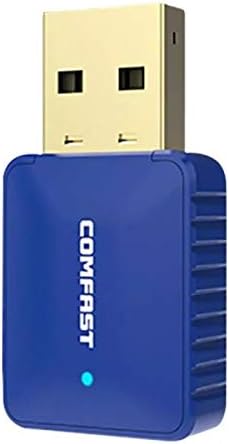
Figure 2: Side view of the COMFAST CF-726B adapter. This image highlights the compact profile of the device, making it suitable for various USB ports.
5. Maintenance
The COMFAST CF-726B adapter is designed for durability. To ensure its longevity and optimal performance, consider the following maintenance tips:
- Keep Clean: Periodically clean the USB connector with a dry, lint-free cloth to remove dust or debris.
- Avoid Physical Damage: Do not bend, drop, or expose the adapter to excessive force. Avoid pulling the adapter out by its casing; always grasp the USB connector firmly.
- Protect from Liquids: Keep the adapter away from water and other liquids.
- Storage: When not in use, store the adapter in a cool, dry place, away from direct sunlight and extreme temperatures.

Figure 3: Front and side view of the COMFAST CF-726B adapter. This perspective shows the overall dimensions and the blue LED indicator light.
6. Troubleshooting
If you encounter issues with your COMFAST CF-726B adapter, refer to the following common troubleshooting steps:
- Adapter Not Detected:
- Try plugging the adapter into a different USB port.
- Restart your computer.
- Ensure drivers are correctly installed. Reinstall drivers if necessary.
- No Wi-Fi Connection:
- Verify that your Wi-Fi network is active and broadcasting.
- Check if you have entered the correct Wi-Fi password.
- Ensure the Wi-Fi function is enabled on your computer.
- Try restarting your router/modem.
- Bluetooth Not Working:
- Ensure Bluetooth is enabled in your computer's settings.
- Confirm your Bluetooth device is in pairing mode.
- Remember that the Bluetooth driver is not compatible with Windows XP/Vista.
- Remove and re-pair the Bluetooth device.
- Slow Wi-Fi Speed:
- Ensure you are connected to the optimal frequency band (5.8GHz generally offers faster speeds if your router supports it).
- Reduce interference by moving closer to your Wi-Fi router or away from other electronic devices.
- Check for updated drivers.

Figure 4: Exploded view of the COMFAST CF-726B adapter. This image illustrates the internal chip (RTL8821CU) responsible for its dual Wi-Fi and Bluetooth functionalities.
7. Specifications
| Brand | COMFAST |
| Model | CF-726B |
| Main Component | RTL8821CU |
| Wireless Standards | IEEE802.11a/b/g/n/ac |
| Bluetooth Version | 4.2 |
| Interface | USB 2.0 |
| Frequency Bands | 2.4GHz / 5.8GHz (Dual Frequency) |
| Max Data Rate | 650 Mbps |
| Data Security | WPA-PSK/WPA2-PSK, WPA/WPA2, WEP |
| Dimensions | 36mm x 19mm x 9mm |
| Color | Blue |
| Supported OS | Windows 7/8/8.1/10 (32/64-bit), MacOS 10.6~10.11, Linux Kernel 2.6.18~3.10 |
| Compatible Devices | Desktop computer |
8. Warranty and Support
8.1 Warranty Information
The COMFAST CF-726B adapter comes with a 12-month warranty from the date of purchase. This warranty covers manufacturing defects and ensures the product functions as described under normal use. Please retain your proof of purchase for warranty claims.
8.2 Customer Support
For technical assistance, driver updates, or further inquiries, please refer to the official COMFAST website or contact their customer support channels. The product is supplied with additional documentation that may contain specific support contact details.


