
1. Introduction
Welcome to the user manual for your nuphy Halo75 Mechanical Gaming Keyboard. This guide provides detailed instructions on setting up, operating, maintaining, and troubleshooting your new keyboard. The Halo75 is a 75% RGB hot-swappable wireless keyboard designed for both Mac and Windows users, offering versatile connectivity options including Bluetooth, 2.4G wireless, and wired USB-C.

Figure 1: nuphy Halo75 Mechanical Gaming Keyboard in white.

Figure 2: Overview of the Halo75's core features and design elements.
2. What's in the Box
Your nuphy Halo75 Mechanical Gaming Keyboard package includes:
- nuphy Halo75 Mechanical Gaming Keyboard
- USB Cable (for wired connection and charging)
- Seven different types of switches for testing and backup
- 17 additional keycaps for customization
3. Setup
3.1 Physical Setup
The Halo75 features a solid unibody aluminum frame for stability. It includes adjustable feet at the rear to customize the typing angle for ergonomic comfort. Simply flip out the red feet on the underside of the keyboard to adjust the height.
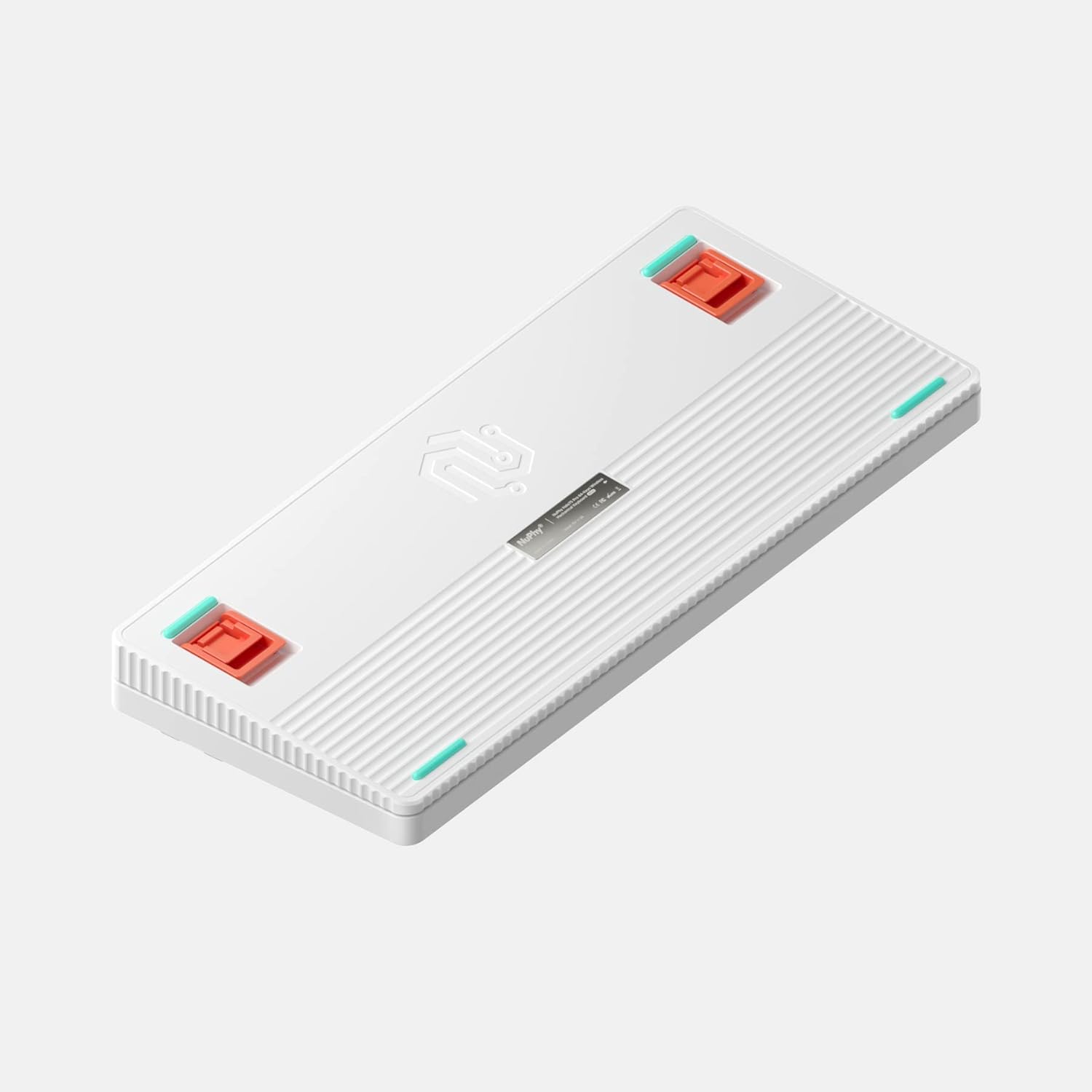
Figure 3: Underside of the Halo75 keyboard with adjustable feet.

Figure 4: Side view illustrating the keyboard's profile.
3.2 Connectivity
The Halo75 supports three connection modes: wired USB-C, Bluetooth, and 2.4G wireless. The USB-C port is located on the top edge of the keyboard. A switch on the top edge allows you to select between wired, 2.4G, and Bluetooth modes.

Figure 5: Connectivity options and ports on the Halo75.
3.3 Operating System Compatibility
The keyboard is compatible with both Mac and Windows operating systems. A dedicated switch on the top edge allows you to toggle between Mac and Windows modes, which adjusts the default key bindings accordingly.
4. Operating Your Keyboard
4.1 Keycap and Switch Customization
The Halo75 features hot-swappable switches, allowing you to easily change them without soldering. The keyboard comes with PBT keycaps, known for their durability. Additional keycaps and a variety of switches are included for further customization.

Figure 6: Customization options with included keycaps and tools.

Figure 7: Detailed view of the hot-swappable mechanical switches.
4.2 RGB Lighting
The Halo75 features 2 rings of illumination, 17 different default light effects, 75 RGB LEDs, and 16 million RGB colors. The 'Halo' band forms a central piece of light around the keyboard's frame, and the Sidelight indicator keeps you informed on connection modes, OS transitions, CapsLock, and battery status.

Figure 8: The Halo75's dynamic RGB lighting in action.
4.3 Battery Life
The Halo75 keyboard is equipped with a 4000 mAh battery, supporting up to 240 hours of continuous use with lights off. The Sidelight indicator provides real-time battery status.
4.4 Key Bindings and Software
The keyboard offers unlimited software customizability. Specific key combinations (hotkeys) are provided in the included quick guide for changing backlight effects, key bindings, and other settings without software. For advanced customization, the NuPhy Console software is available.
4.5 Product Review Video
Video 1: A comprehensive review of the NuPhy Halo 75 Mechanical Keyboard, detailing its features, design, and performance.
5. Maintenance
To ensure the longevity and optimal performance of your Halo75 keyboard, regular maintenance is recommended. The PBT keycaps are highly durable and resistant to wear and tear. For cleaning, gently wipe the keycaps and frame with a soft, damp cloth. Avoid using harsh chemicals or abrasive materials.
6. Troubleshooting
6.1 Connectivity Issues
If you experience connection issues (e.g., keyboard not connecting via Bluetooth or 2.4G, or missed keystrokes), ensure the keyboard is fully charged and within range of your device. Verify the correct connectivity mode is selected on the keyboard's switch. For Bluetooth, ensure your device's Bluetooth is enabled and the keyboard is paired correctly. If issues persist, try reconnecting or restarting both the keyboard and your device.
7. Specifications
| Feature | Detail |
|---|---|
| Brand | nuphy |
| Model | Halo75 (6972969120812) |
| Connectivity Technology | USB-C, Bluetooth, 2.4GHz Wireless |
| Keyboard Description | Standalone, Mechanical, Customizable |
| Recommended Uses | Gaming |
| Special Feature | Ergonomic, Hot-swappable, RGB Backlighting, Wrist Rest (sold separately) |
| Color | White (G Pro Red 2.0 switches) |
| Number of Keys | 75% Layout (83 keys) |
| Battery Capacity | 4000 mAh |
| Item Weight | 4.09 pounds |
| Dimensions | 14.8 x 7.28 x 3.35 inches |
8. Warranty & Support
For warranty information and technical support, please refer to the official nuphy website or contact their customer service directly. Details regarding product registration and support channels are typically provided with your purchase documentation.


