
1. Introduction
Welcome to the user manual for your new ZZB ZB10 10.1-inch Android 14 Tablet PC. This guide provides essential information for setting up, operating, maintaining, and troubleshooting your device. Please read this manual thoroughly to ensure optimal performance and longevity of your tablet.

Figure 1: Front view of the ZZB ZB10 Tablet.
2. What's in the Box
Upon opening your ZZB ZB10 Tablet PC package, please verify that all the following items are included:
- ZZB ZB10 10.1-inch Android 14 Tablet PC
- Type-C Cable
- User Manual (this document)

Figure 2: The ZZB ZB10 Tablet and its packaging.
3. Product Overview
Familiarize yourself with the physical components of your ZZB ZB10 Tablet.
3.1 Physical Components
- Display: 10.1-inch IPS screen.
- Front Camera: Located above the screen.
- Rear Camera: Located on the back panel.
- Power Button: Typically on the side or top edge.
- Volume Buttons: Adjust audio levels.
- USB Type-C Port: For charging and data transfer.
- MicroSD Card Slot: For expandable storage.

Figure 3: Rear view of the ZZB ZB10 Tablet, highlighting the camera and model information.
4. Setup
4.1 Charging the Tablet
Before first use, fully charge your tablet. Connect the provided Type-C cable to the tablet's charging port and the other end to a compatible USB power adapter (not included) or a computer's USB port. The battery indicator on the screen will show charging status.
4.2 Power On/Off
- To Power On: Press and hold the Power button until the screen lights up.
- To Power Off: Press and hold the Power button until a menu appears, then select 'Power off'.
- To Restart: Press and hold the Power button until a menu appears, then select 'Restart'.
4.3 Initial Setup
Upon first power-on, the tablet will guide you through the initial setup process. This typically includes:
- Selecting your language.
- Connecting to a Wi-Fi network.
- Setting up your Google account (or skipping for later).
- Reviewing and accepting terms and conditions.
5. Operating Instructions
5.1 Basic Navigation
The ZZB ZB10 Tablet runs on Android 14, offering an intuitive touch interface.
- Tap: Select an item or open an app.
- Swipe: Navigate through screens or scroll content.
- Pinch-to-Zoom: Enlarge or reduce content on the screen.
- Long Press: Access contextual menus or move icons.
5.2 Connecting to Wi-Fi
- Go to Settings > Network & internet > Wi-Fi.
- Toggle Wi-Fi On.
- Select your desired network from the list.
- Enter the password if prompted, then tap Connect.
5.3 Bluetooth Pairing
- Go to Settings > Connected devices > Bluetooth.
- Toggle Bluetooth On.
- Ensure the device you wish to pair is in pairing mode.
- Select the device from the 'Available devices' list and follow on-screen prompts.
5.4 Camera Usage
The tablet features a 2MP front camera and an 8MP rear camera.
- Open the Camera app.
- Tap the shutter button to take a photo.
- Switch between front and rear cameras using the camera icon.
- Select video mode to record videos.

Figure 4: Using the tablet's camera for photos or video calls.
5.5 Storage Management
The tablet comes with 32GB of internal storage and supports up to 1TB expandable storage via a MicroSD card.
- To insert a MicroSD card, locate the card slot on the side of the tablet.
- Gently insert the MicroSD card until it clicks into place.
- You can manage storage in Settings > Storage.

Figure 5: The tablet supports extended storage up to 1TB.
5.6 Reading Mode
The tablet features a reading mode designed to reduce eye strain by adjusting screen colors and brightness. This mode can typically be activated from the quick settings panel (swipe down from the top of the screen) or within the display settings.
6. Maintenance
6.1 Cleaning
Use a soft, lint-free cloth to clean the screen and body of the tablet. Avoid using harsh chemicals or abrasive materials, which can damage the device.
6.2 Battery Care
- Avoid exposing the tablet to extreme temperatures.
- Do not allow the battery to fully discharge frequently.
- Use only the provided Type-C cable for charging.
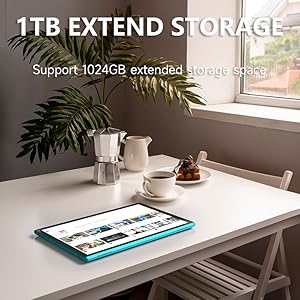
Figure 6: The tablet features a 6000mAh battery for extended use.
6.3 Software Updates
Periodically check for system updates to ensure your tablet has the latest features and security patches. Go to Settings > System > System update.
7. Troubleshooting
If you encounter issues with your tablet, refer to the following common solutions:
| Problem | Possible Solution |
|---|---|
| Tablet does not turn on | Ensure the battery is charged. Connect to a power source for at least 30 minutes. |
| Screen is unresponsive | Restart the tablet by holding the power button for 10-15 seconds. |
| Wi-Fi connection issues | Restart your Wi-Fi router. Forget the network in tablet settings and reconnect. |
| Apps are crashing or freezing | Clear the app's cache (Settings > Apps > [App Name] > Storage > Clear cache). If the problem persists, uninstall and reinstall the app. |
| Slow performance | Close unnecessary background apps. Clear cache and temporary files. Consider a factory reset if issues persist (backup data first). |
8. Specifications
Key technical specifications for the ZZB ZB10 Tablet PC:
- Model: ZB10
- Operating System: Android 14
- Display: 10.1-inch IPS, 1280 x 800 pixels
- RAM: 6GB (including 4GB virtual memory)
- Internal Storage: 32GB ROM
- Expandable Storage: Up to 1TB via MicroSD card
- Rear Camera: 8 MP
- Front Camera: 2 MP
- Wireless Connectivity: Wi-Fi 802.11ac, Bluetooth
- Battery: 6000mAh, up to 12 hours average life
- Dimensions: 12 x 7 x 0.3 inches
- Weight: 1 pound
Figure 7: The tablet's 10.1-inch IPS display.
9. Warranty and Support
For warranty information and customer support, please refer to the documentation provided with your purchase or visit the official ZZB website. Keep your proof of purchase for warranty claims.