
1. Introduction
The OBZ Desktop-96 is an advanced 1D and 2D omnidirectional barcode scanner designed for efficient and hands-free operation. It features automatic image sensing technology, enabling high-accuracy decoding of various barcode types from labels, paper, and digital displays. This manual provides essential information for setting up, operating, maintaining, and troubleshooting your scanner.

Image 1.1: The OBZ Desktop-96 Omnidirectional Barcode Scanner, featuring a wide scanning window and control buttons.
2. Setup
The OBZ Desktop-96 barcode scanner is designed for plug-and-play functionality, requiring no driver installation for most operating systems.
2.1 Package Contents
- OBZ Desktop-96 Barcode Scanner
- USB Connection Cable
- Instruction Manual
2.2 Connecting the Scanner
- Open the back cover: Gently remove the back cover of the scanner unit.
- Pass the USB cable: Thread the USB cable through the designated hole in the back cover.
- Plug in the USB cable: Connect the RJ-45 end of the USB cable into the corresponding jack on the scanner. Ensure the connection is secure.
- Install the back cover: Reattach the back cover, ensuring the USB cable is properly routed and the cover is aligned.
- Connect to Host Device: Plug the USB-A end of the cable into an available USB port on your computer, laptop, POS system, or other compatible device.

Image 2.1: Step-by-step guide for connecting the USB cable to the scanner.
The scanner is compatible with various operating systems including Android, Windows, Mac OS, and Linux. It functions as an HID device and does not require specific software or drivers. It integrates with common applications like Word, Excel, and TXT editors.

Image 2.2: The scanner's compatibility with Windows, Android, Linux, and Mac operating systems, and connection to computers, laptops, and POS systems.
3. Operating Instructions
3.1 Hands-Free Scanning
The OBZ Desktop-96 is designed for hands-free operation. Simply place the scanner on a desk or counter. When a barcode is presented within its scanning window, the scanner will automatically detect and read it.
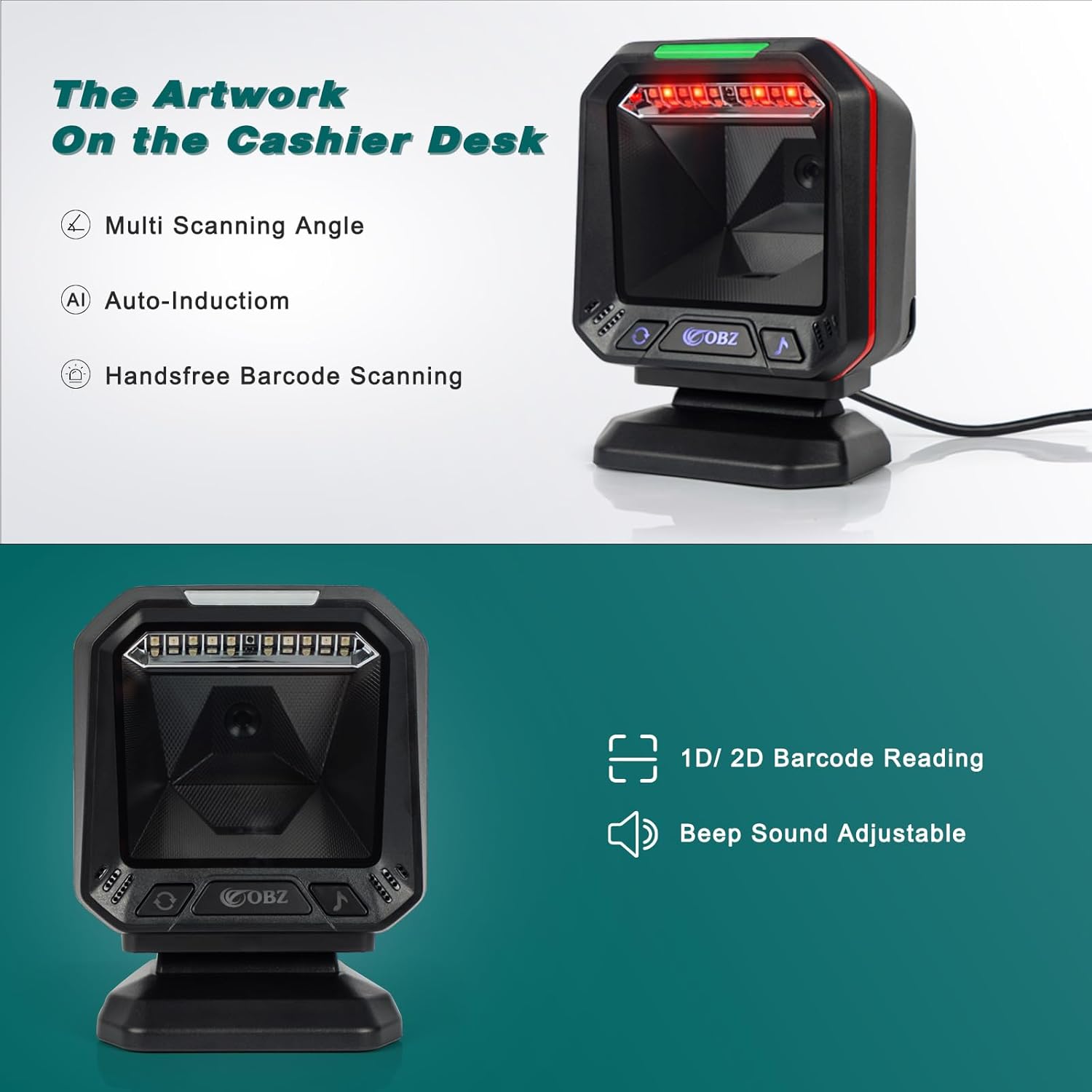
Image 3.1: The scanner positioned on a cashier desk, highlighting its multi-scanning angle and auto-induction capabilities for hands-free use.
3.2 Scanning Modes and Volume Adjustment
The scanner features two buttons on its front panel for quick adjustments:
- Scanning Mode Button (Circular Arrow Icon): This button allows you to cycle through three scanning modes without needing to scan configuration barcodes:
- 1D codes only
- 2D/QR codes only
- Both 1D and 2D/QR codes
- Volume Adjustment Button (Musical Note Icon): This button adjusts the beep volume level for scan confirmations.

Image 3.2: Illustration of the scanner's two primary reading modes, allowing selection between 1D-only and combined 1D & 2D barcode scanning.
3.3 Automatic Sensing and Sleep Mode
The scanner incorporates smart auto-sensing technology. It will automatically activate and read barcodes when detected in front of its window. If inactive for a period, the scanner will enter a sleep mode to conserve energy, indicated by the LED light turning off. It will automatically wake up upon sensing a barcode.

Image 3.3: The scanner's automatic sleep and wake-up feature, showing it entering sleep mode when idle and activating when a barcode is presented.
3.4 Supported Barcode Types
The scanner supports a wide range of 1D and 2D barcode symbologies, including but not limited to:
- 1D: Codabar, Code39, Code32, Interleaved 2 of 5, NEC 2 of 5, Code93, Straight 2 of 5 IATA, Industrial 2 of 5, Matrix 2of 5, Hong Kong 2 of 5, Code11, Code128, ISBT-128, GS1-128, UPC-A, UPC-E0, UPC-E1, EAN/JAN-13, EAN-8, ISSN, ISBN, MSI, GS1 DataBar Omnidirectional, GS1 DataBar Limited, GS1 DataBar Expanded, GS1 Composite code, Codablock A, Codablock F, China Post, Korea Post.
- 2D: PDF417, MicroPDF417, QR code, Micro QR, DataMatrix, Han Xin code, Maxi code, Aztec.
It can effectively scan damaged, distorted, colorful, reflective, and reverse barcodes.
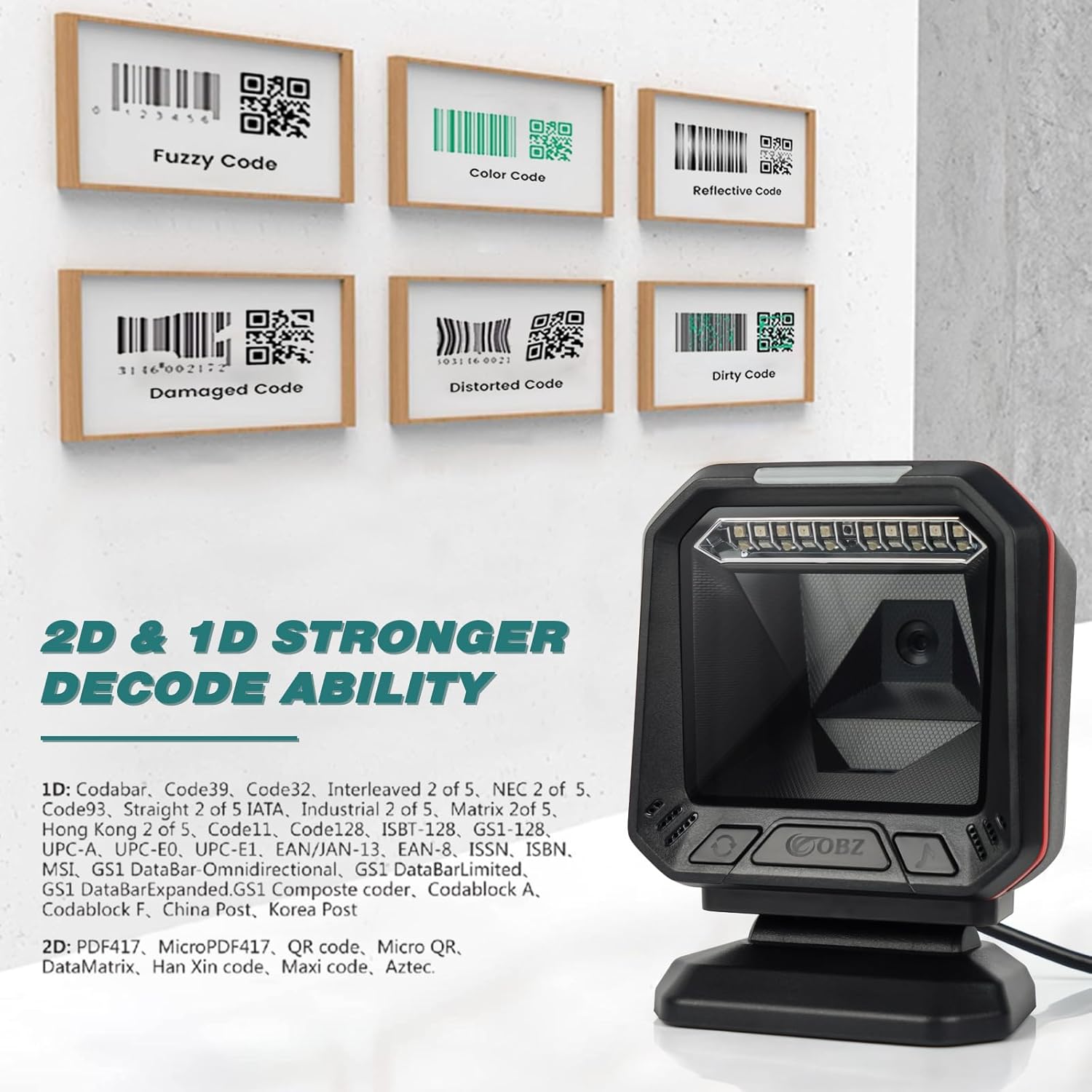
Image 3.4: Examples of various barcode types, including fuzzy, color, reflective, damaged, distorted, and dirty codes, that the scanner is capable of decoding.

Image 3.5: The scanner's ability to read damaged, colored, reflective, and defaced barcodes, as well as barcodes on curved surfaces and screens.
3.5 Customization Features
The OBZ Desktop-96 offers customization options such as barcode conversion, adding suffixes and prefixes, multi-language keyboard support, and adjusting scanning hibernation settings. Specific configuration barcodes are provided in the full manual for these advanced settings.
4. Maintenance
The OBZ Desktop-96 barcode scanner requires minimal maintenance.
- Cleaning: Use a soft, dry, lint-free cloth to clean the scanning window and the exterior of the device. Avoid using abrasive cleaners or solvents, which can damage the surface.
- Storage: Store the scanner in a cool, dry place away from direct sunlight and extreme temperatures when not in use.
- Durability: The scanner is designed to be shockproof and drop-resistant, capable of withstanding drops from up to 2 meters (6.6 feet). However, avoid intentional drops or harsh impacts to ensure longevity.
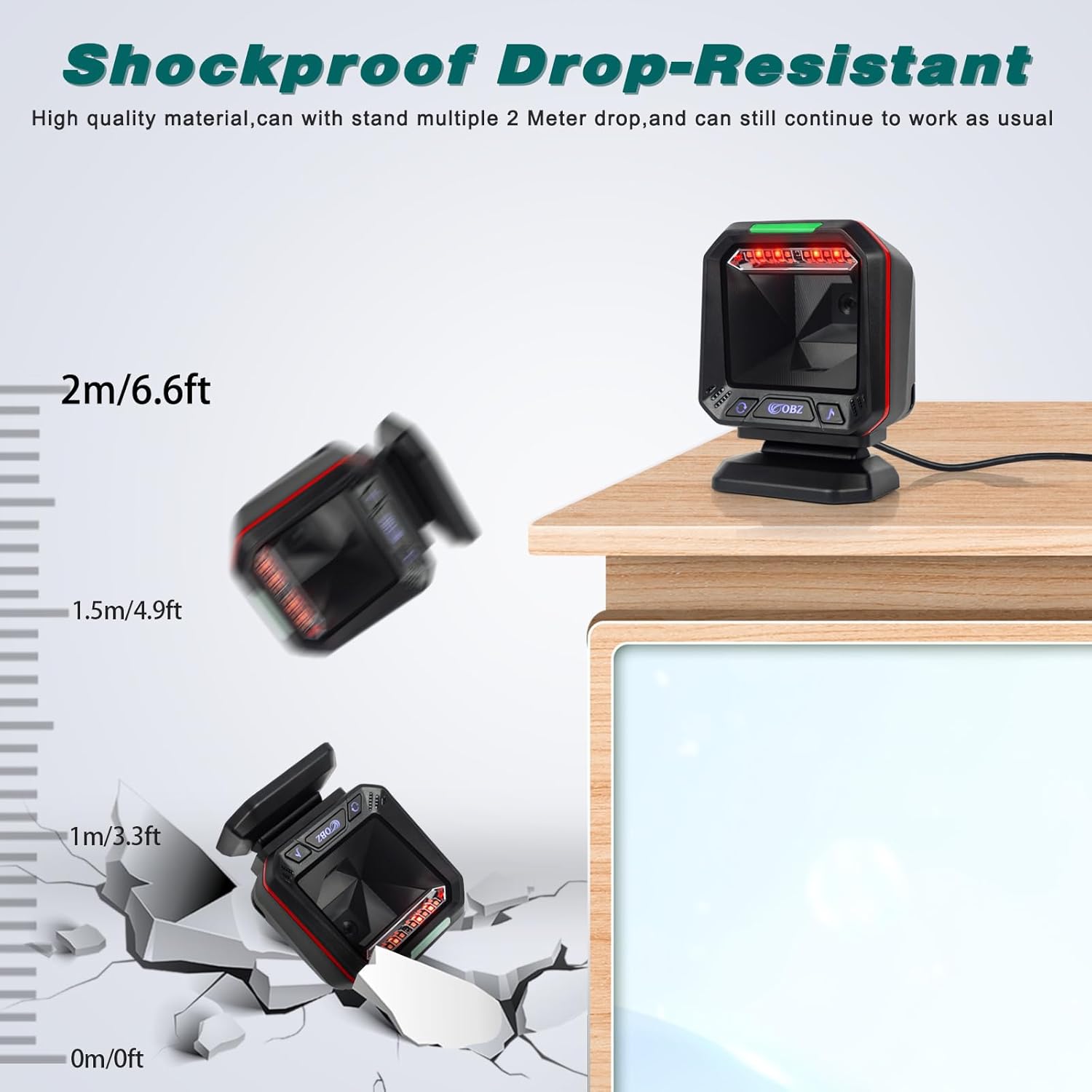
Image 4.1: Illustration of the scanner's shockproof and drop-resistant design, showing it can withstand drops from up to 2 meters.
5. Troubleshooting
This section addresses common issues you might encounter with your OBZ Desktop-96 scanner.
| Issue | Possible Cause | Solution |
|---|---|---|
| Scanner not reading barcodes. | Incorrect scanning mode selected (e.g., 1D only for a 2D barcode). Barcode is damaged or unreadable. USB cable not properly connected. | Press the Scanning Mode Button (circular arrow icon) to switch to the appropriate mode (1D & 2D). Ensure the barcode is clear and undamaged. Check USB cable connection to both scanner and host device. |
| Red LED light flickers or turns on/off randomly when not scanning. | Normal operation of auto-sensing sleep/wake feature. | This is expected behavior. The scanner enters sleep mode when idle and wakes up automatically when a barcode is presented. No action is required. |
| Scanner reads multiple barcodes simultaneously. | Multiple barcodes are within the scanner's field of view. | Present only one barcode at a time to the scanning window. If scanning configuration barcodes from the manual, ensure only the desired barcode is visible to the scanner. |
| No sound or incorrect volume. | Volume level is too low or muted. | Press the Volume Adjustment Button (musical note icon) to cycle through volume levels. |
| Scanned data appears incorrectly (e.g., missing characters, extra characters). | Incorrect keyboard language setting or other customization. | Refer to the full instruction manual for advanced customization barcodes to reset or adjust settings like keyboard language, prefixes, or suffixes. |
6. Specifications
| Feature | Detail |
|---|---|
| Model | Desktop-96 |
| Product Dimensions | 4.84 x 2.76 x 6.3 inches (12.3 x 7 x 16 cm) |
| Item Weight | 1.54 pounds (0.7 kg) |
| Connectivity Technology | USB Cable |
| Power Source | USB Wired |
| Operating Voltage | 5 Volts |
| Compatible Devices | Computer, Laptop, PC, POS systems |
| Supported OS | Android, Windows, Mac OS, Linux |
| Decoding Capability | 1D (Codabar, Code39, Code128, UPC/EAN, etc.), 2D (QR, PDF417, DataMatrix, Aztec, etc.) |
| Drop Resistance | Up to 2 meters (6.6 feet) |
7. Warranty and Support
7.1 Warranty Information
For detailed warranty information regarding your OBZ Desktop-96 barcode scanner, please refer to the documentation provided at the time of purchase or contact your retailer directly. Warranty terms may vary based on region and point of sale.
7.2 Technical Support
Should you require technical assistance, have questions about advanced settings, or need further customization guidance, please contact OBZ customer support. You can typically find contact information on the product packaging or through the seller's platform where the product was purchased.
For specific setting codes or tutorial videos, please reach out to the seller via email on Amazon.


