
1. Introduction
The MOBI CONNECT Smart DualScan Bluetooth Thermometer (Model 700026) is designed for accurate and versatile temperature measurement. It offers multiple reading methods including ear, forehead, room, and object temperature. This device features a backlit screen, LED fever indicators, and memory recall for up to 20 previous readings. It supports both Fahrenheit and Celsius modes and can connect via Bluetooth to the MOBI Smart App for enhanced tracking and management capabilities.

Image: The MOBI CONNECT Smart DualScan Bluetooth Thermometer, its packaging, and a smartphone displaying the companion app.
2. Package Contents
Verify that all items are present in the package:
- 1 x MOBI CONNECT Smart DualScan Bluetooth Thermometer
- 1 x Protective Cap (for forehead mode)
- 1 x Storage Pouch
- 1 x User Manual
- 1 x Quick Start Guide
- 2 x AAA Batteries

Image: Detailed view of the thermometer with its components labeled for easy identification.
3. Setup
3.1. Battery Installation
- Open the battery compartment cover located on the back of the thermometer.
- Insert two AAA batteries, ensuring correct polarity (+/-).
- Close the battery compartment cover securely.
3.2. Powering On/Off
- To power on, press the SCAN/Power button. The device will perform a self-test and display the last reading.
- The thermometer will automatically power off after approximately 30 seconds of inactivity to conserve battery life.
3.3. Switching Temperature Units (Fahrenheit/Celsius)
With the device powered on, press and hold the MODE button for 3 seconds to switch between Fahrenheit (°F) and Celsius (°C).
4. Operating Modes
4.1. Forehead Measurement
- Ensure the protective cap is on the probe.
- Press the SCAN/Power button to turn on the thermometer.
- Position the thermometer approximately 0.5 to 1 inch (1-2.5 cm) from the center of the forehead.
- Press and hold the SCAN button. A beep will sound, and the temperature will be displayed on the LCD screen.

Image: Demonstrating forehead temperature measurement.
4.2. Ear Measurement
- Gently remove the protective cap from the probe.
- Press the SCAN/Power button to turn on the thermometer.
- Carefully insert the probe into the ear canal. For children under 1 year, gently pull the ear straight back. For children over 1 year and adults, gently pull the ear up and back.
- Press and hold the SCAN button. A beep will sound, and the temperature will be displayed on the LCD screen.

Image: Removing the protective cap for ear measurement.

Image: Demonstrating ear temperature measurement.
4.3. Room and Object Temperature Measurement
The thermometer can also measure ambient room temperature and the temperature of objects (e.g., liquids, surfaces). To switch to these modes, press the MODE button repeatedly until the desired icon (room or object) appears on the display. Then, point the thermometer at the object or area and press SCAN.
4.4. Fever Indicator
The LCD display changes color to indicate temperature status:
- Green Backlight: Indicates a normal body temperature.
- Red Backlight: Indicates a high body temperature (fever warning).
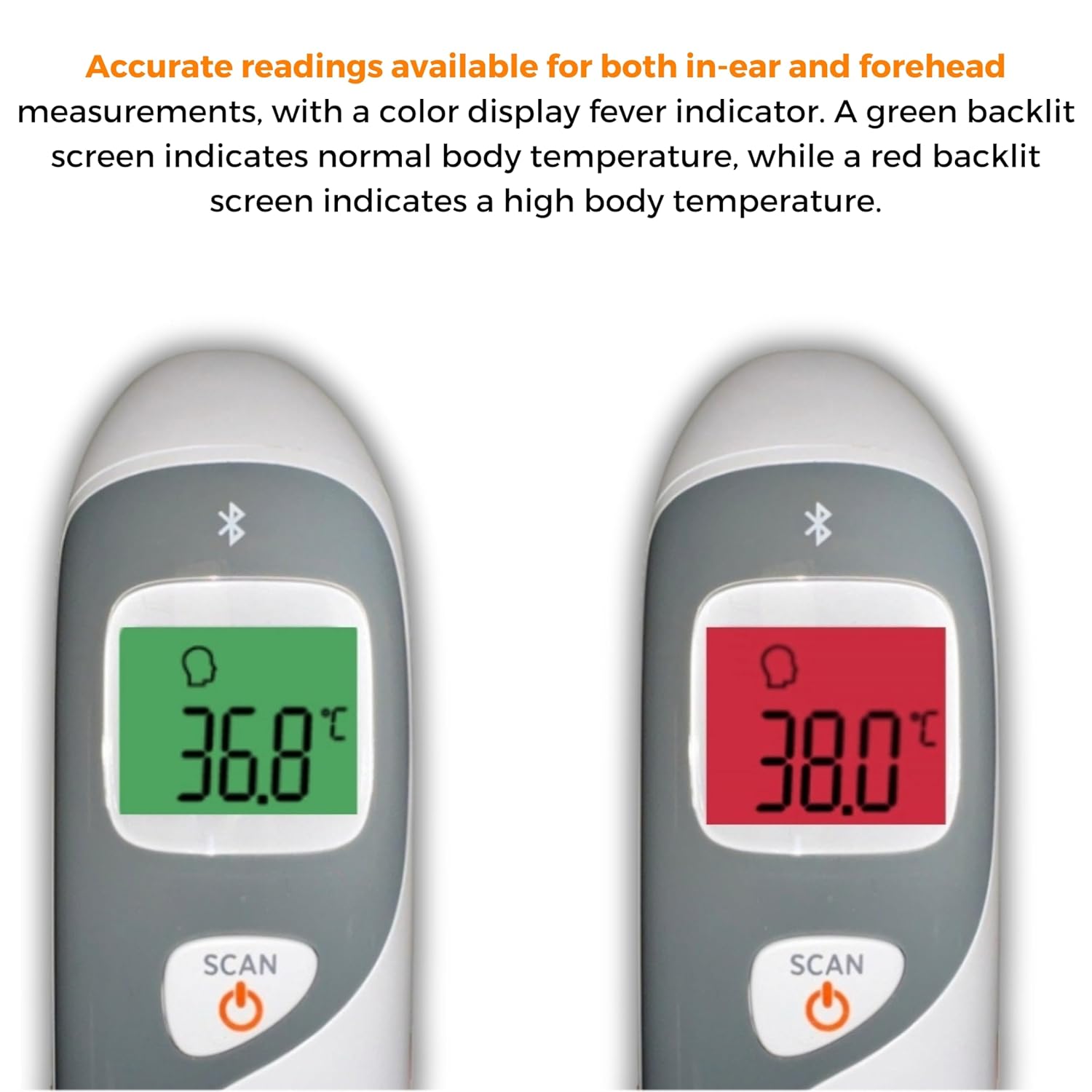
Image: The thermometer's color-changing LCD display indicating normal (green) and high (red) temperatures.
4.5. Memory Recall
The thermometer stores the last 20 temperature readings. To access these readings, press the MEM/MUTE button while the device is on. Each press will cycle through the stored readings.
5. Bluetooth Connectivity and MOBI Smart App
The MOBI CONNECT Smart DualScan Thermometer can be used independently or paired with your smartphone via Bluetooth for enhanced tracking and features through the MOBI Smart App.
5.1. App Download and Pairing
- Download the "MOBI Smart" app from your device's app store (available on iOS and Android).
- Ensure Bluetooth is enabled on your smartphone.
- Open the MOBI Smart App and follow the on-screen instructions to pair your thermometer.
5.2. App Features
- Automatic Tracking: Automatically records temperature readings from the thermometer.
- Multiple User Profiles: Create and manage profiles for each family member to track their health data independently.
- Data Logging: Add comments to each reading for context.
- Reporting & Graphs: View powerful reports and graphs for daily, weekly, monthly, or yearly temperature trends.
- Export Options: Export data for sharing with healthcare professionals.
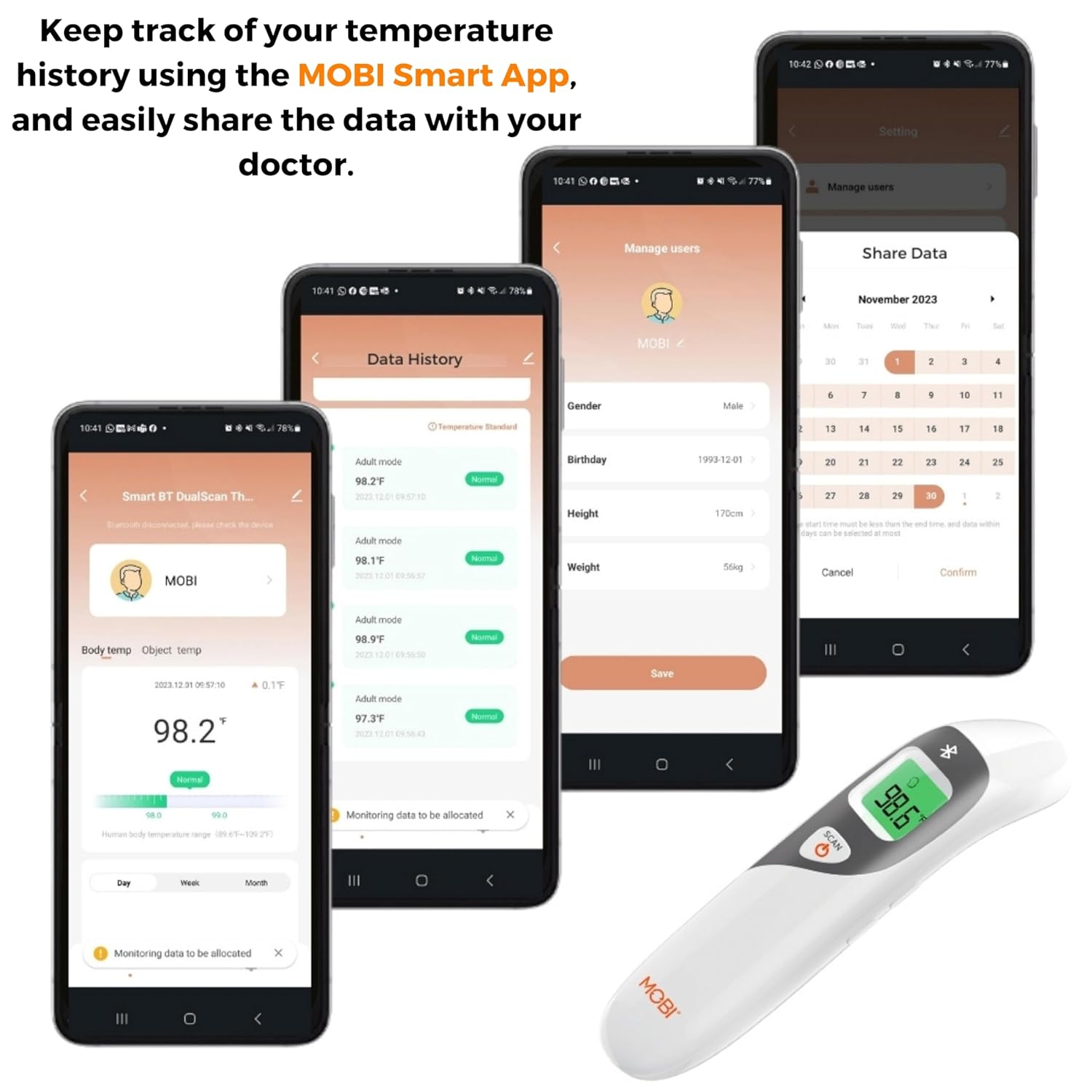
Image: Screenshots of the MOBI Smart App interface, showing data tracking and user management.
5.3. Official Product Video
Video: An official overview of the MOBI Smart DualScan Bluetooth Ear & Forehead Thermometer, demonstrating its features and usage.
6. Maintenance
6.1. Cleaning
To clean the thermometer, wipe it with a soft, damp cloth. Do not immerse the device in water or use abrasive cleaners. Ensure the probe is clean before each use, especially for ear measurements.
6.2. Storage
Store the thermometer in its protective pouch in a cool, dry place, away from direct sunlight and extreme temperatures. Remove batteries if the device will not be used for an extended period.
7. Troubleshooting
- "Lo" or "Hi" Reading: Indicates a temperature outside the measurable range. Ensure proper placement and try again.
- Inaccurate Readings:
- Check for proper probe placement (ear or forehead).
- Ensure the probe is clean.
- Verify the correct mode (Adult/Child/Object) is selected if applicable.
- Allow the thermometer to acclimate to room temperature for 30 minutes if it has been in a significantly different environment.
- Bluetooth Connection Issues:
- Ensure Bluetooth is enabled on your smartphone.
- Restart the thermometer and the MOBI Smart App.
- Ensure the thermometer is within range of your smartphone.
- No Display: Check battery installation and replace batteries if necessary.
8. Specifications
| Model Number | 700026 |
| Power Source | Battery Powered (2 x AAA) |
| Display Type | LCD with Backlight |
| Connectivity | Bluetooth |
| Measurement Modes | Ear, Forehead, Room, Object |
| Temperature Units | Fahrenheit (°F) / Celsius (°C) |
| Memory Recall | Last 20 readings |
| Product Care | Wipe Clean |
| Material | Plastic |
| Manufacturer | Mobi Technologies Inc. |
9. Warranty and Support
For warranty information or technical support, please contact Mobi Technologies Inc. directly. Refer to the product packaging or the official MOBI website for the most current contact details.
