
1. Introduction
The ciciglow V8S Live Sound Card is a versatile audio mixer designed for live streaming, karaoke, and recording. It features a range of sound effects, fun modes, and multiple connectivity options, including Bluetooth, to enhance your audio experience. This manual provides detailed instructions for setting up, operating, and maintaining your V8S Live Sound Card.

Image: The ciciglow V8S Live Sound Card connected and in use for a live broadcast setup.
2. Product Features
- Bluetooth Connectivity: Supports wireless accompaniment from mobile phones and multi-device connections for live streaming.
- 16 Sound Effects: Includes effects such as gunfire, laughter, cheer, and more to create dynamic live environments.
- 8 Fun Modes: Features electric sound, voice change, monitor, chat, shout mic, sing, and original sound elimination modes.
- Intelligent Light Design: Indicator lights respond to sound input, providing visual feedback during use.
- 6 Adjustment Knobs: Precise control over microphone volume, reverb, bass, treble, and music input/output.
- DSP Chip: Integrated digital signal processor for clear and stable sound quality.
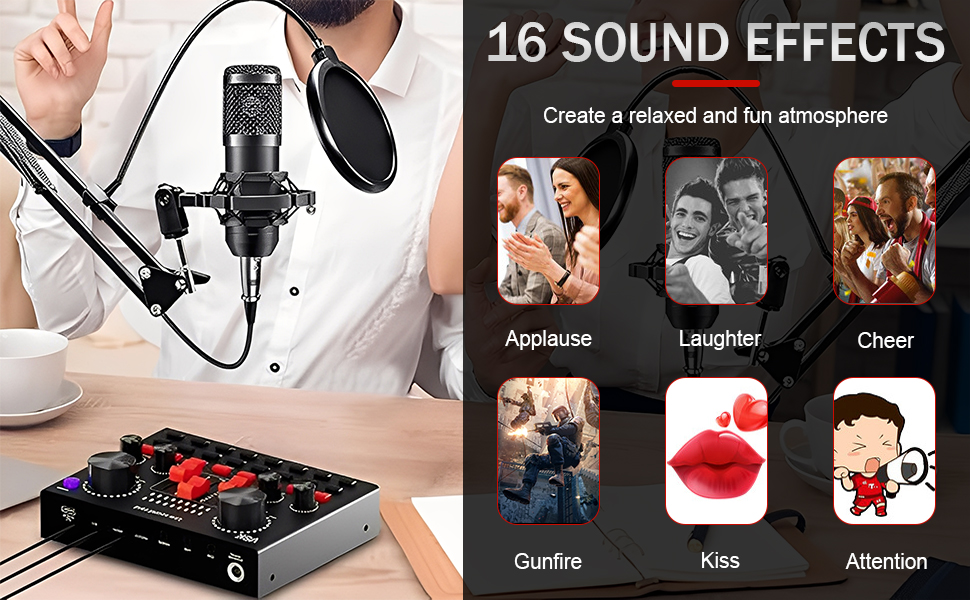
Image: Visual representation of the 16 sound effects, including applause, laughter, cheer, gunfire, kiss, and attention.
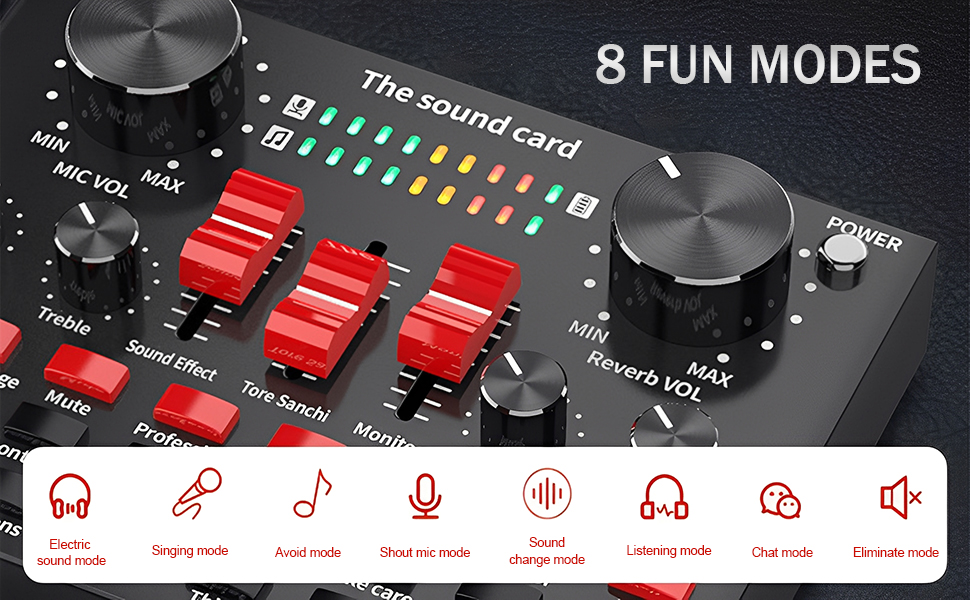
Image: Visual representation of the 8 fun modes, including electric sound, singing, avoid, shout mic, sound change, listening, chat, and eliminate mode.
3. Device Overview
3.1 Front Panel Controls

Image: Detailed view of the V8S sound card's top panel, showing various knobs, sliders, and buttons for sound effects and adjustments.
- MIC VOL Knob: Adjusts microphone input volume.
- Reverb VOL Knob: Controls the reverb effect level.
- Bass Knob: Adjusts the low-frequency response of the microphone.
- Treble Knob: Adjusts the high-frequency response of the microphone.
- Music Knob: Controls the volume of background music input.
- Sound Effect Buttons: Trigger 16 different sound effects (e.g., Gunfire, Laughter, Cheer).
- Mode Buttons: Activate 8 different fun modes (e.g., Electric, Voice Change, Monitor).
- Power Button: Turns the device on or off.
3.2 Rear Panel Connections

Image: The rear panel of the V8S sound card, displaying various USB, 3.5mm, and 6.35mm ports for connections.
- LIVE 1 / LIVE 2 (USB-C): Connects to mobile phones for live streaming.
- Accompany (USB-C): Connects to a mobile phone for background music input.
- Charging (USB-C): For charging the sound card's internal battery.
- Computer (USB-C): Connects to a computer for recording or live streaming.
- Earphone (3.5mm): Connects to earphones for monitoring audio output.
- Headset (3.5mm): Connects to a headset with microphone.
- Capacitor MIC (3.5mm): Input for condenser microphones.
- Dynamic MIC (6.35mm): Input for dynamic microphones.
4. Setup Guide
4.1 Powering On/Off
- To power on, press and hold the Power button until the indicator lights illuminate.
- To power off, press and hold the Power button again until the lights turn off.
4.2 Connecting Microphones
- For condenser microphones, connect to the Capacitor MIC (3.5mm) port.
- For dynamic microphones, connect to the Dynamic MIC (6.35mm) port.
- For headsets with integrated microphones, connect to the Headset (3.5mm) port.
4.3 Connecting Headphones/Speakers
- Connect your headphones or speakers to the Earphone (3.5mm) port for audio monitoring.
4.4 Connecting to Phones/Computers
- For Live Streaming (Phones): Use the provided USB-C to 3.5mm cable to connect your phone to either the LIVE 1 or LIVE 2 port. The sound card supports up to two live streaming phones simultaneously.
- For Accompaniment (Phone): Connect a third phone to the Accompany (USB-C) port for background music.
- For Computer Connection: Connect the sound card to your computer using a USB-C cable via the Computer port for recording or streaming.
- Bluetooth Connection (Accompaniment):
- Turn on the sound card.
- Enable Bluetooth on your mobile phone.
- Search for "V8S" in your phone's Bluetooth settings and pair.
- Once connected, you can play background music from your phone wirelessly.
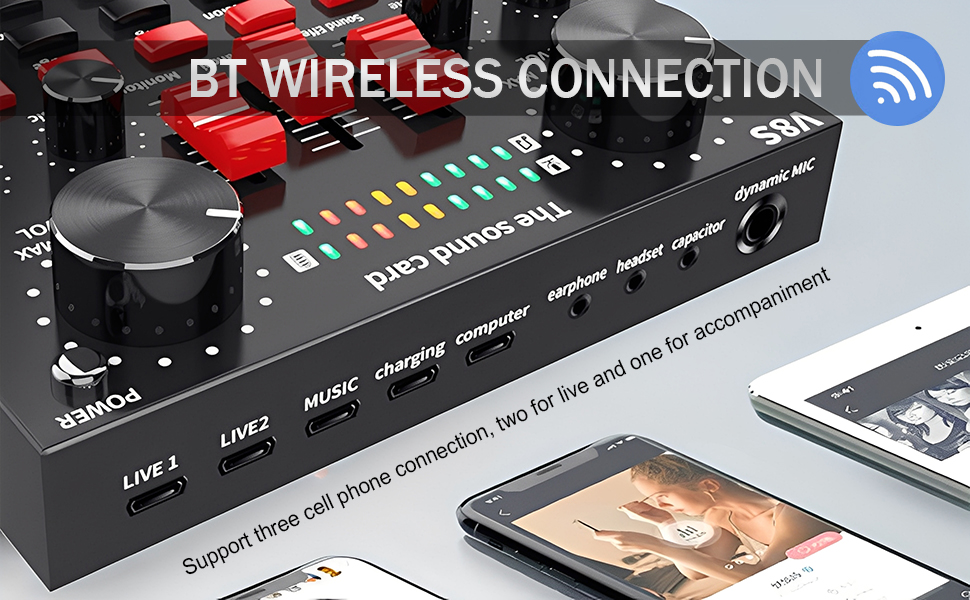
Image: Diagram showing the V8S sound card connected to multiple phones and a computer, highlighting Bluetooth connectivity.
5. Operating Instructions
5.1 Adjusting Audio Levels
- Use the MIC VOL knob to control the loudness of your voice.
- Adjust the Reverb VOL knob to add or reduce echo/reverb effects.
- Turn the Bass and Treble knobs to fine-tune the tone of your microphone input.
- The Music knob controls the volume of any connected background music source.
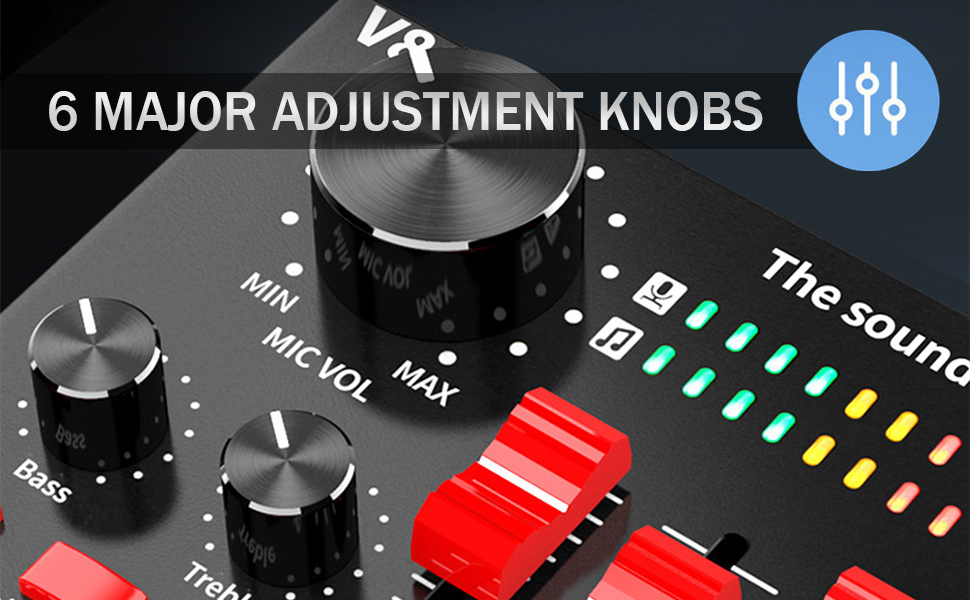
Image: Close-up of the V8S sound card highlighting the six main adjustment knobs for precise audio control.
5.2 Using Sound Effects
Press the dedicated sound effect buttons on the front panel to activate 16 different sound effects. These effects are designed to add fun and engagement to your live streams or karaoke sessions.
- Examples include: Applause, Laughter, Cheer, Gunfire, Kiss, Attention, Minions, Muah, Thief, Help Me, Take Care, Fall In, Together Up, Good Fight, Yell, Leave.
5.3 Activating Fun Modes
The V8S offers 8 distinct fun modes to alter your voice or audio output:
- Electric Sound: Applies an electronic vocal effect.
- Voice Change: Modifies your voice pitch.
- Avoid Mode: Automatically lowers background music when you speak.
- Monitor Mode: Allows you to hear your own voice and the output in real-time.
- Chat Mode: Optimizes audio for conversational use.
- Shout Mic Mode: Enhances microphone sensitivity for shouting.
- Sing Mode: Optimizes audio for singing.
- Eliminate Original Sound: Removes vocals from background music for karaoke.
6. Maintenance
- Keep the device clean by wiping it with a soft, dry cloth. Avoid liquid cleaners.
- Store the sound card in a cool, dry place away from direct sunlight and extreme temperatures.
- Avoid dropping or subjecting the device to strong impacts.
- Ensure all cables are connected securely but do not force them into ports.
7. Troubleshooting
| Problem | Possible Cause | Solution |
|---|---|---|
| No sound output | Volume too low; incorrect connection; device not powered on. | Check all volume knobs (MIC VOL, Reverb VOL, Music); ensure headphones/speakers are correctly plugged into the Earphone port; verify the device is powered on. |
| Microphone not working | Microphone not connected correctly; MIC VOL too low; faulty microphone. | Ensure microphone is securely plugged into the correct port (Capacitor MIC or Dynamic MIC); increase MIC VOL; test with another microphone if possible. |
| Bluetooth connection issues | Device not in pairing mode; phone Bluetooth off; interference. | Ensure the sound card is on; restart phone's Bluetooth; move closer to the sound card; disconnect other Bluetooth devices. |
| Sound distortion | Volume levels too high; faulty cable. | Reduce MIC VOL, Reverb VOL, or Music volume; try a different audio cable. |
8. Specifications
| Feature | Detail |
|---|---|
| Brand | ciciglow |
| Model Number | V8S (ciciglowifgdk9an32) |
| Number of Channels | 3 |
| Item Weight | 510 Grams |
| Connectivity Technology | Bluetooth, Wired (USB-C, 3.5mm, 6.35mm) |
| Power Source | Battery Powered |
| Frequency Response | 20000 Hz (Max) |
| Output Connector Type | TRS (3.5mm) |
| Audio Input | Auxiliary (3.5mm), USB-C, Bluetooth |
9. Warranty and Support
For warranty information and technical support, please refer to the product packaging or contact ciciglow customer service through the retailer where the product was purchased. Keep your purchase receipt for warranty claims.