
Apple Apple Watch SE (2nd Generation)
Apple Watch SE (2nd Generation) User Manual
A comprehensive guide for setting up and mastering your Apple Watch SE (2nd Generation).
Introduction to Apple Watch SE (2nd Generation)
The Apple Watch SE (2nd Generation) is a distinctive and well-known product, offering a pleasant wearing experience, packed with health-related features, and equipped with advanced software for smartwatches. This model includes an innovative wrist detector and joins other wearables with temperature-sensing capabilities, such as the Oura Ring, Samsung's Galaxy Watch 5, and Fitbit Sense.
This manual provides essential information to get started with your Apple Watch SE (2nd Generation) and master its various functions.
Setup
1. Setting Up Your Apple Watch
To begin using your Apple Watch SE, follow the on-screen instructions to set it up. Ensure your iPhone is nearby and updated to the latest iOS version.
2. Configuring and Pairing iPhone and Apple Watch
Open the Apple Watch app on your iPhone. Tap 'Pair New Watch' and follow the prompts to align your iPhone camera with the animation on your Apple Watch. If this fails, you can pair manually.
3. Connecting a New iPhone to an Apple Watch
If you get a new iPhone, you can transfer your Apple Watch pairing. Back up your old iPhone, then restore the backup to your new iPhone. Your Apple Watch will automatically prompt you to pair with the new device.
4. Migrating an Existing Cellular Plan to Your New Apple Watch
For cellular models, you can migrate your existing cellular plan during the setup process or later through the Apple Watch app on your iPhone. Contact your carrier if you encounter issues.
5. Setting Up Apple Watch for Family Members
Family Setup allows you to set up an Apple Watch for a family member who doesn't have their own iPhone. Use your iPhone to manage their watch, including communication limits, schooltime, and location tracking.
6. Activating Your Mobile Service
If you have a cellular model, activate mobile service through the Apple Watch app on your iPhone. This allows your watch to make calls, send messages, and use data independently of your iPhone.
Operating
1. Apple Watch and WatchOS 9 Features
WatchOS 9 introduces new features and enhancements. Explore updated watch faces, improved workout metrics, enhanced sleep tracking, and new medication reminders. Refer to Apple's official documentation for a complete list of WatchOS 9 features.
2. Gestures on an Apple Watch
Navigate your Apple Watch using various gestures: tap, swipe, pinch, and use the Digital Crown and Side Button. Familiarize yourself with these interactions for efficient use.
3. Activating and Waking Up Apple Watch
Raise your wrist to wake the display. You can also tap the screen or press the Digital Crown. To activate, ensure it's charged and paired with your iPhone.
4. Locking or Unlocking an Apple Watch
Your Apple Watch automatically locks when you take it off your wrist. Enter your passcode to unlock it. You can also manually lock it by swiping up on the watch face and tapping the lock icon.
5. Changing the Language and Orientation
Adjust the language and wrist orientation (left or right, Digital Crown position) through the Apple Watch app on your iPhone under 'My Watch' > 'General' > 'Watch Orientation'.
6. Quickly Change to Another Apple Watch
If you have multiple Apple Watches paired to your iPhone, you can quickly switch between them using the Apple Watch app. The active watch will automatically connect.
7. Connecting More Apple Watches
You can pair multiple Apple Watches to a single iPhone. Each watch will have its own settings and data, which can be managed through the Apple Watch app.
Maintenance
1. Charging the Apple Watch Battery
Place your Apple Watch on its magnetic charging cable. Ensure the charger is connected to a power source. The watch will display a charging indicator. For optimal battery health, avoid extreme temperatures during charging.
2. Taking Off, Swapping, and Securing Apple Watch Bands
To remove a band, press the band release buttons on the back of your Apple Watch and slide the band out. To attach a new band, slide it in until you hear a click. Ensure it is securely fastened before wearing.
Specifications (Reference Guide)
This section provides details about the user guide itself, which serves as a reference for the Apple Watch SE (2nd Generation).
- ASIN: B0C4X8JS4L
- Publisher: Independently published
- Publication Date: May 10, 2023
- Language: English
- Print Length: 220 pages
- ISBN-13: 979-8394278884
- Item Weight: 13.9 ounces
- Dimensions: 6 x 0.5 x 9 inches
Visual Aids
The following images are of the "Apple Watch SE (2nd Generation) User Guide" book, which this manual is based upon.
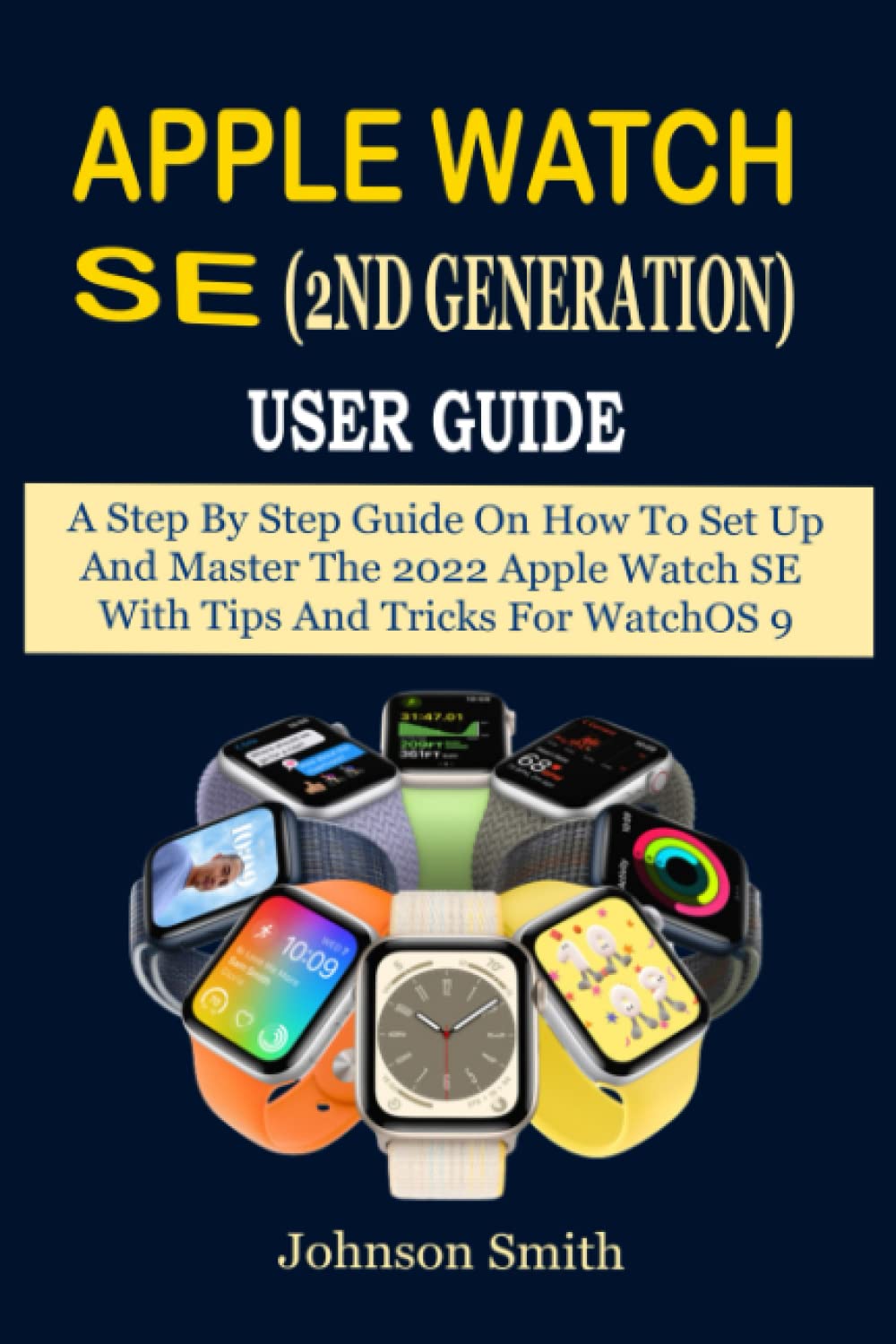
Image Description: Front cover of the "Apple Watch SE (2nd Generation) User Guide" book. The cover features the title prominently, indicating it's a guide for setting up and mastering the 2022 Apple Watch SE with WatchOS 9 tips and tricks.

Image Description: Back cover of the "Apple Watch SE (2nd Generation) User Guide" book. This image typically contains a summary of the book's content, author information, and an ISBN barcode.
Related documentsApple Watch SE (2nd Generation)


Ask a question about this manual
Ask about setup, troubleshooting, compatibility, parts, safety, or missing instructions. Manuals+ will review the question and use this page’s manual context to help answer it.