
1. Introduction
This manual provides detailed instructions for the installation, operation, and maintenance of your Ctronics 4G Indoor Surveillance Camera. This camera is designed for indoor use, offering 4G LTE connectivity, automatic tracking, color night vision, and two-way audio for comprehensive monitoring.
Please read this manual thoroughly before using the product to ensure proper functionality and safety.
2. Package Contents
Verify that all items are present in your package:
- Ctronics 4G Indoor Surveillance Camera
- Power Adapter
- Mounting Bracket
- Instruction Manual (this document)
- Test SIM Card (300MB data included)

Figure 2.1: Ctronics 4G Indoor Surveillance Camera with its main components and a free SIM card.
3. Setup Guide
3.1. SIM Card Installation
- Locate the SIM card slot on the camera.
- Insert the provided test SIM card or your own activated 4G SIM card into the slot. Ensure the SIM card is correctly oriented.
- If using your own SIM card, ensure it is activated and the PIN request is disabled before inserting it into the camera.
- For advanced users experiencing connectivity issues with a third-party SIM, connect the camera via LAN (if available) during initial setup. Access 4G settings in the app/PC client, set APN mode to "Manual," and enter your SIM provider's APN details.

Figure 3.1: The camera highlighting its 4G LTE capability and the inclusion of a SIM card for connectivity.
3.2. Powering On
Connect the power adapter to the camera and plug it into a power outlet. The camera will initiate its startup sequence.
3.3. App and PC Client Installation
- Download the "Ctronics Pro" app from your smartphone's app store (iOS/Android) or the "HiP2P Client" for PC from the official Ctronics website.
- Follow the on-screen instructions to register an account and add your camera. You may need to scan a QR code on the camera or enter its UID.

Figure 3.2: The Ctronics Pro mobile application and HiP2P Client for PC, demonstrating multi-device access.
3.4. Mounting Options
The camera can be placed on a flat surface, mounted on a wall, or installed on a ceiling. Use the provided mounting bracket and hardware for wall or ceiling installations.

Figure 3.3: Examples of flexible installation options for the camera, including tabletop, wall, and ceiling mounts.
4. Operating Instructions
4.1. Live View and Remote Access
Once the camera is connected and added to your app/PC client, you can access the live video feed from anywhere with an internet connection. Open the Ctronics Pro app or HiP2P Client and select your camera to view the live stream.

Figure 4.1: Remote monitoring of the camera feed via both a laptop and a smartphone application.
4.2. Pan, Tilt, and Zoom (PTZ) Control
The camera offers 355° horizontal pan and 90° vertical tilt capabilities. Use the controls within the app or PC client to adjust the camera's viewing angle remotely.
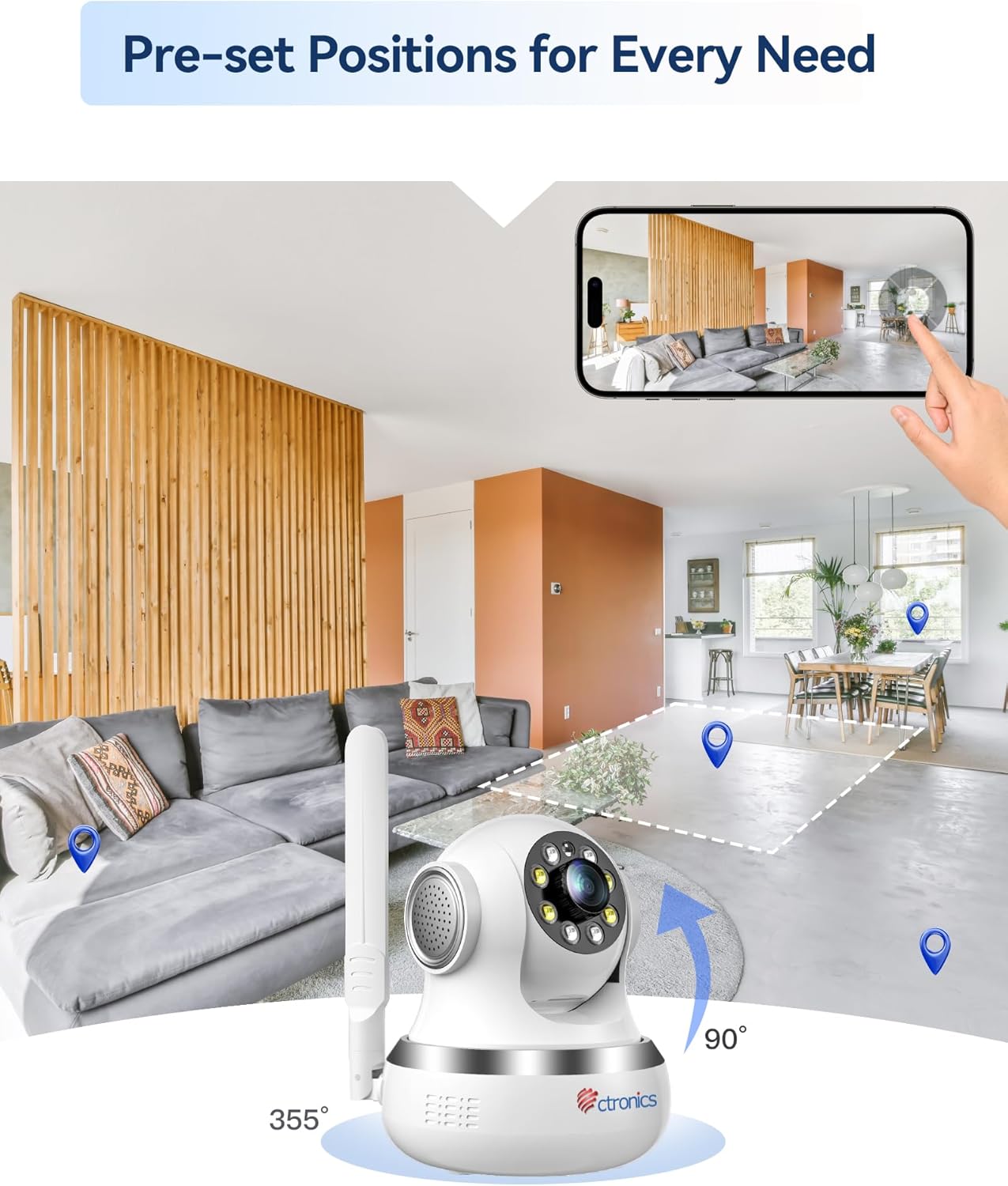
Figure 4.2: Visual representation of the camera's 355-degree horizontal rotation and 90-degree vertical tilt capabilities.
4.3. Preset Positions
You can save up to 8 preset positions for quick navigation to specific areas. Configure these presets in the camera settings within the application.
4.4. Automatic Tracking
The camera features intelligent automatic tracking, allowing it to detect and follow moving subjects (people or animals) within its field of view. Enable this feature in the camera settings.
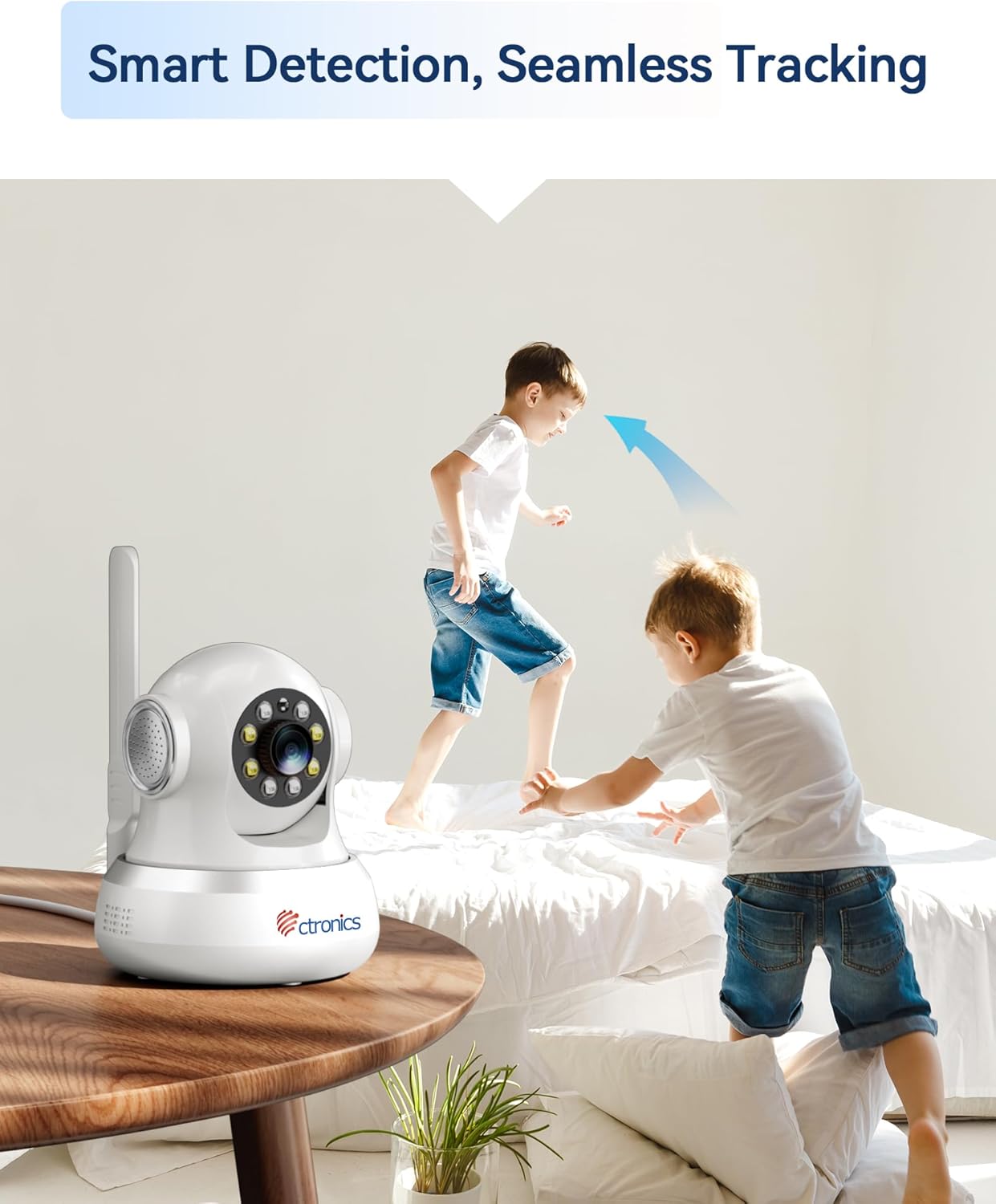
Figure 4.3: The camera's smart detection and seamless tracking feature, illustrated by its ability to follow moving subjects.
4.5. Motion Detection and Alerts
Configure motion detection zones and sensitivity. Upon detecting movement, the camera can trigger audible and visual alarms, and send notifications to your connected devices.
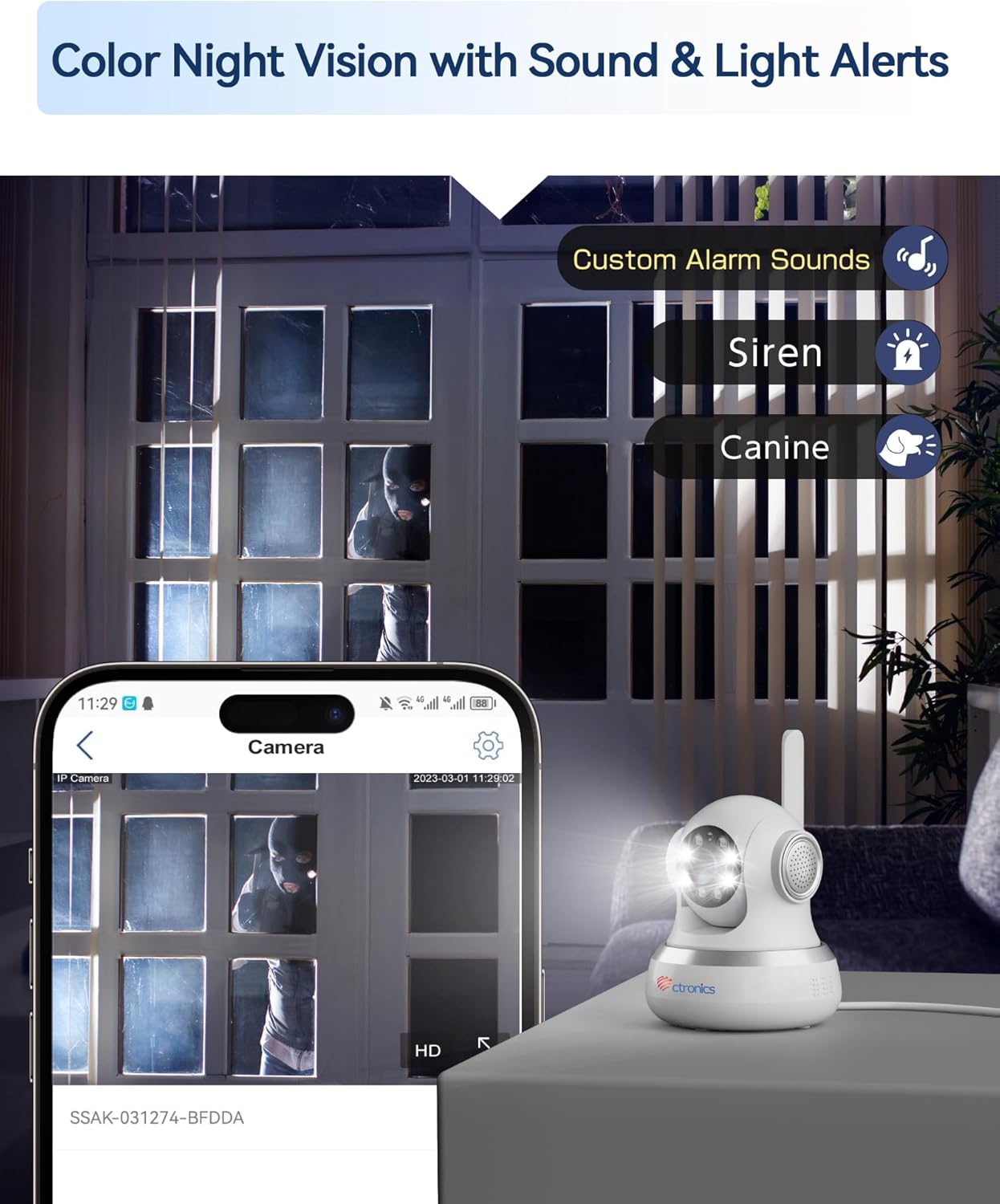
Figure 4.4: The camera's color night vision capability combined with customizable sound and light alerts for enhanced security.
4.6. Two-Way Audio
Utilize the built-in microphone and speaker to communicate with individuals near the camera. This feature is accessible through the live view interface in the app/PC client.

Figure 4.5: The camera's two-way audio feature, allowing for communication and sharing of live moments.
4.7. Color Night Vision
The camera provides clear 1080P HD images both day and night, with a night vision range of up to 20 meters, enhanced by infrared and white LEDs for full-color night vision.
4.8. Recording and Storage
Recordings can be stored locally on a MicroSD card (not included, but supported up to 256GB based on customer reviews) or via cloud storage services (subscription may be required). The camera also supports FTP storage.

Figure 4.6: The camera's support for both local MicroSD card storage and cloud storage options.
5. Maintenance
- Cleaning: Gently wipe the camera lens and body with a soft, dry cloth. Avoid using harsh chemicals or abrasive materials.
- Firmware Updates: Regularly check for and install firmware updates through the Ctronics Pro app or HiP2P Client to ensure optimal performance and security.
- Storage Management: Periodically review and manage your recorded footage. Delete unnecessary files to free up storage space on your MicroSD card or cloud service.
6. Troubleshooting
| Problem | Possible Cause | Solution |
|---|---|---|
| No 4G Connection | SIM card not activated, incorrect APN settings, poor signal. | Ensure SIM is activated and PIN is disabled. Check APN settings in the app/PC client (refer to Section 3.1). Relocate camera for better signal. |
| Poor Image Quality | Dirty lens, insufficient lighting, network bandwidth issues. | Clean the camera lens. Ensure adequate lighting. Check your 4G signal strength. |
| Motion Detection Not Triggering | Detection sensitivity too low, detection zone not configured. | Adjust motion detection sensitivity and configure detection zones in the app settings. |
| No Two-Way Audio | Microphone/speaker disabled, volume too low. | Check audio settings in the app/PC client. Ensure microphone and speaker are enabled and volume is adequate. |
| Camera Offline | No power, 4G signal loss, network issues. | Check power connection. Verify 4G signal. Restart the camera. |
7. Specifications
| Feature | Detail |
|---|---|
| Model Number | CTIPC-750C-4G |
| Video Recording Resolution | 1080p |
| Color | White |
| Included Components | Power adapter, Instruction manual, Mounting bracket |
| Number of Channels | 2 |
| Wireless Communication Technology | 4G LTE (Note: While Wi-Fi is listed in some specifications, the primary connectivity for this model is 4G LTE.) |
| Form Factor | Dome |
| Viewing Angle | 90 Degrees |
| Night Vision Range | 20 Meters |
| Frame Rate | 15 frames per second |
| Material | Acrylonitrile Butadiene Styrene (ABS) |
| Voltage | 5 Volts |
| Power | 5 Watts |
| Item Dimensions (L x W x H) | 14.3 x 12 x 12 cm |
| Water Resistance Level | Not specified for indoor use (Note: "Waterproof" was listed in general specs, but product is specified as "Indoor".) |
| Manufacturer | Ctronics |
| Quantity | 1 |
| Bulb Type | Infrared |
| Special Features | Motion detector, PTZ Technology, Night vision |
| Usage | 360 degree coverage, Surveillance |
| Batteries Included/Required | No |
| Recommended Uses | Surveillance |
| Connectivity Technology | 4G LTE (Note: While "Wired" is listed in some specifications, the primary connectivity for this model is 4G LTE.) |
| Indoor/Outdoor Use | Indoor |
| Compatible Devices | Computer, Laptop, Smartphone, Tablet |
| Power Source | AC Power |
| Controller Type | Android (for app control) |
| Mounting Type | Wall Mount, Ceiling Mount, Tabletop |
8. Warranty and Support
For warranty information and technical support, please visit the official Ctronics website or contact their customer service directly. Customer reviews indicate responsive support for setup and troubleshooting.
Ctronics Official Website: www.ctronics.com


