
NARWAL YJCC012
NARWAL Freo Robot Vacuum Cleaner and Mop User Manual
Model: YJCC012
1. Introduction
This manual provides essential information for the safe and efficient operation, maintenance, and troubleshooting of your NARWAL Freo Robot Vacuum Cleaner and Mop. Please read it thoroughly before using the device and retain it for future reference.
Key Features:
- Freo Mode: Hands-free cleaning with self-cleaning and self-drying mop pads. The robot makes optimal cleaning decisions.
- DirtSense Technology: Intelligently detects mop dirt levels and disinfects them with high-speed rotation, water, and detergent.
- Smart-Swing Edge Cleaning: Effectively cleans dust and stains along walls and baseboards.
- Deep & Precise Cleaning: Patented high-speed rotating mop pads apply 12N pressure, ensuring thorough cleaning without streaks. Pressure is adjustable for various floor types.
- Three Mop Drying Modes: Dual air ducts provide gentle 40°C heat for thorough drying, preventing odors.
2. Setup
2.1 Unboxing and Placement
Carefully remove all components from the packaging. Choose a suitable location for the docking station, ensuring it has clear space around it (approximately 0.5 meters on both sides and 1.5 meters in front) and is connected to a power outlet. Avoid placing it in direct sunlight or near heat sources.

Image: The Narwal Freo robot vacuum and its docking station. The robot is a white circular device, and the docking station is a larger white unit where the robot parks for charging and mop cleaning.
2.2 Initial Charge
Place the robot onto the docking station. Ensure the charging contacts align. The robot will begin charging automatically. For first-time use, it is recommended to fully charge the robot before its initial cleaning cycle.
2.3 Filling Water Tanks and Detergent
The docking station contains separate tanks for clean water and dirty water. Fill the clean water tank with tap water. The system also includes an intelligent detergent dispenser. Insert the provided detergent bottle into its designated slot in the docking station. The robot will automatically dispense the correct amount of detergent.

Image: A hand placing a bottle of cleaning solution into a compartment on the docking station, illustrating the automatic solution dispensing feature.
2.4 App Connection and Mapping
Download the NARWAL app on your smartphone. Follow the in-app instructions to connect your robot to your home Wi-Fi network. The app will guide you through the initial mapping process, allowing the robot to create a detailed map of your home for efficient navigation.

Image: The robot vacuum using LiDAR navigation, shown alongside a smartphone screen displaying the mapping interface within the NARWAL app.
3. Operating Instructions
3.1 Cleaning Modes
The NARWAL Freo offers various cleaning modes to suit different needs:
- Freo Mode: The robot intelligently determines the optimal cleaning strategy (vacuuming, mopping, or both) based on detected dirt levels.
- Vacuum Only: For dry debris removal.
- Mop Only: For wet cleaning of hard floors.
- Vacuum then Mop: The robot first vacuums and then mops the designated area.
- Vacuum and Mop Simultaneously: Performs both tasks in one pass.
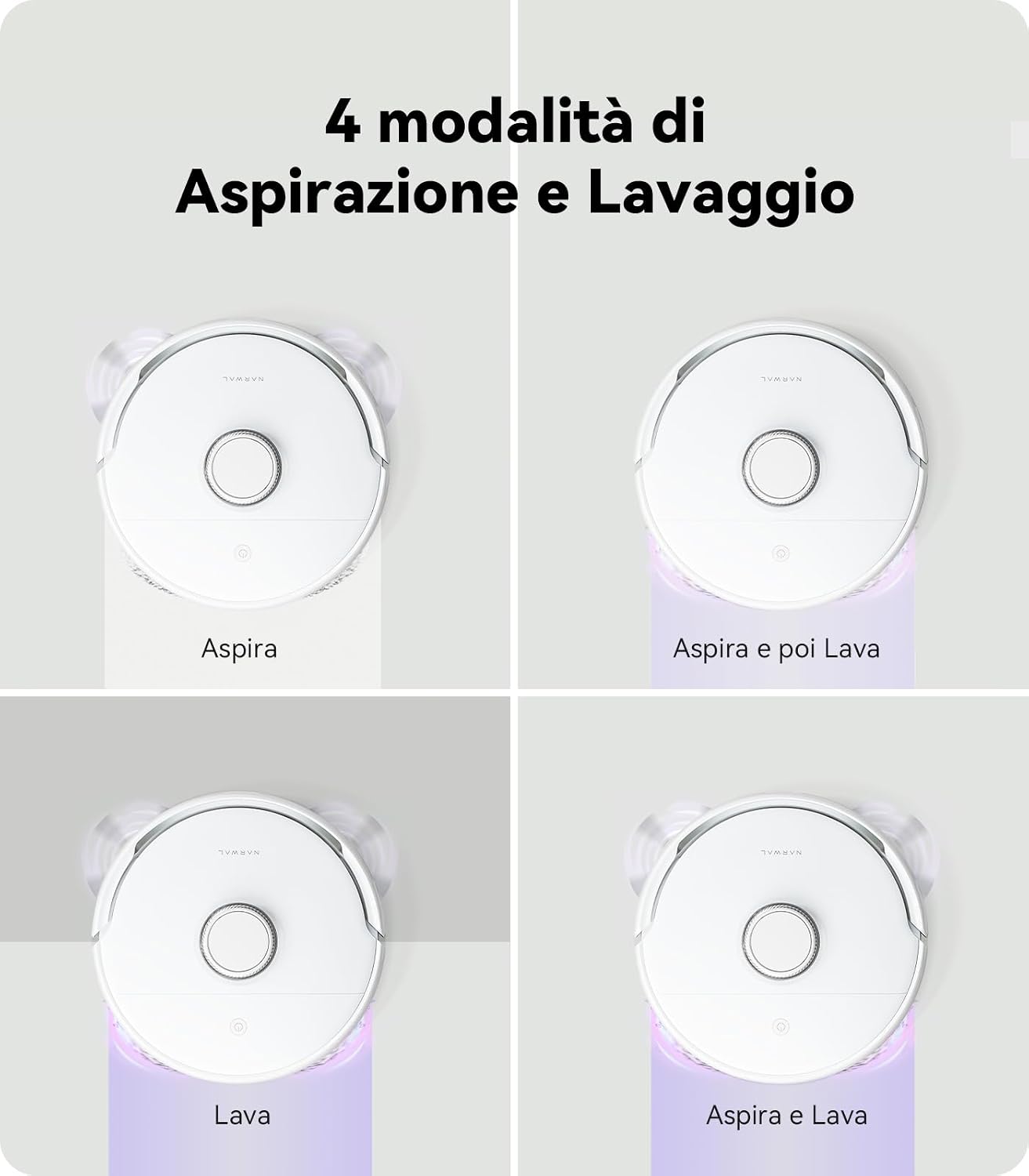
Image: A visual representation of the four main cleaning modes: Vacuum, Vacuum then Mop, Mop, and Vacuum & Mop simultaneously, each showing the robot's action.
3.2 Starting a Cleaning Cycle
You can start a cleaning cycle using the integrated LCD on the docking station or through the NARWAL app.
- From Docking Station: Press the "Start/Pause" button on the LCD screen.
- From App: Select your desired cleaning mode and area, then tap "Start."

Image: A close-up of the docking station's integrated LCD screen, showing various control options like start/pause, child lock, do not disturb mode, and network settings.
3.3 Advanced Features via App
- Customized Cleaning: Define specific areas to clean or avoid (no-go zones).
- Scheduled Cleaning: Set daily or weekly cleaning schedules.
- Multi-Level Mapping: The robot can store maps for multiple floors.
- Carpet Detection: Automatically lifts mop pads and increases suction on carpets.

Image: An illustration showing how to set up no-go zones and spot cleaning areas within the app, with the robot avoiding a pet bed and cleaning a specific spill.
4. Maintenance
Regular maintenance ensures optimal performance and extends the lifespan of your NARWAL Freo.
4.1 Cleaning the Mop Pads
The robot automatically cleans and dries its mop pads in the docking station. However, occasional manual cleaning or replacement of mop pads may be necessary, especially after heavy use.

Image: A split image showing the automatic mop washing cycle on the left and the hot air drying cycle on the right, both occurring within the docking station.
4.2 Emptying the Dustbin
The robot's dustbin should be emptied regularly, ideally after each cleaning cycle or as indicated by the app. Remove the dustbin from the robot, open it, and discard the collected debris. Clean the filter as needed.

Image: A close-up of the robot's dustbin being removed and emptied, showing the transparent compartment and filter.
4.3 Cleaning Water Tanks and Docking Station Tray
Periodically empty and rinse both the clean and dirty water tanks. The removable cleaning tray within the docking station should also be cleaned to prevent residue buildup.

Image: A hand removing the cleaning tray from the docking station for maintenance.
4.4 Brush and Sensor Cleaning
Inspect and clean the main brush, side brushes, and all sensors (LiDAR, cliff sensors) regularly to ensure proper function. Remove any tangled hair or debris.
5. Troubleshooting
If you encounter issues with your NARWAL Freo, refer to the following common problems and solutions:
| Problem | Possible Cause | Solution |
|---|---|---|
| Robot does not start or respond. | Low battery; power switch off; robot stuck. | Ensure robot is charged; check power switch; clear any obstructions. |
| Poor cleaning performance. | Full dustbin; dirty brushes/mops; blocked suction inlet. | Empty dustbin and clean filter; clean main and side brushes; check for blockages. |
| Robot cannot return to docking station. | Docking station obstructed; out of range; dirty charging contacts. | Ensure clear path to station; move station to central location; clean charging contacts on both robot and station. |
| App connection issues. | Incorrect Wi-Fi password; router issues; robot too far from router. | Verify Wi-Fi password; restart router; move robot closer to router. |
| Mops not drying properly. | Drying mode not selected; air ducts blocked. | Ensure a drying mode is active; check and clear air ducts in the docking station. |
For further assistance, please refer to the NARWAL app's help section or contact customer support.
6. Specifications
| Feature | Detail |
|---|---|
| Brand | NARWAL |
| Model Name | YJCC012 |
| Recommended Surfaces | Vinyl, Tiles, Laminate, Wood, Marble |
| Special Feature | Automatic Washing, DirtSense, Smart-Swing Edge Cleaning |
| Color | Freo (White) |
| Control Type | Remote (App), Integrated LCD |
| Filter Type | Cartridge |
| Battery Life | 120 Minutes |
| Battery Composition | Lithium Ion |
| Dustbin Capacity | 480 ml |
| Power Source | Battery Powered |
| Compatible Devices | Smartphone |
| Form Factor | Rectangular (Docking Station), Circular (Robot) |
| Usage | Indoor |
| Item Dimensions (LxWxH) | 41L x 37W x 43H cm |
| Item Weight | 5.5 Kilograms |
| Included Components | Docking station, Filter, Instruction Manual, Side Brush, Floor Brush |
7. Warranty and Support
For warranty information, please refer to the documentation included with your product or visit the official NARWAL website. For technical support, troubleshooting assistance, or to order replacement parts, please contact NARWAL customer service through the contact information provided in the app or on their official website.
You can also find additional resources and FAQs on the NARWAL Brand Store.
Related documentsYJCC012


Ask a question about this manual
Ask about setup, troubleshooting, compatibility, parts, safety, or missing instructions. Manuals+ will review the question and use this page’s manual context to help answer it.