
1. Introduction
The Nuroum C40 is an all-in-one conference webcam designed for efficient and high-quality virtual meetings. It integrates a 4K camera, a 4-microphone array, and a high-output speaker into a single device. This manual provides detailed instructions for setting up, operating, and maintaining your Nuroum C40 webcam.

The Nuroum C40 conference webcam positioned on a conference table in a modern office environment, showcasing its sleek design and central placement for optimal meeting coverage.
2. Package Contents
Verify that all items are present in your package:
- Nuroum C40 Conference Webcam
- USB-C to USB-A Cable (with USB-C adapter)
- Power Adapter
- Infrared Remote Control (AAA batteries not included)
- User Manual (Japanese)
Note: Optional accessories such as expansion microphones (AM01) and a USB wireless dongle are sold separately.
3. Setup
The Nuroum C40 supports plug-and-play functionality, requiring no driver installation for most operating systems.
3.1 Wired Connection
- Connect the power adapter to the DC IN port on the Nuroum C40 and plug it into a power outlet.
- Connect the provided USB-C cable to the USB-C port on the Nuroum C40.
- Connect the other end of the USB cable (USB-A or USB-C, using the adapter if necessary) to an available USB port on your computer.
- The device will be automatically recognized by your computer.
3.2 Wireless Connection (Optional)
For wireless connectivity, an optional USB dongle is required.
- Connect the power adapter to the DC IN port on the Nuroum C40 and plug it into a power outlet.
- Insert the optional USB wireless dongle into an available USB port on your computer.
- The Nuroum C40 will automatically establish a wireless connection with the dongle.

Detailed connection diagram illustrating the DC IN port, 3.5mm TRRS Mic In for expansion microphones, and the USB Type-C port for PC connection.

Illustration of both wired USB connection to a laptop and wireless connection via an optional USB dongle, demonstrating flexible setup options.
4. Operating Instructions
The Nuroum C40 is designed for intuitive operation, primarily through its integrated controls and the included remote control.
4.1 Camera Features
- 4K Ultra HD Resolution: Equipped with a high-performance CMOS sensor and a 120° ultra-wide-angle lens, the camera captures clear video, covering the entire meeting room.
- AI Auto-Framing: The camera automatically detects participants in its field of view and adjusts the framing to keep everyone optimally positioned.
- 5x Digital Zoom: Use the remote control to digitally zoom in up to 5 times, focusing on specific details or individuals during a meeting.

Visual comparison demonstrating the superior clarity and detail of 4K Ultra HD resolution provided by the Nuroum C40 compared to a standard webcam.

An illustration of the AI-powered auto-framing technology, showing how the camera detects participants and adjusts the frame to include everyone optimally.

The remote control highlighting the zoom in and zoom out buttons, demonstrating how to use the 5x digital zoom feature.
4.2 Audio Features
- AI Voice Optimization & Noise Cancellation: The 4-microphone array, combined with proprietary AI algorithms, automatically emphasizes the speaker's voice while effectively suppressing ambient noise and echoes.
- High-Output Speaker: The integrated speaker provides clear audio output, supporting full-duplex communication for natural conversations. Using the power adapter ensures more stable volume and clearer output.
- Wide Pickup Range: Built-in microphones offer a sound pickup radius of approximately 5 meters.

An exploded view diagram illustrating the internal 4-microphone array, designed for 360° wide-range sound pickup.

A cutaway diagram showcasing the high-output speaker, emphasizing its design for clear and powerful audio delivery.
4.3 Remote Control Functions
The included infrared remote control allows for convenient adjustment of various settings:
- Mute On/Off: Quickly mute or unmute the microphone.
- Video On/Off: Turn the camera video feed on or off.
- Speaker On/Off: Control the speaker output.
- Menu: Access on-screen menu for advanced settings.
- Digital Zoom: Adjust the 5x digital zoom level.
- Camera Angle Adjustment: After zooming, use the arrow keys to pan the camera view up, down, left, or right.
- Multi-function Button: Specific functions may vary based on context or firmware.

The remote control for the Nuroum C40, showing buttons for mute, video on/off, speaker control, menu access, digital zoom, and directional controls for camera angle adjustment.

An illustration demonstrating how to use the remote control's arrow keys to adjust the camera's field of view after applying digital zoom.

The remote control displaying buttons for muting the microphone and turning off the camera, emphasizing privacy and security management during meetings.
5. Expandable Audio Solution
For larger meeting spaces, the Nuroum C40's audio pickup range can be extended.
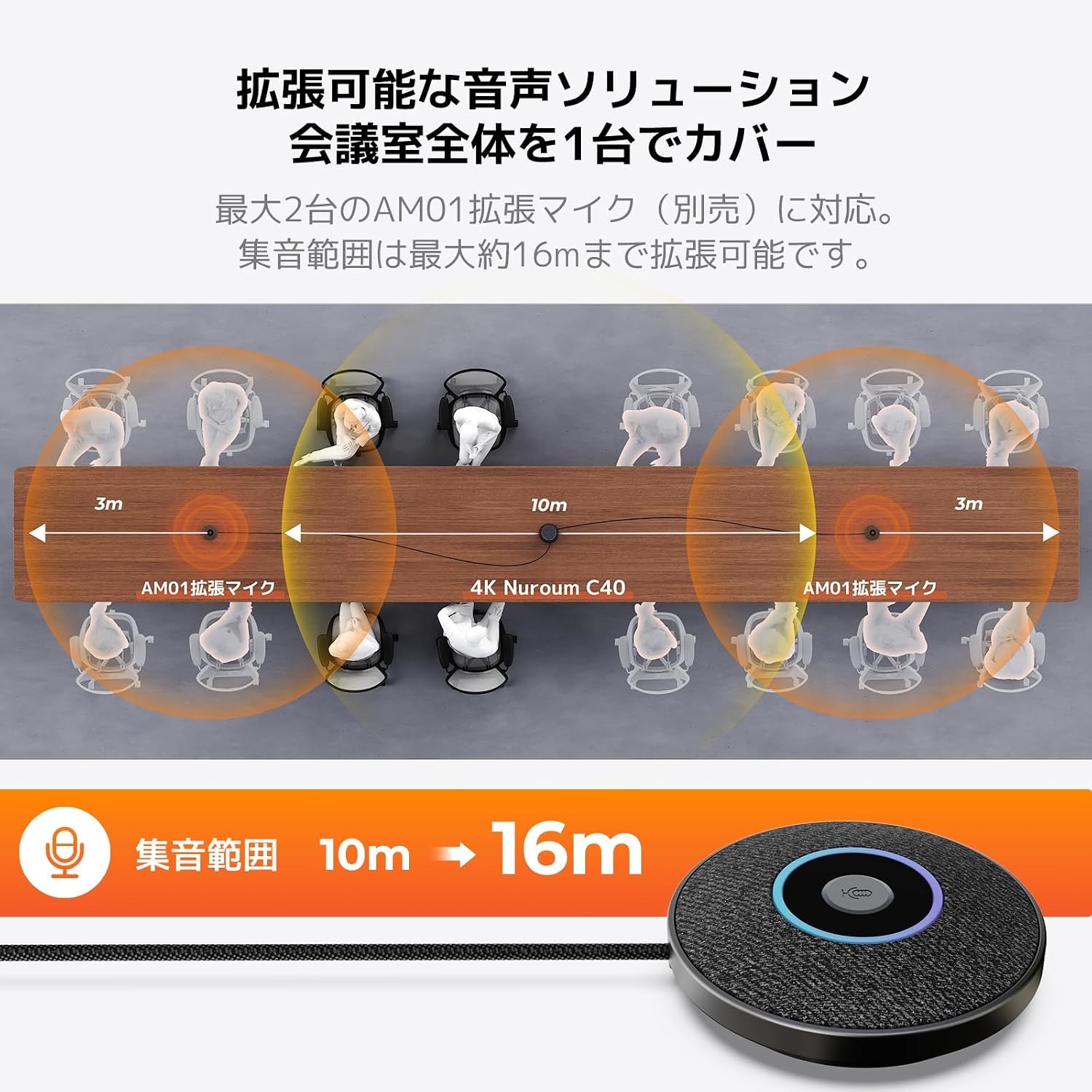
- The Nuroum C40 supports connection of up to two optional AM01 expansion microphones (sold separately).
- Connecting expansion microphones can extend the total audio pickup range up to approximately 16 meters.
- This ensures uniform voice pickup across a larger area, facilitating smooth communication in medium to large-scale meetings.

An overhead diagram illustrating the Nuroum C40's audio pickup range extended to 16 meters with the addition of two AM01 expansion microphones.
6. Compatibility
The Nuroum C40 is designed for broad compatibility with various operating systems and video conferencing platforms.
- Operating Systems: Compatible with Windows, macOS, Chrome OS, and Linux.
- Video Conferencing Platforms: Tested and compatible with major web conferencing tools including Zoom, Skype, Microsoft Teams, Google Meet, Webex, and OBS.
The Nuroum C40 connected to a laptop, demonstrating its seamless integration with a video conferencing application, showing multiple participants on screen.
7. Mounting Options
The Nuroum C40 offers flexible placement options to suit various meeting room setups.
- Tabletop Placement: The device can be placed directly on a conference table.
- Tripod Mounting: A 1/4-inch screw hole on the bottom of the unit allows for secure mounting on a standard tripod or stand. This is useful for adjusting height and position for optimal camera angles.

The Nuroum C40 shown mounted on a tripod, demonstrating an alternative setup option for adjusting camera height and position in a meeting room.

An image illustrating different ways to mount the Nuroum C40, including direct tabletop placement and mounting on a stand or tripod using the 1/4-inch screw hole.
8. Maintenance
Proper maintenance ensures the longevity and optimal performance of your Nuroum C40 webcam.
- Cleaning: Use a soft, dry cloth to clean the exterior of the device. For the camera lens, use a lens cleaning cloth and solution designed for optical surfaces. Avoid abrasive cleaners or solvents.
- Storage: When not in use, store the device in a cool, dry place away from direct sunlight and extreme temperatures.
- Firmware Updates: Regularly check for and install firmware updates to ensure the device has the latest features and performance enhancements. Information on updates will be provided by Nuroum support.
- Cable Management: Ensure all cables are neatly arranged and not under strain to prevent damage.
9. Troubleshooting
If you encounter issues with your Nuroum C40, refer to the following common troubleshooting steps:
- No Power: Ensure the power adapter is securely connected to both the device and a working power outlet.
- No Video/Audio: Verify that the USB cable is properly connected to both the device and your computer. Check your video conferencing software settings to ensure the Nuroum C40 is selected as the primary camera, microphone, and speaker.
- Poor Video Quality: Ensure the camera lens is clean. Check your internet connection stability. For optimal performance, ensure sufficient lighting in the meeting room.
- Poor Audio Quality (Echo/Noise): Ensure the device is placed centrally in the room and not too close to walls or reflective surfaces. Confirm that AI noise cancellation is active (if configurable). Using the power adapter can improve audio stability.
- Remote Control Not Responding: Ensure fresh AAA batteries are installed in the remote control. Point the remote directly at the device.
- Software Recognition Issues: If your computer or software does not recognize the device, try connecting to a different USB port or restarting your computer. Ensure your operating system is up to date.
If problems persist, please contact Nuroum customer support.
10. Specifications
| Brand | Nuroum |
| Model Number | AW-C40 |
| Video Capture Resolution | 4K Ultra HD |
| Photo Sensor Technology | CMOS |
| Lens Type | Wide Angle |
| Field of View (FOV) | 120° |
| Digital Zoom | 5x |
| Microphone Array | 4-microphone array with AI noise cancellation |
| Audio Pickup Range | Up to 5m (expandable to 16m with optional mics) |
| Speaker | High-output integrated speaker |
| Connectivity | USB-C (wired), USB dongle (wireless, optional) |
| Mounting | Tabletop, 1/4-inch tripod screw hole |
| Supported OS | Windows, macOS, Chrome OS, Linux |
| Color | Metallic Gray |
| Included Components | Power adapter, USB cable, remote control |
11. Warranty and Support
Nuroum is committed to providing reliable products and excellent customer service.
- Warranty: The Nuroum C40 comes with a 1-year manufacturer's warranty from the date of purchase. This warranty covers defects in materials and workmanship under normal use.
- Customer Support: For technical assistance, troubleshooting, or warranty claims, please contact Nuroum customer support. Support is available in Japanese.
- Firmware Updates: Nuroum continuously provides firmware updates to improve functionality and performance. Please visit the official Nuroum website or contact support for information on the latest updates.


