
Introduction
Thank you for choosing the OnePlus Stylo OPN2202. This input pen is designed to enhance your tablet experience, offering precision and versatility for writing, drawing, and navigation. This manual provides essential information on setting up, operating, maintaining, and troubleshooting your OnePlus Stylo.
For optimal performance and to ensure safe use, please read this manual thoroughly before using the device and retain it for future reference.
Safety Information
- Do not expose the Stylo to extreme temperatures, direct sunlight, or high humidity.
- Avoid dropping or subjecting the Stylo to strong impacts.
- Keep the Stylo away from water and other liquids. If it gets wet, power it off immediately and allow it to dry completely before use.
- Do not attempt to disassemble, repair, or modify the Stylo yourself. This may void the warranty and cause damage.
- Keep out of reach of children. Small parts may pose a choking hazard.
- Dispose of the Stylo and its battery responsibly according to local regulations.
Package Contents
Please check the box for the following items:
- OnePlus Stylo OPN2202
- User Manual (this document)
- Replacement Pen Tips (quantity may vary)
Product Overview
The OnePlus Stylo is a sleek and ergonomic input pen designed for seamless interaction with compatible tablets. It features a durable aluminum body and a precise tip for accurate input.

Image: The OnePlus Stylo OPN2202, a white digital pen with the "ONEPLUS" logo visible on its side.
Components:
- Pen Tip: For writing, drawing, and precise interaction.
- Pen Body: Houses the internal components and battery. Made of aluminum.
- Magnetic Attachment Area: Allows the Stylo to magnetically attach to compatible tablets for storage and charging.
Setup
1. Charging the Stylo
The OnePlus Stylo charges wirelessly when attached to a compatible OnePlus tablet. Ensure your tablet is powered on and has sufficient battery.
- Locate the magnetic charging area on your compatible OnePlus tablet. This is typically along one of the longer edges.
- Align the OnePlus Stylo with the magnetic charging area on the tablet. It will snap into place magnetically.
- The tablet should indicate that the Stylo is connected and charging.
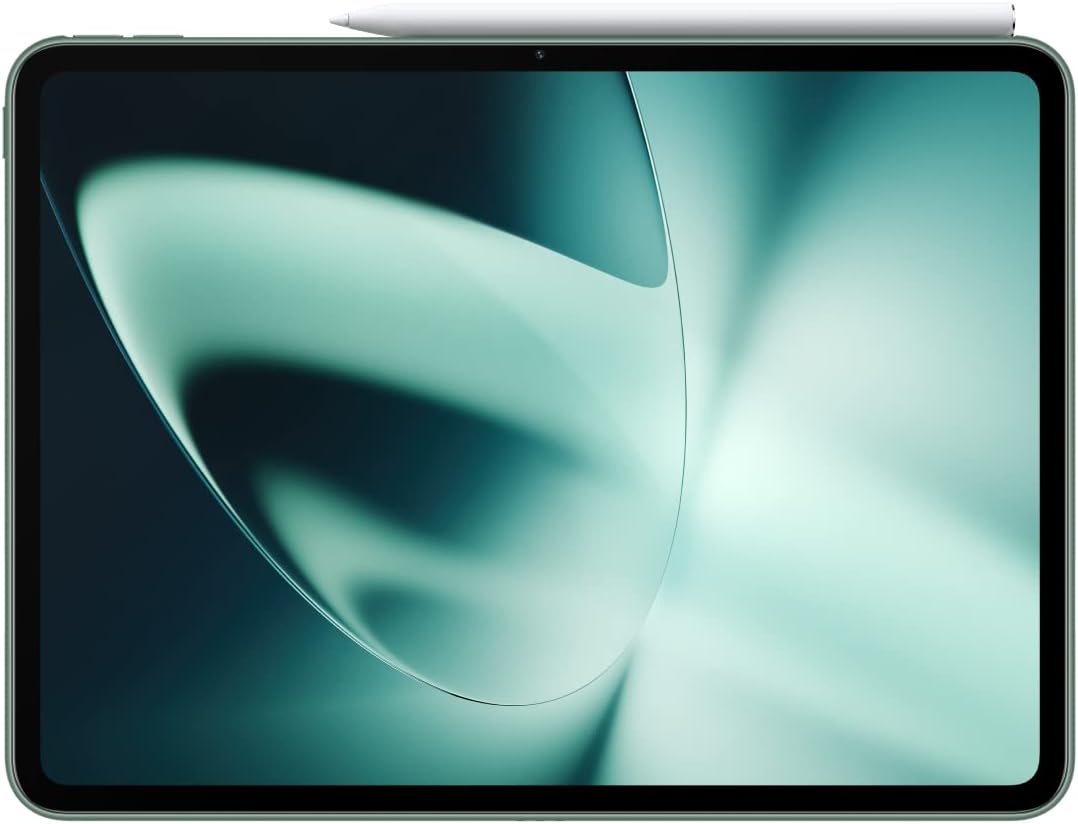
Image: The OnePlus Stylo magnetically attached to the top edge of a compatible tablet.

Image: The OnePlus Stylo magnetically attached to the side edge of a compatible tablet.
2. Pairing with Your Tablet
The OnePlus Stylo automatically pairs with compatible OnePlus tablets when first attached to the magnetic charging area. No manual pairing process is typically required.
- Ensure your tablet's Bluetooth is enabled.
- Attach the Stylo to the magnetic charging area.
- A notification on your tablet screen should confirm successful connection.
Operating the OnePlus Stylo
Basic Usage:
- Writing and Drawing: Simply touch the pen tip to the tablet screen to write, draw, or annotate. The Stylo supports pressure sensitivity for varied line thickness and shading in compatible applications.
- Navigation: Use the Stylo to tap, swipe, and select items on your tablet screen, similar to using your finger but with greater precision.
- Palm Rejection: The Stylo features palm rejection technology, allowing you to rest your hand on the screen naturally while writing or drawing without unintended input.

Image: A person using the OnePlus Stylo to draw on a tablet, demonstrating its use for creative tasks.

Image: A person using the OnePlus Stylo with a tablet that is connected to a keyboard case, illustrating productivity use.
Advanced Features (App Dependent):
- Quick Notes: Some tablets or apps may allow you to quickly open a note-taking application by tapping the screen with the Stylo while the tablet is locked or in standby.
- Screenshot Annotation: Use the Stylo to annotate screenshots directly.
- Gestures: Specific apps might support custom gestures with the Stylo for enhanced functionality. Refer to your tablet's or app's user guide for details.
Maintenance
Cleaning:
- Wipe the Stylo's body with a soft, lint-free cloth.
- For stubborn marks, slightly dampen the cloth with water or a mild screen cleaner. Do not spray cleaner directly onto the Stylo.
- Avoid using abrasive materials, alcohol, or harsh chemicals.
Replacing the Pen Tip:
Over time, the pen tip may wear down. Replace it with a new one from the package contents.
- Gently pull the old pen tip straight out from the Stylo.
- Insert a new pen tip firmly into the Stylo until it clicks into place.
Storage:
When not in use, attach the Stylo to your compatible tablet's magnetic area for secure storage and to ensure it remains charged.
Troubleshooting
| Problem | Possible Cause | Solution |
|---|---|---|
| Stylo not responding. | Low battery; Not paired; Tablet issue. | Attach Stylo to tablet to charge. Ensure Bluetooth is on. Restart tablet. |
| Inaccurate input. | Worn pen tip; Screen protector interference; App calibration. | Replace pen tip. Check screen protector. Calibrate pen in tablet settings or app. |
| Stylo not charging. | Incorrect alignment; Tablet not powered on; Dirty contacts. | Ensure proper magnetic alignment. Power on tablet. Clean magnetic contacts on Stylo and tablet. |
| Palm rejection not working. | App not supporting feature; Software glitch. | Ensure app supports palm rejection. Restart tablet. Check for tablet OS updates. |
If the problem persists, please contact OnePlus customer support.
Specifications
- Model: OPN2202
- Brand: OnePlus
- Compatible Devices: Tablet (specifically compatible OnePlus tablets)
- Material: Aluminum
- Battery Type: Lithium-Ion (integrated)
- Charging: Wireless magnetic charging via compatible tablet
- Dimensions: Approximately 19.61 x 5.21 x 2.39 cm (as per parcel dimensions, actual pen dimensions may vary slightly)
- Weight: Approximately 100 g (as per parcel dimensions, actual pen weight may vary slightly)
Warranty and Support
Warranty Information:
The OnePlus Stylo OPN2202 comes with a limited warranty. Please refer to the warranty card included with your purchase or visit the official OnePlus website for detailed warranty terms and conditions specific to your region.
Customer Support:
For technical assistance, troubleshooting, or warranty claims, please contact OnePlus customer support through their official website or the contact information provided in your product packaging.
OnePlus Official Website: www.oneplus.com