
Keychron Q6P-P1
Keychron Q6 Pro Mechanical Keyboard User Manual
Model: Q6P-P1
Introduction
The Keychron Q6 Pro is a full-metal, QMK/VIA compatible, Bluetooth wireless and Type-C wired custom mechanical keyboard featuring a 100% full-size layout. Crafted with high-quality 6063 aluminum, it incorporates a double-gasket design, durable PBT keycaps, and screw-in stabilizers to provide an exceptional typing experience. This manual provides comprehensive instructions for setting up, operating, maintaining, and troubleshooting your Keychron Q6 Pro keyboard.
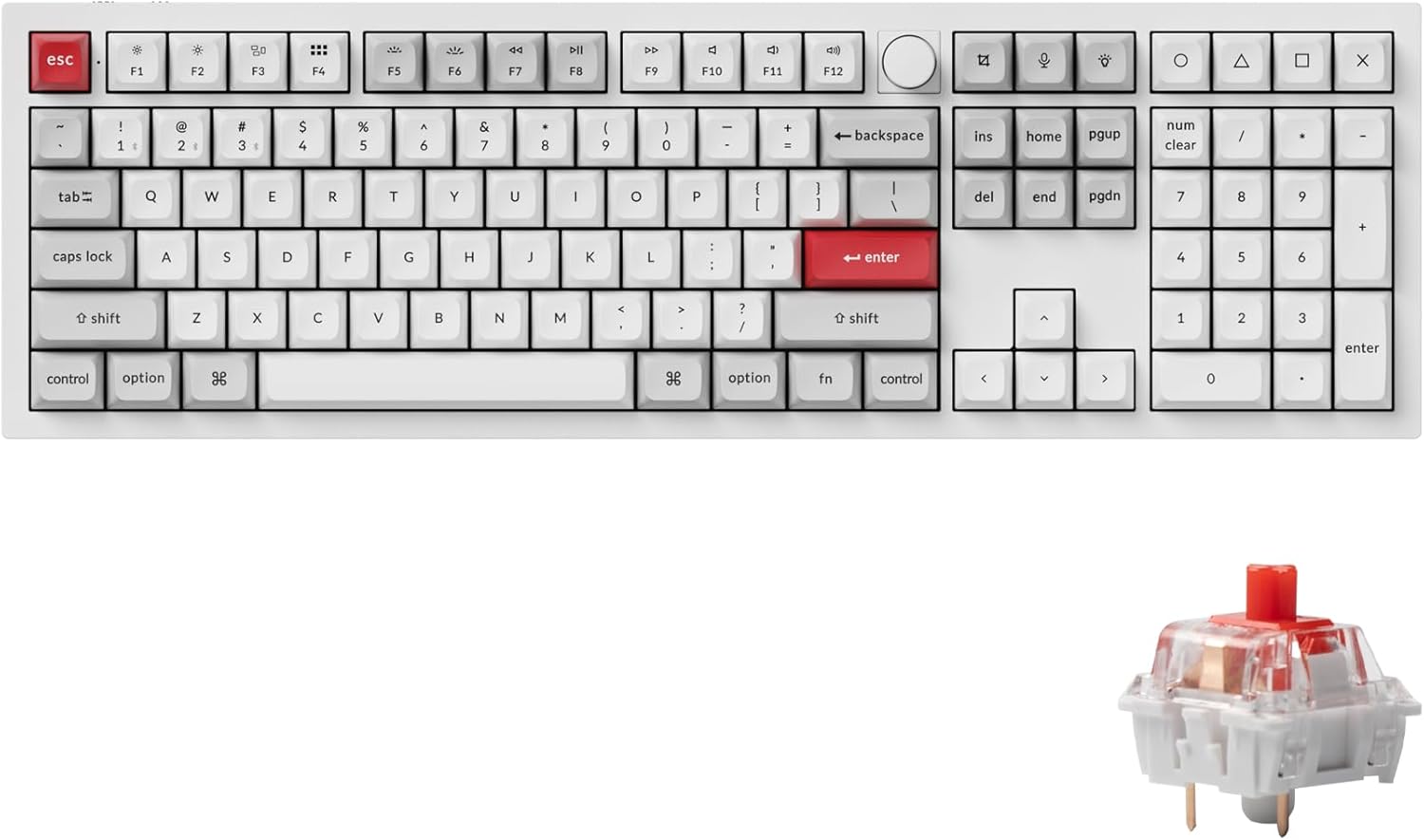
Image: Keychron Q6 Pro Full-Size Mechanical Keyboard with KSA Double-Shot PBT Keycaps and Red Switches.
What's in the Box
Upon unboxing your Keychron Q6 Pro, please verify that all the following components are included:
Keyboard Components
- 1x Fully Assembled Keyboard
- 1x Aluminum Case
- 1x PC Plate
- 1x Sound Absorbing Foam
- 1x Case Foam
- 16x Gaskets (12 Installed, 4 in box)
- 8 sets x Stabilizers
- 1 set x Keycaps (Double-Shot KSA PBT)
- 1 set x Switches (Keychron K Pro Red Switch)
Cables & Tools
- 1x Type-C to Type-C Cable
- 1x Type-A to Type-C Adapter
- 1x Switch Puller
- 1x Keycap Puller
- 1x Screwdriver
- 1x Hex Key

Image: Diagram showing all components included in the Keychron Q6 Pro Fully Assembled Version package.
Setup
- Unpack the Keyboard: Carefully remove the keyboard and all accessories from the packaging.
- Connect to Power/Device:
- Wired Mode: Connect the keyboard to your computer using the provided Type-C to Type-C cable or Type-A to Type-C adapter. The keyboard will automatically switch to wired mode and begin charging.
- Wireless (Bluetooth) Mode:
- Ensure the mode switch on the back of the keyboard is set to "BT" (Bluetooth).
- On your computer or device, enable Bluetooth.
- Press and hold the "Fn" key and one of the Bluetooth keys (e.g., "Fn" + "1" for Device 1) for 4 seconds until the key starts blinking rapidly. This indicates pairing mode.
- On your device's Bluetooth settings, select "Keychron Q6 Pro" from the list of available devices to pair.
- The key will stop blinking and remain solid once successfully paired. The keyboard can connect to up to 3 devices via Bluetooth.
- Operating System Switch: Locate the OS switch on the back of the keyboard. Set it to "Mac" for macOS devices or "Win" for Windows/Linux devices to ensure correct key mapping.
- Initial Charge: For optimal battery life, it is recommended to fully charge the keyboard before its first wireless use. The charging indicator light will show charging status.

Image: The Keychron Q6 Pro keyboard highlighting its dual connectivity options: Bluetooth 5.1 and Type-C wired.
Operating Instructions
Key Functions and Layout
The Keychron Q6 Pro features a full-size layout with dedicated function keys, a numeric keypad, and a programmable knob.
Image: Overhead view of the Keychron Q6 Pro keyboard, illustrating its full-size layout with a knob.
QMK/VIA Software Customization
The Q6 Pro is fully programmable with QMK/VIA firmware, allowing you to remap any key, create custom macros, shortcuts, and key combinations. This provides extensive personalization for your typing and gaming needs.
- Download VIA Software: Visit the official Keychron website to download the latest VIA software compatible with your operating system.
- Download Keymap JSON: Download the specific keymap JSON file for the Keychron Q6 Pro from the Keychron website.
- Load Keymap in VIA:
- Open the VIA application.
- Go to the "Settings" tab and enable "Show Design tab".
- Drag and drop the downloaded Q6 Pro keymap JSON file into the "Design" tab within VIA. This will load the keyboard's layout for customization.
- Remap Keys and Create Macros: Use the intuitive interface in VIA to reassign key functions, set up complex macros, and adjust lighting effects. Changes are applied in real-time.
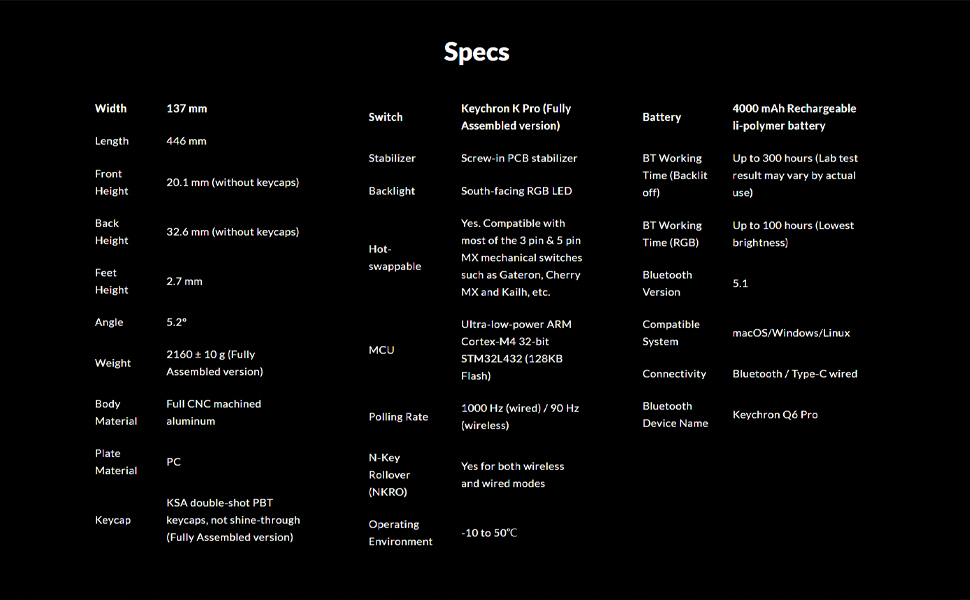
Image: Screenshot of the QMK/VIA software interface, demonstrating its capabilities for programming the Keychron Q6 Pro keyboard.
Hot-Swappable Switches
The Keychron Q6 Pro features hot-swappable sockets, allowing you to easily change mechanical switches without soldering. This provides flexibility to customize your typing feel.
- Compatibility: The keyboard is compatible with most 3-pin and 5-pin MX style mechanical switches (e.g., Cherry, Gateron, Kailh, Panda).
- Removing Switches: Use the provided switch puller tool. Gently grip the switch from the top and bottom, then pull straight up to remove it from the PCB.
- Installing Switches: Align the pins of the new switch with the holes on the PCB. Press down firmly until the switch clicks into place. Ensure pins are not bent.

Image: Close-up view demonstrating the hot-swappable switch feature of the Keychron Q6 Pro, with switches being removed and installed.
RGB Backlighting
The Q6 Pro features south-facing RGB LED backlighting with 22 types of pre-set lighting effects. You can further customize the RGB hue, saturation, brightness, effect speed, and modes through the QMK/VIA software.
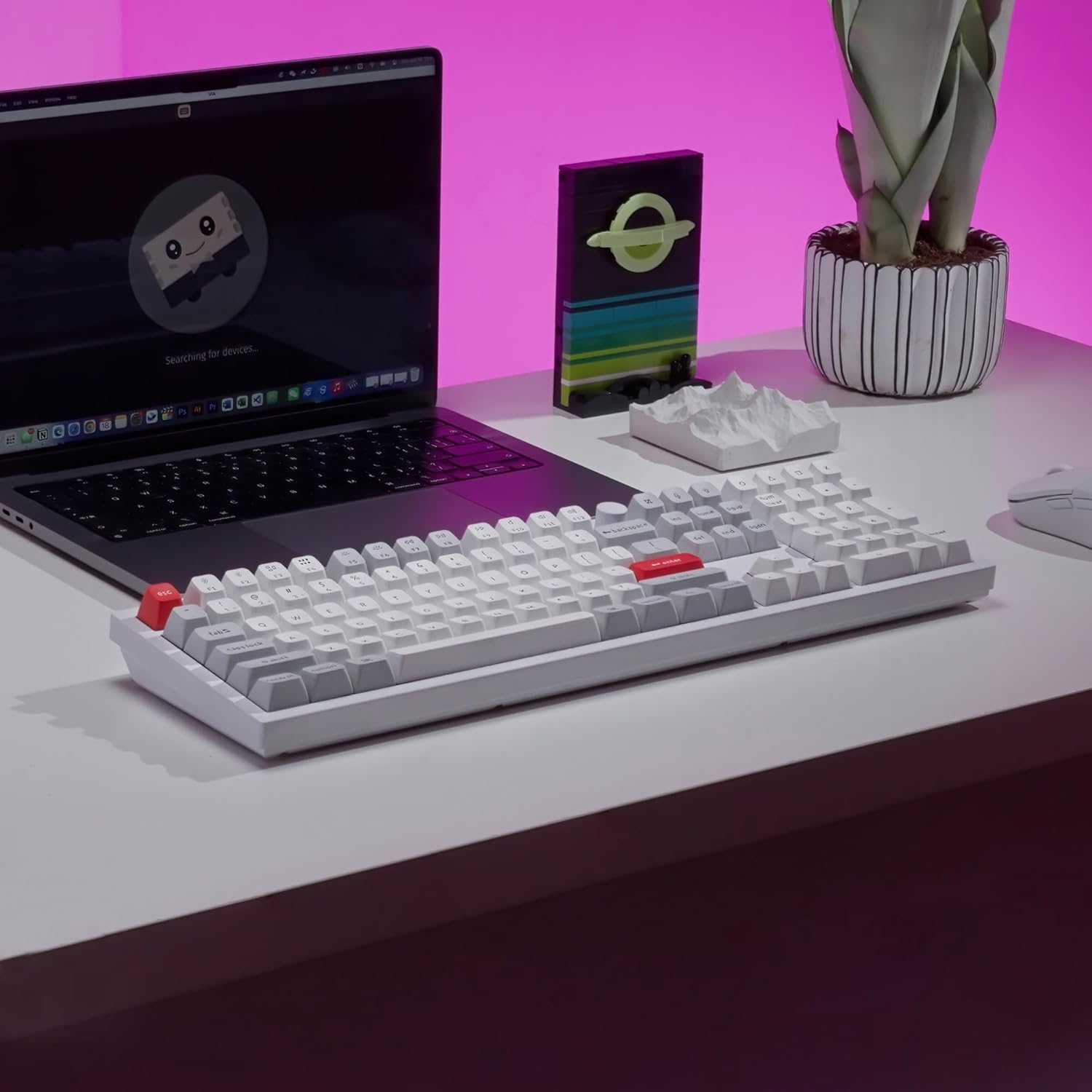
Image: The Keychron Q6 Pro keyboard illuminated with its vibrant South-Facing RGB backlighting.
Maintenance
- Cleaning Keycaps: Use a keycap puller to remove keycaps. Clean them with a soft cloth dampened with mild soap and water. Ensure they are completely dry before reattaching.
- Cleaning the Case: Wipe the aluminum case with a soft, dry, or slightly damp cloth. Avoid abrasive cleaners or solvents.
- Switch Lubrication (Optional): For advanced users, switches can be lubricated to enhance smoothness and sound. This requires disassembling the switch.
- Firmware Updates: Periodically check the Keychron official website for firmware updates to ensure optimal performance and access to new features.

Image: Close-up of keycaps being removed from the keyboard, illustrating the process for cleaning or replacement.
Troubleshooting
| Problem | Possible Cause | Solution |
|---|---|---|
| Keyboard not responding (wired) | Loose cable connection, incorrect OS switch setting. | Ensure USB-C cable is securely connected. Check the OS switch on the back of the keyboard (Mac/Win). Try a different USB port or cable. |
| Keyboard not connecting (Bluetooth) | Keyboard not in pairing mode, Bluetooth off on device, interference, low battery. | Ensure keyboard is in "BT" mode. Press Fn + (1/2/3) for 4 seconds to enter pairing mode. Check device's Bluetooth settings. Charge the keyboard. Move closer to the device. |
| Keys not registering or double-typing | Faulty switch, debris under keycap, bent switch pin. | Remove keycap and switch. Check for debris and clean. Inspect switch pins for bends; straighten carefully if bent. Replace faulty switch if necessary. |
| RGB lighting not working or incorrect | Software setting, firmware issue. | Adjust RGB settings via QMK/VIA software. Ensure keyboard firmware is up to date. |
| Programmable knob not working | VIA software configuration, physical damage. | Verify knob functions are correctly mapped in VIA. Ensure the knob is securely attached. |
Specifications
| Feature | Detail |
|---|---|
| Model | Keychron Q6 Pro (Q6P-P1) |
| Dimensions (Width x Length) | 137 mm x 446 mm |
| Height (Front / Back without keycap) | 20.1 mm / 32.6 mm |
| Feet Height | 2.7 mm |
| Typing Angle | 5.2° |
| Weight | 2160 ± 10 g (Fully Assembled version) |
| Body Material | Full CNC machined aluminum |
| Plate Material | PC |
| Keycaps | KSA double-shot PBT (not shine-through) |
| Switches | Keychron K Pro Red (Fully Assembled version) |
| Stabilizers | PCB-mounted screw-in stabilizers |
| Backlight | South-facing RGB LED |
| Hot-Swappable | Yes, compatible with most 3-pin & 5-pin MX mechanical switches |
| MCU | Ultra-low-power ARM Cortex-M4 32-bit STM32L432 (128KB Flash) |
| Polling Rate | 1000 Hz (wired) / 90 Hz (wireless) |
| N-Key Rollover (NKRO) | Yes (both wireless and wired modes) |
| Operating Environment | -10 to 50°C |
| Battery | 4000 mAh Rechargeable Li-polymer battery |
| Bluetooth Working Time (Backlit off) | Up to 300 hours (Lab test result may vary) |
| Bluetooth Working Time (RGB Lowest brightness) | Up to 100 hours |
| Bluetooth Version | 5.1 |
| Compatible System | macOS, Windows, Linux |
| Connectivity | Bluetooth / Type-C wired |
| Bluetooth Device Name | Keychron Q6 Pro |

Image: Detailed technical specifications for the Keychron Q6 Pro keyboard.
Warranty and Support
Keychron products are designed for durability and performance. For detailed warranty information, please refer to the official Keychron website or the warranty card included with your product.
- Return Policy: This product is eligible for a refund or replacement within 30 days of purchase, subject to the retailer's return policy.
- User Guides: Additional user guides and manuals in PDF format are available for download:
- Online Support: For further assistance, troubleshooting tips, firmware updates, and software downloads, please visit the official Keychron support page.
Related documentsQ6P-P1


Ask a question about this manual
Ask about setup, troubleshooting, compatibility, parts, safety, or missing instructions. Manuals+ will review the question and use this page’s manual context to help answer it.