
1. Introduction
The Foxwell T2000 is a comprehensive TPMS (Tire Pressure Monitoring System) diagnostic and service tool designed for automotive professionals and enthusiasts. It enables activation of all known RF TPMS sensors, programming of Foxwell T10 universal sensors, and performs TPMS system diagnostics via OBDII. This manual provides detailed instructions for the proper use and maintenance of your T2000 device.
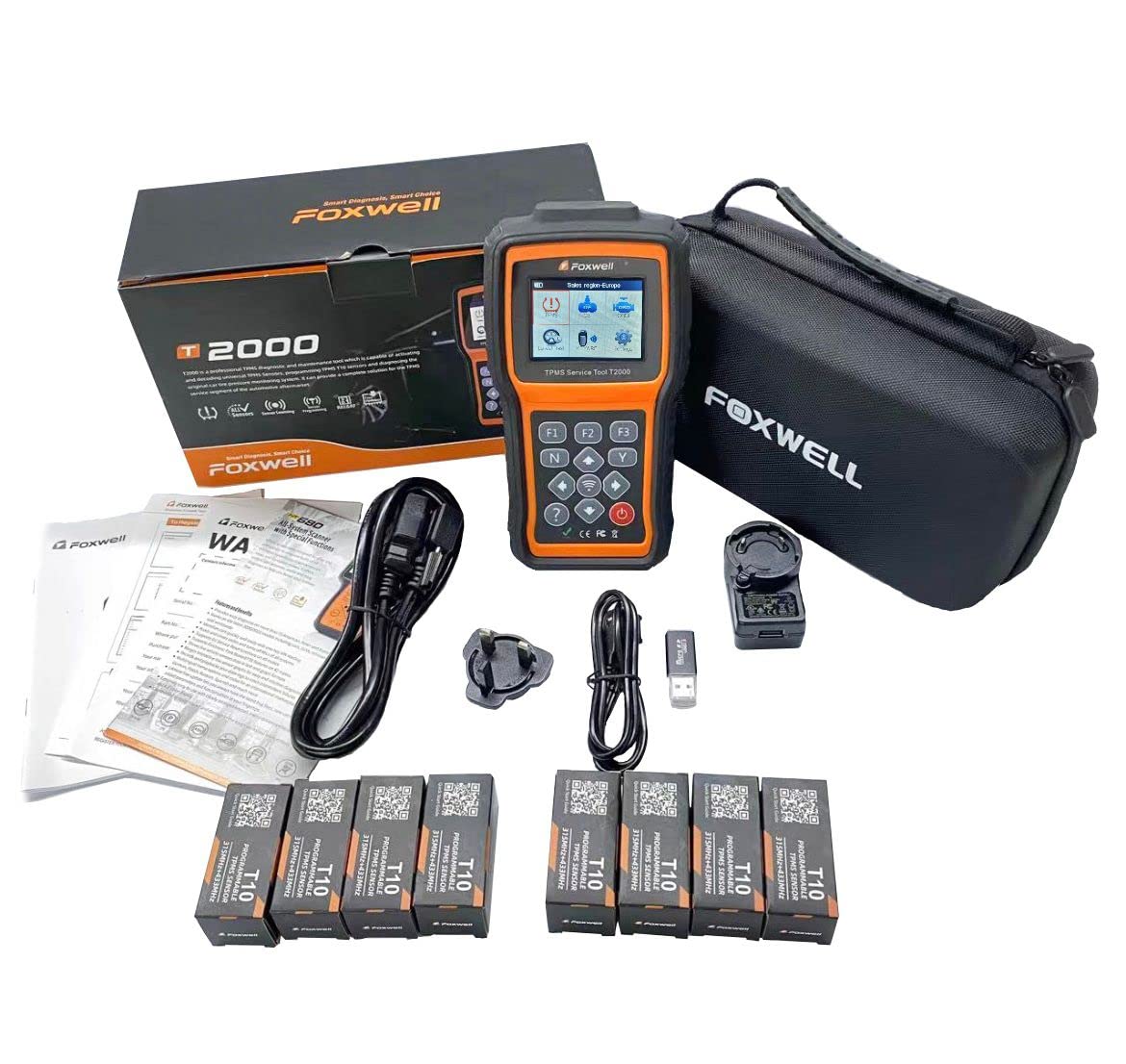
Image 1.1: The Foxwell T2000 TPMS Diagnostic and Service Tool with accompanying T10 programmable sensors.
2. Product Overview
2.1 Device Components
The Foxwell T2000 features a robust design with a clear display and intuitive button layout for easy operation.

Image 2.1: Front view of the Foxwell T2000 showing the screen and control buttons.
- Display Screen: 2.8-inch color display for clear information viewing.
- Function Buttons (F1, F2, F3): Context-sensitive buttons for various operations.
- Navigation Buttons: Up, Down, Left, Right arrows for menu navigation.
- N (No) / Y (Yes) Buttons: For confirming or canceling actions.
- Power Button: To turn the device on or off.
- Question Mark Button: Accesses help or information.
- USB Port: For charging and connecting to a computer for updates.
- OBDII Port: For vehicle connection and diagnostics.

Image 2.2: Side view of the T2000, highlighting the USB port for charging and data transfer.

Image 2.3: Bottom view of the T2000, showing the OBDII diagnostic port.
2.2 Key Features
- Universal Sensor Activation: Triggers all known RF TPMS sensors (315MHz and 433MHz).
- Foxwell T10 Sensor Programming: Supports 4 programming methods for Foxwell T10 universal sensors, covering approximately 99% of vehicles.
- OBDII TPMS Diagnostics: Connects via OBDII to diagnose vehicle TPMS systems, retrieve Diagnostic Trouble Codes (DTCs), and identify faulty TPMS components.
- Sensor Data Reading: Reads comprehensive tire pressure sensor data, including sensor ID, tire temperature, tire pressure, and battery status.
- Remote Keyless Entry (Key Fob) Test: Checks the functionality of remote keyless entry RF signals.
- Full OBDII Code Reader Functionality: Can be used as a standard OBDII code reader for general vehicle diagnostics.
- Lifetime Free Updates: Ensures compatibility with new vehicle models and sensor types.
- User-Friendly Interface: Intuitive menu navigation and clearly arranged keyboard for ease of use.
- Charging Options: Can be charged via wall plug or by connecting to a computer.
- Warning Indicators: Provides alerts for incorrectly installed, missing, or faulty sensors, duplicate IDs, and incorrect sensor modes.

Image 2.4: The T2000 tool presented as an all-in-one TPMS solution, alongside T10 sensors.
2.3 Foxwell T10 Programmable Universal Sensors
The T2000 tool is designed to work seamlessly with Foxwell T10 programmable universal TPMS sensors. These sensors are compatible with both 315MHz and 433MHz frequencies and come with options for metal or rubber valve stems.

Image 2.5: Foxwell T10 programmable sensors, showing both metal and rubber valve stem options.
3. Setup
3.1 Initial Charging
Before first use, fully charge the T2000 device. Connect the provided USB cable to the device's USB port and the other end to a wall adapter or a computer's USB port. The charging indicator on the device will show the charging status.
3.2 Software Updates
It is recommended to update the device software to the latest version before initial use to ensure compatibility with the widest range of vehicles and sensors. Connect the T2000 to a computer via the USB cable and follow the instructions provided with the Foxwell update software (available on the official Foxwell website).
3.3 Powering On/Off
- To Power On: Press and hold the Power button until the screen illuminates.
- To Power Off: Press and hold the Power button until the shutdown prompt appears, then confirm.
4. Operating Instructions
4.1 Navigating the Menu
Use the Up, Down, Left, and Right arrow buttons to move through menu options. Press the Y button to select an option or confirm an action. Press the N button to go back or cancel an action. The F1, F2, F3 buttons perform functions indicated on the screen.
4.2 TPMS Sensor Activation
- From the main menu, select the 'TPMS' option.
- Choose 'Activate Sensor' or a similar option.
- Follow the on-screen prompts to select the vehicle make, model, and year.
- Position the T2000 tool near each tire's valve stem and press the activation button as instructed. The tool will display sensor data upon successful activation.
4.3 Foxwell T10 Sensor Programming
The T2000 supports four methods for programming Foxwell T10 sensors:
- Copy by Activation: Reads the ID from an existing sensor (activated) and writes it to a new T10 sensor.
- Copy by Manual Input: Allows manual entry of an existing sensor ID into a new T10 sensor.
- Auto Create: Generates a new, unique ID for a T10 sensor based on vehicle selection.
- Copy by OBD: Reads sensor IDs directly from the vehicle's ECU via the OBDII port and programs them to new T10 sensors.
Select the desired programming method from the 'Program Sensor' menu and follow the on-screen instructions.
4.4 OBDII TPMS Diagnostics
- Ensure the vehicle's ignition is in the ON position (engine off).
- Connect the T2000's OBDII cable to the vehicle's OBDII port (typically located under the dashboard).
- From the main menu, select 'OBDII' or 'TPMS Diagnostics'.
- Follow the prompts to establish communication with the vehicle.
- You can then read DTCs, view live data related to the TPMS system, and perform special functions as available.
4.5 Remote Keyless Entry (Key Fob) Test
- From the main menu, select 'Key Fob Test'.
- Hold the key fob near the T2000 tool.
- Press a button on the key fob. The T2000 will display the RF signal strength and frequency, indicating if the key fob is transmitting correctly.
5. Maintenance
5.1 Cleaning the Device
Wipe the device with a soft, damp cloth. Do not use abrasive cleaners or solvents. Ensure the USB and OBDII ports are free from dust and debris.
5.2 Battery Care
To prolong battery life, avoid fully discharging the device frequently. Store the device in a cool, dry place when not in use for extended periods. Recharge the battery periodically if stored for a long time.
5.3 Software Updates
Regularly check for software updates on the Foxwell official website. Updates provide new vehicle coverage, bug fixes, and improved functionality. Connect the device to a computer and use the Foxwell update tool to perform updates.
6. Troubleshooting
- Device does not power on: Ensure the battery is charged. Connect to a power source and try again.
- Sensor not activating:
- Verify correct vehicle selection (make, model, year).
- Ensure the tool is positioned correctly near the valve stem.
- Check if the sensor is faulty or has a dead battery.
- Programming failure for T10 sensors:
- Ensure the T10 sensor is new and unprogrammed, or correctly erased if previously programmed.
- Verify the selected programming method is appropriate for the situation.
- Check for strong RF interference in the environment.
- OBDII connection issues:
- Ensure the ignition is ON (engine off).
- Check the OBDII cable for damage and ensure it is securely connected to both the vehicle and the T2000.
- Verify the vehicle's OBDII port is functional.
- Incorrect sensor warnings (duplicate ID, wrong mode): These warnings indicate a potential issue with the installed sensors. Re-check sensor IDs and ensure they are unique and compatible with the vehicle's specifications.
7. Specifications
| Attribute | Value |
|---|---|
| Brand | Foxwell |
| Model | T2000 |
| Power Source | Battery Powered |
| Screen Size | 2.8 Inches |
| Manufacturer | Foxwell |
8. Warranty and Support
For warranty information and technical support, please refer to the documentation included with your purchase or visit the official Foxwell website. The website typically provides FAQs, software downloads, and contact information for customer service.


