
Ctronics CTSC-5S
Ctronics 4K 5G Wi-Fi Outdoor Security Camera User Manual
Model: CTSC-5S
1. Product Overview
The Ctronics 4K 5G Wi-Fi Outdoor Security Camera (Model: CTSC-5S) is an advanced surveillance solution designed for comprehensive outdoor monitoring. Featuring an 8-megapixel sensor, it delivers stunning 4K (3840x2160) ultra-high-definition video, ensuring clear and detailed footage. This camera supports both 2.4GHz and 5GHz Wi-Fi bands for stable and high-speed connectivity, minimizing interference and ensuring reliable operation.
Equipped with intelligent detection capabilities, it can accurately identify and track humans, vehicles, and even pets, providing precise alerts and reducing false alarms. Its 360-degree pan and tilt functionality allows for extensive coverage without blind spots. The camera also boasts versatile night vision modes, including full-color night vision and smart mode, ensuring visibility in low-light conditions. With support for various storage options and remote access via the Ctronics app, this camera offers robust security and peace of mind.

Figure 1.1: Ctronics 4K 5G Wi-Fi Outdoor Security Camera (Model: CTSC-5S)
2. Package Contents
Please check the package contents carefully. If any items are missing or damaged, please contact Ctronics customer support.
- Ctronics 4K 5G Wi-Fi Outdoor Security Camera
- Power Adapter
- Mounting Screw Kit
- Waterproof Kit
- LAN Cable
- Anti-theft Sticker
- User Manual
3. Setup Guide
3.1 Physical Installation
The camera is designed for wall-mounted outdoor use. Choose a suitable location that provides optimal viewing angles and is within Wi-Fi range. Ensure the mounting surface is sturdy enough to support the camera's weight.
- Prepare the Mounting Surface: Use the provided mounting template (if included) or mark the drill holes based on the camera's base.
- Drill Holes: Drill pilot holes into the marked positions. Insert wall anchors if mounting on masonry or concrete.
- Secure the Camera: Attach the camera base to the wall using the provided screws. Ensure it is firmly secured.
- Connect Power: Connect the power adapter to the camera and plug it into a power outlet. Ensure the connection is waterproof using the provided kit for outdoor installations.

Figure 3.1: The camera features IP66 weather resistance, suitable for outdoor installation and capable of withstanding various weather conditions.
3.2 App Download and Connection
To set up and manage your camera, download the Ctronics app on your smartphone or tablet.
- Download the App: Search for "Ctronics" or "Ctronics Pro" in the App Store (iOS) or Google Play Store (Android) and install it.
- Register an Account: Open the app and follow the on-screen instructions to register a new account or log in if you already have one.
- Add Camera: Tap the "+" icon to add a new device. Select "Wi-Fi Camera" and choose your Wi-Fi network (supports 2.4GHz and 5GHz).
- Scan QR Code: The app will display a QR code. Hold your phone in front of the camera lens (approx. 15-20 cm) until you hear a prompt sound from the camera, indicating successful scanning.
- Connect to Wi-Fi: Follow the app's instructions to connect the camera to your Wi-Fi network. Once connected, the camera will appear in your device list.

Figure 3.2: Step-by-step guide for connecting the camera using the Ctronics app, including QR code scanning.
4. Operating Instructions
4.1 Live View and Pan/Tilt Control
Once connected, you can access the live feed from your camera and control its movement.
- Access Live View: Open the Ctronics app and select your camera from the device list to view the real-time video feed.
- Pan/Tilt Control: On the live view screen, swipe your finger across the video to pan (horizontal movement up to 355°) and tilt (vertical movement up to 90°) the camera.
- Digital Zoom: Pinch in or out on the live view screen to digitally zoom in or out on the image.

Figure 4.1: The camera offers 360-degree pan and tilt functionality for comprehensive area coverage.
4.2 Two-Way Audio
The camera supports two-way audio communication, allowing you to listen and speak through the camera.
- Activate Microphone: On the live view screen, tap the microphone icon to enable two-way audio.
- Speak: Hold down the microphone button to speak. Release it to listen.

Figure 4.2: Engage in real-time two-way conversations through the camera, useful for communicating with visitors or deterring intruders.
4.3 Recording Playback
Review recorded footage stored on the MicroSD card or connected NVR/NAS.
- Access Playback: From the app's main screen, select your camera and tap the "Playback" or "History" icon.
- Select Date/Time: Use the calendar and timeline to select the desired recording date and time.
- Download Footage: You can download specific video clips to your phone's local storage.

Figure 4.3: View live feeds from multiple cameras simultaneously on your smartphone for comprehensive monitoring.
5. Advanced Features
5.1 4K Resolution and Digital Zoom
The camera captures video in stunning 4K (3840x2160) resolution, providing exceptional clarity. The 4x digital zoom allows you to magnify specific areas of the image for closer inspection without significant loss of detail, unlike lower resolution cameras.
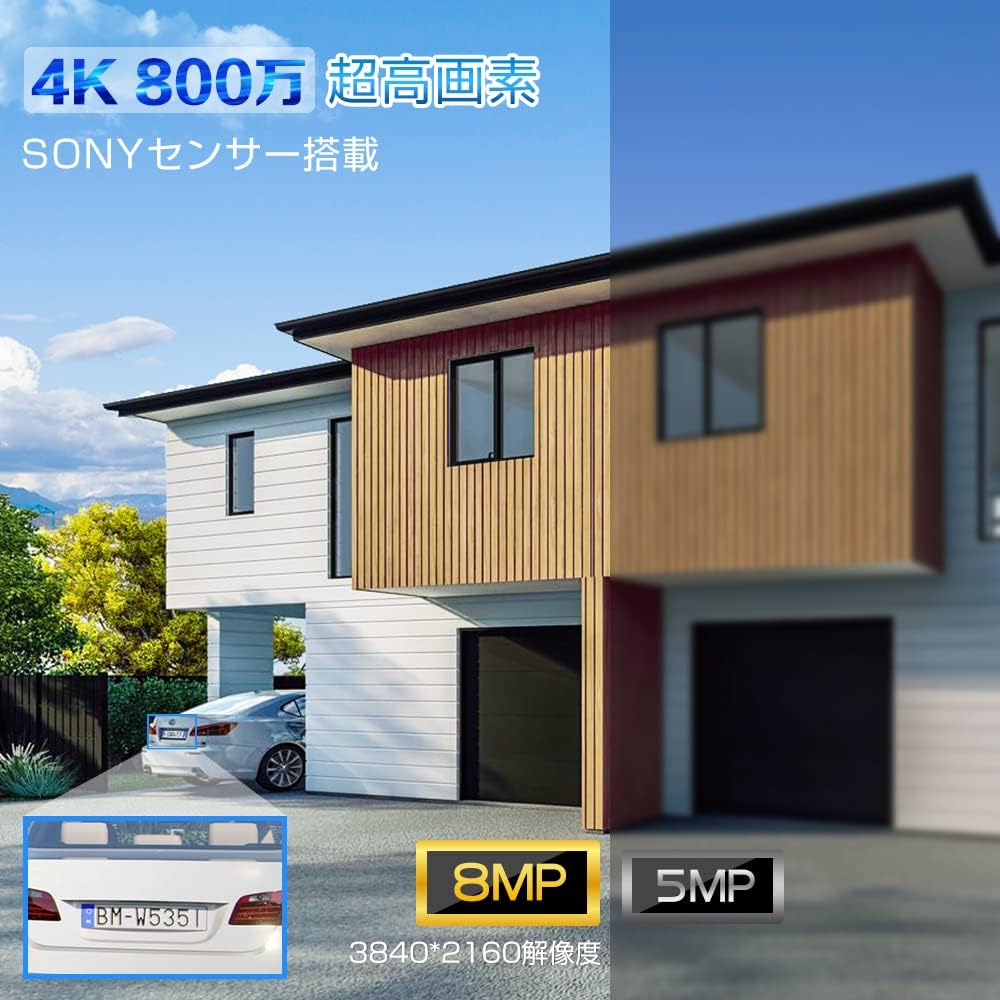
Figure 5.1: Visual comparison demonstrating the superior clarity of 4K 8MP resolution compared to lower resolutions, highlighting details like vehicle license plates.
5.2 Human, Vehicle, and Pet Detection with Auto-Tracking
Beyond basic motion detection, this camera features advanced AI-powered recognition for humans, vehicles, and pets. When a detected object enters the surveillance area, the camera can automatically track its movement, ensuring continuous monitoring.
- Human Detection: Identifies human figures, reducing false alarms from swaying trees or small animals.
- Vehicle Detection: Specifically recognizes vehicles, useful for monitoring driveways or parking areas.
- Pet Recognition: Distinguishes pets from other moving objects.
- Auto-Tracking: The camera automatically adjusts its pan/tilt to follow the detected object within its 360-degree range.

Figure 5.2: The camera's intelligent detection system highlights detected humans and vehicles, sending alerts and initiating auto-tracking.
5.3 Night Vision Modes
The camera offers three distinct night vision modes to suit various needs:
- Infrared Night Vision: Provides clear black-and-white video in complete darkness using infrared LEDs.
- Full-Color Night Vision: Utilizes built-in spotlights to capture full-color video even in low-light conditions.
- Smart Color Night Vision: The camera operates in infrared mode normally, but automatically switches to full-color mode and activates spotlights when motion is detected, deterring intruders and capturing detailed evidence.

Figure 5.3: Illustration of the camera's night vision capabilities, including infrared and full-color modes, and the smart mode activation.
5.4 5G Wi-Fi Connectivity
This camera supports both 2.4GHz and the latest 5GHz Wi-Fi bands. 5GHz Wi-Fi offers higher speeds and less interference from other devices, providing a more stable and reliable connection for high-resolution video streaming, especially over shorter distances.

Figure 5.4: The camera's dual-band Wi-Fi antennas ensure stable and high-speed data transmission, reducing signal interference.
5.5 Storage Options
The camera offers flexible recording and storage options:
- MicroSD Card: Supports up to 256GB MicroSD cards for local storage. The camera will automatically overwrite older footage when the card is full.
- NVR/NAS: Compatible with Network Video Recorders (NVR) and Network Attached Storage (NAS) devices for continuous recording and larger storage capacity.
- FTP: Supports FTP protocol for uploading recorded videos to an FTP server.
- Recording Modes: Choose from 24-hour continuous recording, motion-triggered recording, or scheduled recording based on your needs.

Figure 5.5: Overview of storage capabilities, including 256GB MicroSD card support, and compatibility with FTP, NAS, and ONVIF systems.
6. Maintenance
- Clean the Lens: Regularly wipe the camera lens with a soft, clean cloth to ensure clear image quality. Avoid abrasive cleaners.
- Check Connections: Periodically inspect all cable connections, especially power and network cables, to ensure they are secure and waterproof.
- Firmware Updates: Check the Ctronics app regularly for firmware updates. Keeping your camera's firmware up-to-date ensures optimal performance, new features, and security enhancements.
- Power Cycle: If the camera experiences minor issues, try power cycling it by unplugging and re-plugging the power adapter.
7. Troubleshooting
| Problem | Possible Cause | Solution |
|---|---|---|
| Camera offline/Cannot connect | Weak Wi-Fi signal, incorrect Wi-Fi password, power issue. |
|
| Poor image quality | Dirty lens, low light, network bandwidth. |
|
| Motion detection not working | Detection sensitivity too low, detection zone not set. |
|
| No audio/Two-way audio issues | Microphone/speaker disabled, network delay. |
|
8. Specifications
| Feature | Detail |
|---|---|
| Model Number | CTSC-5S |
| Video Capture Resolution | 4K (3840x2160) |
| Wireless Communication Technology | Wi-Fi (2.4GHz & 5GHz) |
| Field of View | 90 degrees |
| Mounting Type | Wall-Mounted |
| Frame Rate | 15 fps |
| Material | Metal |
| Item Weight | 980 g |
| Power Source | Corded Electric |
| Connectivity Protocol | Wi-Fi, ONVIF, FTP, HTTP, DHCP |
| Controller Type | iOS/Android/Windows |
| Special Features | Auto Tracking, Vehicle Detection, Human Detection, Two-Way Audio, Night Vision |
| Usage | Outdoor Security |
9. Warranty and Support
Ctronics provides customer support for its products. For warranty information, technical assistance, or any inquiries, please refer to the official Ctronics website or contact their customer service directly. Keep your purchase receipt as proof of purchase for warranty claims.
For further assistance, you may visit the Ctronics store on Amazon: Ctronics Store
Related documentsCTSC-5S


Ask a question about this manual
Ask about setup, troubleshooting, compatibility, parts, safety, or missing instructions. Manuals+ will review the question and use this page’s manual context to help answer it.