
TMEZON MZ-IP-V726TW*2-NE204
TMEZON WLAN IP Video Door Intercom System User Manual
Model: MZ-IP-V726TW*2-NE204
1. Introduction
Thank you for choosing the TMEZON WLAN IP Video Door Intercom System. This system provides enhanced security and convenience for your home or office, allowing you to see, hear, and speak to visitors from anywhere. This manual will guide you through the installation, operation, and maintenance of your new intercom system.
Key Features:
- 2-Wire Technology: Simplified wiring for easy installation.
- 7-Inch HD Touchscreen Monitor: Intuitive interface for clear viewing and control.
- 1080P Doorbell Camera: High-definition video with a 148° wide-angle view.
- Night Vision: Built-in infrared sensor for clear visibility in low-light conditions.
- APP Remote Control: Connect to 2.4G Wi-Fi and manage your system via the "TuyaSmart" app from your smartphone.
- Multiple Unlocking Methods: Unlock via APP, swipe card (RFID), or directly from the indoor monitor.
- Automatic Snapshot/Recording: Capture images or video of visitors when the doorbell is pressed.
- Multi-Device Connection: Supports connection of up to 6 indoor monitors and 2 outdoor doorbells.
- IP65 Weatherproof Doorbell: Durable design suitable for outdoor installation.
2. Package Contents
Please check the package contents carefully. If any items are missing or damaged, please contact your retailer.
- 7-Inch Indoor Monitor (x2)
- 1080P Outdoor Doorbell Camera (x1)
- Power Adapter (x2)
- Mounting Bracket and Screws
- RFID Cards (8 included)
- User Manual
- Connection Cables
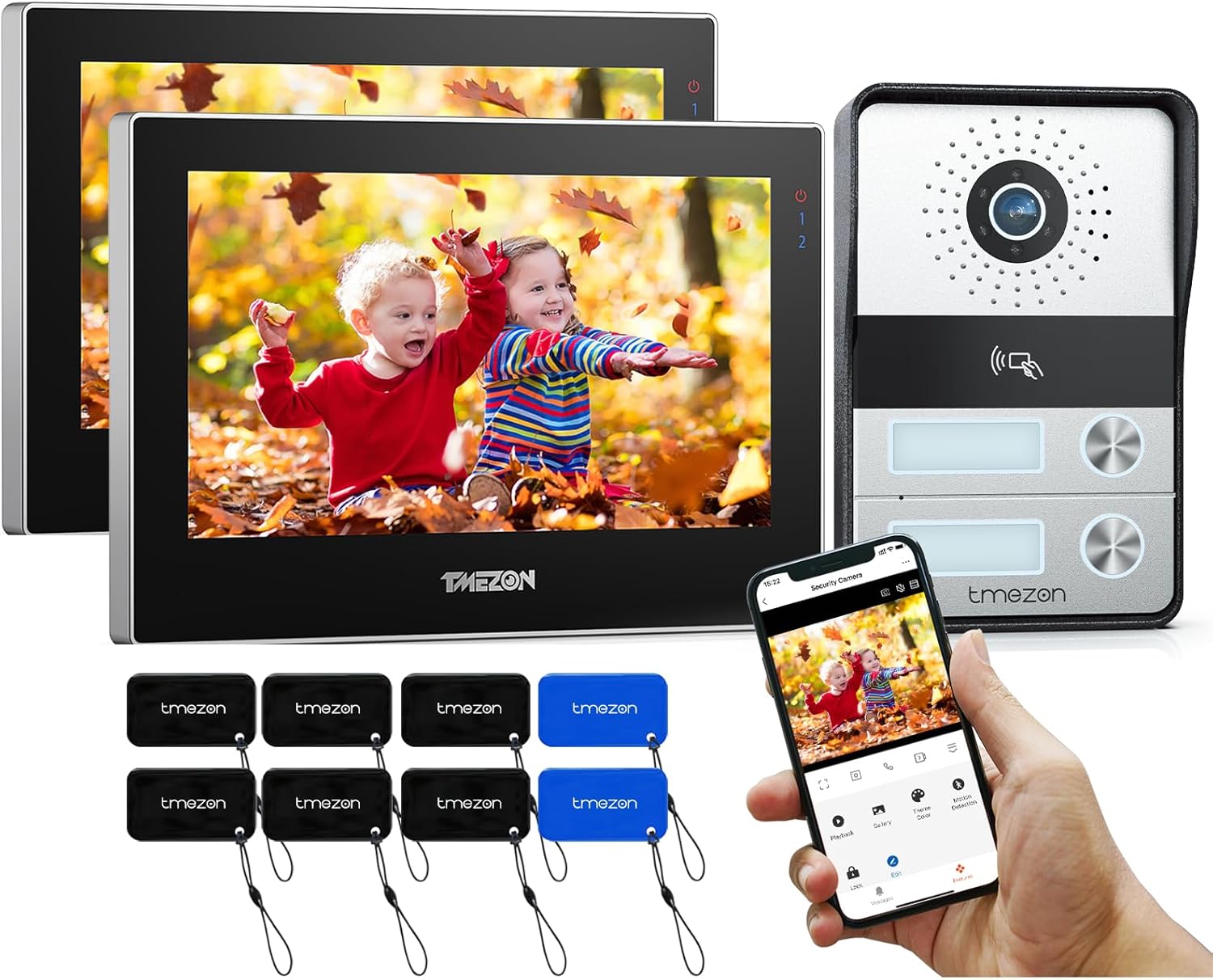
Image: Overview of the TMEZON video door intercom system, showing the indoor monitors, outdoor doorbell, RFID cards, and a smartphone displaying the app.
3. Installation and Setup
3.1 Safety Precautions
- Always disconnect power before installation or maintenance.
- Ensure all wiring is done by a qualified professional if you are unsure.
- Do not expose the indoor monitor to water or high humidity.
3.2 Wiring Connection (2-Wire System)
The system utilizes a simple 2-wire connection for power and data transmission between the indoor monitor and the outdoor doorbell. Ensure correct polarity when connecting the wires.

Image: Diagram illustrating the straightforward 2-wire connection process between the indoor monitor and the outdoor doorbell unit, emphasizing ease of installation without complex video distributors.
- Connect the two wires from the outdoor doorbell to the corresponding terminals on the indoor monitor.
- Connect the power adapter to the indoor monitor.
- If connecting multiple monitors, follow the provided wiring diagram for multi-monitor setup.
3.3 Mounting the Devices
Outdoor Doorbell:
- Choose a suitable location near your entrance, typically at a height of 1.4-1.6 meters from the ground.
- Mark the drilling points using the mounting bracket as a template.
- Drill holes and insert wall plugs.
- Secure the mounting bracket to the wall.
- Connect the wiring to the doorbell unit.
- Attach the doorbell unit to the mounting bracket.
Indoor Monitor:
- Choose a convenient location inside your home.
- Secure the monitor's mounting bracket to the wall.
- Connect the necessary wires (doorbell, power) to the monitor.
- Mount the monitor onto the bracket.

Image: A diagram illustrating the physical dimensions of both the 7-inch indoor monitor and the outdoor doorbell unit, providing measurements in millimeters for installation planning.
4. Operation
4.1 Initial Power On and Wi-Fi Connection
After connecting all components and powering on the system, the indoor monitor will display the main interface. Follow the on-screen prompts to connect the monitor to your 2.4G Wi-Fi network. This is essential for APP remote control functionality.

Image: A close-up view of the 7-inch HD touchscreen monitor, showing its user-friendly interface with various icons for settings, devices, monitoring, recording, media, transfer, and lock functions, indicating ease of use.
4.2 APP Remote Control (TuyaSmart)
Download the free "TuyaSmart" app from your smartphone's app store (available on Android and iOS). Register an account and add your intercom system by following the in-app instructions. Once connected, you can receive notifications, view live video, communicate with visitors, and unlock the door remotely.

Image: A hand holding a smartphone displaying the TMEZON app interface, showing a live view from the doorbell camera and various control options, with logos for Google Play and the App Store indicating app availability.
4.3 Two-Way Audio Communication
When a visitor presses the doorbell, the indoor monitor will ring, and you will receive a notification on your smartphone (if connected to the app). You can then answer the call to initiate two-way audio communication.
- From Monitor: Tap the 'Answer' icon on the touchscreen to speak with the visitor.
- From APP: Tap the 'Answer' button in the app to speak with the visitor.

Image: A woman interacting with the indoor monitor, which displays a visitor's face, demonstrating the two-way audio feature with speech bubbles indicating a conversation: "Lucy, are you at home?" and "Yes, come in."
4.4 Unlocking Methods
The TMEZON system offers multiple convenient ways to unlock your door:
- APP Unlock: From the "TuyaSmart" app, tap the 'Unlock' icon to remotely open the door.
- Swipe Card Unlock: Use one of the provided 125KHz RFID cards. Simply swipe the card over the designated area on the outdoor doorbell unit to unlock.
- Monitor Unlock: Tap the 'Unlock' icon directly on the indoor monitor's touchscreen.

Image: A hand holding an RFID card near the outdoor doorbell unit, with a graphic indicating the card is being used to unlock the door, highlighting the RFID Card Unlock feature.
4.5 Automatic Snapshot or Recording
When a visitor presses the doorbell, the camera will automatically take a snapshot or record a short video, which is then saved to the Micro SD card (up to 128GB, not included). You can review these recordings at any time via the indoor monitor or the "TuyaSmart" app.

Image: The indoor monitor displaying a live view of a delivery person, with icons indicating video recording and playback capabilities, emphasizing the system's ability to capture and store visitor interactions.
4.6 Night Vision
The outdoor doorbell camera is equipped with an infrared sensor that automatically activates night vision in low-light conditions, ensuring clear visibility of visitors even in complete darkness.

Image: The outdoor doorbell unit shown in a rainy environment, with icons indicating its IP65 weatherproof rating, temperature resistance (-30° to 55°), and night vision capability, assuring durability in various conditions.
5. Maintenance
5.1 Cleaning
To maintain optimal performance and appearance, clean the indoor monitor and outdoor doorbell regularly:
- Use a soft, dry, lint-free cloth to wipe surfaces.
- For stubborn marks, slightly dampen the cloth with water. Avoid harsh chemicals or abrasive cleaners.
- Do not spray cleaning solutions directly onto the devices.
5.2 Firmware Updates
Periodically check the TMEZON website or the "TuyaSmart" app for available firmware updates. Keeping your system's firmware up-to-date ensures optimal performance, security, and access to new features.
6. Troubleshooting
If you encounter issues with your TMEZON intercom system, please refer to the table below for common problems and solutions.
| Problem | Possible Cause | Solution |
|---|---|---|
| No image on monitor | Loose wiring, no power, camera malfunction. | Check all cable connections. Ensure power adapter is plugged in. Restart the system. |
| No audio during communication | Microphone/speaker issues, volume too low. | Check volume settings on the monitor and app. Ensure no obstructions to microphone/speaker. |
| Cannot connect to Wi-Fi/APP | Incorrect Wi-Fi password, 5G Wi-Fi network, weak signal. | Ensure you are connecting to a 2.4G Wi-Fi network. Double-check password. Move monitor closer to router. |
| Doorbell not ringing | Loose wiring, doorbell button malfunction. | Check wiring between doorbell and monitor. Test doorbell button functionality. |
| Door cannot be unlocked | Incorrect wiring to electric lock, lock malfunction, RFID card not programmed. | Verify electric lock wiring. Ensure lock is compatible. Re-program RFID cards if necessary. |
| Recordings not saving | No SD card, full SD card, faulty SD card. | Insert a compatible Micro SD card (up to 128GB). Format the SD card. Replace if faulty. |
7. Specifications
| Feature | Detail |
|---|---|
| Brand | TMEZON |
| Model Number | MZ-IP-V726TW*2-NE204 |
| Connectivity Protocol | Wi-Fi (2.4G) |
| Mounting Type | Wall Mount |
| Number of Channels | 2 (for 2-family house) |
| Material | Metal |
| Wattage | 3 Watts |
| Item Dimensions (L x W x H) | 7 x 7 x 7 cm (approximate, for individual components) |
| Item Weight | 2.16 Kilograms (total package) |
| Special Features | Night Vision, APP Control, RFID Unlock, Snapshot/Recording |
| Compatible Devices | Smartphone (via TuyaSmart App) |
| Storage | Supports up to 128GB Micro SD card (not included) |
| Weatherproof Rating | IP65 (Outdoor Doorbell) |
8. Warranty Information
TMEZON products are manufactured to the highest quality standards. This product is covered by a standard manufacturer's warranty against defects in materials and workmanship from the date of purchase. Please retain your proof of purchase for warranty claims. The warranty does not cover damage caused by improper installation, misuse, unauthorized modification, or natural disasters.
9. Customer Support
For technical assistance, troubleshooting, or warranty inquiries, please contact TMEZON customer support:
- Refer to the contact information provided on the product packaging or the official TMEZON website.
- Visit the TMEZON Brand Store on Amazon for FAQs and additional resources: TMEZON Brand Store
Related documentsMZ-IP-V726TW*2-NE204


Ask a question about this manual
Ask about setup, troubleshooting, compatibility, parts, safety, or missing instructions. Manuals+ will review the question and use this page’s manual context to help answer it.