
JOOAN Large White-solar Dual Lens
JOOAN Wireless Security Camera User Manual
Model: Large White-solar Dual Lens
Brand: JOOAN
1. Introduction
Thank you for choosing the JOOAN Wireless Security Camera. This solar-powered, dual-lens outdoor camera provides comprehensive surveillance with advanced features such as 2.4G WiFi connectivity, Pan-Tilt-Zoom (PTZ) functionality, two-way audio, and intelligent motion detection. This manual will guide you through the installation, operation, and maintenance of your new security camera to ensure optimal performance and security for your property.

Figure 1.1: JOOAN Wireless Security Camera with integrated solar panel.
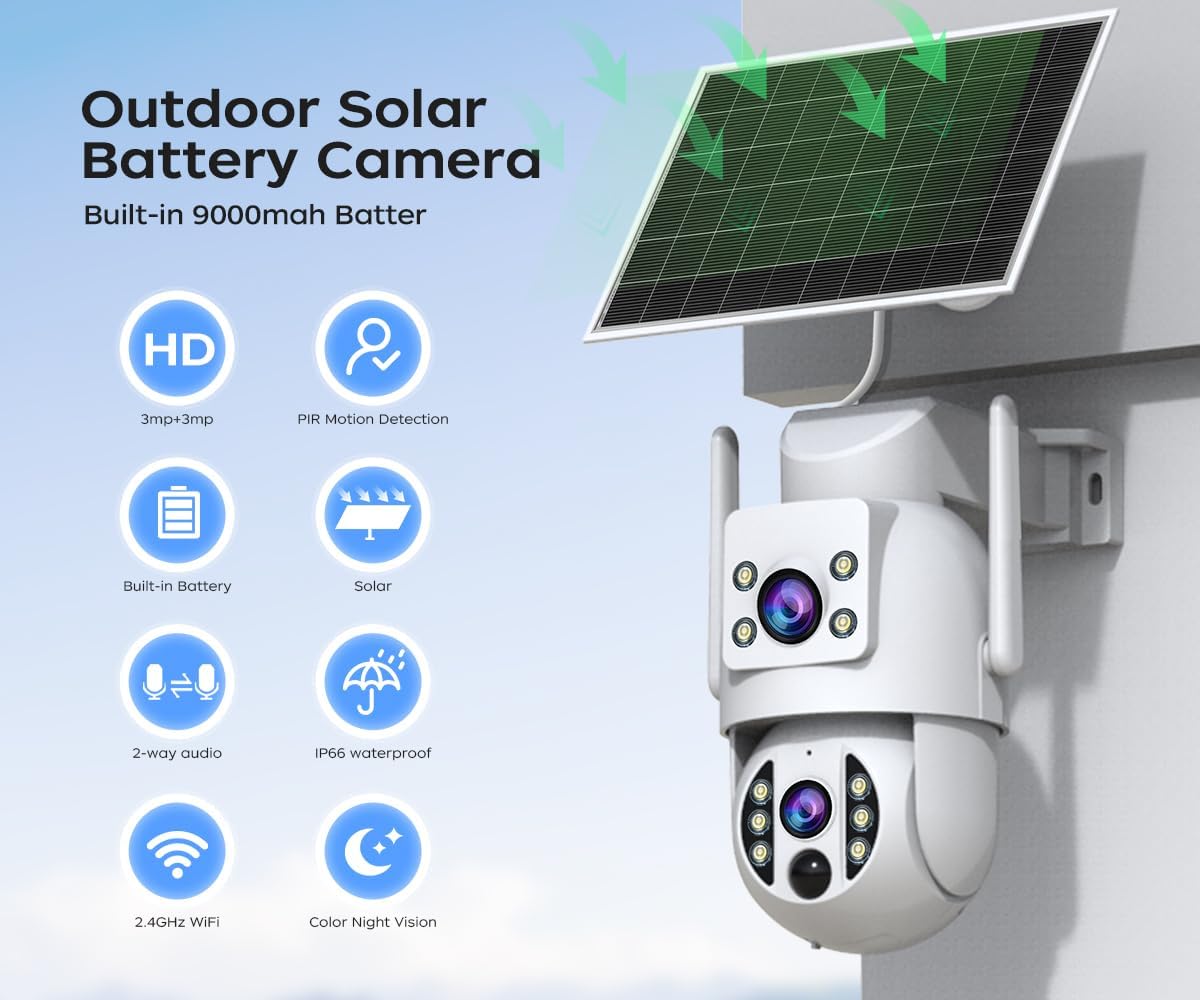
Figure 1.2: Overview of camera features including HD resolution, PIR motion detection, built-in battery, solar charging, 2-way audio, IP66 waterproof rating, 2.4GHz WiFi, and color night vision.
2. Package Contents
Please check the package contents carefully. If any items are missing or damaged, please contact customer support.
- JOOAN Wireless Security Camera (with integrated solar panel)
- Mounting Bracket
- Mounting Screws and Wall Plugs
- USB Charging Cable
- User Manual
3. Setup Guide
3.1. Installation Location
Choose a location that provides a clear view of the area you wish to monitor. Ensure the solar panel receives adequate direct sunlight for optimal charging. The camera is IP66 weatherproof, suitable for outdoor use.
3.2. Mounting the Camera
The camera supports ceiling and wall mounting. Use the provided mounting bracket, screws, and wall plugs to securely attach the camera to a stable surface.

Figure 3.1: The camera can be mounted to allow for 330° pan and 90° tilt adjustments.
3.3. Powering On
The camera features a built-in 9000mAh rechargeable battery. Before first use, it is recommended to fully charge the camera using the provided USB cable. The solar panel will continuously charge the battery when exposed to sunlight.

Figure 3.2: The camera is equipped with a high-capacity 9000mAh battery, supported by solar panel charging.
3.4. App Download and Account Creation
Download the official JOOAN app (compatible with Android and iOS devices) from your device's app store. Follow the on-screen instructions to create an account and log in.

Figure 3.3: Access live view and playback remotely via the dedicated mobile application for Android and iOS.
3.5. WiFi Connection
The camera supports 2.4G WiFi only. Ensure your camera is within a strong 2.4G WiFi signal range. Follow the in-app instructions to connect your camera to your home network.
3.6. MicroSD Card Installation (Optional)
The camera supports local storage via a MicroSD card (8GB to 256GB, not included). Locate the MicroSD card slot, typically under a protective cover, and insert the card with the contacts facing down. Ensure the camera is powered off before inserting or removing the card.

Figure 3.4: The camera supports MicroSD card storage for local recording.
4. Operation
4.1. Live View and Playback
Once connected, open the app to view live footage from your camera. You can also access recorded footage stored on the MicroSD card or cloud storage (30-day free trial available).

Figure 4.1: Remote viewing of live video feed on a smartphone.
4.2. Dual Lens Functionality
This camera features two lenses, allowing you to monitor two different areas simultaneously. One lens provides a fixed view, while the other offers PTZ capabilities.

Figure 4.2: The camera's dual lens system allows for simultaneous monitoring of two distinct areas.

Figure 4.3: The dual-lens design eliminates blind spots compared to single-lens cameras.
4.3. PTZ Control and Auto Tracking
Control the pan (330°) and tilt (90°) movements of the movable lens directly from the app to adjust your viewing angle. The auto-tracking feature allows the camera to automatically follow detected motion within its field of view.
Figure 4.4: The camera offers a wide range of motion with 330° pan and 90° tilt capabilities.

Figure 4.5: The auto-tracking function allows the camera to follow moving objects.
4.4. Motion Detection and Alerts
Configure motion detection settings, including detection areas, sensitivity, and time schedules, within the app. When motion is detected, the camera can trigger alerts such as floodlight activation, siren sound, and push notifications to your smartphone.

Figure 4.6: The camera utilizes PIR motion detection, waking from sleep mode upon detecting movement.

Figure 4.7: Customizable sound and motion detection with adjustable detection areas.
4.5. Two-Way Audio
Utilize the built-in microphone and speaker for two-way communication. This allows you to speak to visitors or deter intruders directly through the camera via the app.

Figure 4.8: The camera supports two-way audio, enabling communication through the device.
4.6. Night Vision Modes
The camera offers multiple night vision modes for clear visibility in low-light conditions:
- B/W Night: Standard black and white infrared night vision.
- Color Night: Utilizes built-in white LEDs to provide full-color night vision.
- Smart Color Night: Automatically switches to color night vision upon detection of motion or a specific event.
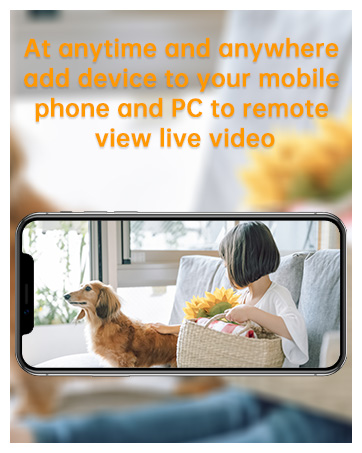
Figure 4.9: Choose from B/W night, color night, or smart color night vision modes.
5. Maintenance
5.1. Cleaning
Regularly clean the camera lens and solar panel with a soft, damp cloth to ensure clear image quality and efficient solar charging. Do not use harsh chemicals or abrasive materials.
5.2. Battery Care
The built-in battery is designed for long-term use. For optimal battery life, ensure the solar panel is positioned to receive maximum sunlight. In prolonged periods of low sunlight, you may need to manually charge the camera using the USB cable.
5.3. Weather Protection
The camera is rated IP66 weatherproof, meaning it is protected against dust and powerful water jets. It is designed to operate in temperatures ranging from -25°C to +55°C.

Figure 5.1: The camera is IP66 weatherproof, suitable for various outdoor conditions from -25°C to +55°C.
6. Troubleshooting
If you encounter issues with your camera, please refer to the following common problems and solutions:
| Problem | Possible Cause | Solution |
|---|---|---|
| Camera offline / Cannot connect to WiFi | Weak 2.4G WiFi signal; Incorrect WiFi password; Router issues. | Ensure camera is within 2.4G WiFi range. Verify WiFi password. Restart router and camera. |
| Motion detection not working | Detection sensitivity too low; Detection area not set; Obstructions. | Adjust sensitivity in app. Define detection zones. Clear any obstructions. |
| Poor image quality at night | Lens dirty; Infrared lights blocked; Incorrect night vision mode. | Clean the lens. Ensure no obstructions. Try different night vision modes (B/W, Color, Smart Color). |
| Battery not charging | Insufficient sunlight on solar panel; Damaged solar panel/cable. | Relocate solar panel for more direct sunlight. Check cable connections. Charge manually via USB. |
| Two-way audio not working | Microphone/speaker muted in app; Network latency. | Check app settings to ensure audio is enabled. Ensure stable network connection. |
7. Specifications
| Feature | Detail |
|---|---|
| Model | Large White-solar Dual Lens |
| Brand | JOOAN |
| Connectivity | Wireless (2.4G WiFi only) |
| Resolution | 3MP (per lens, total 2 lenses) |
| Viewing Angle | 360 Degrees (overall coverage with PTZ) |
| Pan/Tilt Range | Pan: 330°, Tilt: 90° |
| Night Vision Range | Up to 30 Meters |
| Battery Capacity | 9000mAh (Rechargeable) |
| Power Input | 5 Volts, 7.5 Watt-hours (Solar charging supported) |
| Storage Options | MicroSD Card (8-256GB), Cloud Storage |
| Weatherproof Rating | IP66 |
| Operating Temperature | -25°C to +55°C |
| Material | Acrylonitrile Butadiene Styrene (ABS) |
| Item Weight | 1.15 kg |
| Installation Type | Screw In (Ceiling Mount, Wall Mount) |
8. Warranty and Support
8.1. Warranty Information
This JOOAN Wireless Security Camera comes with a 1-year manufacturer's warranty from the date of purchase. This warranty covers defects in materials and workmanship under normal use. It does not cover damage caused by misuse, accidents, unauthorized modifications, or natural disasters.
Please retain your proof of purchase for warranty claims.
8.2. Customer Support
For technical assistance, warranty claims, or any questions regarding your JOOAN product, please contact JOOAN customer support. Refer to the contact information provided on the product packaging or the official JOOAN website.
We are committed to providing excellent service and support for our products.
Related documentsLarge White-solar Dual Lens


Ask a question about this manual
Ask about setup, troubleshooting, compatibility, parts, safety, or missing instructions. Manuals+ will review the question and use this page’s manual context to help answer it.