
Blackview BV5300 PRO
Blackview BV5300 PRO Rugged Smartphone User Manual
Model: BV5300 PRO
Introduction
Welcome to the user manual for your Blackview BV5300 PRO Rugged Smartphone. This guide provides essential information on setting up, operating, maintaining, and troubleshooting your device. The BV5300 PRO is designed for durability and performance, featuring IP68/IP69K water and dust resistance, MIL-STD-810H certification, a 6580mAh battery, and an ArcSoft-powered camera system.

Overview of Blackview BV5300 PRO's main features including camera, durability ratings, memory, display, GPS, processor, storage, battery, card slots, and glove mode.
1. Setup
1.1 Package Contents
Before you begin, please ensure all items are present in the package:
- Blackview BV5300 PRO Smartphone
- USB-C Cable
- Power Adapter
- SIM Ejector Tool
- User Manual (this document)
1.2 SIM and TF Card Installation
The BV5300 PRO supports dual SIM cards and a TF (microSD) card for expanded storage.
- Locate the SIM card tray on the side of the device.
- Insert the SIM ejector tool into the small hole next to the tray and press firmly until the tray pops out.
- Carefully pull out the tray.
- Place your Nano-SIM cards and/or TF card into the designated slots on the tray. Ensure the gold contacts face downwards.
- Gently push the tray back into the phone until it clicks into place.
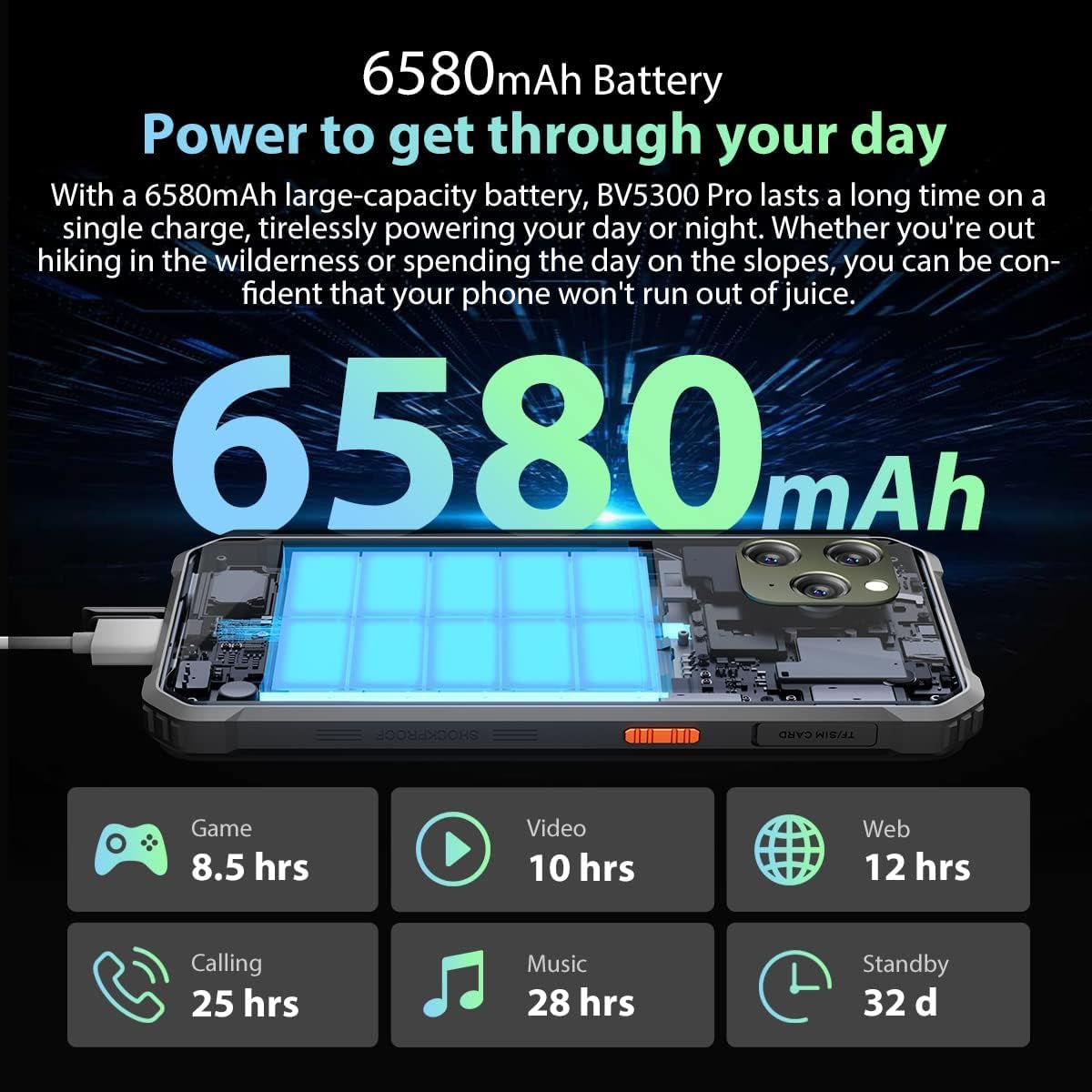
Image showing the Blackview BV5300 PRO with its SIM tray and included accessories.
1.3 Initial Power On and Charging
To power on your device, press and hold the Power button located on the side until the Blackview logo appears. For first-time use, it is recommended to fully charge the device.
- Connect the USB-C cable to the phone's charging port.
- Connect the other end of the cable to the power adapter, then plug the adapter into a wall outlet.
- The charging indicator will appear on the screen.
- The device supports 2.5W reverse charging, allowing it to charge other devices.

Illustration of the 6580mAh battery capacity and estimated usage times for gaming, video, web browsing, calls, music, and standby.
2. Operating Your Device
2.1 Basic Navigation
The Blackview BV5300 PRO runs on Android 12 with Doke OS 3.1. Navigate using the touchscreen gestures and physical buttons.
- Power Button: Press to wake/sleep the screen, long press to power on/off or restart.
- Volume Buttons: Adjust media volume, ringtone volume, or use as camera shutter.
- Touchscreen: Tap, swipe, pinch-to-zoom for various functions.
2.2 Display Features
The device features a 6.1-inch HD+ display with a resolution of 720*1560 pixels.
- Glove Mode: This mode enhances touchscreen sensitivity, allowing you to operate the phone while wearing gloves. Activate it in the display settings.

The 6.1-inch HD+ display of the Blackview BV5300 PRO, designed for vivid visual experiences.
2.3 Camera Usage
Capture photos and videos with the 8MP front camera and 13MP rear camera, enhanced by ArcSoft imaging technology.
- ArcSoft Features: Includes Panorama, Beauty Mode, HDR, Portrait Mode, Black and White, Face Fill Light, Night Mode, and Underwater Mode.
- Underwater Mode: Specifically designed for capturing images and videos while submerged. Ensure all ports are securely closed before using this mode.

Detailed view of the Blackview BV5300 PRO's camera system, highlighting the 8MP front camera, flash, and 13MP main camera, all powered by ArcSoft technology.
2.4 Connectivity and Performance
The BV5300 PRO supports 4G cellular networks, Wi-Fi, and precise navigation systems.
- Navigation: Integrated GPS, Beidou, Glonass, and Galileo for accurate positioning.
- Processor: Powered by the MediaTek Helio P35 Octa-core processor for smooth multitasking and data processing.
- Memory: Features 4GB of RAM with up to 3GB expansion, and 64GB of internal storage expandable up to 1TB via TF card.

Visual representation of the MediaTek Helio P35 processor, emphasizing its powerful performance for the Blackview BV5300 PRO.
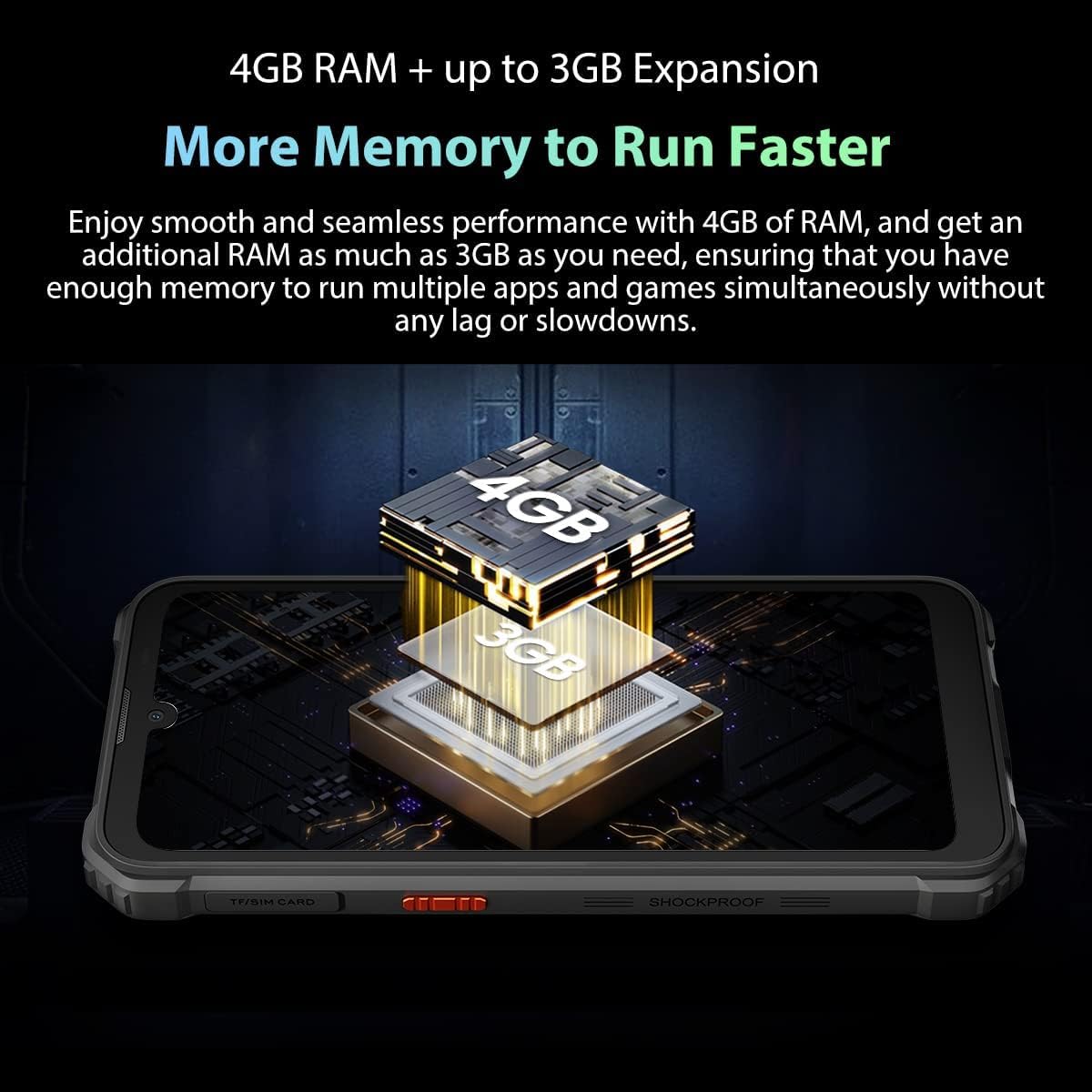
Illustration of the Blackview BV5300 PRO's memory configuration, including 4GB RAM with expandable virtual RAM and 64GB internal storage with TF card expansion up to 1TB.
3. Maintenance and Durability
The Blackview BV5300 PRO is built to withstand challenging environments.
3.1 Water and Dust Resistance
The device is IP68 and IP69K certified, meaning it is resistant to dust ingress and can be submerged in water up to 1.2 meters for 30 minutes without damage.
- Always ensure all port covers (USB-C, SIM tray) are securely closed before exposing the phone to water or dust.
- Do not charge the phone if the charging port is wet.
- Rinse the phone with fresh water after exposure to saltwater or chemicals.

A person using the Blackview BV5300 PRO underwater, showcasing its waterproof capabilities.
3.2 Drop and Shock Protection
Certified with MIL-STD-810H, the BV5300 PRO is designed to withstand drops, vibrations, and extreme temperatures. It can endure drops from up to 1.5 meters.
- While rugged, avoid intentionally dropping the device from excessive heights.
- Protect the screen with a screen protector for added scratch resistance.

An image depicting the Blackview BV5300 PRO falling onto a rocky surface, illustrating its MIL-STD-810H certified drop resistance.
3.3 Cleaning and Care
To maintain your device's performance and appearance:
- Wipe the screen and body with a soft, damp cloth.
- Avoid using harsh chemicals or abrasive cleaners.
- Ensure ports are free of debris. Use a soft brush if necessary.
4. Troubleshooting
If you encounter issues with your Blackview BV5300 PRO, try the following solutions:
4.1 Device Not Powering On
- Ensure the battery is charged. Connect the charger and wait for at least 30 minutes before attempting to power on.
- Press and hold the Power button for 10-15 seconds to force a restart.
4.2 Charging Issues
- Check the charging cable and adapter for damage.
- Ensure the USB-C port on the phone is clean and free of debris.
- Try a different charging cable and adapter.
- Ensure the charging port is dry before connecting the charger.
4.3 Network Connectivity Problems
- Check if your SIM card is properly inserted and activated.
- Restart the phone.
- Toggle Airplane Mode on and off.
- Go to Settings > Network & internet > Mobile network and ensure mobile data is enabled.
- Reset network settings (Settings > System > Reset options > Reset Wi-Fi, mobile & Bluetooth).
4.4 Screen Unresponsive
- Force restart the device by holding the Power button.
- Ensure your hands and the screen are clean and dry.
- If Glove Mode is enabled, try disabling it if you are not wearing gloves.
5. Specifications
Detailed technical specifications for the Blackview BV5300 PRO:
| Feature | Detail |
|---|---|
| Brand | Blackview |
| Model Name | BV5300 PRO |
| Operating System | Android 12 (Doke OS 3.1) |
| Processor | MediaTek Helio P35 Octa-core |
| RAM | 4 GB (expandable up to 7 GB with virtual RAM) |
| Internal Storage | 64 GB |
| Expandable Storage | Up to 1 TB via TF card |
| Display Size | 6.1 inches |
| Display Resolution | 720 x 1560 pixels (HD+) |
| Rear Camera | 13 MP (ArcSoft Imaging Technology) |
| Front Camera | 8 MP |
| Battery Capacity | 6580 mAh (Lithium-ion) |
| Charging Port | USB-C |
| Headphone Jack | 3.5 mm |
| SIM Card Slots | Dual Nano SIM |
| Connectivity | 4G, Wi-Fi, Bluetooth |
| Navigation | GPS, Beidou, Glonass, Galileo |
| Durability | IP68, IP69K, MIL-STD-810H certified |
| Biometric Features | Fingerprint Recognition |
| Dimensions | 7.8 x 1.5 x 16.1 cm |
| Color | Green |
6. Warranty and Support
6.1 Warranty Information
Your Blackview BV5300 PRO is covered by a limited warranty. Please refer to the warranty card included in your product packaging or visit the official Blackview website for detailed terms and conditions. Keep your proof of purchase for warranty claims.
6.2 Customer Support
For technical assistance, troubleshooting, or service inquiries, please contact Blackview customer support through their official channels.
- Official Website: Visit the Blackview Official Website for support resources, FAQs, and contact information.
- Email Support: Refer to the contact section on the official website for email support options.
Ask a question about this manual
Ask about setup, troubleshooting, compatibility, parts, safety, or missing instructions. Manuals+ will review the question and use this page’s manual context to help answer it.