
1. Introduction
This manual provides detailed instructions for the installation, operation, and maintenance of your AWESAFE 10.1 Inch Android 12.0 Car Radio. Please read this manual thoroughly before using the product to ensure proper functionality and safety. This car radio is designed specifically for Ford Focus Mk2 models from 2004 to 2011, offering advanced features such as Android 12.0, 2GB RAM, 32GB storage, CarPlay, Android Auto, GPS, WiFi, Bluetooth, DSP, RDS, USB, FM, and MirrorLink.

Figure 1.1: AWESAFE 10.1 Inch Android 12.0 Car Radio
2. Product Features
- Operating System: Android 12.0
- Memory & Storage: 2GB RAM + 32GB ROM
- Display: 10.1 Inch Capacitive Touch Screen (1024 x 600 resolution)
- Connectivity: Wireless CarPlay/Android Auto, WiFi, GPS, Bluetooth, USB
- Audio: Digital Sound Processor (DSP), FM/RDS Radio
- Vehicle Integration: Steering Wheel Controls, Parking Assistance (Rear Camera compatible)
- User Interface: 28 Theme Interfaces, Split Screen Functionality

Figure 2.1: Key Features Overview
3. Installation Guide
This section provides a general guide for installing the AWESAFE 10.1 Inch Android 12.0 Car Radio. Professional installation is recommended. Ensure the vehicle's power is off before beginning installation.
3.1. Video Installation Guide
Video 3.1: Installation process for the AWESAFE 10.1 Inch Android 12.0 Car Radio in a Ford Focus Mk2.
3.2. Step-by-Step Installation
- Remove Original Radio: Carefully remove the existing car radio from the dashboard. This may require specific tools to pry open the trim and unscrew the unit.
- Disconnect Wiring: Disconnect all wiring harnesses, antenna cables, and any other connections from the original radio.
- Connect New Wiring: Connect the provided wiring harnesses from the AWESAFE unit to the vehicle's existing wiring. Ensure all connections are secure. This includes power, speaker, and accessory wires.
- Connect GPS Antenna: Attach the GPS antenna to the designated port on the new unit. Route the cable to a location with a clear view of the sky, such as the dashboard or A-pillar.
- Connect WiFi/Bluetooth Antenna: Connect the WiFi/Bluetooth antenna to the corresponding port.
- Connect USB Cables: Connect the USB extension cables. These can be routed to the glove compartment or another convenient location for future use.
- Connect Rear Camera (Optional): If installing a rear camera, connect its video input and power cables to the designated ports on the car radio's harness.
- Test Functionality: Before fully reassembling the dashboard, turn on the vehicle and test the car radio's basic functions: power, audio, touch screen, GPS, Bluetooth, and radio.
- Secure Unit: Carefully slide the new car radio into the dashboard opening and secure it with screws or clips as per the vehicle's design.
- Reassemble Dashboard: Reattach any removed trim pieces and panels, ensuring they fit snugly.

Figure 3.1: Example of wiring connections during installation.
4. Operating Instructions
4.1. Basic Operation
- Power On/Off: The unit powers on automatically with the vehicle's ignition. Press and hold the power button for a few seconds to manually turn it off or on.
- Volume Control: Use the physical knobs or on-screen controls to adjust the volume.
- Home Screen: Tap the home icon to return to the main Android interface.
- Navigation: Swipe left/right on the screen to access different app pages.

Figure 4.1: Android Home Screen Interface
4.2. CarPlay and Android Auto
The unit supports both wireless and wired CarPlay/Android Auto for seamless smartphone integration.
- Wireless CarPlay: Connect your iPhone to the radio via Bluetooth and WiFi. Then, open the 'ZLINK5' app on the radio.
- Wireless Android Auto: Install the 'Android Auto' app on your mobile phone first. Connect your phone to the radio via Bluetooth and WiFi. Then, open the 'ZLINK5' app on the radio.
- Wired Connection: For wired CarPlay/Android Auto, connect your smartphone using a USB cable to the 4-pin USB port.

Figure 4.2: CarPlay and Android Auto Connection
4.3. GPS Navigation
Utilize the built-in GPS for navigation. The unit supports both online and offline maps.
- Online Navigation: Connect to WiFi and use pre-installed navigation apps or download your preferred ones from the Play Store.
- Offline Navigation: Download map data for offline use to navigate without an internet connection.

Figure 4.3: GPS Navigation Interface
4.4. Bluetooth Functionality
Connect your smartphone via Bluetooth for hands-free calling and audio streaming.
- Pairing: Go to Bluetooth settings on the car radio and your phone. Search for available devices and pair with the car radio.
- Hands-Free Calling: Make and receive calls directly from the car radio's interface.
- Audio Streaming: Play music from your phone through the car's speakers.
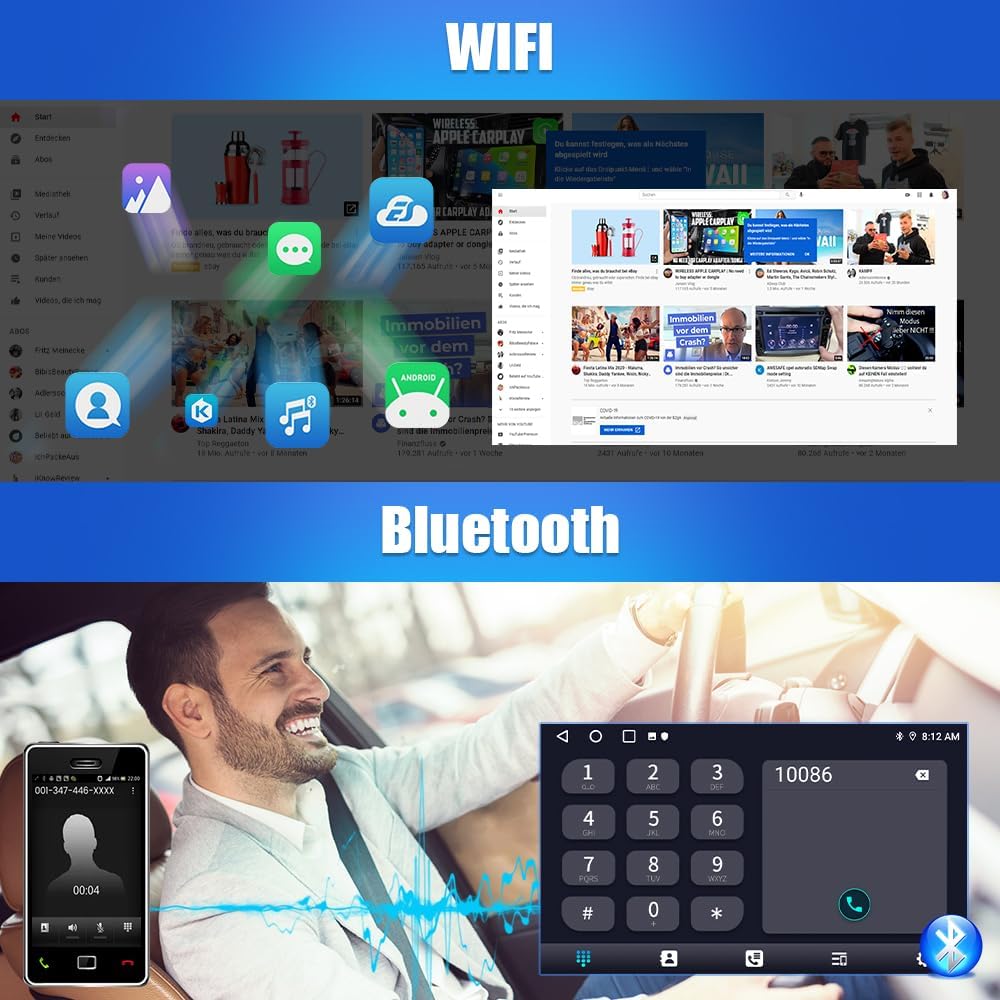
Figure 4.4: Bluetooth Calling Interface
4.5. FM Radio and DSP
Enjoy your favorite radio stations and customize your audio experience.
- FM/RDS Radio: Tune into FM radio stations. RDS (Radio Data System) provides additional information like station name and song title.
- DSP (Digital Sound Processor): Access the DSP settings to fine-tune audio parameters, including equalizer, balance, and subwoofer controls, for optimal sound quality.

Figure 4.5: FM Radio and DSP Settings
4.6. Split Screen and UI Themes
Enhance multitasking and personalize your display.
- Split Screen: Run two applications simultaneously on the screen, for example, navigation and music player.
- UI Themes: Choose from 28 different user interface themes to customize the look and feel of your car radio.

Figure 4.6: Split Screen and UI Themes
5. Specifications
| Feature | Specification |
|---|---|
| Operating System | Android 12.0 |
| RAM | 2GB |
| Internal Storage | 32GB |
| Screen Size | 10.1 Inches |
| Resolution | 1024 x 600 |
| Touch Screen Type | Capacitive |
| Connectivity Technology | Bluetooth, USB, WiFi |
| Special Feature | Touch Screen, Compatible with Smartphone |
| Supported Navigation | GPS |
| Vehicle Service Type | Car |
| Mounting Type | Windshield Mount (Note: Product is integrated into dashboard) |
| Package Dimensions | 33.79 x 29.5 x 12.1 cm; 1.81 kg |
| UPC | 759973192709 |
6. Maintenance
To ensure the longevity and optimal performance of your car radio, follow these maintenance guidelines:
- Cleaning: Use a soft, dry cloth to clean the screen and exterior. Avoid abrasive cleaners or solvents that could damage the surface.
- Software Updates: Regularly check for and install software updates to ensure the system runs efficiently and has the latest features and security patches.
- Temperature: Avoid exposing the unit to extreme temperatures, both hot and cold, for extended periods.
- Power Supply: Ensure the vehicle's electrical system is in good condition to prevent power fluctuations that could harm the unit.
7. Troubleshooting
If you encounter issues with your AWESAFE car radio, refer to the following common troubleshooting steps:
- No Power: Check all power connections and the vehicle's fuse box. Ensure the ignition is on.
- No Sound: Verify speaker connections, volume levels, and audio source selection. Check DSP settings.
- Touch Screen Unresponsive: Try restarting the unit. If the issue persists, a factory reset might be necessary (note: this will erase all user data).
- GPS Signal Loss: Ensure the GPS antenna has a clear view of the sky and is securely connected.
- Bluetooth Connection Issues: Ensure Bluetooth is enabled on both the car radio and your device. Try unpairing and re-pairing the devices.
- CarPlay/Android Auto Not Connecting: Verify all wired/wireless connection steps are followed correctly, including installing necessary apps on your phone. Check USB cable integrity for wired connections.
- System Lag/Freezing: Close unnecessary background applications. Clear cache or perform a system restart.
For persistent issues or problems not covered here, please contact AWESAFE customer support.
8. Warranty and Support
Your AWESAFE car radio comes with a standard manufacturer's warranty. Please refer to the warranty card included in your product packaging for specific terms and conditions.
For technical support, service inquiries, or warranty claims, please contact AWESAFE customer service through the contact information provided with your purchase or on the official AWESAFE website.


