
WiMiUS W7
WiMiUS 5G WiFi Bluetooth Projector User Manual
Model: W7
1. Introduction
Thank you for choosing the WiMiUS 5G WiFi Bluetooth Projector. This projector is designed to provide a superior home cinema experience with its native 1080P Full HD resolution, 4K support, and high brightness of 10000 lumens. Featuring advanced 5G WiFi and Bluetooth 5.1 connectivity, along with versatile image adjustment options like 4D keystone correction and zoom, it offers flexibility and ease of use for various entertainment and professional needs.
Please read this manual thoroughly before operating the projector to ensure proper use and optimal performance.
2. Package Contents
Upon opening the package, please verify that all the following items are included:
- WiMiUS 5G WiFi Bluetooth Projector
- Power Cable
- HDMI Cable
- Remote Control (batteries not included)
- Portable Carrying Bag
- User Manual
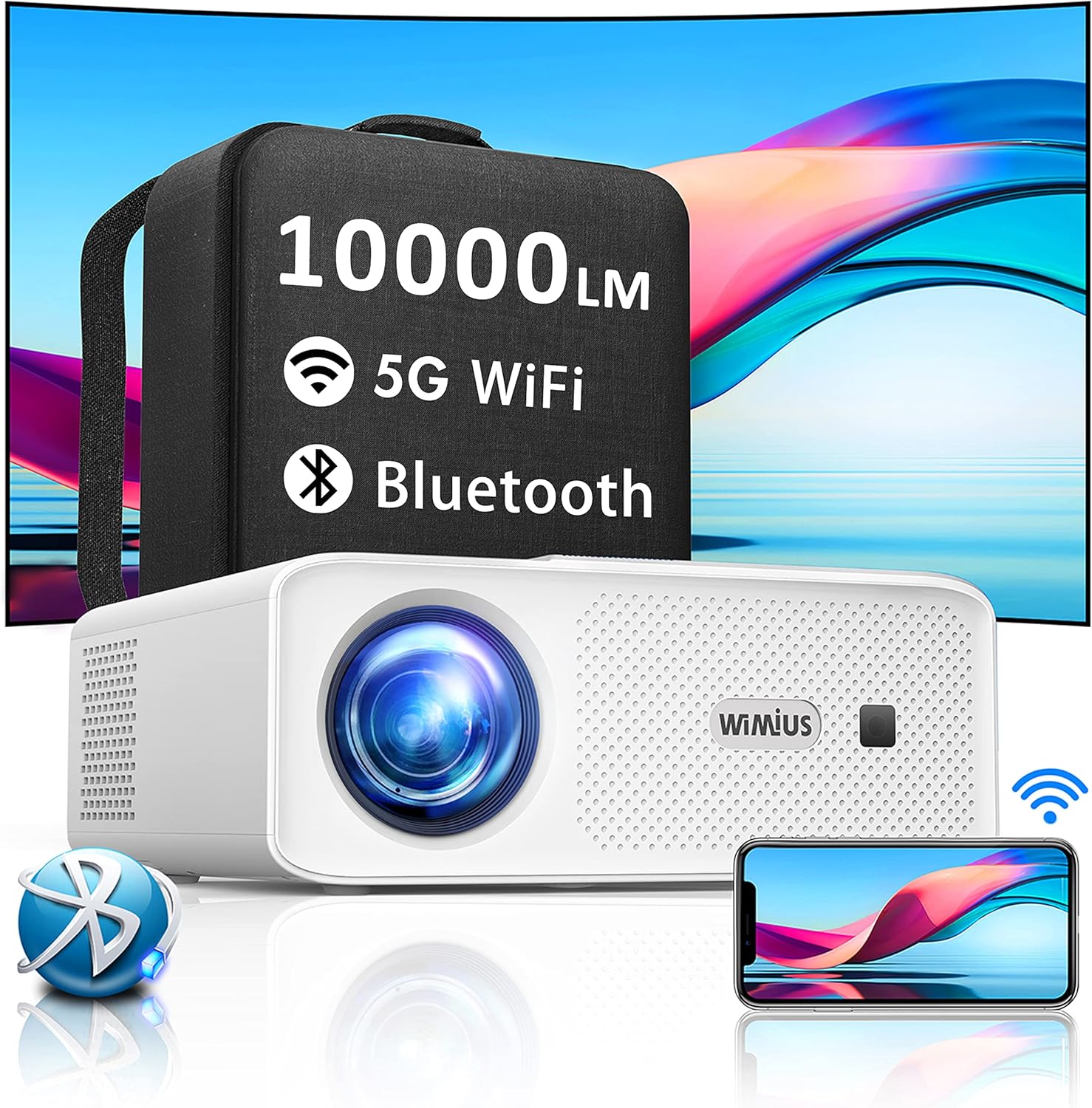
Image: The WiMiUS 5G WiFi Bluetooth Projector shown with its portable carrying bag, highlighting its 10000 Lumens, 5G WiFi, and Bluetooth capabilities.
3. Product Overview and Components
Familiarize yourself with the various parts of your projector:
Front View:
- Projection Lens
- Infrared Receiver
Rear View (Ports):
- HDMI Port: For connecting devices like laptops, gaming consoles (PS4/PS5), TV sticks.
- USB Port: For connecting USB drives.
- VGA Port: For connecting older computers.
- 3.5mm Audio Output: For connecting external speakers or headphones.
- Power Input
Top View (Controls):
- Focus Ring: Adjusts image clarity.
- Keystone Correction Dial/Buttons: Adjusts image shape.
- Navigation Buttons
- Power Button
Bottom View:
- Adjustable Foot
- Tripod/Ceiling Mount Thread (standard threaded fittings)
4. Setup
4.1 Placement
Choose a flat, stable surface for the projector. Ensure there is adequate ventilation around the unit. The projector can be placed on a table, mounted on a tripod, or ceiling-mounted using the standard threaded fittings on its base.
4.2 Power Connection
- Connect the power cable to the projector's power input port.
- Plug the other end of the power cable into a power outlet.
- Press the power button on the projector or remote control to turn it on.
5. Operating Instructions
5.1 Initial Image Adjustment
- Focus: Rotate the focus ring on the projector until the projected image appears clear and sharp.
- Keystone Correction (4D): If the image appears trapezoidal, use the 4D keystone correction function. This allows for horizontal and vertical adjustment (up to ±50°) to make the image rectangular, even if the projector is not perfectly centered. Access this setting via the projector's menu or dedicated buttons.
- Zoom Function: The projector features a zoom function (100% to 50%) to adjust the screen size without moving the projector. This is particularly useful for ceiling projection. Adjust this setting via the projector's menu.

Image: Illustration of the 4D keystone correction and 50% zoom function, demonstrating how to achieve a perfectly rectangular image and adjust screen size.

Image: A visual comparison highlighting the superior color gamut and clarity of the WiMiUS projector's native 1080P, 10000 Lumens, and 15000:1 contrast ratio compared to another projector.
5.2 Connecting Devices
5.2.1 Wired Connections
The projector supports various wired inputs:
- HDMI: Connect your laptop, Blu-ray player, gaming console (PS4/PS5), or TV stick using an HDMI cable. Select the HDMI input source from the projector's menu.
- USB: Insert a USB flash drive to play media files directly. Select the USB input source.
- VGA: Connect older computers using a VGA cable. Select the VGA input source.
- 3.5mm Audio Out: Connect external speakers or headphones for enhanced audio.
5.2.2 Wireless Connections (WiFi & Bluetooth)
The projector features dual-band 4G and 5G WiFi, and Bluetooth 5.1 for seamless wireless connectivity.
5.2.2.1 WiFi Screen Mirroring
Mirror your smartphone, tablet, or Windows 10 device screen wirelessly to the projector.
- Ensure your projector and device are connected to the same WiFi network.
- On the projector, select the 'Screen Mirroring' or 'Wireless Display' option from the main menu.
- For iOS devices, use 'Screen Mirroring' or 'AirPlay'. For Android devices, use 'Miracast' or 'Smart View'. For Windows 10, use 'Connect' or 'Project to a wireless display'.
- Select the projector's name from your device's list of available devices.

Image: The projector wirelessly mirroring content from iOS, Android, and Windows 10 devices via 5G WiFi, illustrating a seamless, wire-free connection.

Image: A child using the projector for an online learning session, demonstrating its utility for video conferencing and educational purposes.
5.2.2.2 Bluetooth Connection
Connect Bluetooth-enabled audio devices like headphones or speakers to the projector.
- Turn on your Bluetooth audio device and set it to pairing mode.
- On the projector, navigate to the Bluetooth settings in the menu.
- Scan for available devices.
- Select your Bluetooth audio device from the list to pair.

Image: The projector shown in an environment with various Bluetooth devices such as headphones, earbuds, and smart speakers, illustrating its Bluetooth 5.1 connectivity for audio output.
6. Maintenance
Proper maintenance ensures the longevity and optimal performance of your projector.
- Cleaning the Lens: Use a soft, lint-free cloth specifically designed for optical lenses. Do not use abrasive cleaners.
- Dust Filter: Regularly check and clean the dust filter to prevent overheating and maintain image quality.
- Cooling System: The projector is equipped with an advanced cooling fan system to reduce lamp energy consumption and extend its lifespan. Ensure ventilation vents are not blocked.
- Storage: When not in use for extended periods, store the projector in its portable carrying bag in a cool, dry place.
The LED light source has an extended lifespan of up to 200,000 hours.
7. Troubleshooting
If you encounter issues with your projector, refer to the following common problems and solutions:
| Problem | Possible Cause | Solution |
|---|---|---|
| No image projected | Power cable loose; Incorrect input source; Device not connected properly. | Check power connection; Select correct input source (HDMI, USB, VGA); Reconnect device. |
| Image is blurry | Focus not adjusted; Projector too close/far from screen. | Adjust the focus ring; Adjust projection distance or use zoom function. |
| Image is trapezoidal | Projector not perpendicular to screen. | Use 4D keystone correction to adjust the image shape. |
| No sound | Volume too low; External audio device not connected/paired; Audio format not supported. | Increase volume; Connect/pair Bluetooth device; Check audio format. |
| WiFi screen mirroring fails | Not on same network; Device compatibility; Network interference. | Ensure both devices are on the same 5G WiFi network; Restart devices; Try a wired connection if persistent. |
If the problem persists, please contact WiMiUS customer support.
8. Specifications
| Feature | Specification |
|---|---|
| Brand | WiMiUS |
| Model | W7 |
| Native Resolution | 1920 x 1080 (Full HD) |
| Supported Resolution | Up to 4K |
| Brightness | 10000 Lumens |
| Contrast Ratio | 16000:1 |
| Display Type | LED |
| Connectivity Technology | HDMI, USB, VGA, 3.5mm Audio, 5G WiFi, Bluetooth 5.1 |
| Keystone Correction | 4D (Horizontal & Vertical ±50°) |
| Zoom Function | 100% to 50% |
| Lamp Life | 200,000 hours |
| Form Factor | Portable |
| Mounting Type | Tripod Mount |
| Color | White |
| Item Weight | 4 Grams (Note: This weight seems unusually low and might be a data entry error. Please refer to product packaging for accurate weight.) |
9. Warranty and Support
The WiMiUS 5G WiFi Bluetooth Projector comes with a 3-year warranty from the date of purchase. This warranty covers manufacturing defects and ensures reliable performance.
WiMiUS also offers lifetime technical support. If you have any questions, require assistance with setup, or encounter any issues not covered in this manual, please do not hesitate to contact our customer support team. Our dedicated team is ready to provide prompt and helpful solutions.
For warranty claims or technical support, please refer to the contact information provided on the WiMiUS official website or your purchase documentation.
Related documentsW7


Ask a question about this manual
Ask about setup, troubleshooting, compatibility, parts, safety, or missing instructions. Manuals+ will review the question and use this page’s manual context to help answer it.