
Keychron M3 Mini 4K
Keychron M3 Mini 4K Wireless Optical Mouse User Manual
Model: M3 Mini 4K | Brand: Keychron
Introduction
This manual provides comprehensive instructions for the Keychron M3 Mini 4K Wireless Optical Mouse. It covers setup, operation, maintenance, and troubleshooting to ensure optimal performance and user experience. The M3 Mini 4K is an ultra-lightweight (55g) programmable mouse featuring a PixArt 3395 sensor, up to 26,000 DPI, 650 IPS, and a 4000 Hz polling rate for high-speed, precise input across Windows, Mac, and Linux systems.
Setup Guide
Package Contents
Before you begin, ensure all items are present in the package:
- 1x Keychron M3 Mini 4K Wireless Optical Mouse
- 1x 4K Wireless Receiver
- 1x Type-C to Type-C Cable
- 1x Type-A to Type-C Adapter

Image: Standard Version package contents, showing the mouse, 4K wireless receiver, Type-C to Type-C cable, and Type-A to Type-C adapter.
Connectivity Options
The Keychron M3 Mini 4K mouse supports three modes of connection: 2.4 GHz Wireless, Bluetooth 5.1, and Wired (via USB-C cable).
2.4 GHz Wireless Mode
- Locate the 4K Wireless Receiver.
- Connect the receiver to your computer's USB port. If your computer only has USB-C ports, use the provided Type-A to Type-C adapter.
- On the bottom of the mouse, slide the mode switch to the "2.4G" position.
- The mouse should automatically connect to the receiver.

Image: A close-up view of the 4K Wireless Receiver, which supports up to a 4K polling rate in 2.4 GHz mode.

Image: The Keychron M3 Mini 4K mouse shown alongside its dedicated 4K wireless receiver, illustrating the compact design.
Bluetooth 5.1 Mode
- On the bottom of the mouse, slide the mode switch to the "BT" position.
- On your computer, open Bluetooth settings and search for new devices.
- Select "Keychron M3 Mini 4K" from the list of available devices to pair.
Wired Mode
- Connect the provided Type-C to Type-C cable (or Type-A to Type-C adapter with the cable) from the mouse to your computer's USB port.
- The mouse will function as a wired mouse and charge simultaneously.
Operating Instructions
DPI Adjustment
The M3 Mini 4K features a PixArt 3395 sensor, offering up to 26,000 DPI for precise control. You can adjust the DPI directly on the mouse without software.
- Locate the DPI button on the bottom of the mouse.
- Press the DPI button to cycle through preset DPI levels.
- The LED indicators on the bottom will show the current DPI setting.
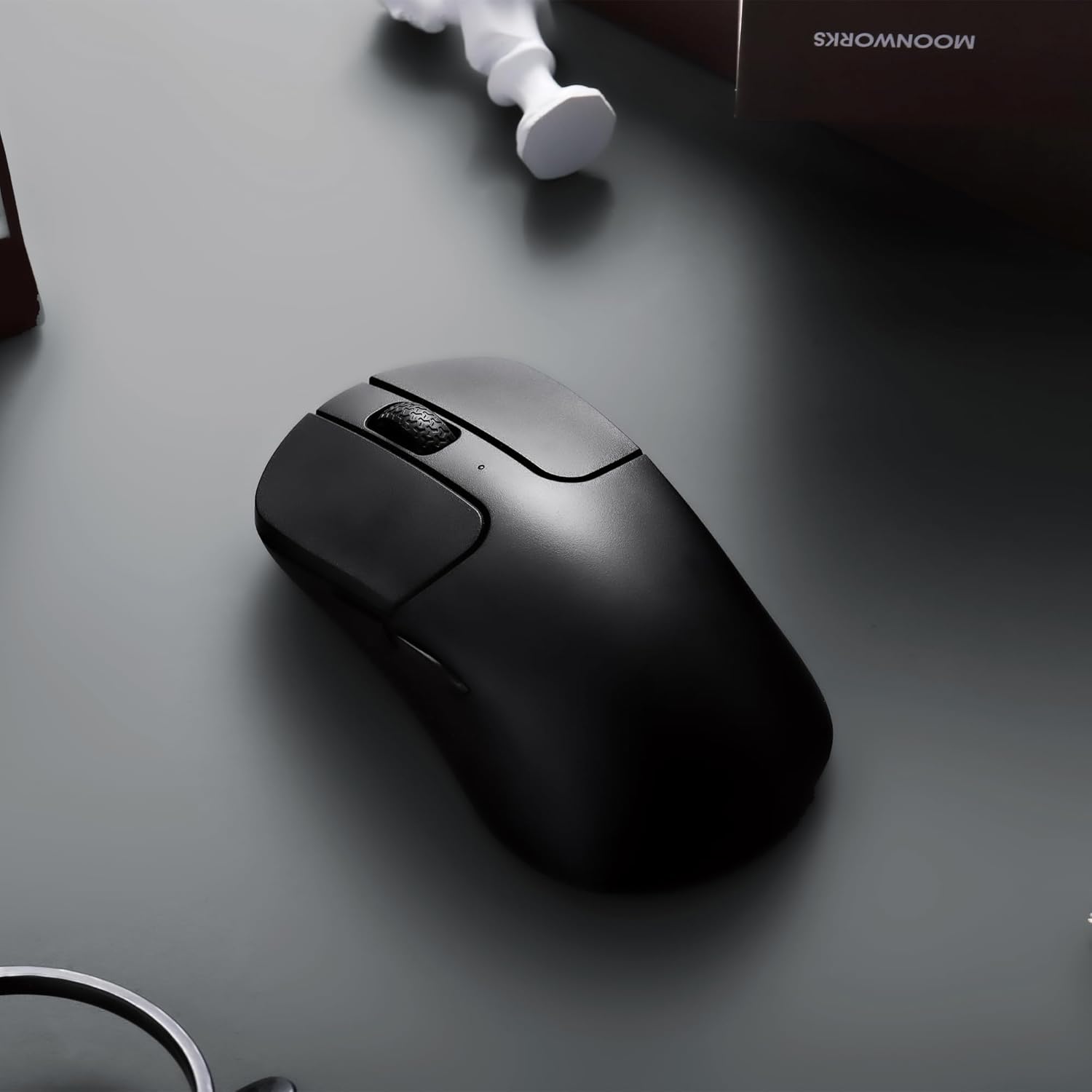
Image: The underside of the mouse, highlighting the PixArt 3395 sensor and the physical buttons for DPI and Report Rate adjustments.
Polling Rate Adjustment
The mouse supports an ultra-fast 4K (4000 Hz) polling rate in 2.4 GHz mode, ensuring minimal latency.
- Locate the "Report Rate" button on the bottom of the mouse.
- Press the button to switch among 5 levels of polling rate: 125 Hz, 500 Hz, 1000 Hz, 2000 Hz, and 4000 Hz.
- The corresponding LED indicator will light up to show the selected polling rate.

Image: A diagram illustrating how to switch polling rates using the dedicated button on the mouse, with a table showing LED color indications for different frequencies (125 Hz to 4000 Hz).
Keychron Engine Software
For advanced customization, including key remapping, macros, RGB lighting effects (if applicable), and professional settings for LOD (Lift-Off Distance), polling rate, and DPI, download and install the Keychron Engine software.
- The software is compatible with Windows 11/10 and macOS.
- Visit the official Keychron website to download the latest version.
- The software supports onboard memory, allowing your custom settings to be saved directly to the mouse.

Image: A visual representation of the Keychron Engine software interface, demonstrating options for personalization, key modification, shortcuts, macros, and professional settings.
Battery Life and Charging
The M3 Mini 4K is equipped with a 600 mAh battery, providing up to 135 hours of continuous working time in 1K Polling Rate mode. To charge the mouse, connect it to your computer using the provided USB-C cable.

Image: Icons illustrating key features: up to 135 hours of battery life (600 mAh), ultra-lightweight at 55g, and the ability to adjust settings without software.
Maintenance
Cleaning the Mouse
To maintain optimal performance and hygiene, regularly clean your Keychron M3 Mini 4K mouse.
- Use a soft, lint-free cloth slightly dampened with water or a mild cleaning solution to wipe the surface of the mouse.
- Avoid using harsh chemicals, abrasive cleaners, or solvents.
- For the optical sensor, use a cotton swab lightly dampened with isopropyl alcohol to gently clean the lens. Ensure no liquid enters the sensor opening.
- Clean the scroll wheel and button crevices with a dry brush or compressed air to remove dust and debris.
- Ensure the mouse is powered off and disconnected from any power source before cleaning.
Battery Care
To prolong the battery life of your mouse:
- Avoid fully discharging the battery frequently.
- Store the mouse in a cool, dry place when not in use for extended periods.
- Use the provided USB-C cable for charging.
Troubleshooting
Connectivity Issues
- 2.4 GHz Wireless:
- Ensure the 4K Wireless Receiver is securely plugged into a working USB port.
- Verify the mouse mode switch is set to "2.4G".
- Try plugging the receiver into a different USB port.
- Ensure there are no strong interferences (e.g., other wireless devices) nearby.
- Bluetooth:
- Ensure the mouse mode switch is set to "BT".
- Make sure Bluetooth is enabled on your computer.
- Remove the mouse from your computer's paired devices list and attempt to re-pair it.
- Ensure the mouse battery has sufficient charge.
- Wired:
- Ensure the USB-C cable is securely connected to both the mouse and the computer.
- Try using a different USB port on your computer.
- Test with a different USB-C cable if available.
DPI/Polling Rate Not Changing
- Ensure you are pressing the correct button (DPI or Report Rate) on the bottom of the mouse.
- Check the LED indicators on the bottom of the mouse to confirm changes.
- If using Keychron Engine software, ensure settings are applied and saved to onboard memory.
Mouse Not Responding
- Check the battery level. Charge the mouse if the battery is low.
- Ensure the mouse is powered on (mode switch is not in "OFF" position).
- Restart your computer.
- Try connecting the mouse to a different computer to rule out system-specific issues.
Specifications
| Feature | Detail |
|---|---|
| Brand | Keychron |
| Model | M3 Mini 4K |
| Connectivity Technology | Bluetooth 5.1, 2.4 GHz Wireless, Wired (USB-C) |
| Movement Detection Technology | Optical (PixArt 3395 Sensor) |
| DPI (Dots Per Inch) | Up to 26,000 DPI |
| IPS (Inches Per Second) | Up to 650 IPS |
| Polling Rate | Up to 4000 Hz (2.4 GHz mode) |
| Micro Switch | Huano 80M (80 million clicks lifespan) |
| Weight | 55g (1.94 ounces) |
| Battery Capacity | 600 mAh |
| Battery Life | Up to 135 hours (1K Polling Rate) |
| Compatibility | Windows, macOS, Linux |
| Dimensions | 7.48 x 5.31 x 2.05 inches (Package) |
| Date First Available | June 6, 2023 |
Warranty and Support
For detailed warranty information and technical support, please refer to the official Keychron website or contact Keychron customer service directly. Keep your proof of purchase for warranty claims.
Keychron Official Website: www.keychron.com
Related documentsM3 Mini 4K


Ask a question about this manual
Ask about setup, troubleshooting, compatibility, parts, safety, or missing instructions. Manuals+ will review the question and use this page’s manual context to help answer it.