1. Introduction
This manual provides detailed instructions for the installation, operation, and maintenance of your Podofo AV-F7015 car radio. This unit is specifically designed for Fiat 500 models manufactured between 2007 and 2015, offering advanced features such as Apple CarPlay, Android Auto, Bluetooth connectivity, GPS navigation, RDS radio, and support for a backup camera.
Please read this manual thoroughly before installation and use to ensure proper functionality and to maximize your experience with the product. Keep this manual for future reference.

Figure 1.1: Podofo AV-F7015 Car Radio unit with included accessories, including a backup camera and external microphone.
2. Package Contents
Verify that all items listed below are present in your product package:

Figure 2.1: Visual representation of all components included in the Podofo AV-F7015 car radio package.
- Podofo AV-F7015 Car Radio Unit
- Power Cord
- Canbus Box
- RCA Input / Output Cables
- USB Cable
- GPS Antenna
- Camera Input Cable
- User Manual (this document)
- Radio Antenna Adapter Cable
- External Microphone
- Backup Camera
3. Setup and Installation
Proper installation is crucial for the optimal performance of your car radio. It is recommended that installation be performed by a qualified professional.
3.1 Product Dimensions
Ensure the dimensions of the unit are compatible with your vehicle's dashboard opening.

Figure 3.1: Product dimensions (280mm width, 125mm height, 155mm depth) and a detailed wiring diagram for the Podofo AV-F7015 car radio.
3.2 Pre-Installation
Before beginning installation, disconnect the vehicle's battery to prevent electrical shorts. Carefully remove your existing car radio unit.
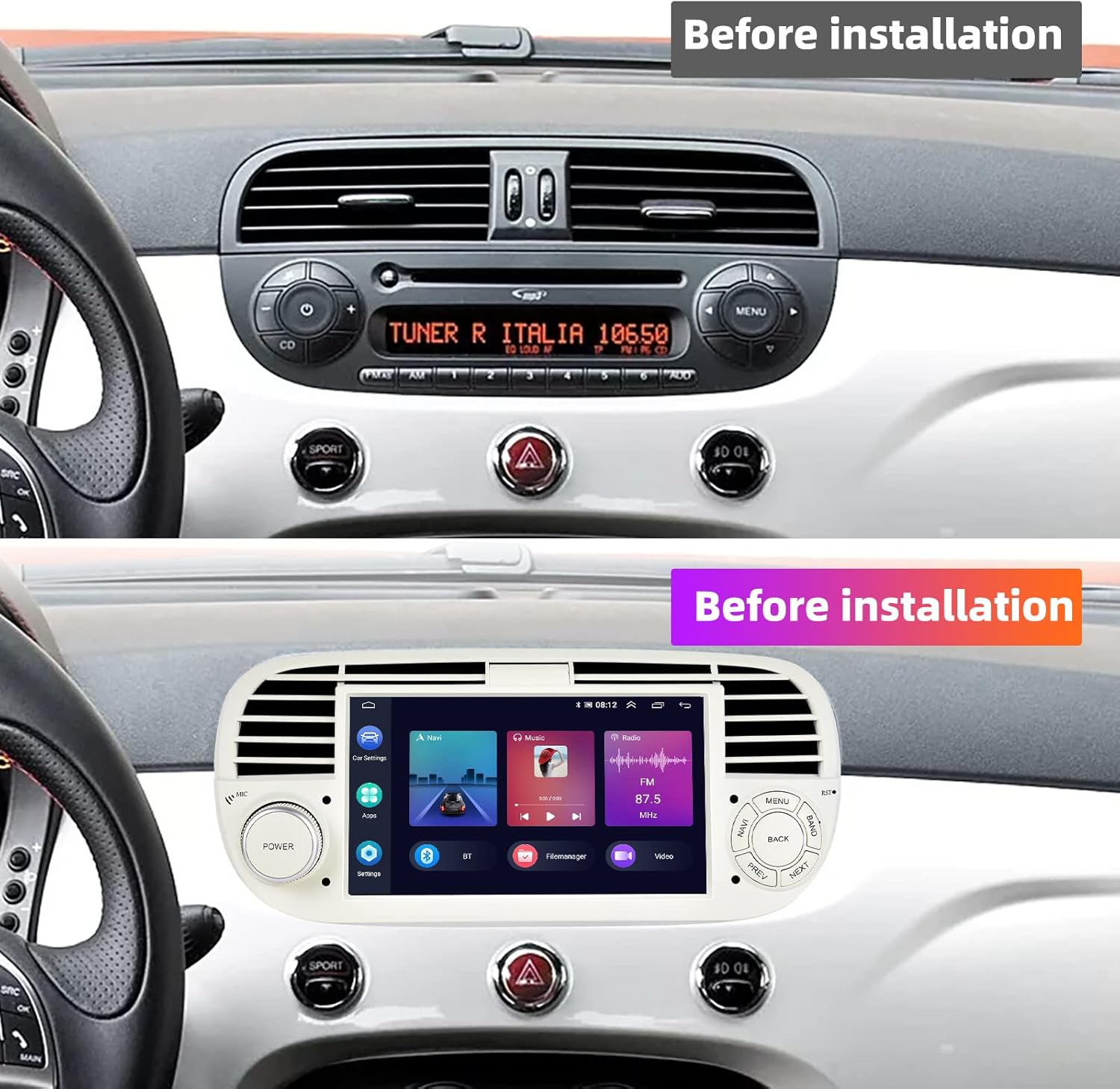
Figure 3.2: View of a Fiat 500 dashboard with the original factory radio unit installed, prior to the Podofo AV-F7015 installation.
3.3 Wiring Connections
Refer to the wiring diagram (Figure 3.1) for correct connections. Ensure all cables are securely connected to their respective ports.
- Power Cord: Connect the main power harness to the vehicle's wiring.
- Canbus Box: Connect the Canbus box if your vehicle supports steering wheel controls or other integrated features. This is essential for SWC functionality.
- GPS Antenna: Mount the GPS antenna in a location with a clear view of the sky, typically on the dashboard or under the windshield.
- Backup Camera: Connect the camera input cable to the designated port. Ensure the camera is properly mounted and wired for reverse gear activation.
- External Microphone: Plug in the external microphone for improved call quality during hands-free operation.
- USB Cable: Route the USB cable to an accessible location for connecting external devices or for wired CarPlay/Android Auto.
- Radio Antenna: Connect the radio antenna adapter cable to the vehicle's antenna.
3.4 Post-Installation
Once all connections are made, carefully slide the car radio unit into the dashboard opening and secure it. Reconnect the vehicle's battery and power on the unit to test its functions.

Figure 3.3: View of a Fiat 500 dashboard with the Podofo AV-F7015 car radio unit successfully installed, showing its integrated appearance.
4. Operating Instructions
4.1 Basic Operation
- Power On/Off: Press the 'POWER' knob to turn the unit on or off.
- Volume Control: Rotate the 'POWER' knob to adjust the volume.
- Menu Navigation: Use the touch screen or physical buttons (MENU, BACK, NAVI, PREV, NEXT) to navigate through the interface.
4.2 Apple CarPlay & Android Auto
The unit supports both wireless and wired Apple CarPlay and Android Auto for seamless smartphone integration.

Figure 4.1: Instructions for connecting to wireless and wired Apple CarPlay and Android Auto, including voice command examples.
4.2.1 Wireless Connection
- Enable Bluetooth on your smartphone and pair it with the car radio.
- Open the 'Zlink' application on the car radio.
- Follow the on-screen prompts to complete the CarPlay or Android Auto connection.
4.2.2 Wired Connection
- Connect your iOS or Android smartphone directly to the car radio using a USB cable.
- Open the 'Z-Link' application on the car radio.
- Select the corresponding program icon for CarPlay or Android Auto.

Figure 4.2: Demonstration of Apple CarPlay and Android Auto interfaces, highlighting voice command functionality for various tasks.
4.3 GPS Navigation
The unit supports GPS navigation. You can download maps through the pre-installed navigation application or other compatible apps.

Figure 4.3: Display of the GPS navigation interface showing a route, alongside the Wi-Fi connection feature for internet access.
4.4 FM/RDS Radio
Access the radio function to listen to FM stations. The RDS (Radio Data System) feature provides additional information such as station name and traffic updates where available.
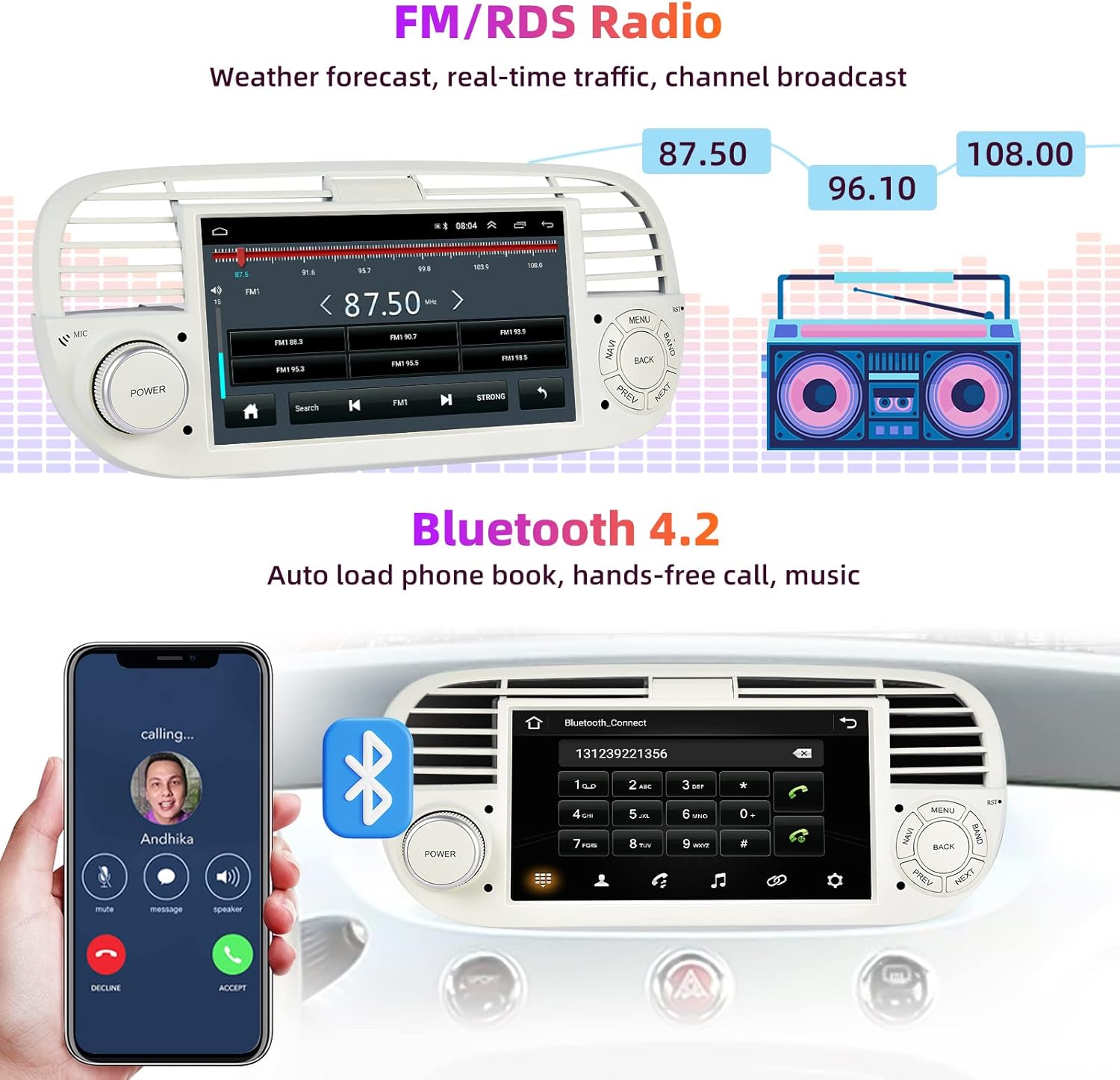
Figure 4.4: The FM/RDS radio interface showing frequency selection, and a smartphone screen demonstrating a hands-free call via Bluetooth 4.2.
4.5 Bluetooth 4.2
Connect your smartphone via Bluetooth for hands-free calling, music streaming, and automatic phone book loading.
- Go to the Bluetooth settings on the car radio.
- Enable Bluetooth on your smartphone and search for available devices.
- Select the car radio (e.g., "Podofo AV-F7015") from your phone's list and pair.
- Once paired, you can make/receive calls and play audio through the car speakers.
4.6 Backup Camera
When the vehicle is shifted into reverse gear, the car radio automatically displays the view from the connected AHD backup camera, providing a 170° wide-angle field of view with parking guidelines.

Figure 4.5: The car radio screen displaying the AHD backup camera feed with parking assistance lines. Below, the steering wheel control interface is shown.
4.7 Steering Wheel Controls (SWC)
If your vehicle is equipped with steering wheel controls and the Canbus box is correctly installed, you can configure these controls to operate the car radio functions.
- Navigate to the 'Steering Wheel Learning' or 'SWC Settings' menu in the car radio settings.
- Follow the on-screen instructions to assign functions (e.g., volume up/down, track skip, call answer/end) to your vehicle's steering wheel buttons.
4.8 Wi-Fi Connection
Connect the car radio to a mobile hotspot or Wi-Fi network to access online features, download apps, and browse the internet.
- Go to the Wi-Fi settings menu on the car radio.
- Turn on Wi-Fi and select your desired network from the list.
- Enter the password if prompted and connect.
5. Maintenance
- Cleaning: Use a soft, dry cloth to clean the screen and unit. Avoid abrasive cleaners or solvents.
- Software Updates: Periodically check for software updates from the manufacturer to ensure optimal performance and access to new features.
- Temperature: Avoid exposing the unit to extreme temperatures, direct sunlight for prolonged periods, or high humidity.
6. Troubleshooting
If you encounter issues with your Podofo AV-F7015 car radio, refer to the following common problems and solutions:
| Problem | Possible Cause | Solution |
|---|---|---|
| No sound from speakers | Incorrect wiring, speaker impedance mismatch, mute activated. | Check all speaker wire connections. Ensure correct polarity. Verify the unit is not muted and volume is up. Consult a professional if wiring is complex. |
| Unit does not power on | Power cable disconnected, blown fuse, vehicle battery issue. | Check power cable connections. Inspect vehicle fuses and the unit's fuse. Ensure vehicle battery is charged. |
| CarPlay/Android Auto not connecting | Bluetooth/USB connection issue, Zlink app not running, phone compatibility. | Ensure Bluetooth is on and paired (for wireless). Use a certified USB cable (for wired). Open the 'Zlink' app on the unit. Restart phone and unit. |
| GPS signal lost or inaccurate | GPS antenna obstruction, faulty antenna. | Ensure GPS antenna has a clear view of the sky. Check antenna connection. |
| Steering Wheel Controls not working | Canbus box not connected, incorrect SWC learning. | Verify Canbus box is correctly installed. Re-perform the 'Steering Wheel Learning' procedure in settings. |
| Vehicle mileage display blinking | Vehicle's ECU not recognizing new equipment (proxy alignment needed). | This issue may require a proxy alignment procedure using diagnostic software specific to Fiat vehicles. It is recommended to consult a Fiat service center or a qualified automotive electrician for this. |
7. Specifications
Key technical specifications for the Podofo AV-F7015 car radio:
| Feature | Specification |
|---|---|
| Brand | Podofo |
| Model Number | AV-F7015 |
| Screen Size | 7 Inches |
| Connectivity Technology | Bluetooth, USB, Wi-Fi |
| Special Features | Bluetooth, Integrated Wi-Fi, Apple CarPlay, Android Auto, GPS, RDS, Backup Camera Support |
| Compatible Devices | Smartphone |
| Controller Type | Android |
| Audio Output Mode | Stereo |
| Surround Sound Channel Configuration | 4.0 |
| Output Power | 45 Watts |
| Total HDMI Ports | 1 |
8. Warranty and Support
For warranty information and technical support, please refer to the documentation provided with your purchase or contact Podofo customer service directly. Details regarding spare parts availability and software updates may be obtained through official Podofo channels.
Please retain your proof of purchase for any warranty claims.


