
1. Introduction
The DIGITUS DN-45004 Mobile Desktop Charging Cabinet is designed for storing and charging portable devices such as tablets and smartphones. It features 10 USB-C charging ports and an integrated UV-C lamp for enhanced hygiene. This cabinet is suitable for public institutions like schools, providing a centralized and secure location for device management and charging.
2. Safety Warnings
- This product must be placed on a flat, stable surface to prevent slipping or tipping.
- Ensure the power cable is securely connected to a grounded outlet.
- Do not overload the electrical circuit.
- Keep the cabinet away from water or excessive moisture.
- Do not attempt to open or repair the cabinet yourself. Refer to qualified service personnel.
- The UV-C lamp emits ultraviolet light. Avoid direct exposure to eyes and skin. Ensure the cabinet door is closed during UV-C operation.
3. Package Contents
Verify that all items are present in the package:
- 1 x Digitus DN-45004 Charging Cabinet
- 2 x Keys for the front door
- 1 x Power Cable (C19 to protective contact plug, 2m)
- 1 x User Manual
4. Setup
- Unpacking: Carefully remove the charging cabinet from its packaging.
- Placement: Place the cabinet on a flat, stable, and dry surface. Ensure adequate ventilation around the unit. The anti-slip feet provide stability.
- Power Connection: Connect the provided power cable to the C19 input on the rear of the cabinet and then to a suitable electrical outlet (110/220 VAC, 50/60 Hz).
- Initial Power Check: If the unit does not power on, check the internal circuit breaker located behind the rear panel. This breaker may trip during transport. To access, unscrew the four screws on the rear panel, remove it, and reset the blue lever on the circuit breaker to the 'On' position.

5. Operating Instructions
5.1 Charging Devices
- Open the Door: Use the provided keys to unlock and open the front door of the cabinet.
- Insert Devices: Place your tablets or smartphones into the designated slots. Note that this cabinet is primarily designed for tablets and smartphones; larger laptops may not fit.
- Connect to USB-C Ports: Connect your devices to the USB-C charging ports located at the front of each slot.
- Monitor Charging Status: Integrated LED indicators above each port show the charging status:
- Red: Device is currently charging.
- Green: Charging process is complete, or no device is connected.
- Close and Lock: Once devices are connected, close and lock the front door for security.
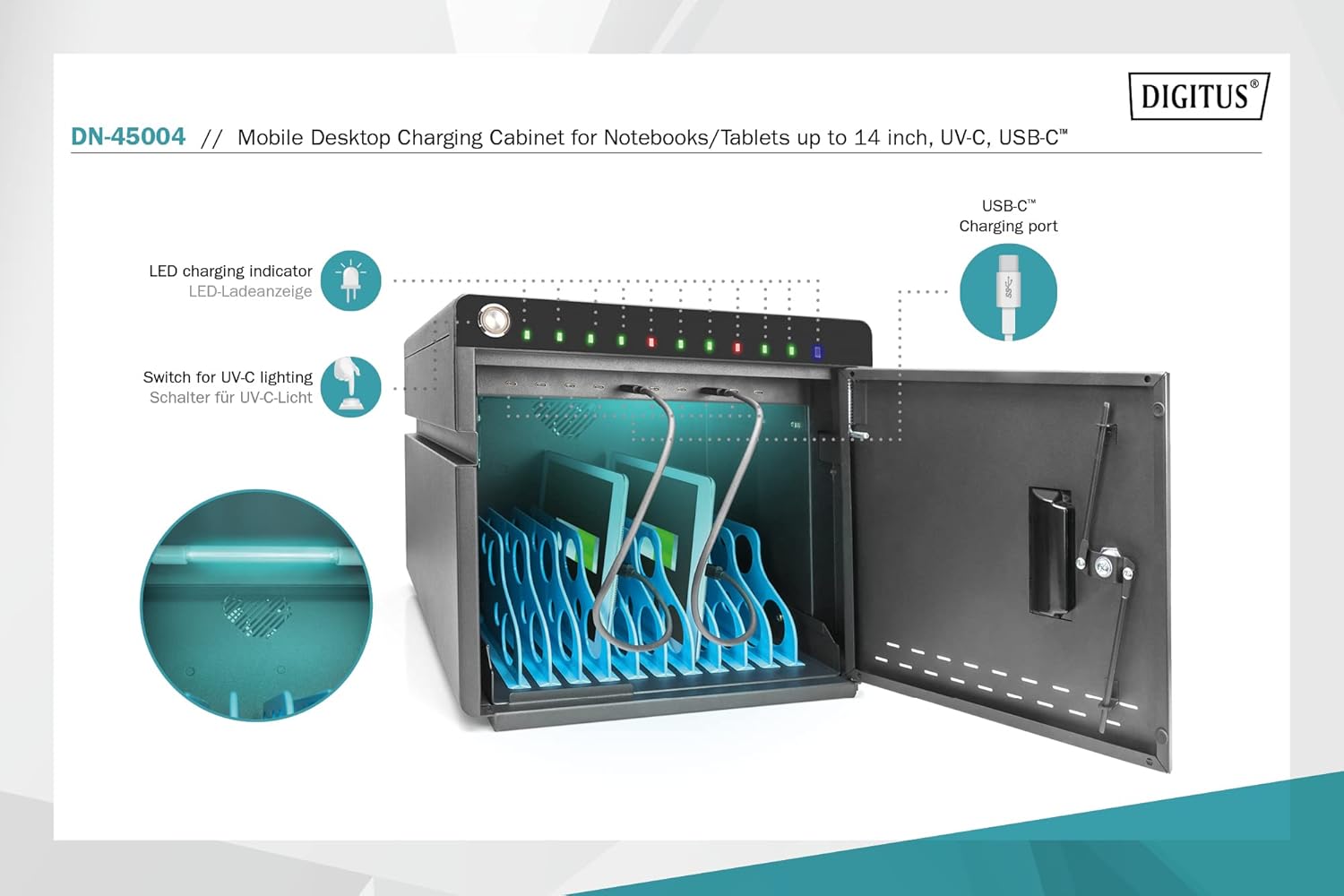
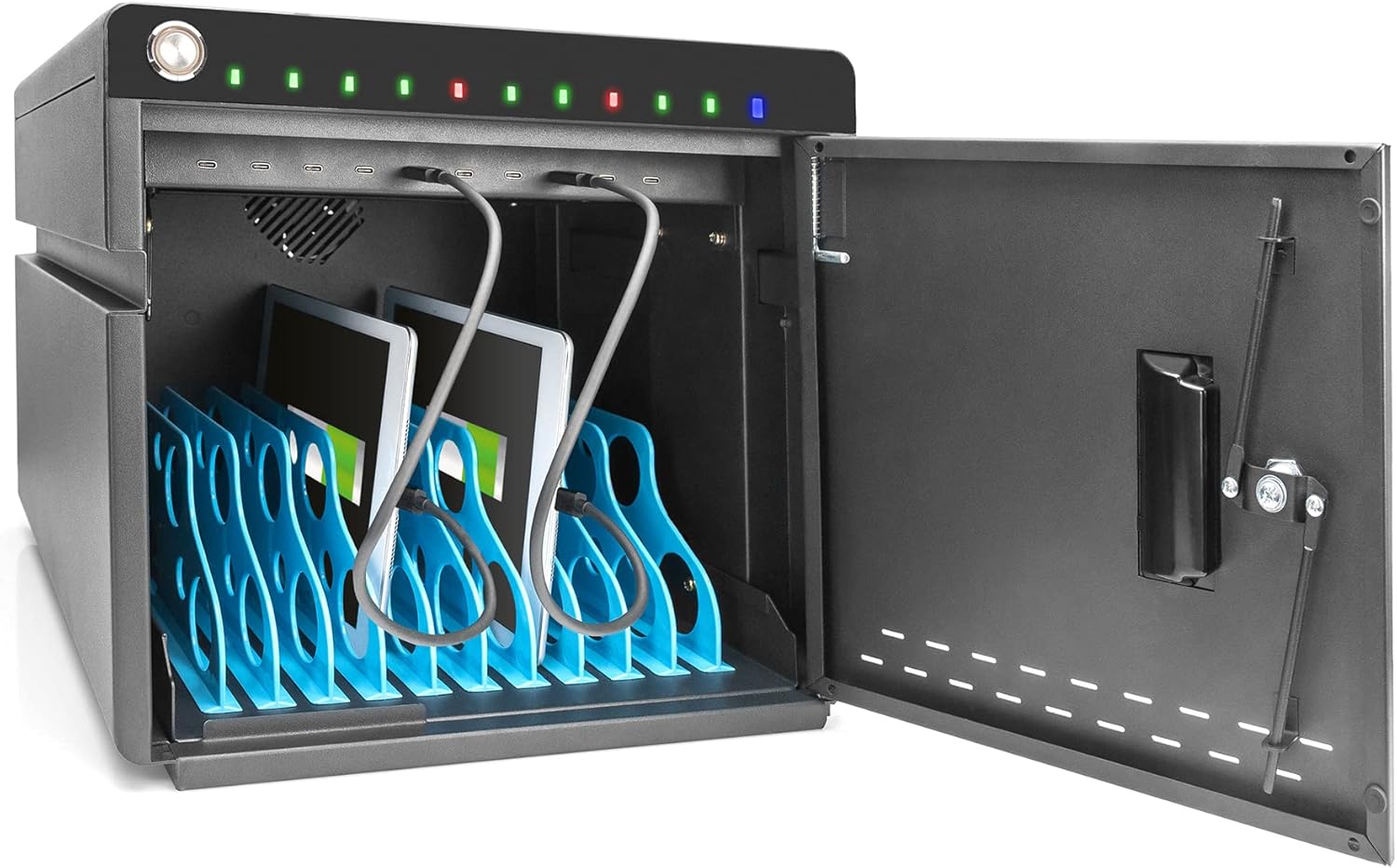
5.2 UV-C Lamp Operation
The integrated UV-C lamps provide a sterile environment for your devices.
- Activate UV-C: Locate the switch for UV-C lighting (refer to Figure 5.1). Toggle the switch to activate the UV-C lamps.
- Ensure Door is Closed: For safety and effective sanitation, ensure the cabinet door is securely closed while the UV-C lamp is active.
- Deactivate UV-C: Toggle the switch again to turn off the UV-C lamps.


5.3 Cooling System
The cabinet includes an integrated fan and ventilation slots for active cooling. The fan automatically activates when the internal temperature exceeds 40°C to prevent overheating of devices and internal components.
6. Maintenance
- Cleaning: Disconnect the power before cleaning. Use a soft, dry cloth to wipe the exterior surfaces. Do not use abrasive cleaners or solvents.
- Ventilation: Ensure ventilation slots are not obstructed to maintain proper airflow.
- UV-C Lamp: The UV-C lamp has a limited lifespan. If the lamp stops working, contact customer support for replacement options.
7. Troubleshooting
| Problem | Possible Cause | Solution |
|---|---|---|
| Cabinet does not power on. | Power cable not connected, power outlet issue, or internal circuit breaker tripped. | Ensure power cable is firmly connected. Test the power outlet. Check and reset the internal circuit breaker (refer to Section 4. Setup). |
| Device is not charging. | Device not properly connected, faulty USB-C cable, or device issue. | Ensure the device is correctly plugged into the USB-C port. Try a different USB-C cable. Test the device with another charger. Check the LED indicator (should be red when charging). |
| UV-C lamp is not turning on. | UV-C switch off, lamp failure, or door not fully closed. | Ensure the UV-C switch is in the 'On' position. Verify the cabinet door is securely closed. If the issue persists, the lamp may need replacement. |
| Laptops do not fit in the slots. | The cabinet is designed for smaller portable devices. | This model is optimized for tablets and smartphones. Please check device dimensions against cabinet specifications. |
8. Specifications
| Feature | Detail |
|---|---|
| Brand | DIGITUS |
| Model Number | DN-45004 |
| Color | Black (RAL 9005) |
| Material | Alloy Steel |
| Dimensions (H x W x D) | 345 x 360 x 370 mm |
| Internal Shelf Depth | 294 mm |
| USB-C Charging Ports | 10 |
| USB-C Output per Port | 18 W (5 V / 3 A, 9 V / 2 A, 12 V / 1.5 A) |
| Max USB-C Output | 180 W |
| Power Input | C19; 110 / 220 VAC, 50/60 Hz, 16 A |
| Total Power Output | 3500 W |
| Cooling | Integrated fan, automatic activation at >40°C |
| Security | Steel front door with 3-point lock |
| Special Features | UV-C lamps for hygiene, LED charging indicators |
| Compatible Devices | Smartphones, Tablets |
9. Warranty and Support
Warranty information for the Digitus DN-45004 Mobile Desktop Charging Cabinet is not available in the provided product data. Please refer to the manufacturer's official website or your point of purchase for detailed warranty terms and conditions.
For technical support, troubleshooting assistance, or inquiries regarding spare parts, please contact DIGITUS customer service directly. You can often find contact information on the manufacturer's website or in the product packaging.
For more information about DIGITUS solutions, visit: Assmann Solutions


