1. Introduction
The MELICONI Facile 5+ Universal Remote Control is a pre-programmed infrared remote designed for ease of use and broad compatibility. It can control up to 5 devices, offering 100% of the functions found on original remote controls. Key features include direct access buttons for popular streaming services, backlit keys for visibility in low light, and a durable GUMBODY rubber casing for protection.
This manual provides detailed instructions for setting up, operating, and maintaining your Facile 5+ remote control.

Image 1.1: The MELICONI Facile 5+ Universal Remote Control, showcasing its button layout and design.
2. Setup and Programming
2.1. Battery Installation
- Open the battery compartment cover on the back of the remote control.
- Insert two AAA batteries, ensuring correct polarity (+/-). The remote features mechanical anti-reverse battery protection.
- Close the battery compartment cover securely.
2.2. Device Programming
The Facile 5+ remote can be programmed using three methods: Manual Code Search, Direct Code Entry, or the Learning Function. For detailed, up-to-date instructions and video tutorials, please visit the official Meliconi support website: cme.it/meliconi.
2.2.1. Manual Code Search
This method allows the remote to automatically search for the correct code for your device.
- Turn on the device you wish to control (e.g., TV).
- Press and hold the corresponding device button (TV, TER, SAT, AUX, DVD) on the remote until the indicator light blinks.
- Follow the on-screen instructions or refer to the Meliconi website for the specific key sequence to initiate the automatic search.
- Once your device responds (e.g., turns off), press the device button again to save the code.
2.2.2. Direct Code Entry
If you know the specific code for your device, you can enter it directly.
- Turn on the device you wish to control.
- Press and hold the corresponding device button (TV, TER, SAT, AUX, DVD) until the indicator light blinks.
- Enter the 4-digit code for your device using the number keys. Codes can be found on the Meliconi support website.
- If the code is correct, the indicator light will turn off. Test the remote's functions. If it doesn't work, try another code from the list.
2.2.3. Learning Function
The learning function allows the Facile 5+ to learn commands directly from your original remote control, key by key.
- Place the Facile 5+ and your original remote control face-to-face on a flat surface, about 2-5 cm apart.
- Activate the learning mode on the Facile 5+ (refer to the Meliconi website for the specific key sequence).
- Press the key on the Facile 5+ you want to program. The indicator light will blink.
- Press and hold the corresponding key on your original remote control. The indicator light on the Facile 5+ will confirm successful learning.
- Repeat for all desired keys. Exit learning mode when finished.
3. Operating Instructions
3.1. Basic Functions
- Power Button (⏻): Turns the selected device on or off.
- Number Keys (0-9): For direct channel selection or numerical input.
- Channel Up/Down (P+ / P-): Changes channels.
- Volume Up/Down (V+ / V-): Adjusts volume.
- Mute Button (i): Mutes or unmutes audio.
- Navigation Keys (▲ ▼ ◀ ►): Used for menu navigation.
- OK Button: Confirms selections in menus.
3.2. Smart Functions and Shortcut Keys
- Netflix Button (N): Provides direct access to the Netflix streaming service.
- Amazon Prime Video Button (►): Provides direct access to Amazon Prime Video.
- Smart Home Button (⌂): Accesses the application menu or smart home features of your television.
3.3. Advanced Features
- MEMO Function: Allows you to store a sequence of commands (e.g., turning on multiple devices) and assign them to a single key for convenient execution. Refer to the Meliconi website for setup instructions.
- Secondary Function Assignment: You can assign secondary functions to keys, expanding the remote's capabilities.
- Backlit Keys: The keys illuminate for easy use in dark environments. The backlight activates automatically when a button is pressed.
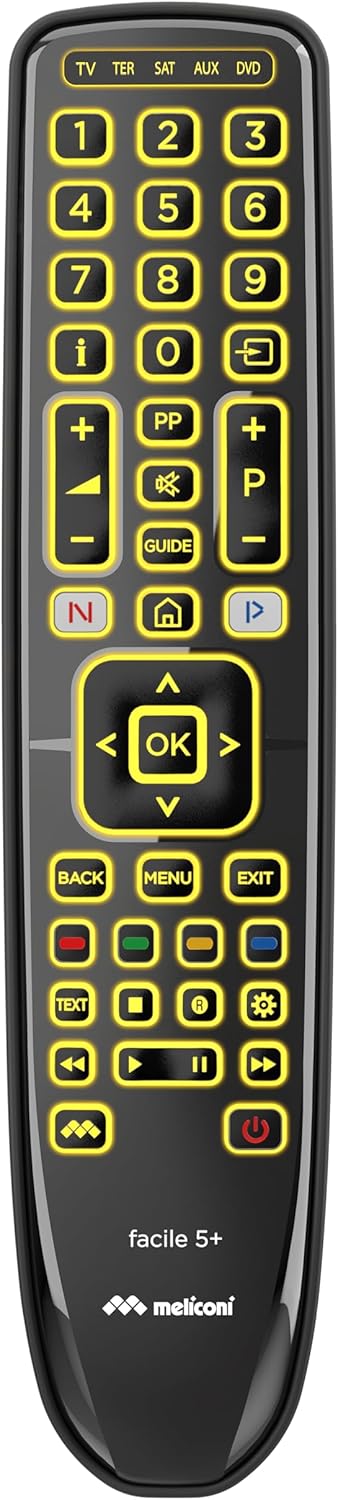
Image 3.1: The MELICONI Facile 5+ remote control with its backlit keys illuminated, enhancing visibility in low-light conditions.
4. Maintenance
- Cleaning: Use a soft, dry cloth to clean the remote control. Avoid using abrasive cleaners or solvents.
- Durability: The GUMBODY rubber casing provides enhanced protection against accidental shocks and drops.
- Battery Life: Replace batteries when the remote's indicator light becomes dim or unresponsive. The remote retains its programming even when batteries are removed.
- Storage: Store the remote in a dry place, away from extreme temperatures and direct sunlight.

Image 4.1: Side profile of the MELICONI Facile 5+ remote, highlighting its ergonomic design and GUMBODY protective casing.
5. Troubleshooting
- Remote not responding: Check battery installation and ensure batteries are not depleted. Replace if necessary.
- Device not responding to commands: Verify that the remote is programmed correctly for the specific device. Re-attempt programming if needed. Ensure there are no obstructions between the remote and the device's infrared receiver.
- Limited range: The remote has a maximum range of 10 meters. Ensure you are within this range and that the remote is pointed directly at the device.
- Specific functions not working: Some advanced functions may require specific programming or may not be supported by all devices. Refer to the Meliconi support website for compatibility and detailed function setup.
- Backlight not working: Check battery levels. If the issue persists, contact customer support.
6. Specifications
| Feature | Detail |
|---|---|
| Brand | Meliconi |
| Model Name | Facile 5+ |
| Model Number | 806080 |
| Connectivity Technology | Infrared |
| Special Features | Anti-shock (GUMBODY), Universal, Backlit Keys, Learning Function, MEMO Function |
| Compatible Devices | Television, and up to 5 devices (TV, TER, SAT, AUX, DVD) |
| Maximum Range | 10 Meters |
| Battery Type | AAA |
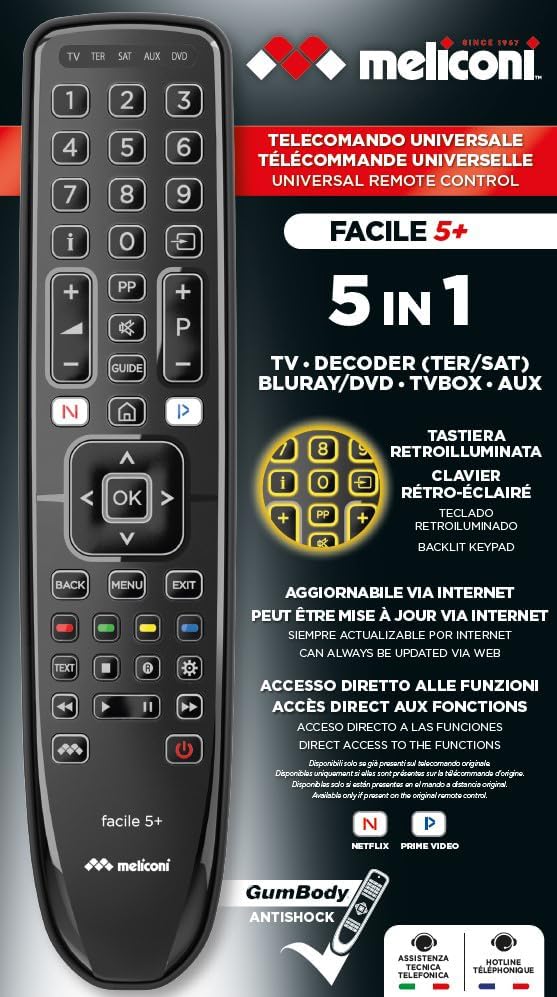
Image 6.1: Overview of the MELICONI Facile 5+ features, including 5-in-1 control, backlit keypad, internet update capability, direct access functions, and GUMBODY anti-shock protection.
7. Warranty and Support
7.1. Warranty Information
Warranty information for the MELICONI Facile 5+ Universal Remote Control is not available in this document. Please refer to your purchase receipt or the official Meliconi website for specific warranty terms and conditions.
7.2. Customer Support
For further assistance, technical support, or to find the latest device codes and programming videos, please visit the official Meliconi support website:
You may also find contact information for Meliconi customer service on their website.


