
Blackview N95
Blackview Mini PC MP60 User Manual
Model: N95
1. Introduction
This user manual provides comprehensive instructions for the Blackview Mini PC MP60, an ultra-compact and efficient desktop computer. Designed for various applications including home office, study, and multimedia, this mini PC offers powerful performance in a small form factor. Please read this manual thoroughly before operating the device to ensure proper usage and maintenance.
2. Safety Information
- Use only the provided power adapter.
- Do not expose the device to water, moisture, or extreme temperatures.
- Avoid placing the device in direct sunlight or near heat sources.
- Ensure proper ventilation; do not block cooling vents.
- Do not attempt to disassemble or repair the device yourself. Contact qualified personnel for service.
- Keep out of reach of children.
3. Package Contents
Verify that all items are present in your package:
- 1 x Blackview MP60 N150 Mini PC
- 1 x Power Adapter
- 1 x HDMI Cable
- 1 x Mounting Bracket
- 1 x User Manual
4. Product Overview
The Blackview Mini PC MP60 is a compact yet powerful computing solution. Its small footprint allows for versatile placement, including mounting behind a monitor.

Figure 4.1: Blackview Mini PC MP60, showcasing its compact design and various ports.
4.1. Ports and Interfaces
The MP60 is equipped with a variety of ports to ensure broad compatibility and expandability:
- USB 2.0 Type-A: 2 ports (for peripherals like keyboard, mouse)
- USB 3.0 Type-A: 2 ports (for high-speed data transfer)
- HDMI 1.4b Type A: 2 ports (supports dual 4K UHD display output at 60Hz)
- RJ45 Gigabit Ethernet: 1 port (for high-speed wired network connectivity)
- DC Jack: 1 port (for power input)
- 3.5mm Audio-in/out Jack: 1 port (for headphones or external speakers)
- Wireless Connectivity: 2.4G+5.0G dual-band WiFi and Bluetooth 4.2

Figure 4.2: Detailed diagram of the Blackview Mini PC's ports and their functions.
5. Setup
5.1. Initial Connection
- Connect your monitor(s) to the HDMI ports on the back of the Mini PC using the provided HDMI cable(s).
- Connect your keyboard and mouse to the USB ports.
- For wired internet, connect an Ethernet cable to the RJ45 port. For wireless, ensure Wi-Fi antennas are connected (if external).
- Connect the power adapter to the DC Jack and then plug it into a power outlet.
- Press the power button on the front of the Mini PC to turn it on.
5.2. Operating System Setup (Windows 11 Pro)
The Blackview Mini PC comes with Windows 11 Pro pre-installed. During the initial boot process, you will be guided through the Windows setup. Follow the on-screen instructions to configure your region, language, network settings, and user account.
Important Warning: During the system boot process, if you cannot log in to your personal account, please turn off Wi-Fi and LAN, select the skip option, and then log in to your personal account in the system.
Video 5.1: A brief overview of the Blackview Mini PC Intel 12th N95, highlighting its features and compact design.
6. Operating Instructions
6.1. Power On/Off
- Power On: Press the power button on the front panel.
- Shut Down: Click the Start button in Windows, then select Power > Shut down.
- Restart: Click the Start button in Windows, then select Power > Restart.
- Sleep: Click the Start button in Windows, then select Power > Sleep.
6.2. Performance and Usage
Equipped with a 12th Gen Intel N95 processor, 16GB DDR4 RAM, and a 512GB M.2 2280 SSD, the MP60 is designed for efficient multitasking, web browsing, media playback, and office applications. Its enhanced CPU and GPU performance ensure a smooth user experience.

Figure 6.1: Overview of the 12th Gen Intel N95 processor's capabilities and performance metrics.
6.3. Dual Display Setup
The dual HDMI ports allow you to connect two monitors simultaneously, creating an expansive workspace for increased productivity or immersive entertainment.

Figure 6.2: The Mini PC supporting dual 4K HDMI displays for an expanded workspace.
7. Storage Expansion
The Blackview Mini PC MP60 offers flexible storage expansion. You can easily add a 2.5-inch SSD/HDD (not included) to increase storage capacity up to 2TB.
- Locate the detachable empty base on the bottom of the Mini PC.
- Carefully remove the base.
- Install your 2.5-inch SSD/HDD into the designated slot.
- Secure the drive and reattach the base.

Figure 7.1: Steps for easily extending storage with a 2.5-inch SSD/HDD.
8. Mounting Options
The compact design of the Blackview Mini PC allows for various mounting options, including attaching it to the back of a monitor using the included mounting bracket, saving valuable desk space.

Figure 8.1: The compact size of the Mini PC allows for easy mounting behind a monitor.
9. Maintenance
9.1. Cleaning
- Use a soft, dry cloth to clean the exterior of the Mini PC.
- Do not use liquid cleaners or aerosols.
- Periodically check cooling vents for dust accumulation and gently clean them to ensure optimal airflow.
9.2. Cooling System
The MP60 features an efficient cooling fan designed to keep the CPU temperature low and ensure stable performance. The fan operates quietly, even under load, to provide a comfortable working environment.
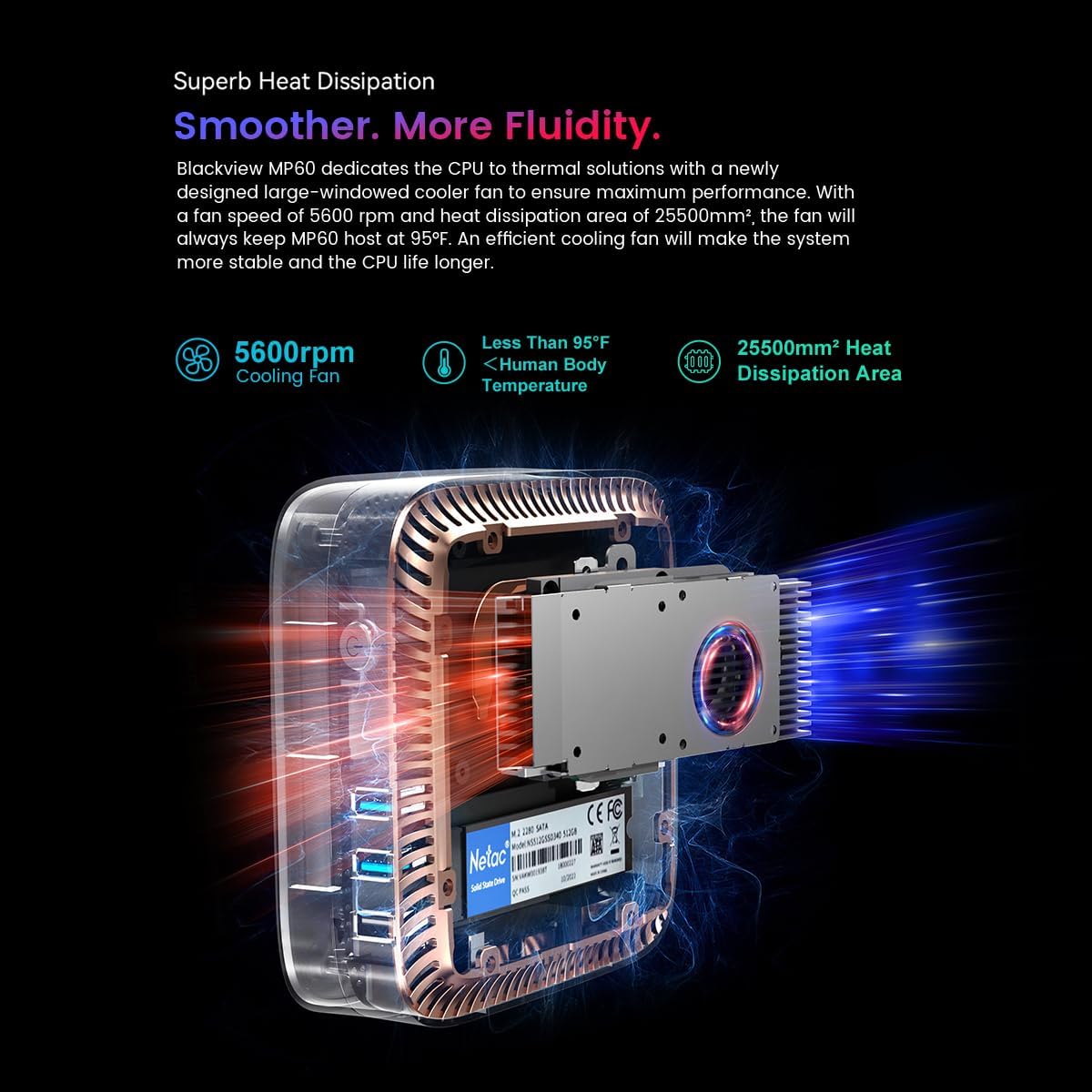
Figure 9.1: Illustration of the cooling system within the Blackview Mini PC, highlighting the fan and heat dissipation area.
10. Troubleshooting
| Problem | Possible Cause | Solution |
|---|---|---|
| No power | Power adapter not connected or faulty outlet. | Ensure power adapter is securely connected and try a different power outlet. |
| No display | Monitor not connected or input source incorrect. | Check HDMI cable connections. Ensure monitor input source is set to HDMI. |
| Wi-Fi/Bluetooth not working | Drivers missing or disabled in OS. | Check Device Manager for driver status. Ensure Wi-Fi/Bluetooth is enabled in Windows settings. |
| Slow performance | Too many applications running or insufficient storage. | Close unnecessary applications. Consider expanding storage or freeing up disk space. |
11. Specifications
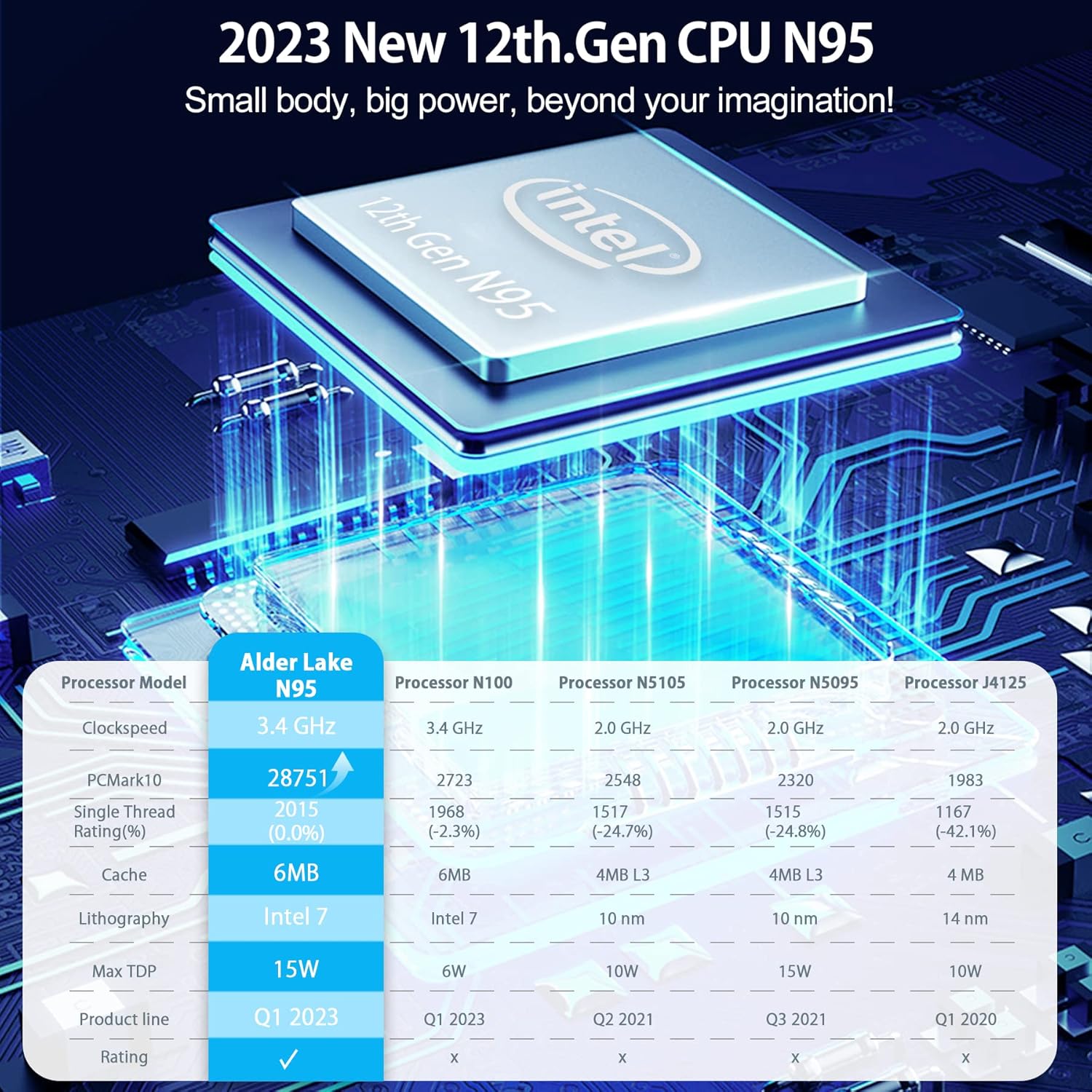
Figure 11.1: Performance comparison of the Intel 12th Gen N95 processor against other models.
| Feature | Detail |
|---|---|
| Processor | 12th Gen Intel N95 (up to 3.4 GHz) |
| RAM | 16GB DDR4 |
| Internal Storage | 512GB M.2 2280 SSD |
| Storage Expansion | Supports 2.5-inch SSD/HDD up to 2TB (not included) |
| Graphics | Intel UHD Graphics 600 |
| Video Output | Dual HDMI 1.4b (4K@60Hz) |
| USB Ports | 2 x USB 2.0, 2 x USB 3.0 |
| Network | RJ45 Gigabit Ethernet, 2.4G+5.0G Dual Band WiFi |
| Bluetooth | Bluetooth 4.2 |
| Operating System | Windows 11 Pro (pre-installed) |
| Dimensions | Approx. 9.72 x 7.68 x 2.72 inches (Package) |
| Weight | Approx. 2.23 pounds (Item) |
12. Warranty and Support
Blackview provides comprehensive customer support for the MP60 Mini PC.
- Warranty: 2 years warranty from the date of purchase.
- Technical Support: 24/7 customer service support is available.
- Contact: For product-related questions or support, you can contact the after-sales team via email at support@blackview.hk.
- Alternatively, for Amazon-related support, log in to your Amazon account, navigate to "Your Orders," and select "Ask Product Question."
Related documentsN95


Ask a question about this manual
Ask about setup, troubleshooting, compatibility, parts, safety, or missing instructions. Manuals+ will review the question and use this page’s manual context to help answer it.