
FLAMMA FX150
FLAMMA FX150 Multi Effects Processor User Manual
Comprehensive instructions for setup, operation, and maintenance of your FLAMMA FX150.
1. Introduction
Thank you for choosing the FLAMMA FX150 Multi Effects Processor. This device is designed to provide a wide range of guitar effects, amplifier models, and cabinet simulations in a compact and user-friendly format. It features a touchscreen interface, customizable footswitches, and extensive connectivity options for various musical applications. Please read this manual thoroughly to understand the full capabilities of your FX150 and ensure optimal performance.

Figure 1: FLAMMA FX150 Multi Effects Processor with expression pedal.
2. Product Overview
2.1 Front Panel Controls
- Touchscreen Display: Main interface for navigating menus, selecting effects, and adjusting parameters.
- MASTER Knob: Controls the overall output volume.
- VALUE Knob: Used for data entry, scrolling through options, and confirming selections.
- EXP Pedal: Built-in expression pedal for real-time control of various effects parameters (e.g., volume, wah).
- Footswitches A, B, C: Assignable footswitches for preset changes, effect toggling, looper control, and tuner activation.
2.2 Rear Panel Connections
The rear panel of the FX150 provides all necessary input and output ports for connecting to your guitar, amplifier, computer, and other audio devices.

Figure 2: Detailed view of the FLAMMA FX150 rear panel connections.
- Power Switch: Toggles the device on/off.
- DC IN: Power port (9V DC, 300mA recommended). Use the original power supply.
- USB: Type-C port for computer connection (preset management, IR file import, firmware updates, audio interface).
- AUX IN: 1/8" stereo audio input jack for connecting external audio devices.
- EXP2: 1/4" stereo audio input jack for connecting an external expression pedal (use a 1/4" TRS cable).
- INPUT: 1/4" mono audio input jack for guitar or other pedal output.
- SEND: 1/4" mono audio output jack of FX LOOP. Connect to external pedal input or amplifier input (four-cable method).
- RETURN: 1/4" mono audio input jack of FX LOOP. Connect to external pedal output or amplifier send (four-cable method).
- OUTPUT (L/MONO, R): 1/4" stereo audio output jacks. L/MONO for unbalanced signal or mono audio setup.
- PHONES: 1/8" stereo headphone output.
3. Setup
3.1 Power Connection
Connect the provided 9V DC power adapter to the DC IN port on the rear panel. Ensure the power switch is in the OFF position before connecting. Once connected, you can toggle the power switch to ON.
3.2 Basic Connections
The FX150 offers various connection methods depending on your setup.
- Connecting to an Amplifier's Return (FX Loop):

Figure 3: Connect your guitar to the FX150 INPUT. Connect the FX150 OUTPUT to the RETURN of your amplifier's FX Loop or directly to a power amplifier.
- Connecting to Studio Monitors, Sound Cards, or Headphones:

Figure 4: Connect your guitar to the FX150 INPUT. Connect the FX150 OUTPUT to full-frequency devices such as studio monitors, sound cards, stage monitors, or PA systems. Connect headphones to the PHONES output.
- Connecting to an Amplifier's Input:

Figure 5: Connect your guitar to the FX150 INPUT. Connect the FX150 OUTPUT to the INPUT of your amplifier.
- Four-Cable Method Connection:

Figure 6: Connect your guitar to the amplifier's INPUT. Connect the amplifier's SEND to the FX150 INPUT. Connect the FX150 SEND to the amplifier's RETURN. Connect the FX150 OUTPUT to the amplifier's RETURN.
4. Operating Instructions
4.1 Navigating the Touchscreen
The FX150 features a high-quality touchscreen for intuitive navigation and parameter adjustment. Tap icons and menus to select, and use the VALUE knob for fine-tuning.

Figure 7: Interacting with the touchscreen to select and adjust sounds.
4.2 Effects Chain and Presets
The FX150 allows you to customize your effects chain with 10 freely movable effects blocks and 160 built-in effects. There are 180 editable user effects slots to save your personalized tones.
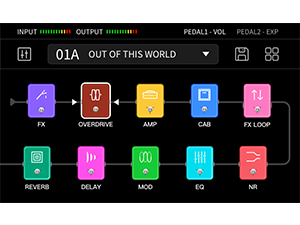
Figure 8: Visual representation of the customizable effects chain on the FX150.
- Amp Simulations: Supports 1024-point impulse response (IR) files for detailed amp emulation.
- Cabinet Simulations: Includes 30 high-quality preinstalled cab emulations. These can be replaced with edited versions or third-party IR files using the FX150 editing software.
- Effect Editing: Select an effect block on the touchscreen to access its parameters. Use the VALUE knob to adjust settings.
- Saving Presets: After customizing your effects chain and settings, save your preset to one of the 180 user slots for quick recall.

Figure 9: Illustration of the non-linear amp modeling technology with 1024-point sample accuracy.
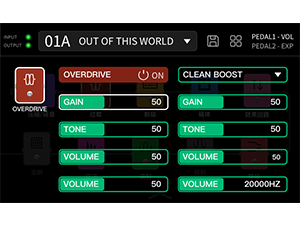
Figure 10: Example of adjusting overdrive effect parameters on the touchscreen.
4.3 Drum Machine and Looper
The FX150 includes a built-in drum machine and looper for practice and creative use.
- Drum Machine: Features 80 drum machine variations and 10 metronome variations.
- Looper: Offers looping functionality up to 52 seconds.
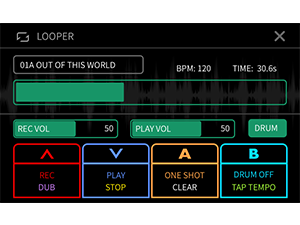
Figure 11: The looper interface showing recording and playback controls, and drum machine integration.
4.4 Customizable Footswitches
The footswitches (A, B, C) can be configured to control various functions, including turning effects on/off, controlling specific parameters, or activating the tuner/looper.

Figure 12: Menu for customizing footswitch assignments and expression pedal functions.
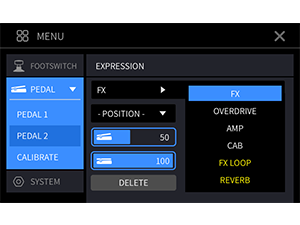
Figure 13: Menu for calibrating the expression pedal and assigning its functions.
4.5 Using the Editor Software
Connect the FX150 to your computer via the USB-C port to use the dedicated editor software. This software provides a visual interface for managing presets, importing IR files, and updating firmware.

Figure 14: The FLAMMA FX150 connected to a computer running the editor software for advanced control.
5. Maintenance
- Cleaning: Use a soft, dry cloth to clean the unit. Avoid abrasive cleaners or solvents.
- Storage: Store the unit in a dry, cool place away from direct sunlight and extreme temperatures.
- Power Supply: Always use the original power adapter or a compatible 9V DC (center negative) power supply with sufficient current (300mA or higher).
- Firmware Updates: Regularly check the official FLAMMA website for firmware updates to ensure optimal performance and access to new features.
6. Troubleshooting
| Problem | Possible Solution |
|---|---|
| No power | Ensure the power adapter is correctly connected and the power switch is ON. Verify the power adapter specifications (9V DC, center negative, 300mA minimum). |
| No sound output | Check all audio cable connections. Verify the MASTER volume knob is turned up. Ensure the selected preset has active effects and appropriate volume levels. Check your amplifier/monitor volume. |
| Distorted or unwanted sound | Check input gain levels on the FX150 and your amplifier. Adjust individual effect parameters (e.g., gain on overdrive/distortion). Ensure correct connection method for your setup (e.g., amp modeling should be off when connecting to an amp's input). |
| Footswitches not responding | Check footswitch assignments in the settings menu. Ensure the unit is not in a mode that overrides footswitch functions (e.g., tuner mode). |
| Cannot connect to computer | Ensure the USB-C cable is securely connected. Install the necessary drivers for the FX150 on your computer. Try a different USB port or cable. |
7. Specifications
| Feature | Detail |
|---|---|
| Model | FX150 |
| Brand | FLAMMA |
| Item Weight | 6.16 pounds (2.8 Kilograms) |
| Product Dimensions | 10.7 x 5.9 x 2.2 inches |
| Power Source | Corded Electric (9 Volts DC) |
| Material Type | Metal |
| Hardware Interface | USB |
| Signal Format | Analog |
| Amp Simulations | Supports 1024-point Impulse Response (IR) files |
| Cabinet Simulations | 30 preinstalled, supports 3rd-party IR files |
| Built-in Effects | 160 unique types |
| User Effects Slots | 180 editable slots |
| Drum Machine | 80 variations, 10 metronome variations |
| Looper | Up to 52 seconds |
8. Warranty and Support
For warranty information, technical support, or service inquiries, please contact FLAMMA customer support directly. Refer to the official FLAMMA website for the most up-to-date contact details and support resources.
Official FLAMMA Website: www.flamma.shop
Related documentsFX150


Ask a question about this manual
Ask about setup, troubleshooting, compatibility, parts, safety, or missing instructions. Manuals+ will review the question and use this page’s manual context to help answer it.