
DEERC DEERC-D11
DEERC D11 Mini Drone Instruction Manual
Model: DEERC-D11
Introduction
Thank you for purchasing the DEERC D11 Mini Drone. This manual provides essential information for safe operation, setup, maintenance, and troubleshooting. Please read it thoroughly before using your drone to ensure optimal performance and longevity.

The DEERC D11 Mini Drone, its remote controller, and two modular batteries.
What's in the Box
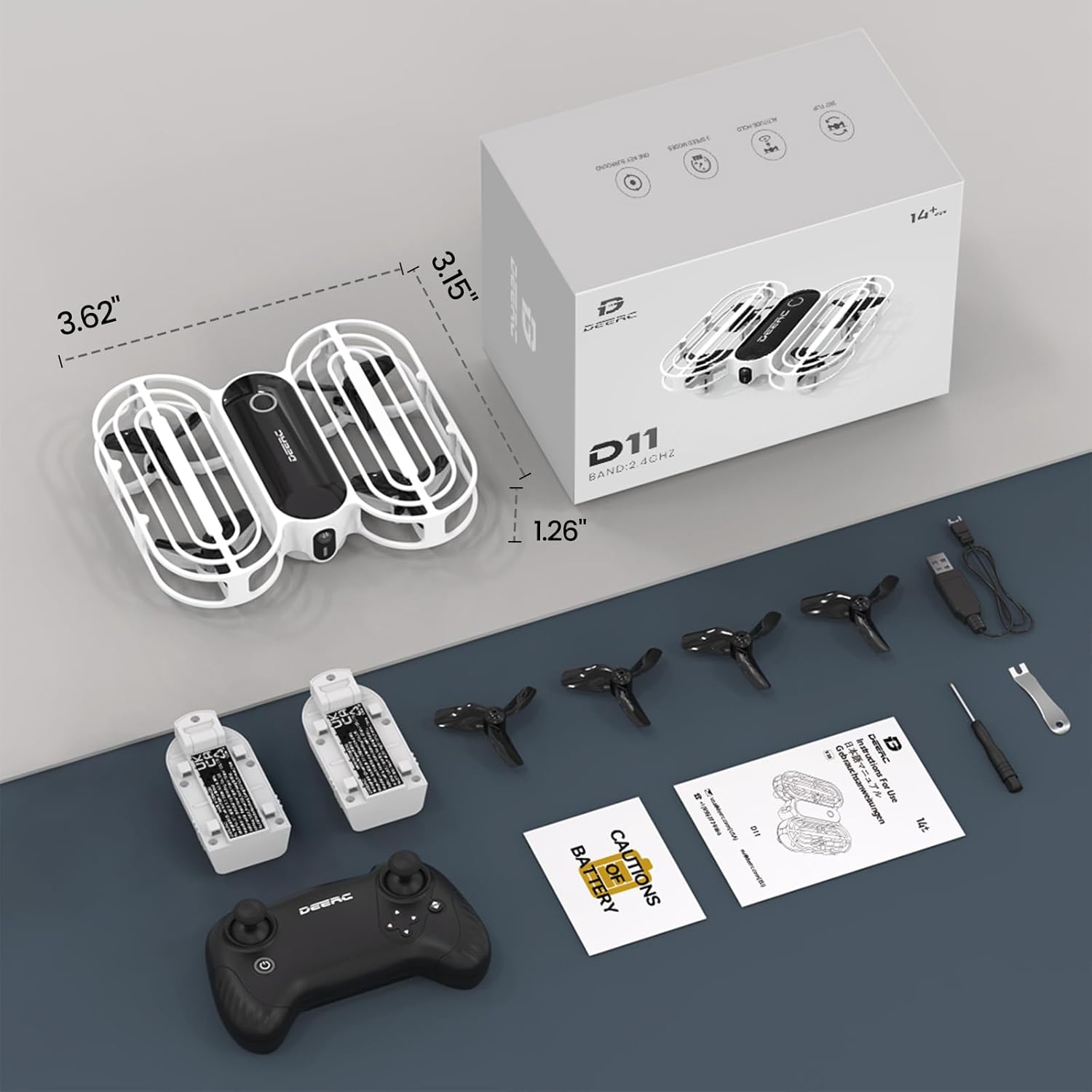
All components included in the DEERC D11 Mini Drone package.
- DEERC D11 Mini Drone
- Remote Controller
- 2 x Rechargeable Drone Batteries
- USB Charging Cable
- 4 x Spare Propellers
- Propeller Removal Tool
- Screwdriver
- Instruction Manual
Setup Guide
1. Remote Controller Battery Installation
The remote controller requires 3 x AAA batteries (not included). Open the battery compartment on the back of the controller, insert the batteries according to the polarity markings, and close the compartment securely.
2. Drone Battery Charging & Installation
The DEERC D11 comes with 2 modular rechargeable batteries. Each battery provides approximately 8 minutes of flight time.
- Charging: Connect the drone battery to the USB charging cable. Plug the USB end into a compatible USB power source (e.g., computer USB port, USB wall adapter). The indicator light on the cable will show charging status (e.g., red for charging, green for fully charged).
- Installation: Gently slide the charged battery into the battery slot on the drone until it clicks into place.

The modular battery design allows for easy insertion and removal from the drone.
3. Pairing and Calibration
- Place the drone on a flat, level surface with its head (front) pointing forward.
- Turn on the remote controller by pressing and holding the power button. The remote will beep.
- Press and hold the power button on the drone. The drone's lights will blink, indicating it's searching for the remote.
- Once the drone's lights become solid, it is successfully paired.
- To calibrate the gyroscope, simultaneously push both joysticks on the remote controller towards the outer, lower corners. The drone's lights will blink rapidly and then turn solid, indicating successful calibration.
- To unlock the motors, simultaneously push both joysticks towards the inner bottom corners. The propellers will start spinning slowly.
Operating Instructions
Basic Flight Controls
- One Key Takeoff/Landing: After unlocking the motors, press the One Key Takeoff/Landing button (usually indicated by an up/down arrow icon) to automatically take off or land.
- Throttle (Left Joystick): Push up to ascend, pull down to descend.
- Direction (Right Joystick): Push forward to fly forward, pull back to fly backward. Push left to fly left, push right to fly right.
- Yaw (Left Joystick Left/Right): Push left to rotate counter-clockwise, push right to rotate clockwise.
Special Features
- Throw to Go: With motors unlocked, gently toss the drone into the air, and it will automatically stabilize and hover.
- Circle Fly: Press the Circle Fly button (refer to remote diagram) to make the drone perform circular motions in the air.
- 3D Flips: Press the 3D Flip button (refer to remote diagram) and then push the right joystick in any direction to perform a 360-degree flip.
- Speed Switch: The drone has 3 speed modes (low, medium, high). Press the Speed Switch button to cycle through them, offering progressive challenges for pilots.
- Altitude Hold: This feature ensures stable hovering at a set altitude, making it easier for beginners to control the drone.
- Headless Mode: In Headless Mode, the drone's direction is always relative to the pilot's orientation, regardless of the drone's actual front. This provides care-free flying for beginners.
- Emergency Stop: In case of emergency, press the Emergency Stop button (refer to remote diagram) to immediately cut power to the motors and stop the drone.

The 'Throw to Go' feature allows for an easy start by simply tossing the drone.

The drone executing a 'Circle Fly' maneuver, adding dynamic movement to playtime.

The drone performing a 360-degree flip, showcasing its acrobatic capabilities.

The Altitude Hold function keeps the drone stable at a desired height.

The Emergency Stop feature provides immediate shutdown for safety.
Official Product Videos
Official DEERC D11 Mini Drone for Kids video, demonstrating key features and ease of use.
Official D11 Promotional Video, showcasing various flight modes and the drone's durable design.
Maintenance
- Propeller Replacement: If a propeller is damaged, use the provided propeller removal tool to carefully detach it. Install a new propeller, ensuring it is correctly oriented (refer to the manual for specific markings if any).
- Cleaning: Use a soft, dry cloth to clean the drone body and propellers. Avoid using water or harsh chemicals.
- Battery Care: Store batteries in a cool, dry place away from direct sunlight. Do not overcharge or over-discharge the batteries. If not used for a long period, charge them to about 50% capacity.
Troubleshooting
- Drone not pairing: Ensure both the drone and remote controller are fully charged. Turn on the remote first, then the drone. Make sure they are within range and there is no interference. Repeat the pairing steps.
- Drone drifting: Perform a gyroscope calibration on a flat, level surface. If drifting persists, check for any damaged propellers and replace them if necessary.
- Short flight time: Ensure batteries are fully charged before each flight. Flight time can be affected by aggressive flying, wind conditions, and frequent use of special features.
- Propellers not spinning: Ensure motors are unlocked after pairing and calibration. Check for any obstructions around the propellers.
Specifications
| Feature | Detail |
|---|---|
| Brand | DEERC |
| Model Name | DEERC-D11 |
| Color | White |
| Connectivity Technology | Remote Control |
| Included Components | Propeller |
| Skill Level | Kids |
| Item Weight | 31 Grams (1.09 ounces) |
| Battery Capacity | 390 Milliamp Hours |
| Video Capture Format | MP4 |
| Control Type | Remote Control |
| Material | Acrylonitrile Butadiene Styrene |
| Product Dimensions | 3.62"L x 3.15"W x 1.26"H |
| Batteries Required | 2 Lithium Polymer batteries (included) |
Warranty and Support
For warranty information and customer support, please refer to the contact details provided in your product packaging or visit the official DEERC website. Keep your purchase receipt for any warranty claims.
Related documentsDEERC-D11


Ask a question about this manual
Ask about setup, troubleshooting, compatibility, parts, safety, or missing instructions. Manuals+ will review the question and use this page’s manual context to help answer it.