
1. Introduction
The Machenike G6 Tri-mode Switch Controller is a versatile gamepad designed for a wide range of gaming platforms, including PC, Nintendo Switch, iOS, Android, and TV boxes. It features advanced technologies such as magnetic Hall sensing joysticks and triggers, Kailh mechanical micro switches, 6-axis gyro motion control, and multi-level vibration feedback. This manual provides detailed instructions for setting up, operating, and maintaining your controller to ensure optimal performance.
2. Package Contents
Please verify that all items are present in your package:
- Machenike G6 Tri-mode Switch Controller
- USB-C Charging Cable
- 2.4G Wireless Receiver
- User Manual
3. Controller Layout
Familiarize yourself with the buttons and features of your Machenike G6 controller.

The controller features standard gamepad buttons (A, B, X, Y), directional pad, dual joysticks, shoulder buttons (L1, R1), and triggers (L2, R2). Additional function buttons include Start, Select, Home, and programmable back buttons.

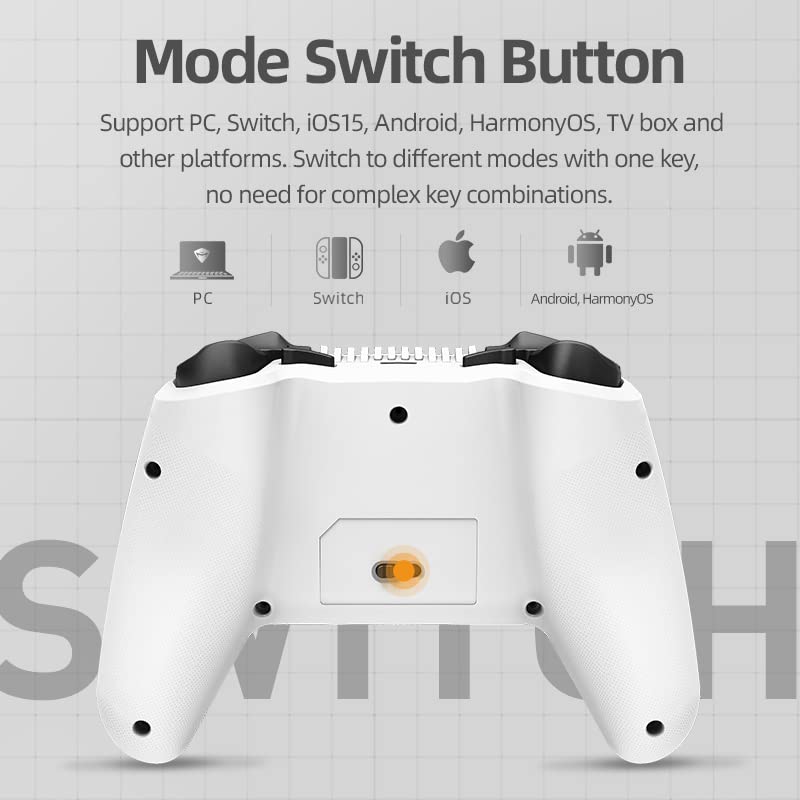
The back of the controller includes a mode switch slider and additional programmable buttons for enhanced gameplay customization.
4. Setup and Connectivity
4.1. Charging the Controller
Connect the supplied USB-C cable to the controller's charging port and the other end to a USB power source (e.g., computer, wall adapter). The LED indicators will show charging status and power consumption.
4.2. Connecting via USB (Wired Mode)
Plug the USB-C cable directly from the controller to your PC or compatible device. The controller will automatically be recognized and ready for use.
4.3. Connecting via 2.4G Wireless
- Insert the 2.4G wireless receiver into a USB port on your device (PC, TV box, etc.).
- Switch the mode slider on the back of the controller to the 2.4G position.
- The controller will automatically pair with the receiver. LED indicators will confirm connection.
4.4. Connecting via Bluetooth 5.0
- Switch the mode slider on the back of the controller to the Bluetooth position.
- On your device (NS, iOS, Android, PC with Bluetooth), go to Bluetooth settings and search for new devices.
- Select "Machenike G6" from the list of available devices to pair. LED indicators will confirm connection.
4.5. Mode Switching
The Machenike G6 supports multiple platforms. Use the mode slider on the back of the controller to select the appropriate connection mode for your device (PC, Switch, iOS, Android, TV box).


5. Operating the Controller
5.1. Magnetic Hall Sensing Joysticks
The G6 controller features Hall effect joysticks that use magnetic induction for precise, drift-free input. This technology ensures long-term accuracy and smooth control without physical wear.

5.2. Three-Way Trigger Locks
Customize your trigger travel distance with three distinct settings:
- Gear 1 (FPS): Short pull for rapid response in first-person shooter games.
- Gear 2 (Universal): Normal travel distance for balanced gameplay across various genres.
- Gear 3 (RAC): Longer full pull for precise control in racing games or fine aiming.

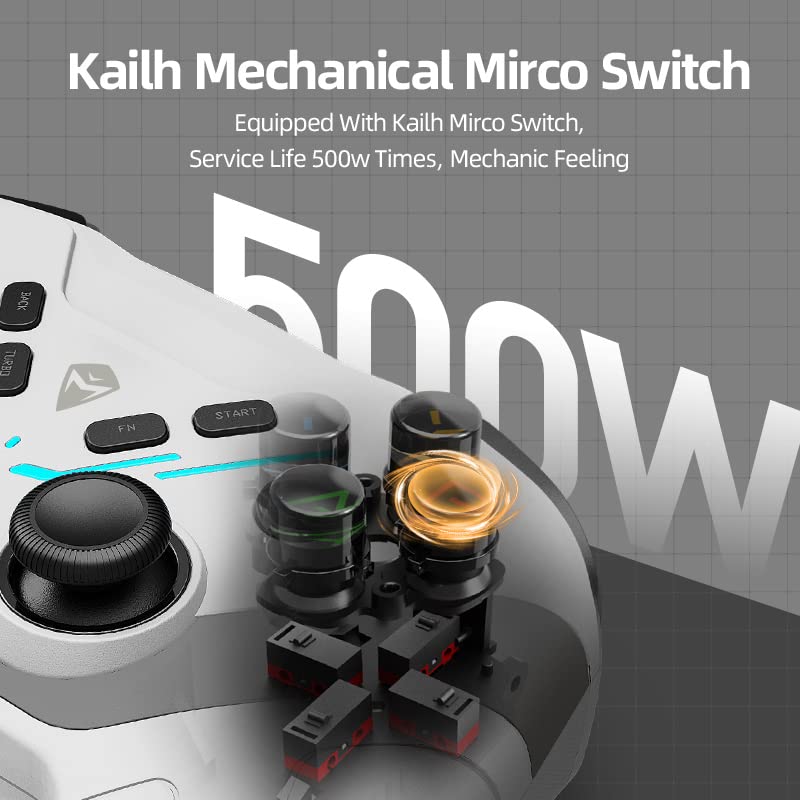
5.3. Kailh Mechanical Micro Switches
The action buttons utilize Kailh mechanical micro switches, providing a shorter trigger stroke and a tactile, responsive feel. This design allows for faster input and improved gaming performance.
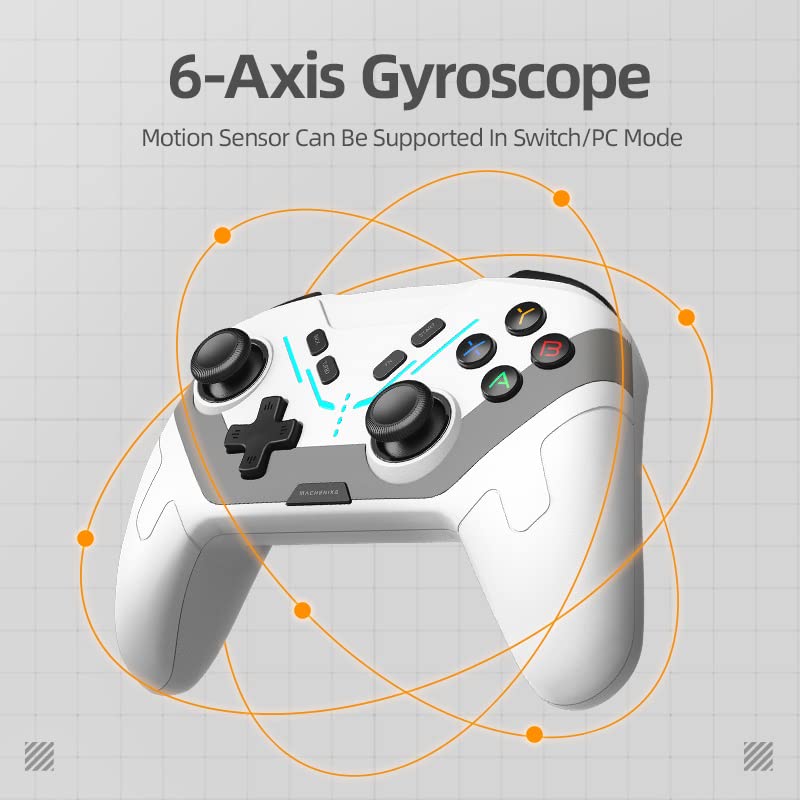
5.4. 6-Axis Gyro Motion Control
The integrated 6-axis gyro provides motion sensing capabilities, enhancing immersion and control in compatible games, particularly on Nintendo Switch and PC platforms. This allows for precise movements based on controller orientation.
5.5. Multi-level Vibration
The controller features dual motors with 100 adjustable levels of vibration. This provides realistic haptic feedback, enhancing immersion in games by simulating impacts, explosions, and other in-game events.
5.6. Turbo Function
Activate the Turbo function for rapid-fire inputs, useful in games requiring quick, repeated button presses. Refer to the in-app settings or specific button combinations for activation and customization.
5.7. LED Lights
The controller includes LED lights with four different modes to create an ambient gaming atmosphere. The visualized power display ensures you are aware of the battery status, allowing timely recharging.
6. APP Customization and Macro Programming
The Machenike G6 controller can be customized using a dedicated smartphone application (KeyLinker). This app allows for extensive personalization of your gaming experience.
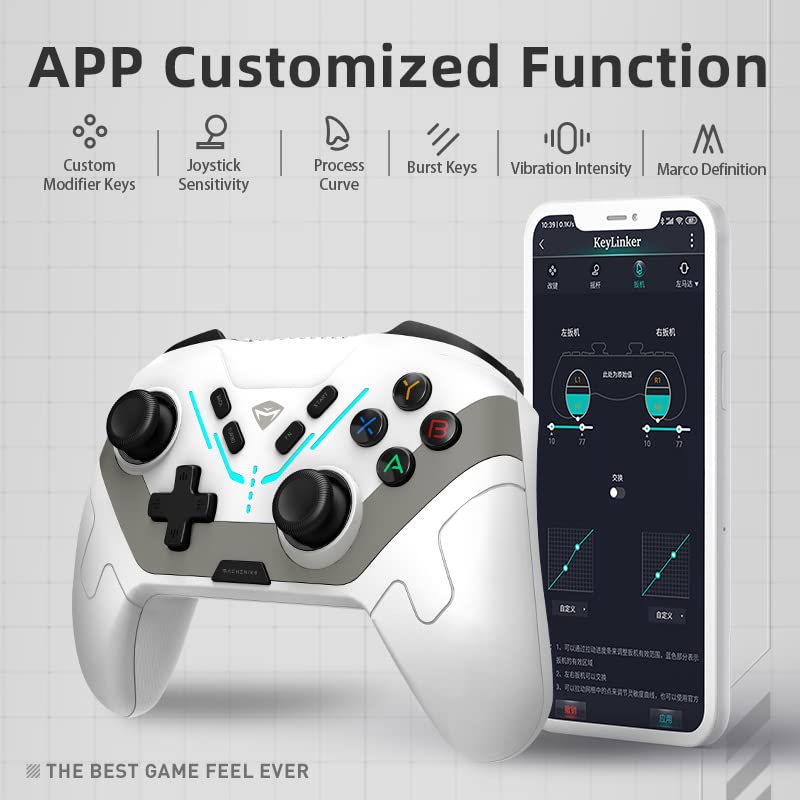
Key features of the app include:
- Macro Editing: Record and assign up to 42 actions to programmable buttons.
- Linear Curve Adjustments: Fine-tune joystick and trigger sensitivity.
- Button Function Mapping: Remap buttons to suit your playstyle.
- Lighting Effects: Adjust LED light modes and brightness.
- Vibration Intensity: Adjust the strength of haptic feedback.

7. Maintenance
To ensure the longevity and optimal performance of your Machenike G6 controller, follow these maintenance guidelines:
- Cleaning: Use a soft, dry cloth to wipe the controller. For stubborn dirt, slightly dampen the cloth with water. Avoid harsh chemicals or abrasive materials.
- Storage: Store the controller in a cool, dry place away from direct sunlight and extreme temperatures.
- Avoid Drops: Protect the controller from impacts and drops, which can damage internal components.
- Cable Care: Handle the USB-C cable gently. Avoid bending or twisting it excessively.
8. Troubleshooting
If you encounter issues with your Machenike G6 controller, refer to the following common problems and solutions:
Controller Not Connecting/Disconnecting Frequently
- Check Mode Switch: Ensure the mode slider on the back of the controller is set to the correct position for your device (USB, 2.4G, or Bluetooth).
- Re-pair Bluetooth: If using Bluetooth, unpair the controller from your device and attempt to pair it again.
- 2.4G Receiver: Ensure the 2.4G receiver is securely plugged into a working USB port. Try a different USB port.
- Battery Level: Low battery can cause connectivity issues. Charge the controller fully.
- Interference: Move away from other wireless devices that might cause interference.
- Firmware Update: Check the official Machenike website or app for any available firmware updates for the controller.
Buttons/Joysticks Unresponsive or Drifting
- Recalibrate: Use the companion app to recalibrate joysticks and triggers if available.
- Clean: Ensure no debris is obstructing button movement.
- Restart: Turn off and restart the controller and your device.
Vibration Not Working
- Check In-Game Settings: Ensure vibration is enabled in the game's settings.
- Check App Settings: Verify vibration intensity is not set to zero in the companion app.
9. Specifications
| Feature | Detail |
|---|---|
| Model | G6 |
| Connectivity | USB (Wired), Bluetooth 5.0, 2.4G Wireless |
| Joysticks | Magnetic Hall Sensing |
| Triggers | Magnetic Hall Sensing with Three-Way Trigger Locks |
| Buttons | Kailh Mechanical Micro Switches |
| Motion Control | 6-Axis Gyro (Switch/PC Mode) |
| Vibration | Dual Motors, 100 Adjustable Levels |
| Customization | Smartphone App (Macro Programming, Curve Adjustments) |
| Dimensions | 5.91 x 3.94 x 1.97 inches |
| Weight | 14.9 ounces |
| Manufacturer | Machenike |
| First Available | April 14, 2023 |
10. Warranty and Support
The Machenike G6 Tri-mode Switch Controller comes with a standard manufacturer's warranty. For specific warranty terms, conditions, and duration, please refer to the warranty card included in your product packaging or visit the official Machenike support website. For technical assistance, troubleshooting beyond this manual, or customer service inquiries, please contact Machenike customer support through their official channels.
11. Product Videos
Watch the official product video for a visual guide on the Machenike G6 Tri-mode Switch Controller's features and usage.


