
Blackview TAB8WIFI
Blackview Tab 8WiFi Android Tablet User Manual
Model: TAB8WIFI
1. Introduction
This manual provides detailed instructions for the Blackview Tab 8WiFi Android Tablet. Please read this manual carefully before using the device to ensure proper operation and to maximize its features. Keep this manual for future reference.

Image: Front and back view of the Blackview Tab 8WiFi Android Tablet, highlighting its sleek design and camera module.
2. Package Contents
Before you begin, please ensure all items are present in your package:
- Blackview Tab 8WiFi Android Tablet
- Protective Case
- Stylus
- Charging Cable (Type-C)
- Power Adapter
- User Manual (this document)
3. Setup
3.1 Initial Charging
Before first use, fully charge your tablet. Connect the provided Type-C charging cable to the tablet's charging port and the power adapter to a wall outlet. The battery indicator on the screen will show charging progress.

Image: The Blackview Tab 8WiFi tablet connected to a charger, illustrating its 6580mAh large battery capacity.
3.2 Powering On/Off
- To Power On: Press and hold the Power button until the Blackview logo appears.
- To Power Off: Press and hold the Power button until the power options menu appears, then select 'Power off'.
3.3 Initial Setup Wizard
Upon first power-on, the tablet will guide you through an initial setup wizard. Follow the on-screen prompts to:
- Select your language.
- Connect to a Wi-Fi network.
- Sign in with your Google account or create a new one.
- Set up screen lock (PIN, pattern, password).
- Review and accept terms and conditions.
3.4 Inserting a MicroSD Card (Optional)
The tablet supports up to 1TB TF card expansion memory. Locate the MicroSD card slot on the side of the tablet. Gently insert the MicroSD card until it clicks into place.
Video: An official Blackview video demonstrating the features of the Tab 8WiFi, including the expandable storage option.
Text Description for Video: This video showcases the Blackview Tab 8WiFi Android 12 tablet. It highlights key features such as super Wi-Fi 6 connectivity with speed tests, dual speakers for immersive audio, two available versions (4GB+64GB and 4GB+128GB), a 3.5mm headphone jack, internal components showing 4GB RAM + 3GB virtual RAM and 64GB/128GB ROM, and the expandable storage slot for up to 1TB TF MicroSD card. It also briefly touches on Android 12 and Doke OS_P 3.0, front and rear cameras, battery life, and screen mirroring capabilities. The video concludes by showing the available grey and blue color options.
5. Operating the Tablet
5.1 Navigation and Interface (Doke OS_P 3.0 based on Android 12)
The Blackview Tab 8WiFi runs on Doke OS_P 3.0, based on Android 12, offering an intuitive and customizable user experience.
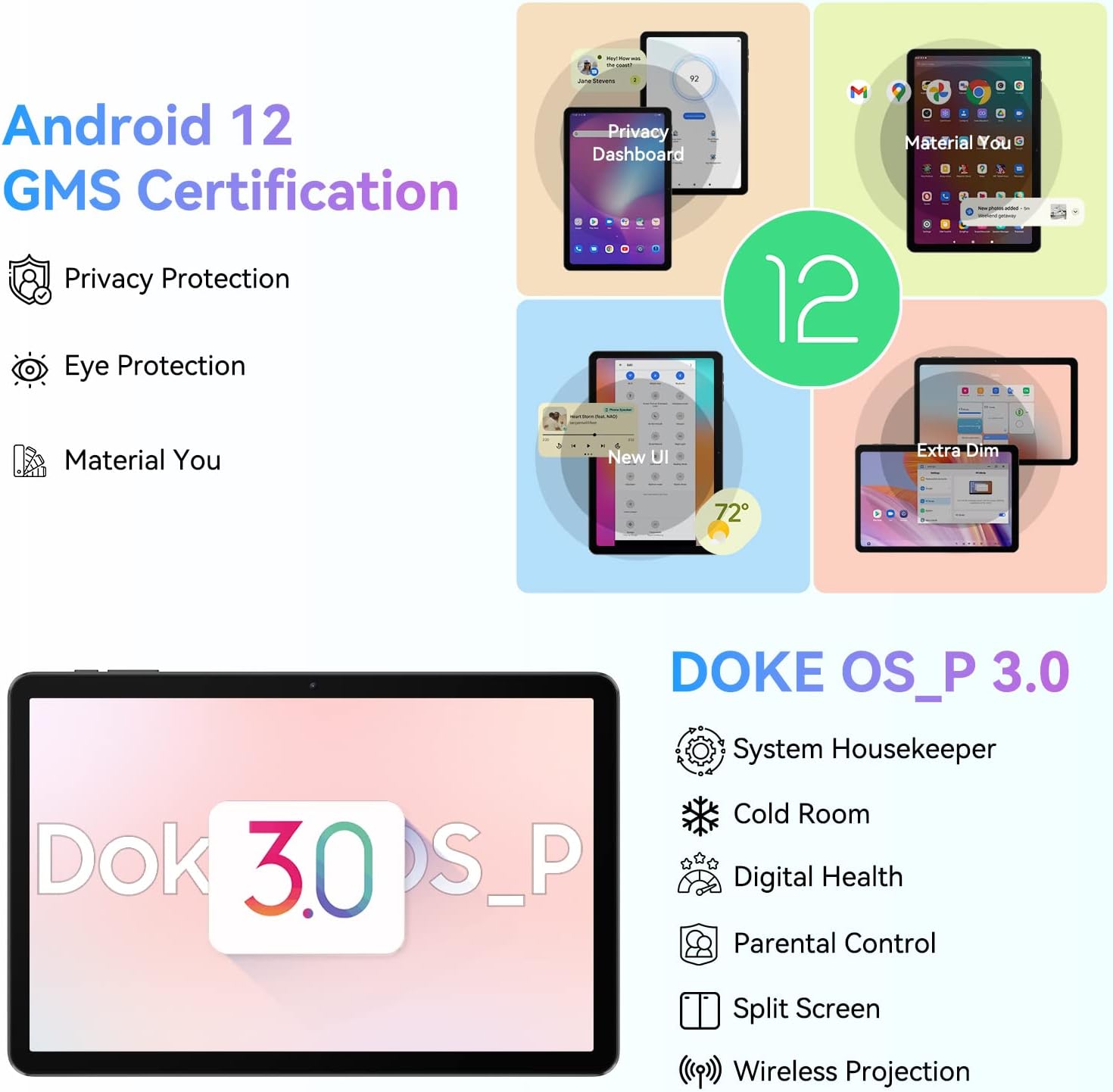
Image: Visual representation of Android 12 and Doke OS_P 3.0 features, including Privacy Protection, Eye Protection, Material You, System Housekeeper, Cold Room, Digital Health, Parental Control, Split Screen, and Wireless Projection.
- Home Screen: Swipe left/right to navigate between pages.
- App Drawer: Swipe up from the bottom of the screen to access all installed applications.
- Quick Settings/Notifications: Swipe down from the top of the screen to access quick settings toggles and notifications.
- Multitasking: Tap the square navigation button (or swipe up and hold from the bottom) to view recent apps.
5.2 Connectivity (Wi-Fi 6 & Bluetooth 5.0)
The tablet features advanced Wi-Fi 6 and Bluetooth 5.0 for fast and stable connections.

Image: The Blackview Tab 8WiFi showcasing its Wi-Fi 6 capabilities for faster internet speeds and Bluetooth 5.0 for stable wireless connections with peripherals like headphones and keyboards.
- Wi-Fi: Go to Settings > Network & internet > Wi-Fi to connect to available networks. The tablet supports tri-band Wi-Fi (2.4GHz, 5GHz high frequency, 5GHz low frequency) for speeds up to 500Mbps.
- Bluetooth: Go to Settings > Connected devices > Pair new device to connect Bluetooth accessories. Bluetooth 5.0 ensures faster transmission and stronger stability up to 15 meters.
5.3 Camera Usage
Capture moments with the tablet's dual cameras.
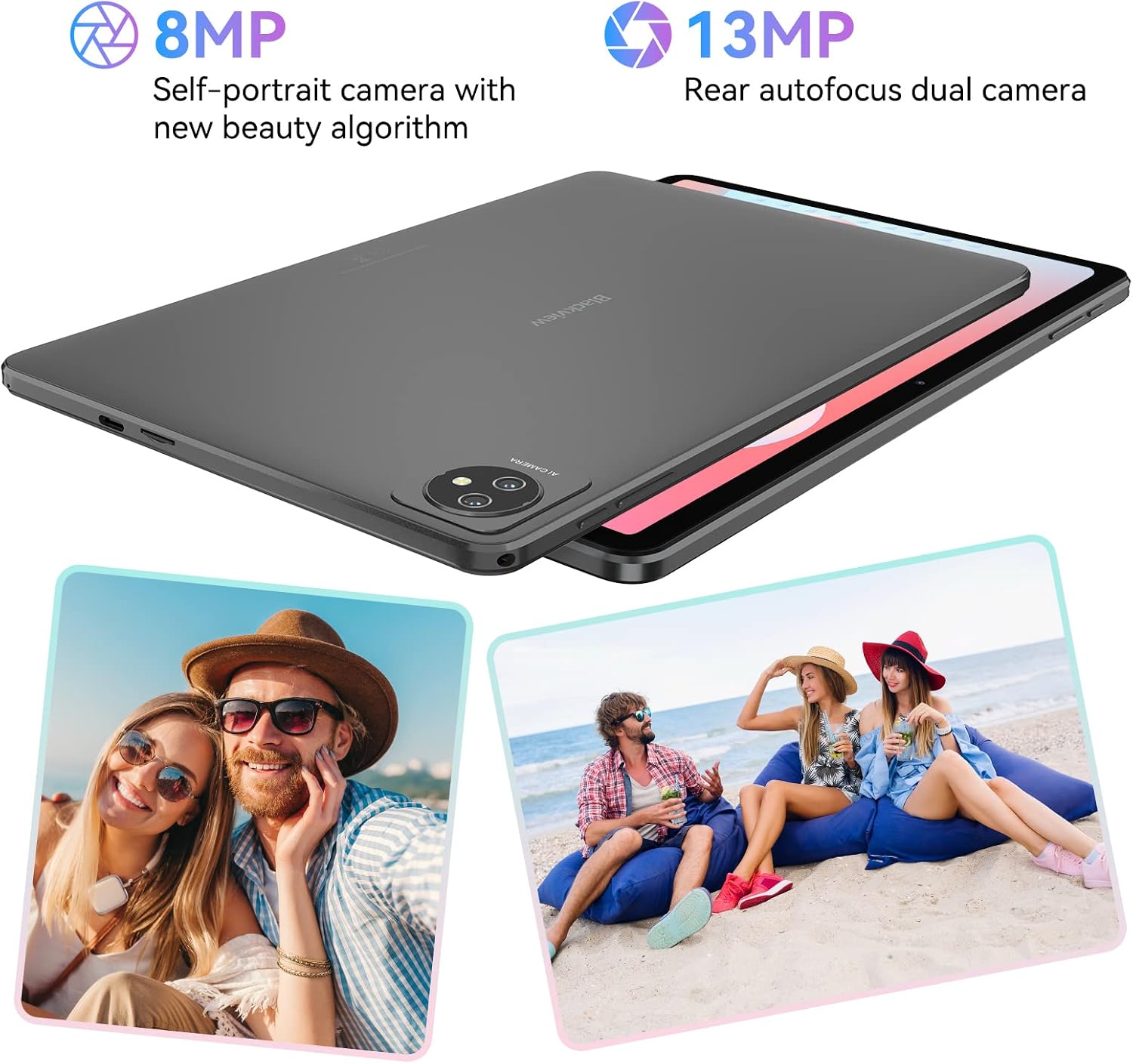
Image: The Blackview Tab 8WiFi highlighting its 8MP self-portrait camera with new beauty algorithm and 13MP rear autofocus dual camera, shown with example photos.
- Open the 'Camera' app from the home screen or app drawer.
- Tap the shutter button to take a photo. Switch between photo and video modes as needed.
5.4 Display and Audio
Enjoy a vibrant visual and immersive audio experience.

Image: The Blackview Tab 8WiFi displaying a vibrant image on its 10.1-inch HD+ IPS screen, emphasizing its 1280x800 resolution and slim metal body for comfortable grip.
- Display: 10.1-inch HD+ IPS display with 1280x800 resolution and 16:10 golden screen ratio, optimized for games and videos.
- Speakers: Two smart BOX speakers provide an immersive audio experience.
6. Maintenance
6.1 Cleaning the Tablet
- Use a soft, lint-free cloth to clean the screen and body.
- Avoid using harsh chemicals or abrasive materials.
- Do not spray cleaners directly onto the screen.
6.2 Battery Care
- To prolong battery life, avoid exposing the tablet to extreme temperatures.
- Charge the tablet regularly, but avoid leaving it fully charged or fully discharged for extended periods.
- Use only the provided charger and cable.
6.3 Software Updates
Regularly check for system updates to ensure optimal performance and security. Go to Settings > System > System update.
7. Troubleshooting
7.1 Common Issues and Solutions
| Issue | Possible Solution |
|---|---|
| Tablet won't turn on | Ensure the battery is charged. Press and hold the Power button for 10-15 seconds to force restart. |
| Slow performance | Close unused apps, clear cache, or free up storage space. Consider a factory reset if issues persist (backup data first). |
| Wi-Fi connection issues | Restart the tablet and router. Forget the network and reconnect. Ensure Wi-Fi is enabled. |
| Apps crashing | Clear the app's cache and data (Settings > Apps > [App Name] > Storage). Reinstall the app. |
| Screen not responding | Force restart the tablet. Ensure the screen is clean and dry. |
8. Specifications
Detailed technical specifications for the Blackview Tab 8WiFi:
| Feature | Detail |
|---|---|
| Model Name | Tab 8 WiFi |
| Operating System | Android 12 (Doke OS_P 3.0) |
| Display Size | 10.1 Inches HD+ IPS |
| Display Resolution | 1280 x 800 pixels |
| Processor | 1.5 GHz (Quad Core 64-Bit) |
| Graphics Coprocessor | Mali-400 MP2 |
| RAM | 7GB (4GB actual + 3GB virtual) |
| Internal Storage | 64 GB |
| Expandable Storage | Up to 1TB (TF Card) |
| Rear Camera | 13 MP |
| Front Camera | 8 MP |
| Battery Capacity | 6580mAh |
| Charging | 10W Fast Charging (Type-C) |
| Wireless Connectivity | Wi-Fi 6 (802.11ax), Bluetooth 5.0 |
| Audio | Dual Smart BOX Speakers, 3.5mm Headphone Jack |
| Dimensions (LxWxH) | 9.68 x 6.2 x 0.39 inches |
| Item Weight | 2.2 pounds |
9. Warranty and Support
9.1 Warranty Information
Your Blackview Tab 8WiFi tablet comes with a standard manufacturer's warranty. Please refer to the warranty card included in your package for specific terms, conditions, and duration. Keep your proof of purchase for warranty claims.
9.2 Customer Support
For technical assistance, troubleshooting beyond this manual, or warranty inquiries, please contact Blackview customer support through their official website or the contact information provided in your product packaging. You can also visit the Blackview Store on Amazon for more information and resources.
Related documentsTAB8WIFI


Ask a question about this manual
Ask about setup, troubleshooting, compatibility, parts, safety, or missing instructions. Manuals+ will review the question and use this page’s manual context to help answer it.