
1. Introduction
The LENVII F510 is a wired handheld 2D barcode scanner designed for efficient and reliable data capture. This device plays a crucial role in various industries, including retail, inventory management, and logistics. LENVII, as a professional barcode scanner developer, continuously upgrades its hardware and decoding capabilities to ensure optimal performance. This manual provides detailed instructions for setting up, operating, maintaining, and troubleshooting your F510 barcode scanner.
2. Product Overview
The LENVII F510 features an ergonomic design, making it lightweight and comfortable for extended use. It is built with high-quality ABS material and a durable copper core, ensuring longevity and resistance to impacts.
2.1 Key Features
- Plug and Play: No driver or software installation required.
- Wide Compatibility: Supports Windows, Mac, and Linux operating systems.
- High Recognition Capability: Identifies 1D and 2D barcodes from various surfaces, including product labels, logistics labels, mobile phones, and computer screens.
- Fast Scanning Speed: Capable of up to 200 scans per second.
- User Feedback: Provides timely feedback through LED indicator lights (red and blue) and a buzzer.
- Durable Design: Engineered to withstand 1.5m drops.
2.2 Supported Barcode Types
The F510 scanner offers excellent decoding capabilities for a wide range of barcode symbologies:
- 1D Barcodes: UPC, EAN-13, EAN-8, Codabar, Code 39 (Full ASCII text), MSI, Code 93, Code 128, ISBN, ISSN, Interleaved 2 of 5 (ITF), Addendum 2 of 5 IATA Code, Plessy, Code 32 (Italian Pharmacode), RSS 14, RSS Limited, RSS Expanded.
- 2D Barcodes: PDF417, MicroPDF417, Data Matrix, Maxicode, QR Code, Aztec.

Figure 1: LENVII F510 Barcode Scanner from multiple angles, showcasing its ergonomic design and scanning window.
3. Setup Instructions
The LENVII F510 barcode scanner is designed for ease of use with its plug-and-play functionality.
3.1 Connecting the Scanner
- Locate the USB cable provided with your scanner.
- Connect the USB cable from the scanner to an available USB port on your computer (desktop or laptop).
- The scanner will automatically be recognized by your operating system. No additional drivers or software installations are required.

Figure 2: Plug & Play setup. The scanner connects directly to a PC or laptop via USB without needing driver installation. Note: Not compatible with iPhone or iPad.
3.2 System Compatibility
The LENVII F510 barcode scanner is compatible with:
- Windows operating systems
- Mac operating systems
- Linux operating systems
Note: The Square system is not supported by this barcode scanner.
4. Operating Instructions
The LENVII F510 offers both manual and automatic scanning guidance for efficient operation.
4.1 Basic Scanning
- Ensure the scanner is properly connected to your computer.
- Open an application where you want the scanned data to appear (e.g., a text editor, spreadsheet, or POS software).
- Point the scanner's window at the barcode you wish to scan.
- Press the trigger button to activate the scan beam. The scanner will emit a blue LED light and a buzzer sound upon successful scan.
- The decoded data will appear in your active application.
4.2 Scanning Various Barcode Types
The F510 is capable of reading a wide array of 1D and 2D barcodes, including those that may be incomplete, high-density, or slightly deformed.
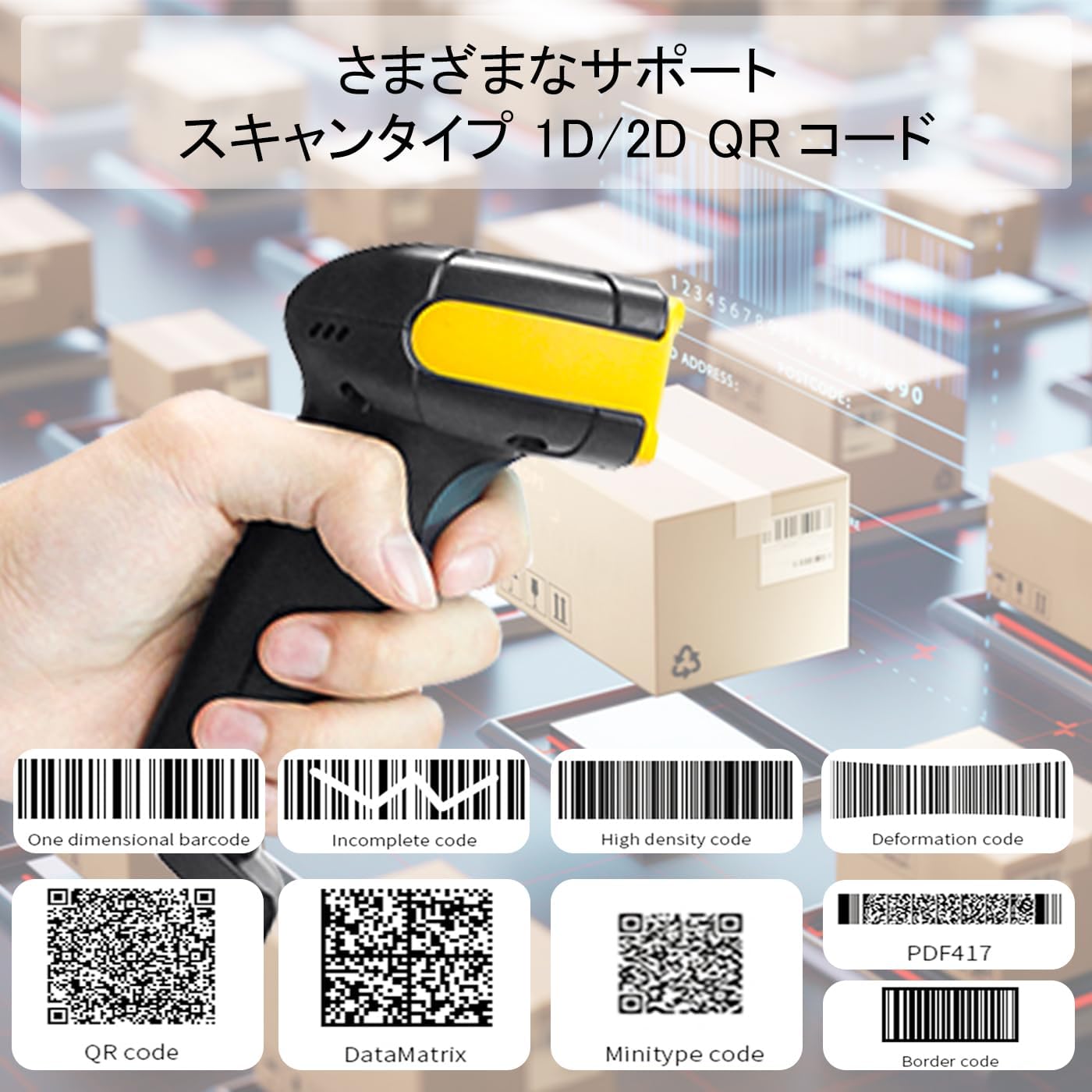
Figure 3: The scanner supports various 1D and 2D barcode types, including standard, incomplete, high-density, and deformed codes.
4.3 Scanning from Digital Screens
This scanner supports reading barcodes displayed on digital screens, such as mobile phones and computer monitors, making it versatile for modern applications like electronic payment systems.
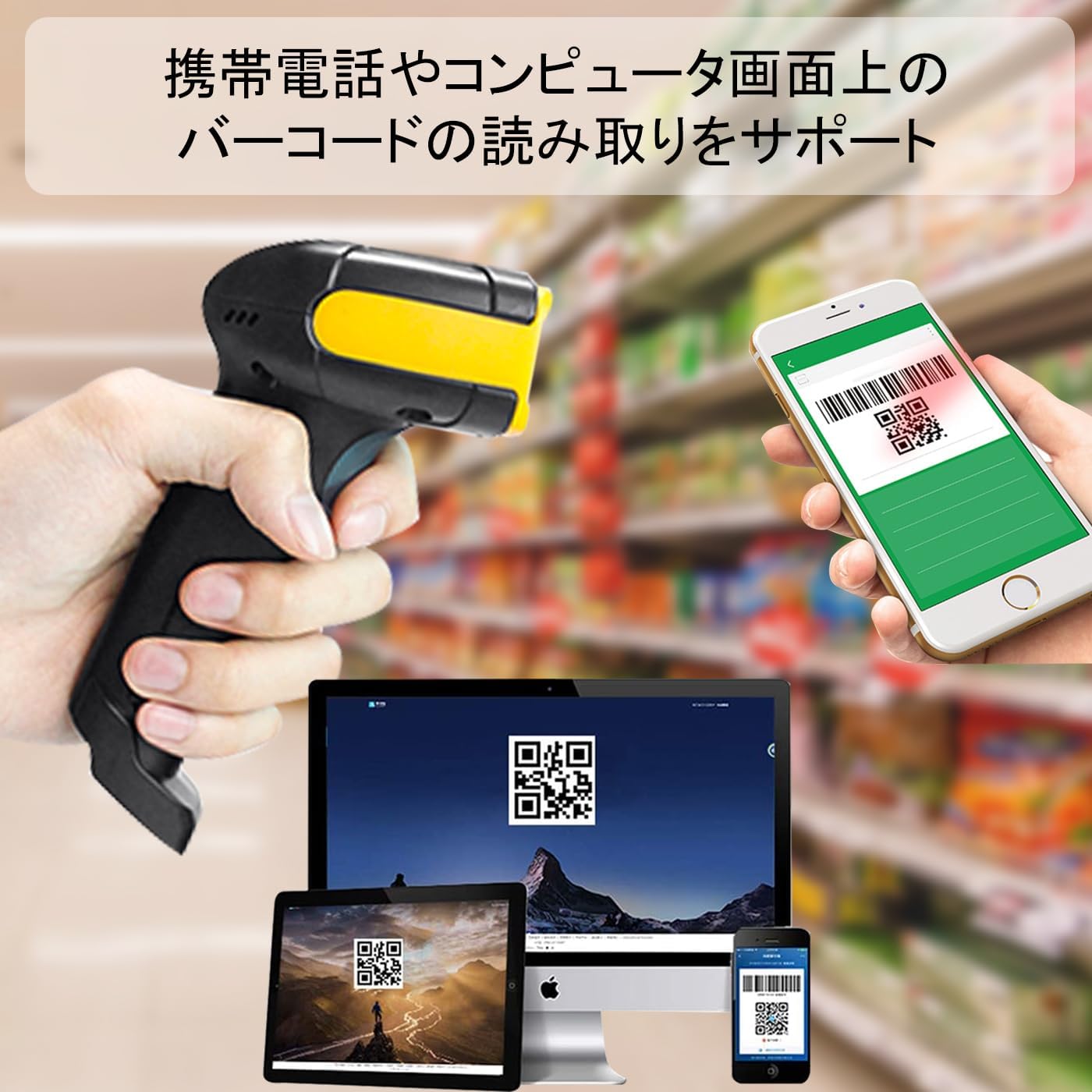
Figure 4: The scanner supports reading barcodes from mobile phone and computer screens.
5. Maintenance
Proper maintenance ensures the longevity and optimal performance of your LENVII F510 barcode scanner.
- Cleaning: Use a soft, dry cloth to clean the scanner's exterior. For the scanning window, use a lint-free cloth lightly dampened with a mild cleaning solution (e.g., isopropyl alcohol) to remove dust and smudges. Avoid abrasive cleaners or harsh chemicals.
- Storage: Store the scanner in a cool, dry place away from direct sunlight and extreme temperatures.
- Cable Care: Avoid bending or twisting the USB cable excessively to prevent internal damage.
- Impact Protection: While the scanner is designed to be durable, avoid unnecessary drops or impacts to maintain its integrity.
6. Troubleshooting
If you encounter issues with your LENVII F510 scanner, refer to the following common troubleshooting steps:
- Scanner Not Responding:
- Ensure the USB cable is securely connected to both the scanner and the computer.
- Try connecting the scanner to a different USB port on your computer.
- Restart your computer.
- No Data Output After Scanning:
- Verify that an application (e.g., Notepad, Excel) is open and active to receive input.
- Check if the barcode is damaged or poorly printed.
- Ensure the scanner is held at an appropriate distance and angle from the barcode.
- Confirm that the barcode type is supported by the scanner (refer to Section 2.2).
- QR Codes Not Reading:
- Some users have reported initial difficulties with QR code recognition. Ensure the scanner's firmware is up to date (contact support if needed).
- Scan the QR code from a flat, well-lit surface.
- Adjust the distance and angle.
- Incorrect Data Output:
- This might indicate a configuration issue. Refer to the detailed user guide (if available from LENVII support) for advanced settings.
- Ensure your keyboard layout settings on the computer match the expected output.
If these steps do not resolve the issue, please contact LENVII customer support for further assistance.
7. Specifications
| Feature | Detail |
|---|---|
| Model Number | F510 |
| Image Resolution | 640px (H) * 480px (W) |
| Light Source | 617nm LED |
| Scan Angle | Field of view 65° / Tilt 30° / Skew 55° |
| Print Contrast | ≥25% |
| Reading Method | Manual / Automatic Guidance |
| Scan Feedback | LED blue light, buzzer, vibration display |
| Scanning Speed | Up to 200 scans/second |
| Connectivity Technology | USB Cable |
| Power Source | USB Connection (5V DC) |
| Compatible Devices | Laptops, Desktop Computers |
| Operating Systems | Windows, Mac, Linux |
| Dimensions (L*W*H) | 173mm * 67mm * 94mm |
| Weight | 190g (0.41 pounds) |
| Maximum Storage Temperature | 60°C |
| Country of Origin | China |
| UPC | 727244741147 |

Figure 5: Physical dimensions and weight of the LENVII F510 Barcode Scanner.
8. Warranty & Support
LENVII is committed to providing high-quality products and customer satisfaction.
8.1 Durability
The LENVII F510 barcode scanner is constructed with high-quality ABS material and a robust design, having undergone strict 1.5m drop resistance tests to ensure its durability in various working environments.

Figure 6: The scanner offers protection against 1.5m impact and drops.
8.2 Customer Support
We are confident in the quality of this handheld barcode scanner and are prepared to assist you with any issues you may encounter. If you have questions or require assistance with your LENVII barcode scanner, please do not hesitate to contact us.
For additional resources or to explore other LENVII products, you may visit:
9. Applications
The LENVII F510 barcode scanner is suitable for a wide range of environments and applications due to its versatility and robust performance:
- Retail Stores: For point-of-sale (POS) transactions and inventory management.
- Warehouses: For tracking goods, managing stock, and streamlining logistics operations.
- Libraries: For cataloging books and managing lending processes.
- Pharmacies: For managing pharmaceutical inventory and prescription verification.
- Electronic Payment Systems: For scanning QR codes from mobile devices.

Figure 7: The LENVII F510 scanner is ideal for use in supermarkets, logistics and warehouses, libraries, and pharmacies.


