Introduction
This manual provides detailed instructions for the setup, operation, and maintenance of your ESR Rebound 360 Series Keyboard Case for iPad Pro 12.9. Please read this manual thoroughly to ensure proper use and to maximize the functionality of your device.
The ESR Rebound 360 Series Keyboard Case is designed to enhance your iPad Pro 12.9 experience with a magnetic stand, detachable protective case, and a responsive keyboard with a multi-touch trackpad.
Compatibility
This keyboard case is compatible exclusively with the following iPad Pro 12.9-inch models:
- iPad Pro 12.9" (2022) - Models: A2436, A2764, A2437, A2766
- iPad Pro 12.9" (2021) - Models: A2378, A2461, A2379, A2462
- iPad Pro 12.9" (2020) - Models: A2229, A2069, A2232, A2233
- iPad Pro 12.9" (2018) - Models: A1876, A2014, A1895, A1983
Note: This case is not compatible with iPad Pro 13" (M3) 2025 or iPad Pro 13" (M4) 2024.

Image: Compatibility chart for ESR Rebound 360 Series Keyboard Case, detailing specific iPad Pro 12.9 models and their corresponding model numbers, along with a visual guide to check your iPad's model number.
Setup Instructions
1. Attaching Your iPad to the Case
- Ensure your iPad Pro 12.9 is clean and free of debris.
- Align your iPad with the protective back case. The case is designed for a precise fit.
- Gently press the iPad into the case until it is securely seated. The magnetic connection will help secure it.

Image: A visual representation of the iPad being magnetically attached to the protective back case, highlighting the secure fit.
2. Pairing the Keyboard via Bluetooth
- Turn on the keyboard using the power switch, usually located on the side or back of the keyboard.
- On your iPad, go to Settings > Bluetooth.
- Ensure Bluetooth is turned On.
- The keyboard should appear in the "Other Devices" list (e.g., "ESR Keyboard"). Tap on it to pair.
- If prompted, enter the pairing code displayed on your iPad screen using the keyboard and press Enter.
- Once paired, the keyboard will show as "Connected" in your iPad's Bluetooth settings.
3. Charging the Keyboard
The keyboard charges via a USB-C port. Connect the provided USB cable to the keyboard's charging port and a power source. A full charge provides extended usage time.
The keyboard features a magnetic holder for the Apple Pencil, ensuring it is securely stored and charged (if applicable to your iPad model).

Image: The keyboard case with an iPad, demonstrating the magnetic attachment point for an Apple Pencil on the top edge of the device.
Operating Instructions
1. Using the Magnetic Stand and View Modes
The case features an ultra-strong magnetic floating cantilever stand that allows for various viewing angles and modes:
- Typing/Browsing Mode: Open the stand to the desired angle (up to 125 degrees) for comfortable typing or browsing.
- Raised Screen View: Position the iPad in a raised orientation for improved posture during extended use.
- Portrait Mode: Rotate the iPad to portrait orientation for activities like FaceTime or reading documents.

Image: The iPad Pro 12.9 securely held by the magnetic cantilever stand, illustrating the adjustable viewing angle for optimal use.

Image: An iPad positioned in portrait mode on the keyboard case, demonstrating its versatility for different applications like video conferencing.
2. Detachable Back Case
The protective back case can be detached from the keyboard base, allowing for hands-on use of your iPad while maintaining full-body protection.
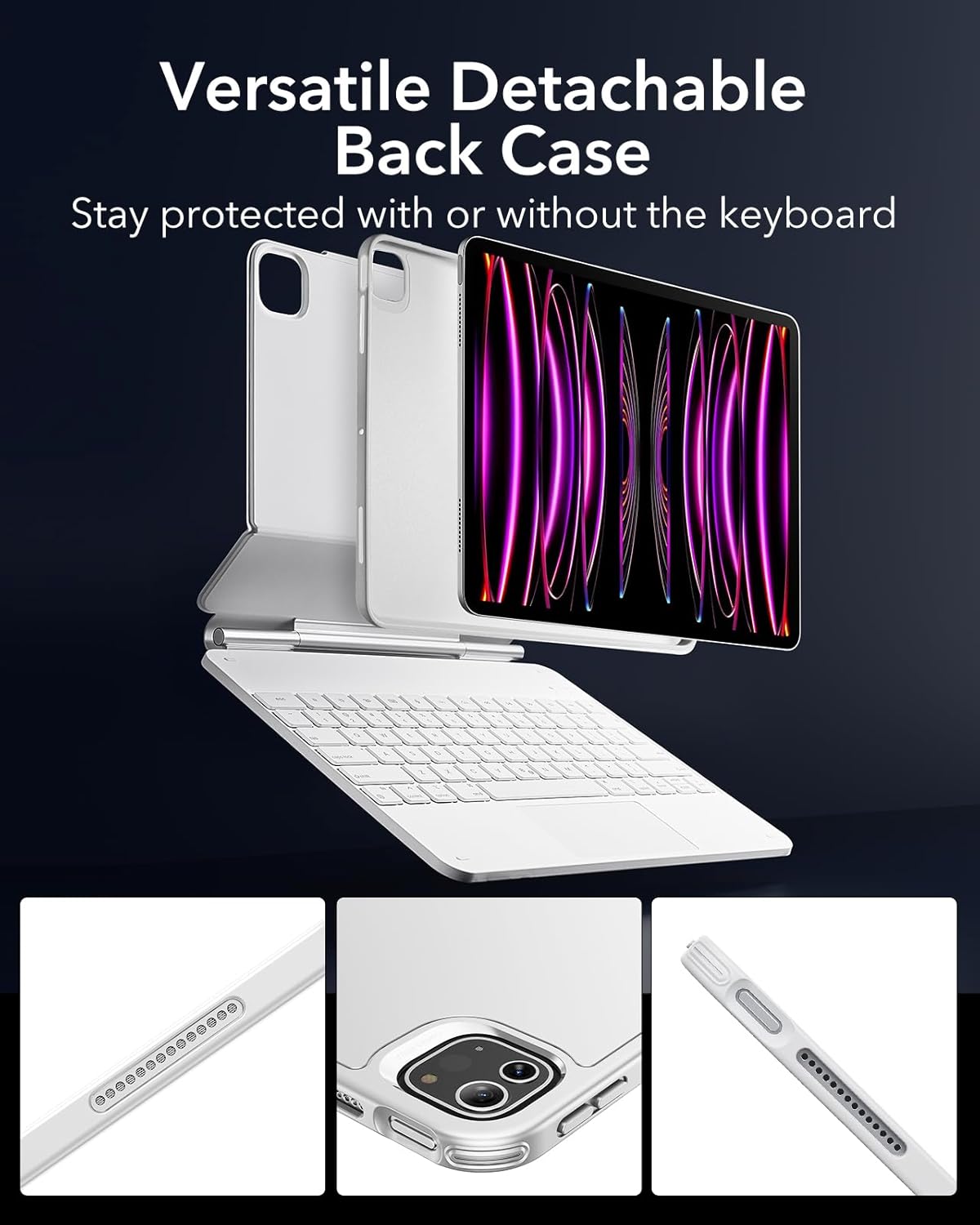
Image: The iPad, still in its protective back case, detached from the keyboard component, highlighting the modular design.
3. Using the Multi-Touch Trackpad
The extended, ultra-sensitive multi-touch trackpad supports various gestures for quick and easy navigation. Multi-touch gestures require iPadOS 14.5 or higher.
- Click: Single tap or press.
- Scroll: Two-finger swipe up or down.
- Zoom: Pinch with two fingers.
- Go Home: Swipe up with three fingers.

Image: A user interacting with the trackpad, demonstrating its responsiveness for navigating the iPad's interface.

Image: A visual guide to common multi-touch gestures supported by the trackpad, including click, scroll, zoom, and the 'Go Home' gesture.
4. Typing with the Keyboard
The keyboard features laptop-like keys with optimal bounce for a comfortable and accurate typing experience. It also includes backlighting for use in low-light conditions.

Image: Close-up of hands typing on the keyboard, emphasizing the ergonomic design and key feel.
Maintenance
To maintain the appearance and functionality of your ESR Rebound 360 Series Keyboard Case, follow these guidelines:
- Cleaning: Wipe the case and keyboard with a soft, damp cloth. Avoid harsh chemicals or abrasive materials.
- Storage: When not in use, keep the case closed to protect both the iPad and the keyboard.
- Avoid Liquids: Do not expose the keyboard or case to excessive moisture or liquids.
Troubleshooting
If you encounter issues with your ESR Rebound 360 Series Keyboard Case, consider the following:
- Keyboard Not Connecting:
- Ensure the keyboard is powered on.
- Check your iPad's Bluetooth settings to confirm the keyboard is paired and connected. If not, try re-pairing.
- Ensure the keyboard battery is charged.
- Restart both your iPad and the keyboard.
- Trackpad Not Responding:
- Verify that your iPad is running iPadOS 14.5 or higher for full multi-touch gesture support.
- Ensure the keyboard is properly connected via Bluetooth.
- Clean the trackpad surface to remove any obstructions.
- Fit Issues:
- Double-check your iPad model number against the compatibility list in this manual.
- Ensure the iPad is correctly aligned and fully seated within the protective back case.
Specifications
| Feature | Detail |
|---|---|
| Product Dimensions | 12.6 x 9.37 x 0.98 inches |
| Item Weight | 3.12 pounds |
| Item Model Number | 6B015A |
| Brand | ESR |
| Compatible Devices | iPad Pro 12.9" (2022/2021/2020/2018) |
| Connectivity Technology | Bluetooth |
| Keyboard Description | Backlit |
| Special Feature | Magnetic |
| Color | White |
| Material | Aluminum, Polycarbonate, Polyurethane (PU), Thermoplastic Polyurethane (TPU) |
| Included Components | USB Cable |
Battery Life Estimates:
- Standby: 1 year
- Day use (2 hours/day with backlit keys off): 3 months
- Night use (2 hours/day with backlit keys on): 2 weeks

Image: A graphic detailing the estimated battery life for the keyboard case under different usage scenarios, including standby, daily use with backlighting off, and daily use with backlighting on.
Warranty and Support
ESR provides comprehensive customer support for its products, including:
- Detailed setup videos and FAQs.
- A comprehensive 12-month warranty.
- Lifetime support.
- Personalized help for any issues.
For assistance with model exchanges, technical support, or compatibility concerns, please contact ESR Customer Service. You can typically find support options through your purchase platform or the official ESR website.


