
1. Introduction
The PGST WiFi+GSM 2G Smart Home Alarm System (Model PG109-2G-A1) provides a comprehensive security solution for your home or office. This advanced system features dual network connectivity, utilizing both WiFi and GSM 2G for reliable communication. It includes an intuitive LCD screen with capacitive touch buttons and integrates seamlessly with the Tuya Smartlife app for convenient control from your smartphone. The system supports up to 4 wired zones and 99 wireless zones, allowing for extensive customization and expansion with various sensors and accessories. This manual will guide you through the installation, operation, and maintenance of your alarm system.
2. Package Contents
Please verify that all items listed below are included in your package. If any items are missing or damaged, please contact customer support.
- 1 x PGST Alarm Hub (Main Unit)
- 8 x Door/Window Sensors
- 4 x Remote Controls
- 1 x Siren (120dB)
- 1 x Motion Detector
- 2 x RFID Tags
- Power Adapter
- User Manual
3. Safety Information
Read all instructions carefully before using the product. Keep this manual for future reference.
- Do not expose the main unit to water or moisture.
- Ensure the power adapter is correctly connected to a suitable power source.
- Only use the provided power adapter.
- Keep the device away from high temperatures and direct sunlight.
- Do not attempt to repair or modify the device yourself. Contact qualified personnel for service.
- Dispose of batteries according to local regulations.
4. Setup
4.1 Initial Setup of the Alarm Hub
- Power Connection: Connect the power adapter to the alarm hub and plug it into a wall outlet. The system will power on automatically.
- SIM Card Installation (Optional for GSM Functionality): If you intend to use the GSM 2G feature, insert a compatible 2G SIM card into the designated slot on the alarm hub. Ensure the SIM card is activated and has sufficient credit for calls and SMS.
- Initial Configuration: Follow the on-screen prompts on the LCD display to set the date, time, and language.
4.2 App Installation and Account Creation
- Download the App: Search for "Tuya Smart" or "Smartlife" in your smartphone's app store (Google Play Store for Android or Apple App Store for iOS). Download and install the app.
- Register/Login: Open the app and follow the instructions to create a new account or log in if you already have one.
4.3 Connecting to WiFi
The alarm system supports 2.4 GHz WiFi networks only. 5 GHz networks are not supported.
- Enable Pairing Mode: On the alarm hub, navigate to the WiFi settings and select "EZ Mode" or "AP Mode" for network pairing. Refer to the on-screen instructions for specific steps.
- Add Device in App: Open the Tuya Smart/Smartlife app, tap the "+" icon to add a new device. Select "Security & Video Surveillance" then "Alarm (Wi-Fi)".
- Connect to WiFi: Follow the in-app instructions to connect the alarm hub to your 2.4 GHz WiFi network. You will need to enter your WiFi password.
- Confirmation: Once connected, the app will confirm the successful addition of the device.
4.4 Adding Wireless Sensors and Accessories
The system uses wireless code learning to add new accessories.
- Enter Learning Mode: On the alarm hub, navigate to the "Accessories" or "Sensor Management" menu and select "Add Sensor" or "Learning Mode".
- Activate Sensor: Trigger the sensor you wish to add (e.g., separate the two parts of a door/window sensor, press the button on a remote control, or trigger the motion detector). The alarm hub will beep to confirm successful pairing.
- Assign Zone: Assign the newly added sensor to a specific zone and rename it for easy identification (e.g., "Front Door," "Living Room Motion").
- Repeat: Repeat this process for all door/window sensors, motion detectors, remote controls, and RFID tags.
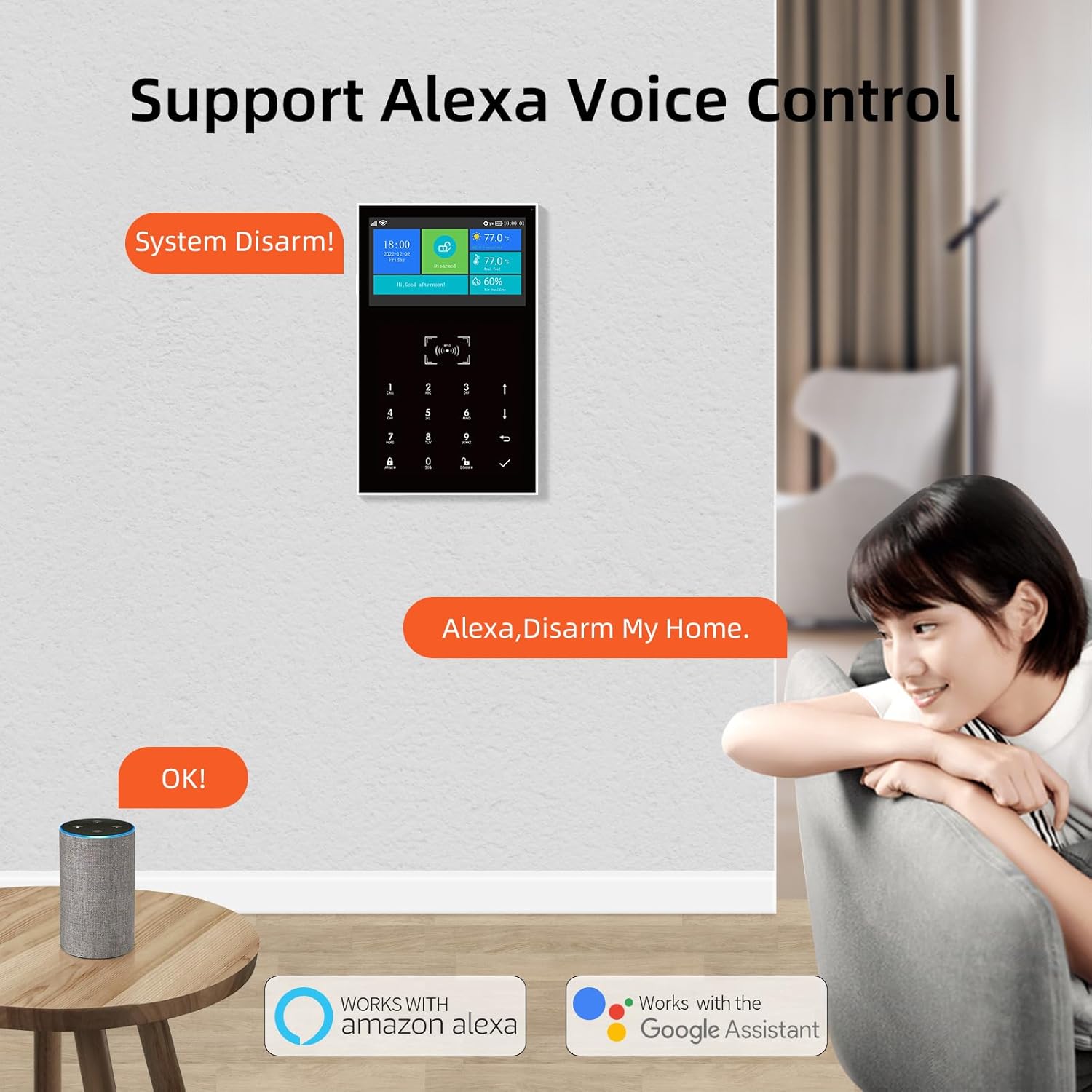
Image: PGST Alarm Hub with door/window sensors, motion detector, and remote controls.
This image displays the main alarm hub alongside several included accessories, such as door/window sensors, a motion detector, and remote controls, illustrating the complete system components.
5. Operating the System
5.1 Arming and Disarming
The system offers multiple arming modes:
- Arm (Away Mode): Activates all sensors. Use when leaving the premises.
- Home Arm (Stay Mode): Activates perimeter sensors (e.g., door/window sensors) while allowing movement within the property.
- Disarm: Deactivates all sensors.
You can arm/disarm using the alarm hub's keypad, remote controls, RFID tags, or the Tuya Smart/Smartlife app.
5.2 SOS Function
In case of an emergency, press the SOS button on the alarm hub or a remote control. The system will immediately trigger the siren and send emergency notifications to pre-programmed contacts via SMS or call (if GSM is active).
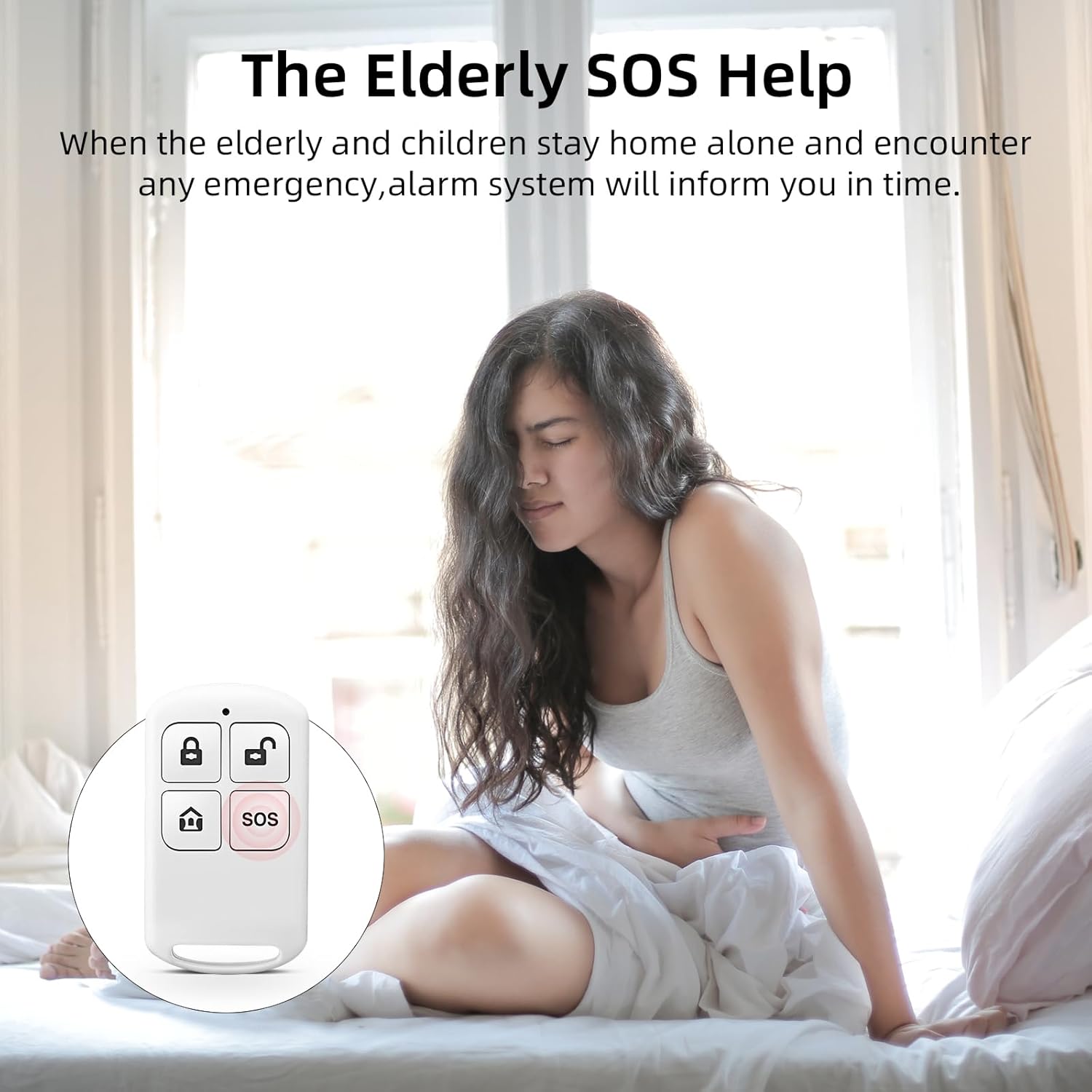
Image: Remote control with SOS button.
This image highlights the dedicated SOS button on the remote control, designed for immediate emergency activation of the alarm system.
5.3 Two-Way Voice Intercom
The alarm hub supports two-way voice communication. When an alarm is triggered or a call is initiated, you can speak and listen through the alarm hub, allowing for direct communication with occupants or monitoring personnel.

Image: Illustration of two-way voice intercom.
This image illustrates the two-way voice intercom feature, showing a user communicating through the alarm panel with another person, enabling real-time audio interaction.
5.4 Voice Control (Alexa/Google Home)
The PGST alarm system is compatible with Amazon Alexa/Echo and Google Home. To enable voice control:
- Link Account: In the Alexa or Google Home app, enable the "Tuya Smart" or "Smartlife" skill/service and link your account.
- Discover Devices: Ask your voice assistant to discover new devices.
- Voice Commands: You can now use voice commands to arm or disarm your system (e.g., "Alexa, disarm my home").

Image: Alarm system supporting Alexa voice control.
This image demonstrates the alarm system's compatibility with Amazon Alexa, showing a user disarming the system via voice command, highlighting the convenience of smart home integration.
5.5 APP Notifications
The Tuya Smart/Smartlife app provides real-time alarm notifications directly to your smartphone. Notifications will indicate the specific zone that triggered the alarm, allowing for quick identification of the event location.
6. Maintenance
6.1 Battery Replacement
The alarm hub has a built-in backup battery providing approximately 8.5 hours of operation during a power outage. Wireless sensors are battery-powered and will send low battery alerts to the app and the main unit when replacement is needed.
- Main Unit Backup Battery: The main unit includes a CR2032 battery. This is primarily for maintaining settings and clock during short power interruptions. The main power supply is essential for full functionality.
- Wireless Sensors: Replace batteries in wireless sensors promptly when low battery notifications are received. Refer to the specific sensor's design for battery type and replacement instructions.
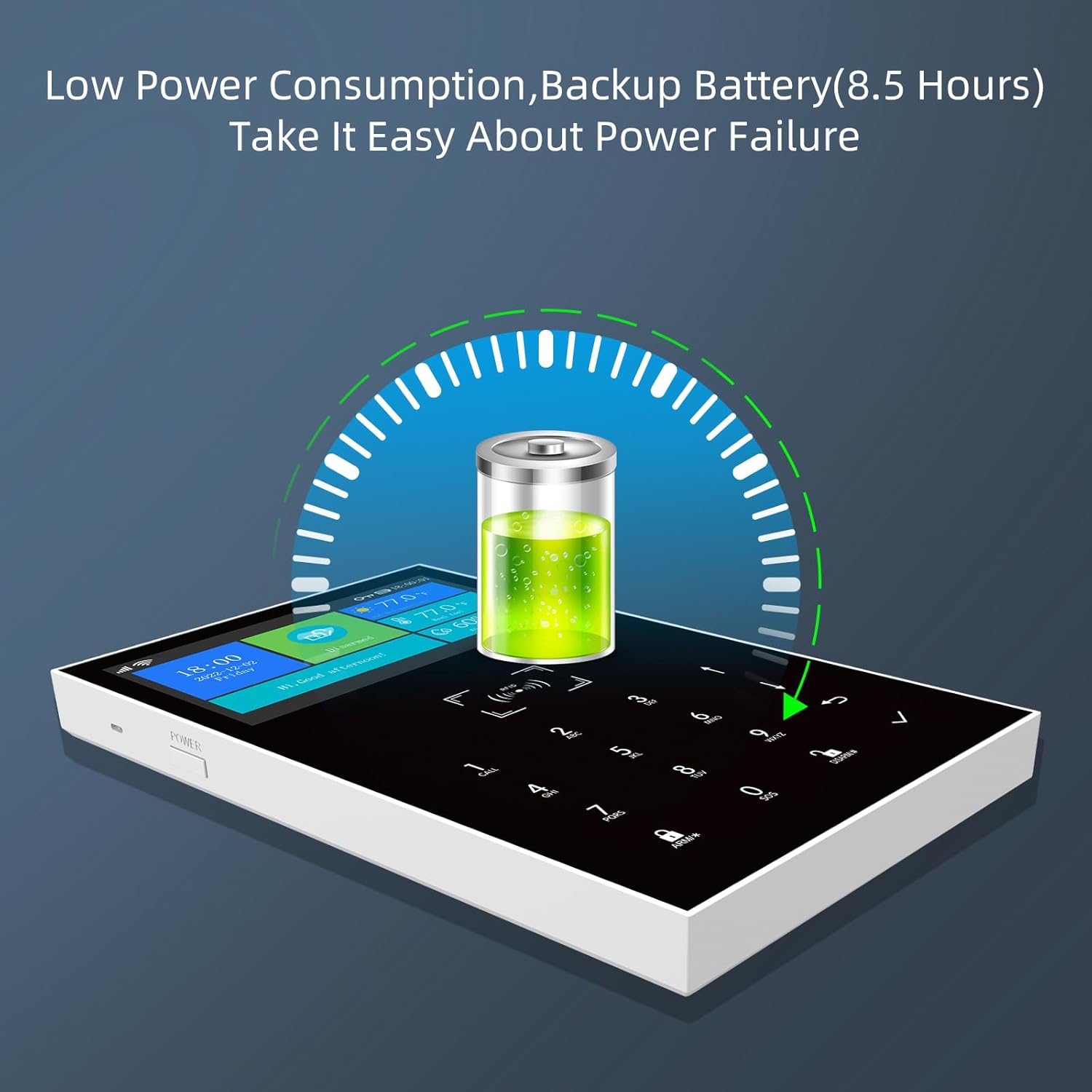
Image: Alarm hub with backup battery indicator.
This image shows the alarm hub's display indicating the status of its low power consumption and the presence of an 8.5-hour backup battery, ensuring continued operation during power failures.
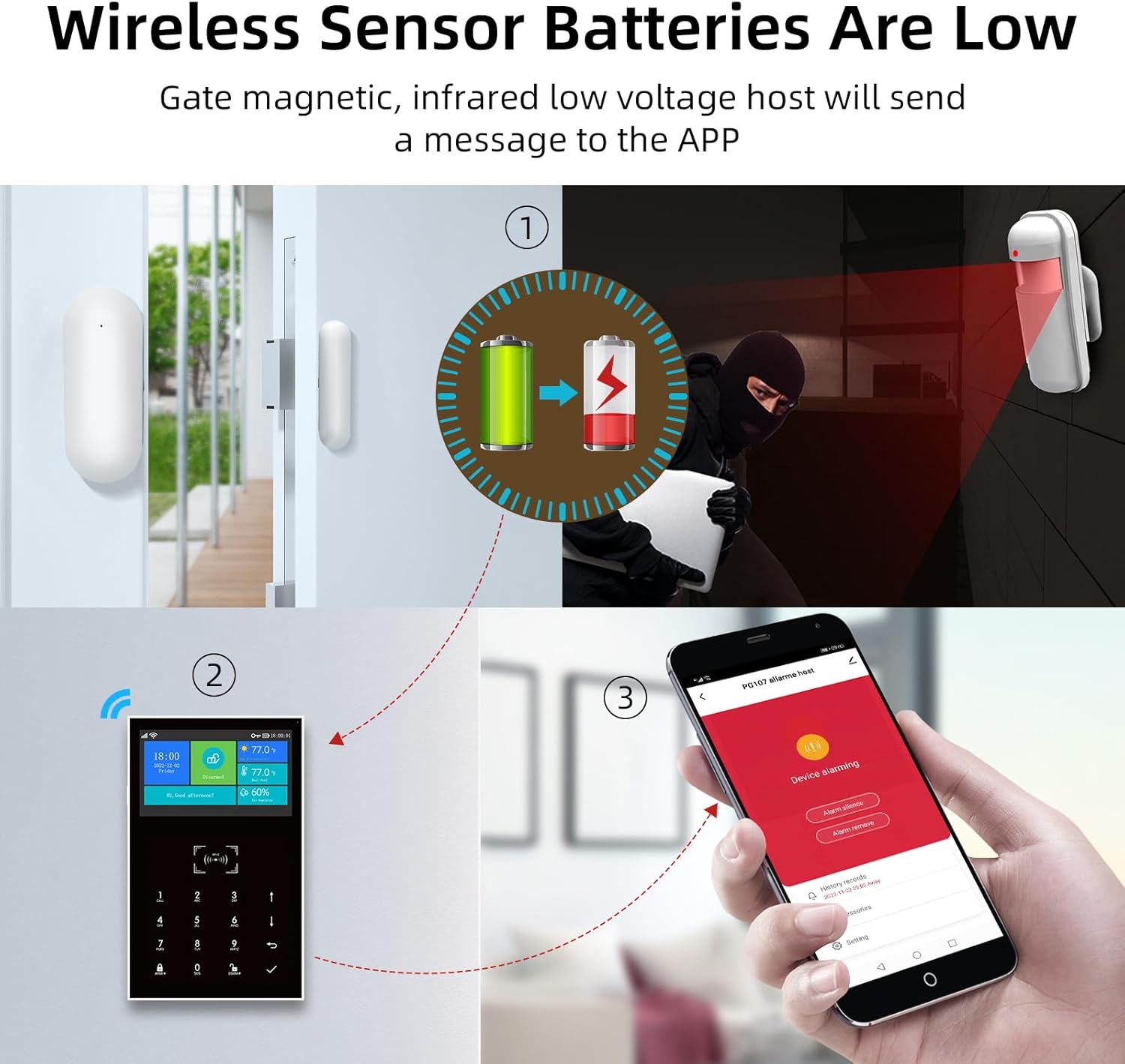
Image: Low battery alert for wireless sensors.
This image illustrates the system's ability to detect and notify users when wireless sensor batteries are low, showing an alert on the alarm panel and the mobile app, prompting timely battery replacement.
6.2 Cleaning
Wipe the alarm hub and sensors with a soft, dry cloth. Do not use liquid cleaners or abrasive materials.
7. Troubleshooting
If you encounter issues with your PGST alarm system, refer to the following common solutions:
| Problem | Possible Cause | Solution |
|---|---|---|
| System not connecting to WiFi | Incorrect WiFi password; 5 GHz network used; router too far. | Verify password; ensure 2.4 GHz network; move hub closer to router or use a WiFi extender. |
| Sensors not pairing | Sensor not in learning mode; battery low; too far from hub. | Ensure hub is in learning mode; replace sensor battery; move sensor closer to hub. |
| No GSM calls/SMS | SIM card not inserted correctly; SIM card not activated; no credit; 2G network unavailable. | Reinsert SIM card; contact service provider to activate/add credit; check 2G network coverage. |
| False alarms | Improper sensor placement; sensitivity too high (motion detector); environmental factors. | Adjust sensor placement; reduce motion detector sensitivity; ensure no drafts or pets trigger sensors. |
8. Specifications
| Manufacturer | PGST |
| Model Number | PG109-2G-A1 |
| Dimensions (LxWxH) | 18 x 12 x 8 cm |
| Weight | 890 g |
| Connectivity | Wireless (WiFi 2.4GHz, GSM 2G) |
| Power Source | Battery-powered (Main unit: CR2032 included, external power adapter; Sensors: various batteries) |
| Sound Level (Siren) | 120 Decibel |
| Control Method | App (Tuya Smart/Smartlife), Remote Control, Keypad, RFID |
| Compatible Devices | Smartphones, Tablets, Amazon Alexa, Google Home |
| Included Components | Alarm Hub, 8 Door/Window Sensors, 4 Remote Controls, 1 Siren, 1 Motion Detector, 2 RFID Tags |
9. Warranty and Support
PGST products are designed for reliability and performance. For warranty information, please refer to the documentation provided with your purchase or contact your retailer. If you encounter any issues or require technical assistance, please contact PGST customer support. Our team is available to help with setup, troubleshooting, and general inquiries.
Note: Customer service contact details are typically found on the product packaging or the official PGST website.


